

Note: This guide refers to the latest page template available with the Website Builder and Kajabi Pages. If you are using the Premier Legacy Templates, please refer to the guide here.
What is an event video?
An Event Video is a video with its visibility based on a set date and time. This feature is most popularly used to advertise and launch pre-recorded Webinars. The Event Video Block generates multiple Blocks displayed at set schedules leading up to, during, and after the Video Event. Customizing your Event Video Block will display all four Blocks to allow you, the administrator, to view the sequence as you edit. However, your page visitors will only see one Block at the appropriate time.What does an event video sequence look like for my users?
Adding an event video block
- Open the Website tab from the Dashboard.
- Select Pages.
- Open the page editor for your Page. Learn more
- Click the Section you want to edit or create a new Section.
- In the sidebar, click Add Content.
- From the list, select Event Countdown.
- Your newly created Event Countdown will generate at the bottom of the Section.
- Inside the Event Countdown sidebar, select Add Content.
- Select Event Video.
- Select Edit on the newly added video player, or use the During the Event menu to upload a video.
- Click Save to keep your changes:
Customizing your event video block
In an Event Video Block, customize the Block Width, select the Event displayed, and customize the Event Video Block Settings.Select your event
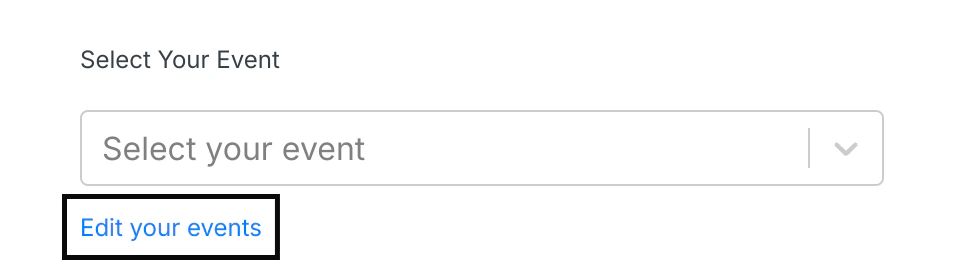
To select an Event from the dropdown, you must first create an event in your Marketing tab.- In the Event Block Editor, navigate to the Event dropdown.
- Click Edit your Events directly below the Event dropdown:
Block settings
Customize the Block by configuring the Event Video Block Settings:- Call to Action
- Before Event
- At Event Start
- During Event
- After Event
- Countdown Offset
- Background
- Desktop and Mobile Layout
- Animations
- Time Reveal
Call to action
Add and customize the action and appearance of a Call to Action button. Customizing the Call to Action button will change the appearance of your Event Buttons displayed in the:- Before Event Block
- After Event Block
Before event
Customize the messaging displayed before the Event begins by editing the text (to fit your language and brand), font size, and color of the Numbers and Labels. To customize the Number and Label Color, click the Color Wheel to select a color from your site color palette. If you prefer to use a custom color, click the color wheel and then either enter your RGB color code or use the sliders to choose your color.- The square box allows you to adjust the brightness and saturation of your color.
- The horizontal rainbow bar allows you to select the hue.
- The horizontal gradient bar allows you to select the opacity of your color.
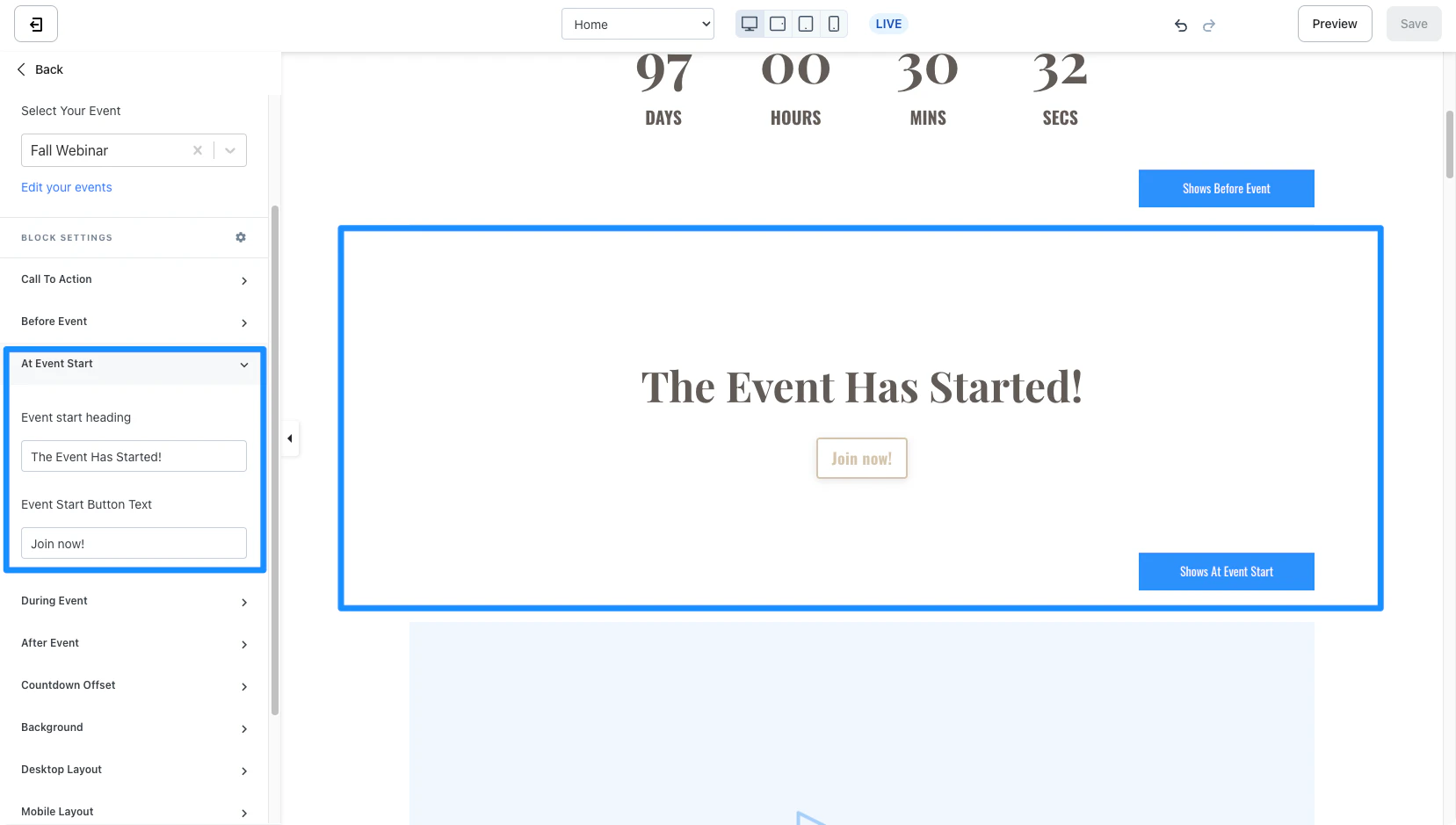
At event start
Customize the messaging when the Event begins:- Event start heading
- Event Start Button Text
During event
Configure the During Event Block Settings by uploading the Video to be played for the Event, selecting an Image for the Video thumbnail, customizing the Player color, and configuring the Video Player Controls. Select the controls you want your viewers to have by enabling or disabling the Video Player Control settings:- Show Controls On Load: Display the video play controls when the video loads.
- Play button: Display a large play button in the center of the video when the video loads.
- Allow Full Screen: Allow your viewers to expand the video to Full Screen.
- Show Small Play Button: Display a small play button in the bottom left corner of the video.
- Show Playbar: Display a playbar that displays a visual timeline of the video.
- Video Settings: Displays video settings like quality control and playback rate.
After event
Customize your messaging after the end of the Event Video:- After Event Heading: Customize the text displayed in the Heading.
- After Event Button Text: Customize the text displayed in the After Event Button.
- After Event Button Action: Specify the Action when the After Event Button is clicked.
Event button action
Similar to the Call to Action, choose to:- Lead a visitor to a custom Landing Page
- Lead to a sale by going to a Checkout Page
- Encourage your audience to download a file
- Lead to any website page with a URL link
- Open a Two-Step Optin Popup
- Act as a link to lead to a section of the page