

Adding a logo block to your header
Step 1. Select your block type
- Open the Website tab from the Dashboard
- Select the Pages tab
- Select the page you wish to edit and click Customize. Learn to open your page editor
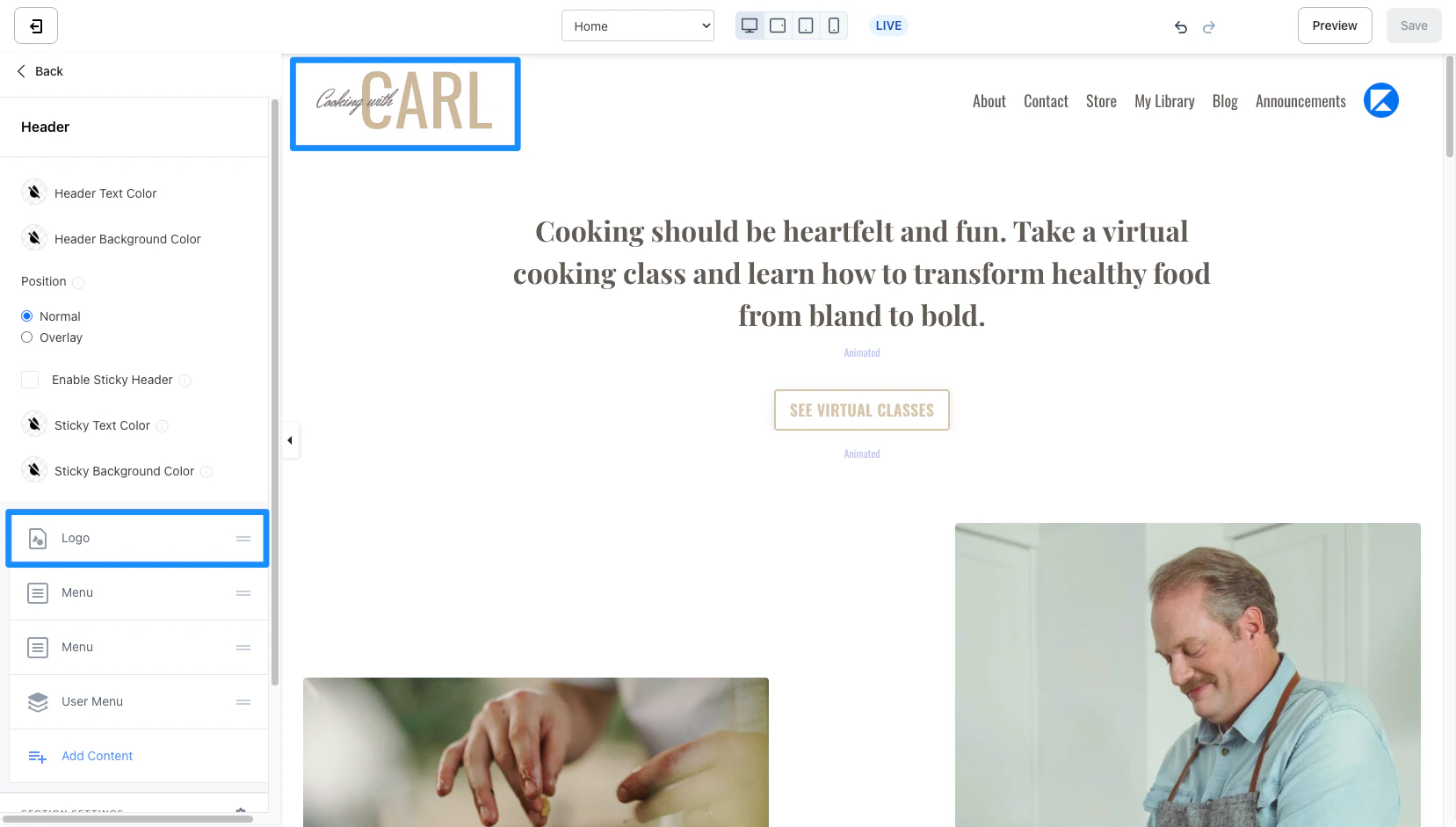
- Navigate to the sidebar panel and click Header
- Click Add Content
- Select Logo:
- Image
- Text
Note: If you’ve uploaded a Logo Image to the Branding section of your Site Detail Settings prior to creating the page, Image Logo Type will default to the Logo uploaded in your Site Detail Settings. If you wish to change the image for your page, follow Step 2: Upload your Logo.
Step 2. Upload your logo
Depending on the Logo Type selected:- Upload your Logo Image by clicking Select Image and choosing a new file or a recent file
- Enter text in the Logo Text field