Password recovery
Edit the language for your Password Recovery page in the global page settings of the Website Builder. Learn about the website builder.What is the password recovery page?
The Password Recovery page appears after a user clicks the Forgot password button in the Login Page. Your customer can submit their email address through the Password Recovery page to reset their password if the email address submitted exists in your Contacts tab. Password Recovery page: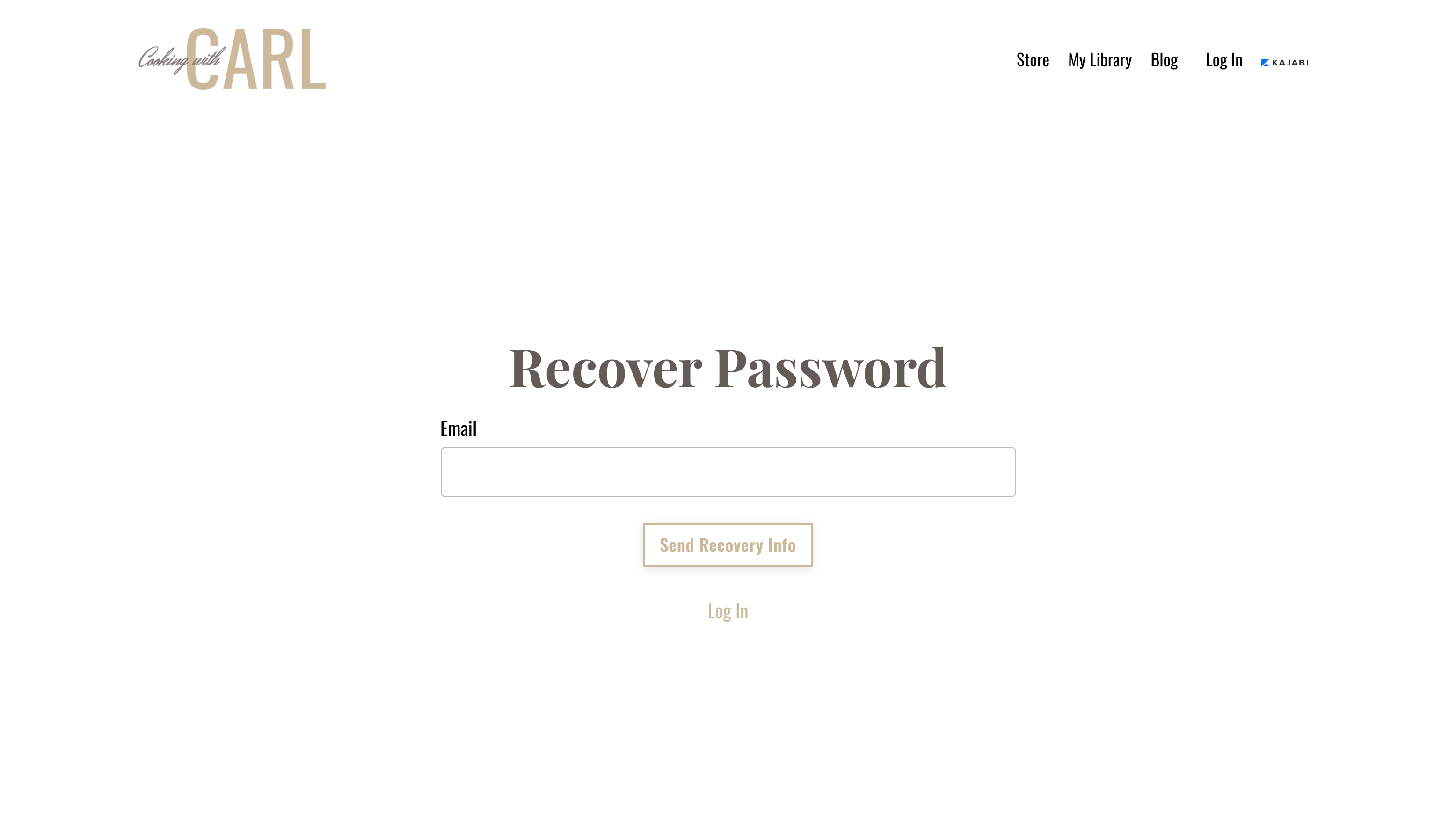
How to edit the password recovery page:
- Open the Website tab from your Dashboard.
- Select the Website Pages tab.
- Select any page in your list of website pages.
- Click Customize.
- Open Settings from the sidebar panel.
- Select Password Recovery.
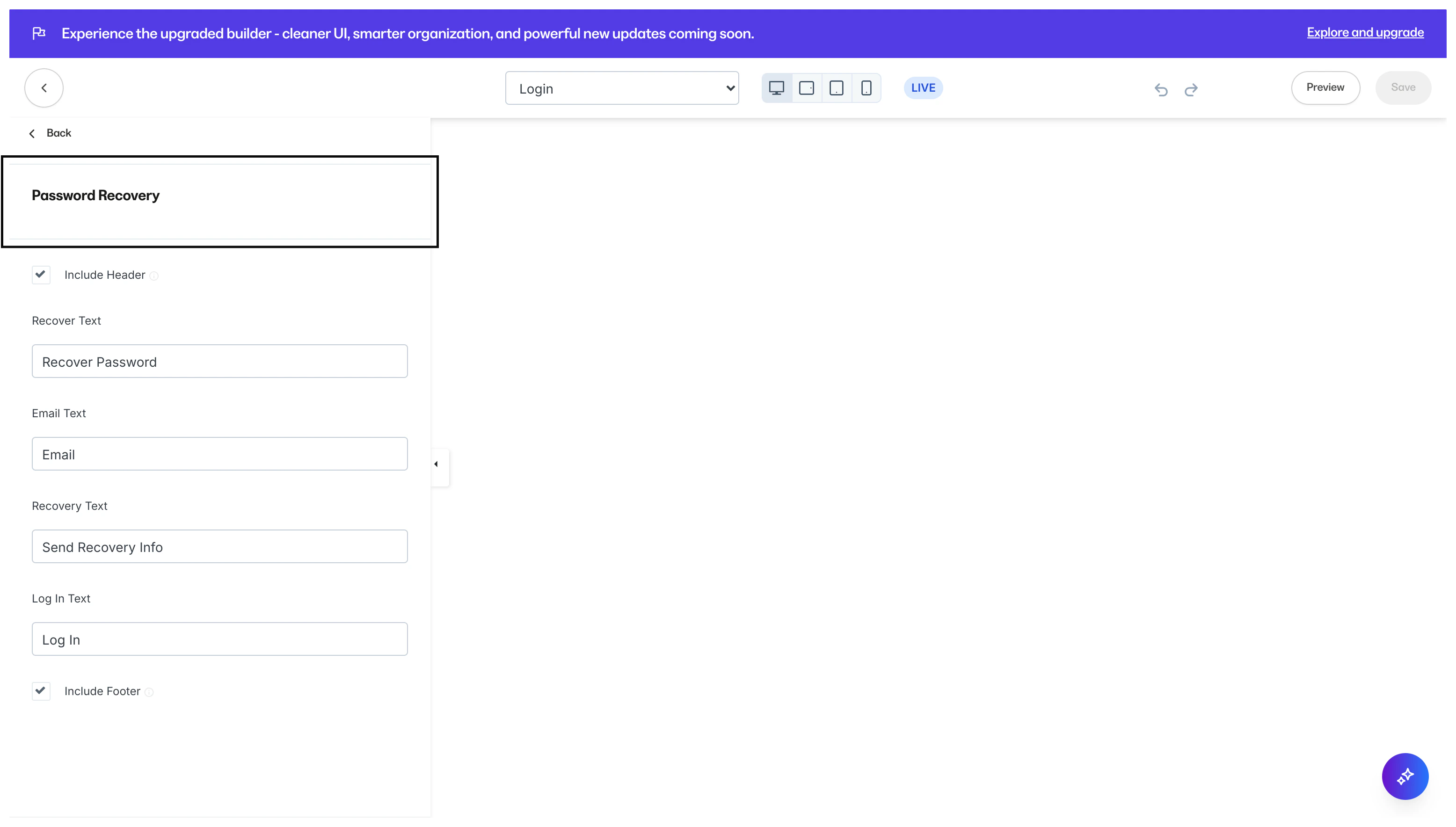
- Navigate to the sidebar panel to edit the language for each field:
Password reset
Edit the language for your Password Reset page in the global page settings of the Website Builder.What is the password reset page?
If your user has forgotten their password, they can reset their password through the Password Reset page. Learn how your customer can reset their password. In the reset password instructions email your customer will receive, they’ll be provided with the link to the Reset Password page: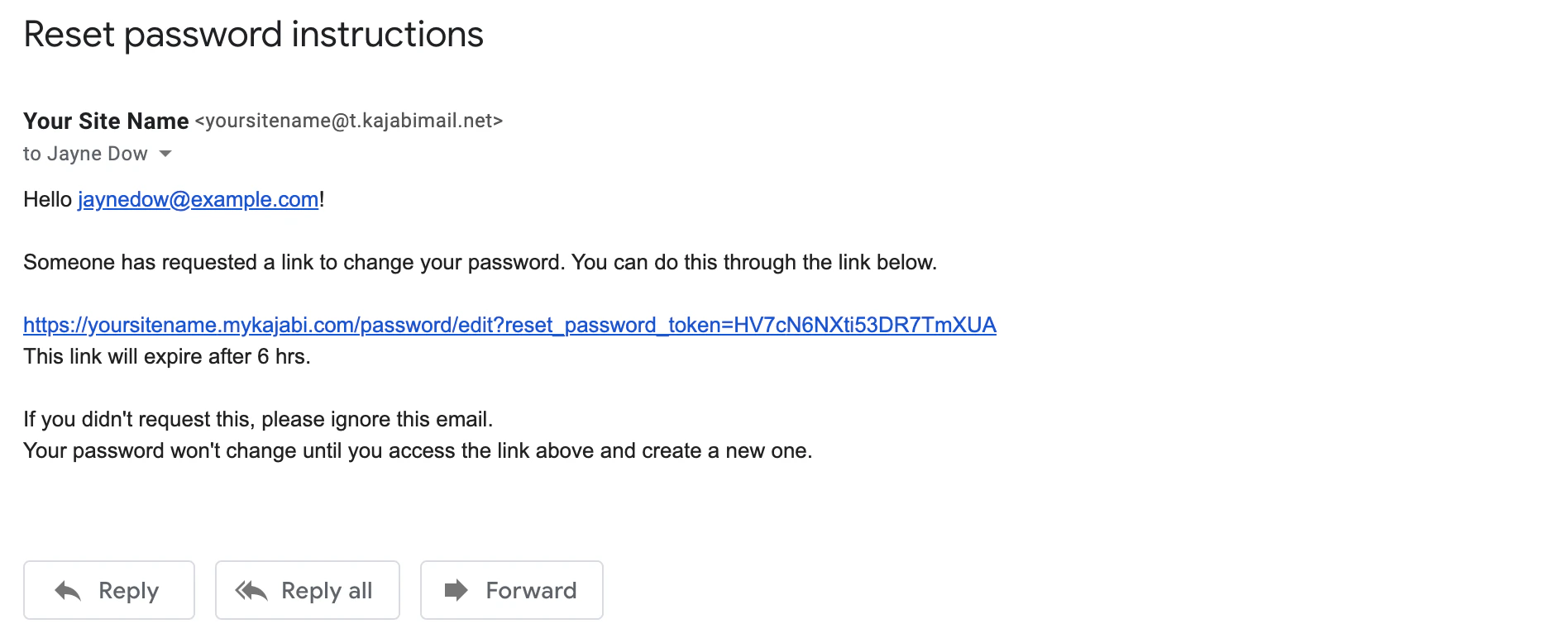
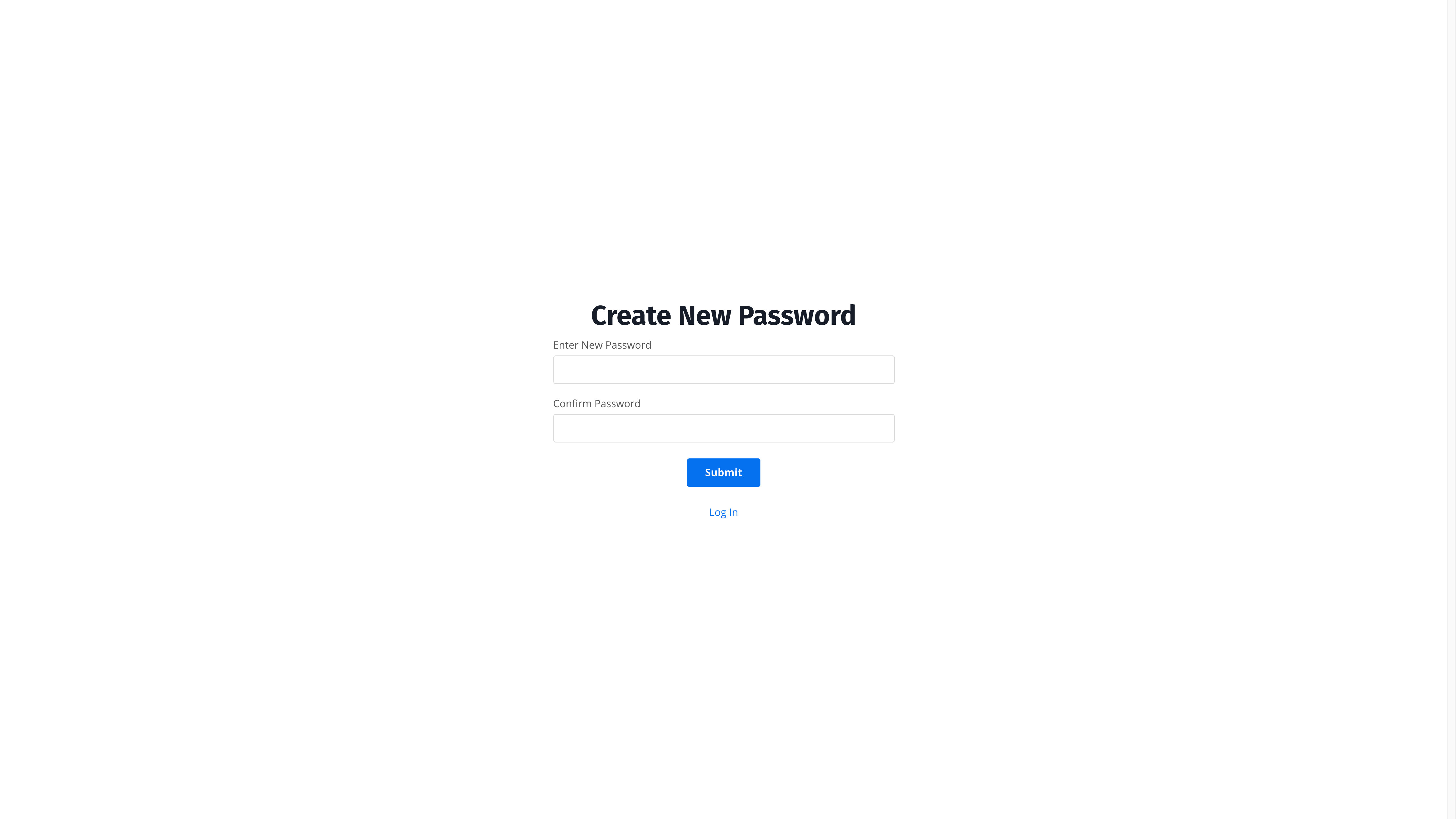
How to edit the password reset page:
- Open the Website tab from your Dashboard.
- Select the Pages tab.
- Select any page in the list of website pages.
- Click Customize.
- Open Settings from the sidebar panel.
- Select Password Reset.
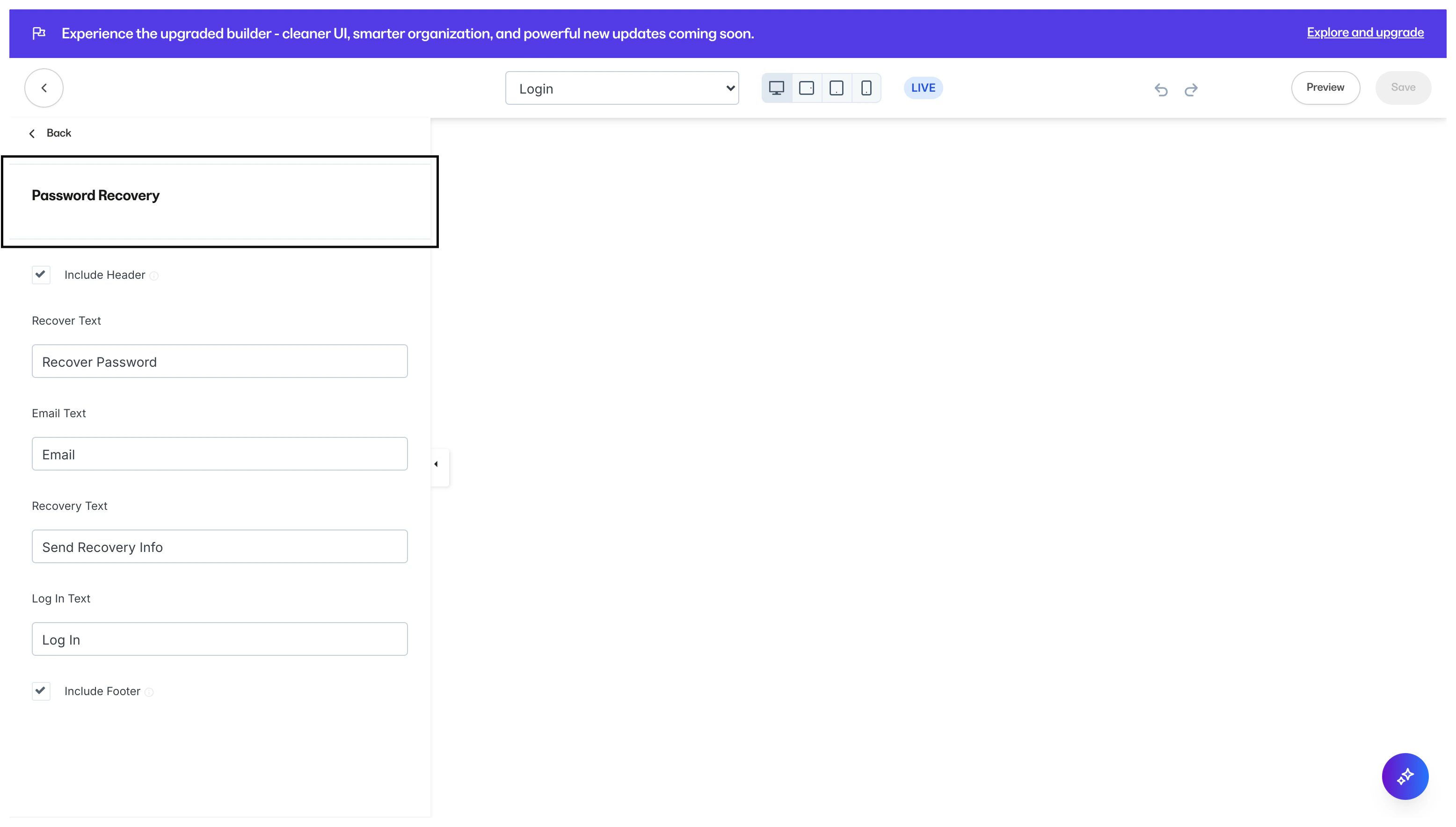
- Navigate to the sidebar panel to edit the language for each field: