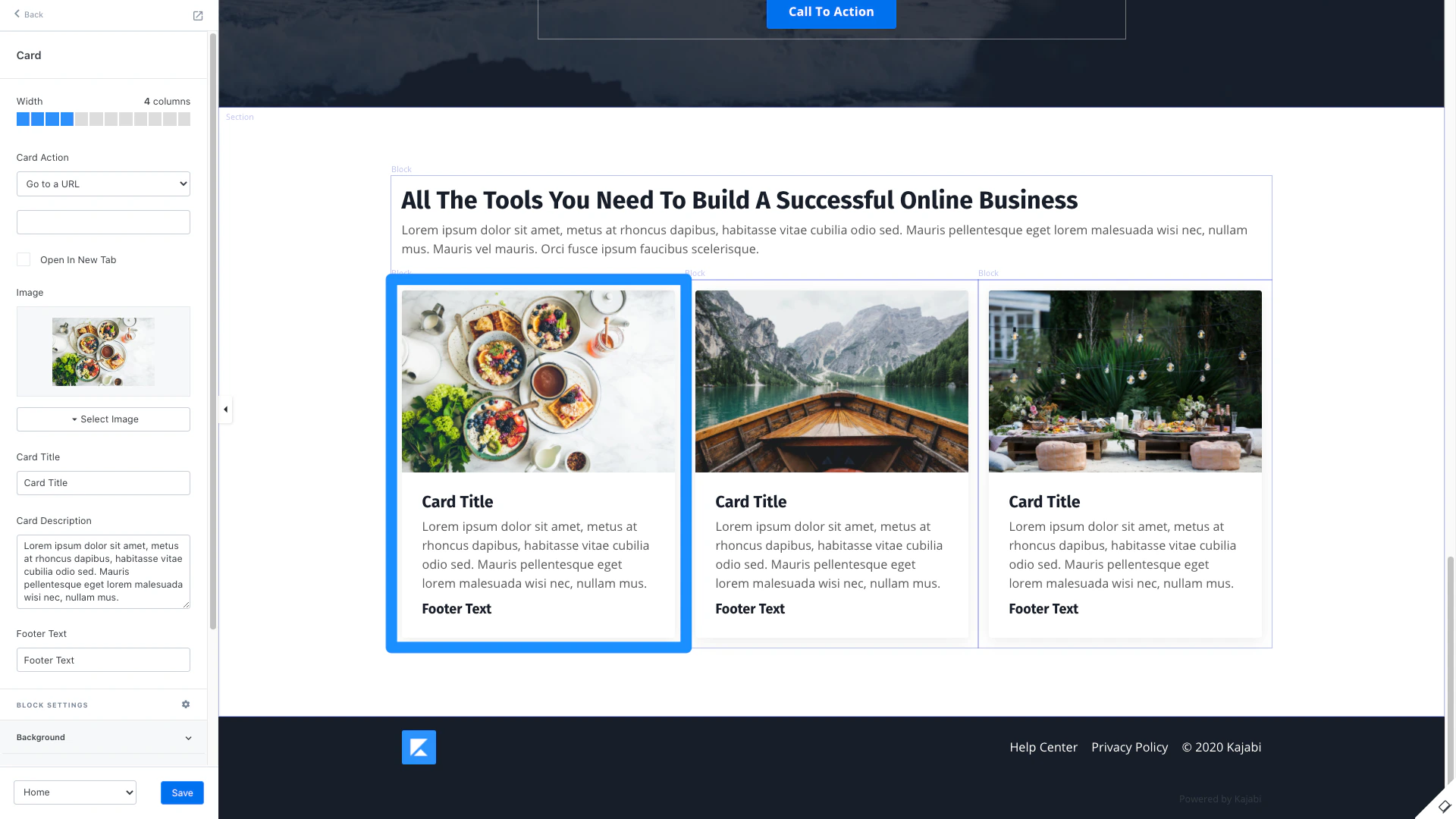
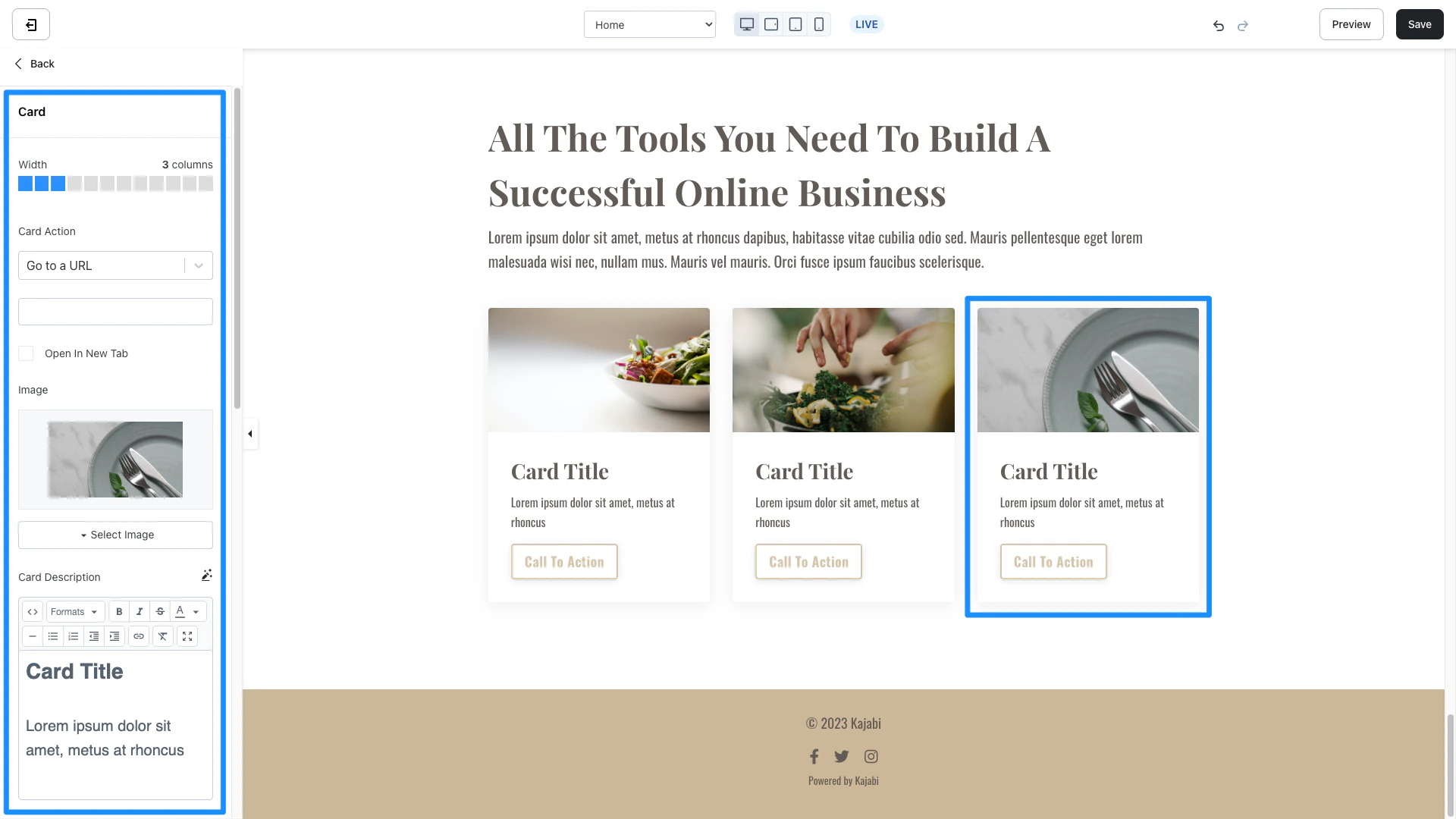
Skip to main content What is a card block? With the Card Block, display an image, configure your Card Action to trigger when clicked, and customize your Card messaging:
Adding a card block
Open the Website tab from the Dashboard
Select the Pages tab
Open the page editor for your Page. Learn more
In the sidebar panel, click the Section you want to edit or create a new Section
In the sidebar, click Add Content
From the list, select Card
Your newly created Card Block will generate at the bottom of the Section
Click Save to keep your changes:
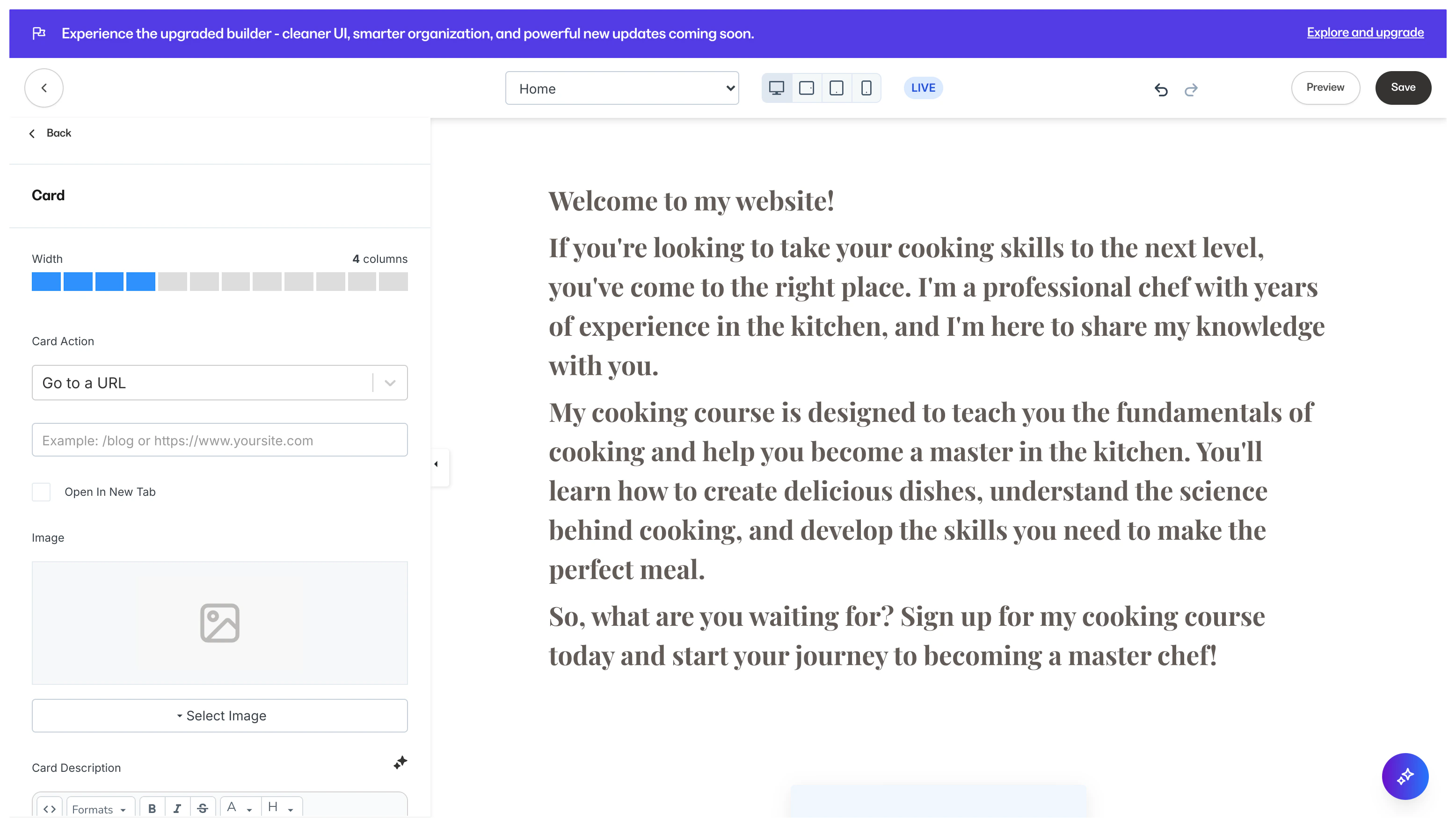
Customizing your card block Customize your card block by adjusting the width , selecting a Card Action, uploading an image, entering your messaging, and configuring your Block Settings :
Card action Customize your card to trigger an action when clicked:
Lead a visitor to a custom Landing Page
Lead to a sale by going to a Checkout Page
Encourage your audience to download a file
Lead to any website page with a URL link
Open a Two-Step Optin Popup
Act as a link to lead to a section of the page
Additionally, you can set up your action to open in a new tab.
Upload an image Brand and design your Card Block by uploading an image:
In the Card Block sidebar editor, click select image
Click upload a new file or select a recent file
Select your image to upload
Click Save to apply and keep your changes:
Learn to customize your images with Adobe Express. Card messaging Enter a description, customize the button, and edit your footer text to communicate the Block to your visitors:
Block settings To adjust the look and feel of the Block, configure your Block Settings by customizing: