

Looking to include the YouTube Live Chat Box with your YouTube Live? Click here to learn how to build a Live Webinar Funnel to include a YouTube Live Chat Box.
Step 1. Verify your YouTube account
Before you go Live with YouTube there are a few steps you’ll need to complete on your YouTube account. First, make sure that the Live Stream feature is enabled in your account settings on YouTube.- Log into your YouTube account.
- Go to your YouTube Studio.
- Click Settings in the bottom left corner.
- Select Channel.
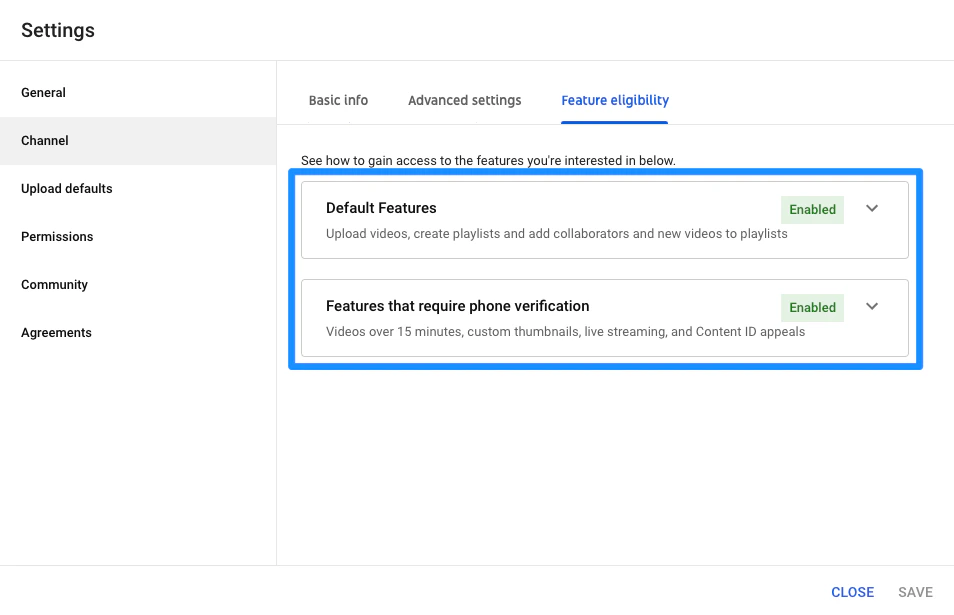
- Click Feature Eligibility.
- Ensure that your Default Features and Features that require phone verification are Enabled:
Step 2. Set up your YouTube Live and create an embed code
If your YouTube account allows live streaming as verified in Step 1, set up your YouTube Live and create an embed code to embed into your Course Lesson on Kajabi.To create your YouTube Live
- In your YouTube Studio dashboard, click Create.
- Then, select Go Live.
- In the Live dashboard, select Stream or Webcam.
- Proceed to customize your Live stream details by creating a title, specifying your time and date, and selecting your audience type.
- Then, click Next. This will prompt a streaming preview.
- If you wish to upload a custom image for the Thumbnail or retake your Thumbnail, hover over the image and select your desired option:
To copy your embed code
- After customizing your Live Stream details, click the SHARE button.
- Click the copy icon next to your Video link.
- Paste your Video link into a different tab on your web browser.
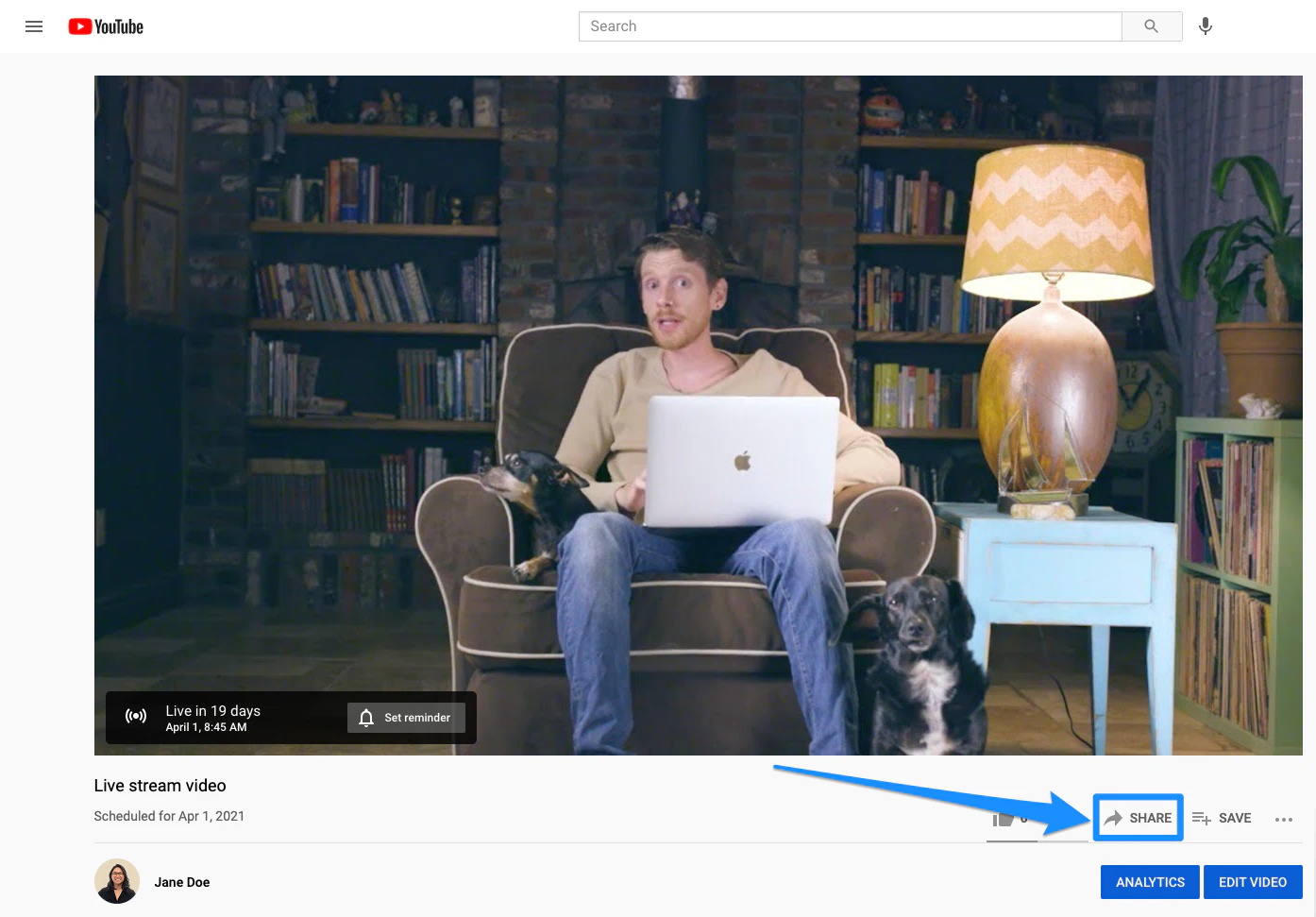
- Navigate to the SHARE button directly below the video player.
- Click Embed.
- Then, click Copy:
Note: You must allow embedding for your Video to play directly from your Page. If it is left unchecked, your viewers will be prompted to open in YouTube.
Step 3. Connect your YouTube Live to your page
Embed your YouTube Live using a Video Embed Block on your Page.Add a Video Embed Block
- Open the Website tab from the Dashboard.
- Select the Pages tab.
- Open the page editor for your Page. Learn more
- In the sidebar panel, click the Section you want to edit or create a Section.
- In the sidebar, click Add Content.
- From the list, select Video Embed.
- Your newly created Video Embed Block will generate at the bottom of the Section.
- In the sidebar, paste the embed code into the Embed Code field.
- Click Save to keep your changes: