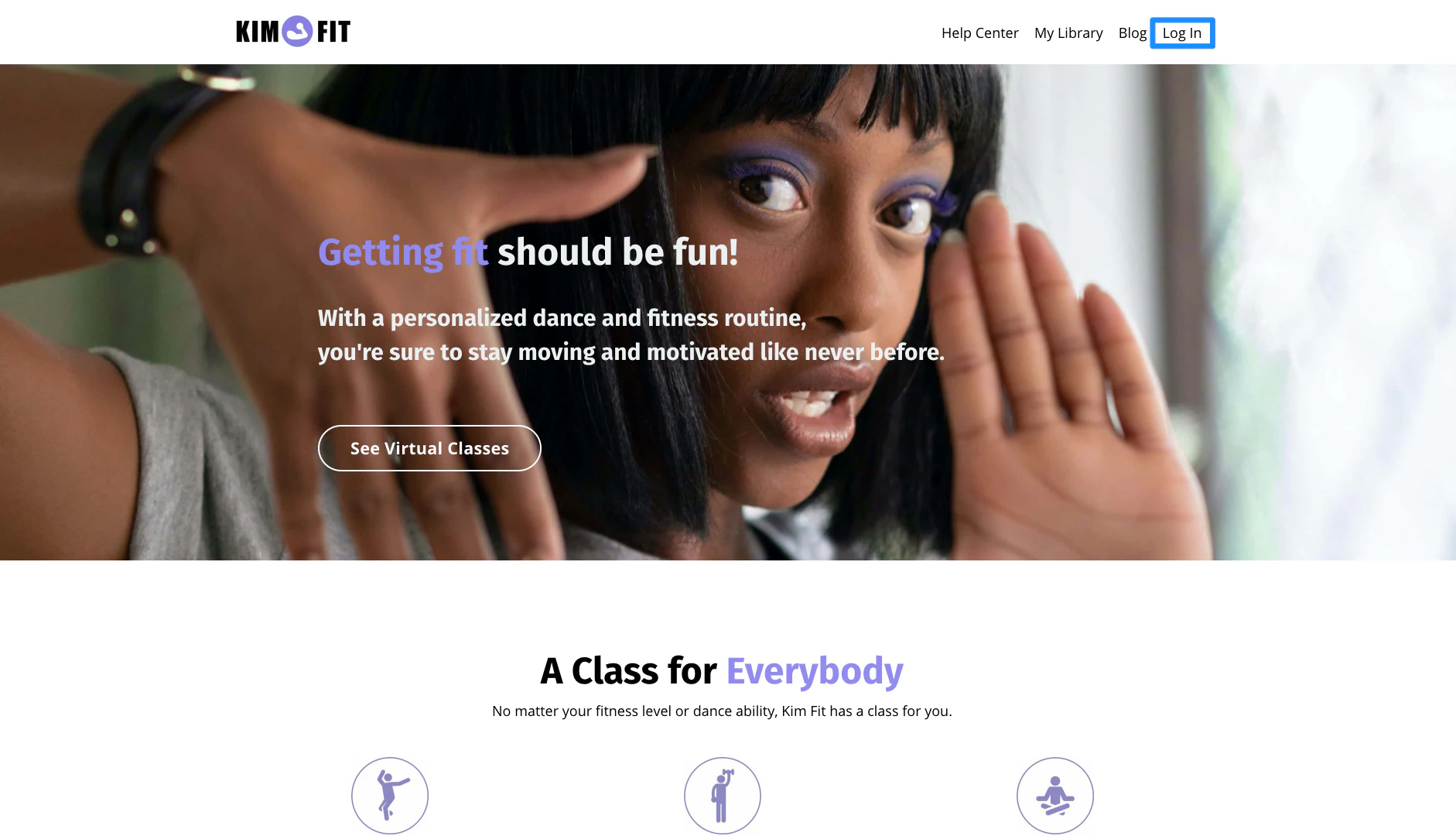
Why does this happen?
The User Menu Block in your page header will display the “Log In” text if your page visitor has not logged in to your site. Learn about the User Menu Block. If you have included a link to your login page in a custom navigation menu, your page will display two “Log In” buttons: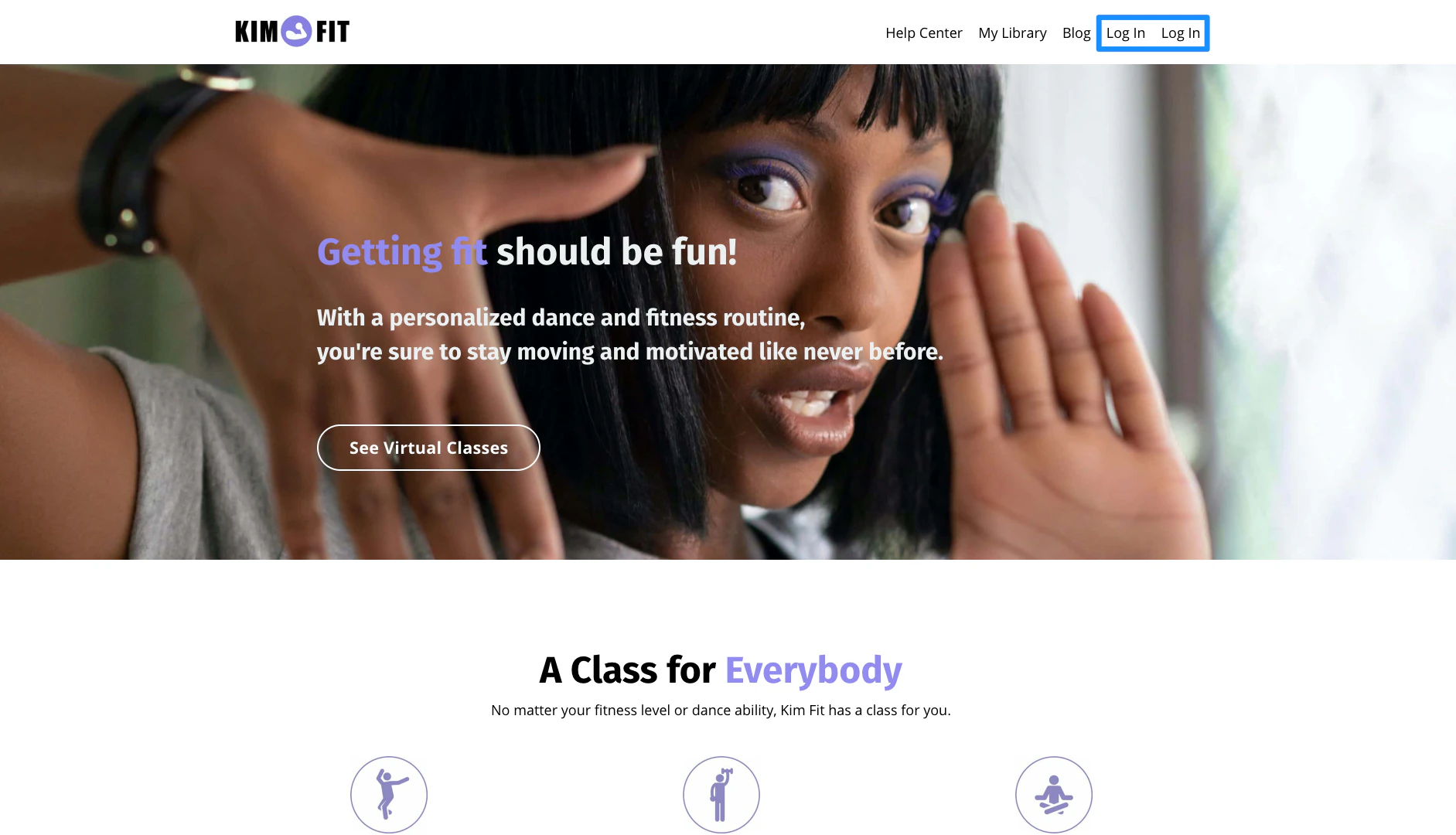
I want one login button
If you wish to include a login button in your page header, be sure to include the User Menu Block. The User Menu Block will display the “Log In” text when a page visitor has not logged in to your site and will change to the customer’s avatar when the customer has logged in. Just be sure to remove the link to your login page from your navigation menu. Learn to edit your navigation menu.