

What is a multi-video launch block?
The Multi-Video Launch Block is an interactive image allowing you the flexibility to design your page according to your brand and vision. A Multi-Video Launch Block can be used to create teasers for your Product, showcase past, present, and future video content, or simply display a thumbnail image for your videos to launch in separate pages to enhance your visitor’s experience with your page.Adding a multi-video launch block
- Open the Website tab from your Dashboard.
- Select the Pages tab.
- Open the page editor for your Page. Learn more
- In the Template Editor, click the section you want to edit or create a new Section.
- In the sidebar, select Add Content.
- Select Multi Video Launch.
- Your newly created Multi Video Launch Block will generate at the bottom of the Section.
- Click Save to keep your changes:
Note:Adding a Multi-Video Launch Block to your page will display an interactive image to showcase and lead your visitors to separate pages containing your videos. Simply configure the Image Action located in the Multi-Video Launch Block sidebar editor.
Customizing your multi-video launch block
In a Multi-Video Launch Block:- configure the width of the block
- select the Image displayed
- include an Image Alt Attribute
- specify an Image Action
- choose to open the Image Action in a New Tab
- customize the state of the image
- edit the label and text in the block
Select image
Select the Image displayed in the Block:- Open the page editor for your Page. Learn more
- Click the Multi Video Launch Block to access the editor.
- In the sidebar, click Pick File.
- From the dropdown menu, click Upload a New File or Select a Recent File to select the image.
- Select the image you want to be displayed.
Image alt attribute
Enter a brief image description to identify the image for SEO purposes or if the image cannot be displayed.Image action
Selecting an Image Action triggers an action after the image is clicked. The Image Action can be used to:- Lead a visitor to a custom Landing Page
- Lead to a sale by going to a Checkout Page
- Encourage your audience to download a file
- Lead to any website page with a URL link
- Open a Two-Step Optin Popup
- Act as an anchor link to lead to a section of the page
Open in new tab
Select Open In New Tab to perform your specified Image Action in a new tab of your visitor’s browser when the image is clicked.State
Selecting the State of your Multi-Video Launch Block is a crucial step when setting up a Multi-Video Launch Section in order to create a seamless experience for your visitors. Customize your Multi-Video Launch Block to be Clickable, Active, or Locked.Clickable
If you set up your Image Action, select Clickable to trigger your specified Image Action when the image is clicked: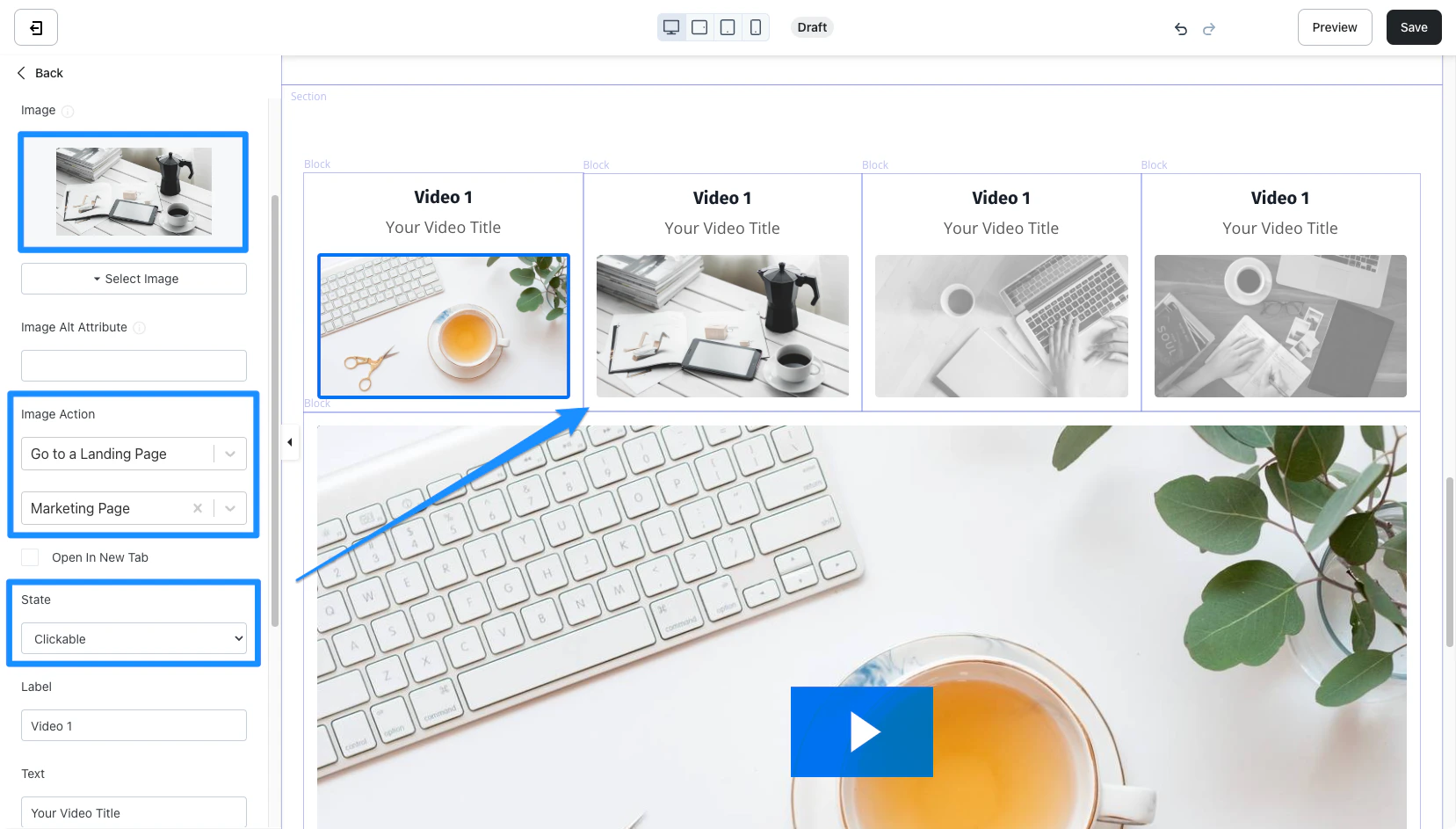
Active
The Active State means the image is in a static state (unclickable), but the image retains its color, differentiating itself from Locked. You will also notice that your Multi-Video Launch Block thumbnail is surrounded by a thin, colored border to signal to your visitors that the video is Active. This State is best used to communicate to your visitors that the Main Video Block on the page is the Active Multi-Video Launch Block when used with the Multi-Video Launch Section. To set this up, use identical Thumbnail images for your Active Multi-Video Launch Block and your Video Block: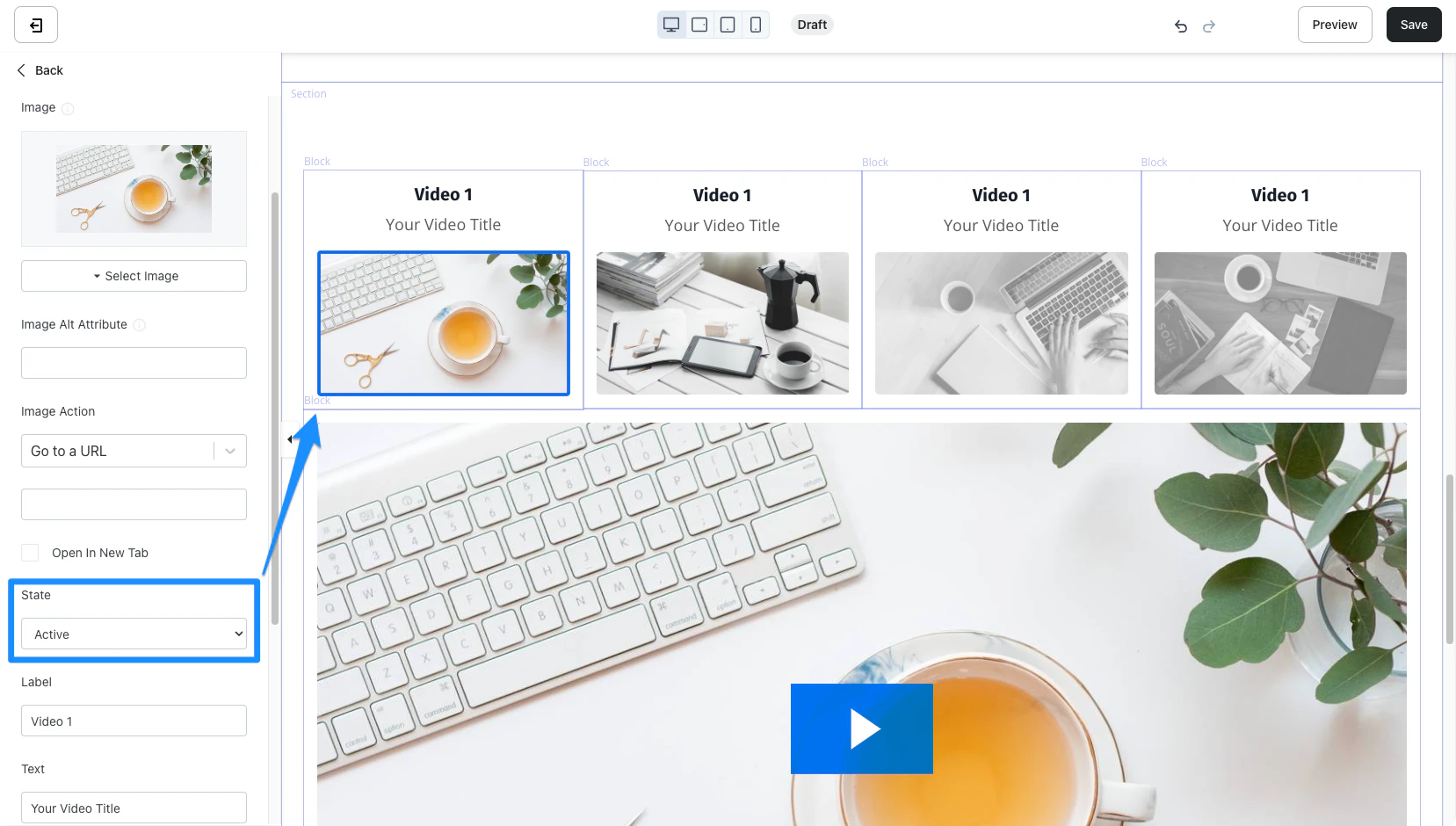
Locked
Selecting Locked will make your image unclickable and greyed out. This is a great way to create teasers or anticipation with the Block: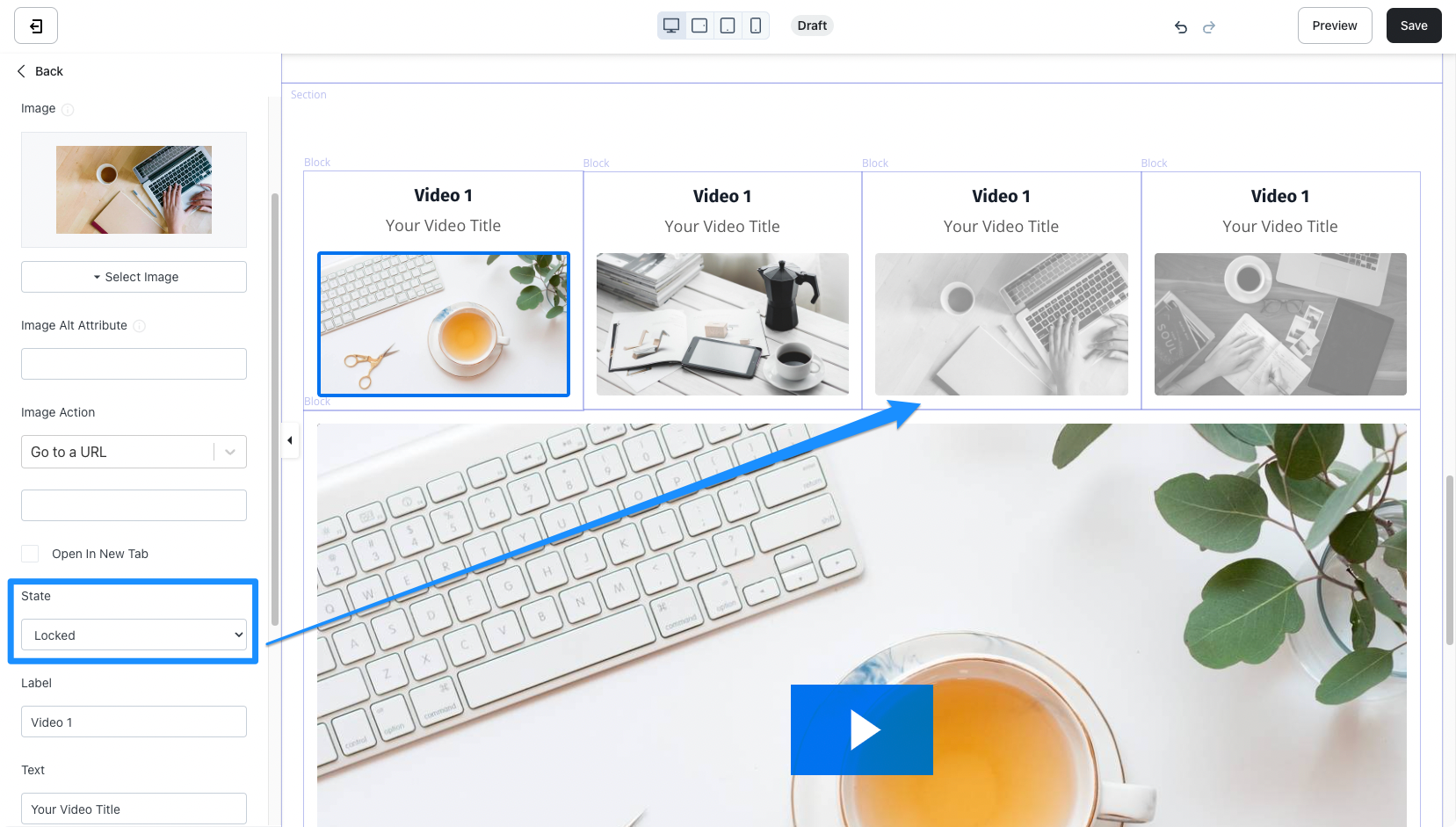
Label
Customize the text displayed as the title for your Multi-Video Launch Block.Text
Customize the text displayed immediately above the Image.Block settings
To adjust the look and feel of the Multi Video Launch, configure your Block Settings by customizing the Background, Desktop and Mobile Layout, Animations, and Time Reveal. Configure your Block Settings:- Open the Template Editor of your page.
- Hover over the block you want to customize and click Edit.
- Configure your Block Settings in the sidebar.
- Click Save to keep your changes: