

What is Ama?
Ama is an interactive chatbot in Kajabi that can help you create content, research topics, write code, and support many other functions to help you save precious time building and managing your business. Simply describe what you want to achieve, and Ama will respond with useful information to help you accomplish tasks for your business. You can ask Ama to:- Write you a sales email
- Draft up a blog post
- Create some copy for your website homepage
- Help you research topics of interest
- Identify best practices
- Generate code for your website or an email
- Answer questions
- And more.
How to open Ama
Ama can be accessed by logging into Kajabi and clicking the purple AI icon in the header bar at the top of any page: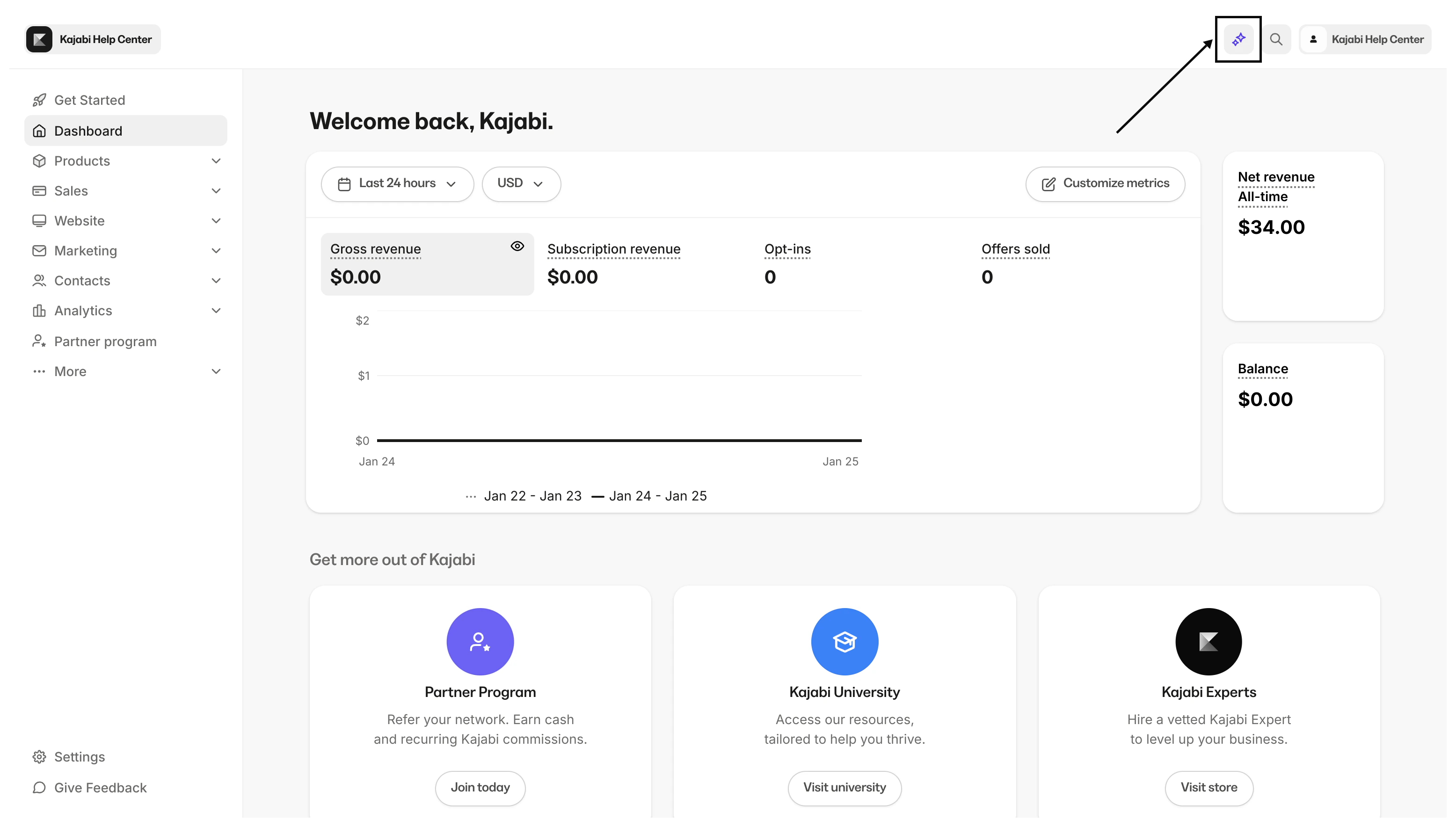
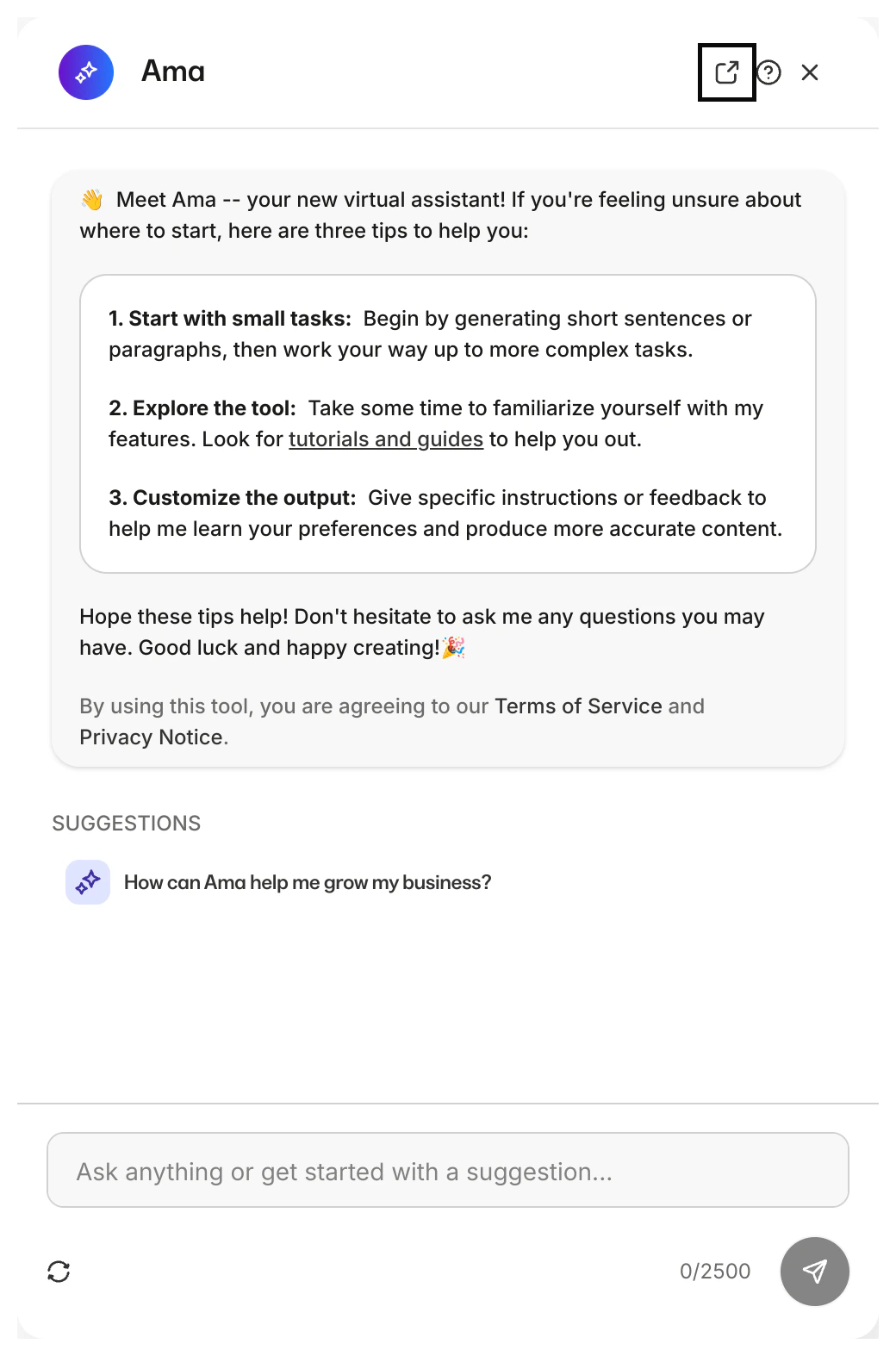
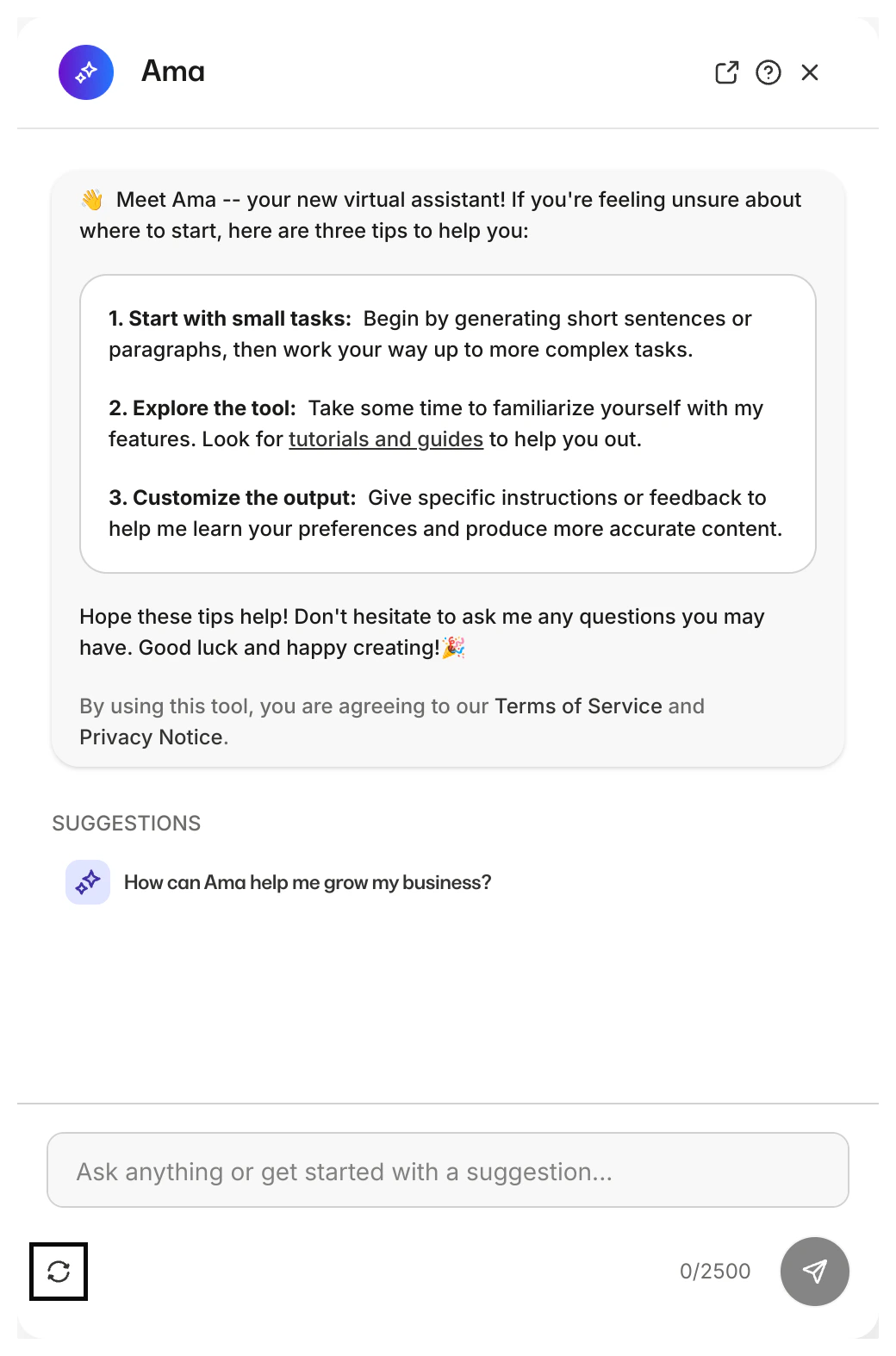
Ama keyboard shortcuts
Utilize the following keyboard shortcuts with Ama:- Submit your prompt: Click
Enter - Create a line:
Shift + Enter
Co-creating content with Ama
After opening a chat session, let Ama know what you want to create. Ama will provide relevant prompt suggestions based on your location within the app. Either input your own custom prompt, or choose one of Ama’s suggested prompts to get started. If you’re not happy with Ama’s first draft, simply describe how you’d like the response to be revised. To generate content with Ama:- Enter your own custom conversation prompt and hit enter (or click the send icon).
- Or click to choose one of the suggested prompts:
- (Optional) Use the “thumbs up” or “thumbs down” icon to let us know how Ama did:

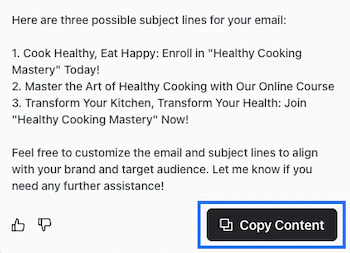
- Then click the Copy Content button to copy your content and paste it into your desired location:
Adding AI-generated code to your site
Using Ama to create custom code for your Kajabi site? You can add the code by copying it and pasting it into a Custom Code Block.Note: We strongly recommend that you only add code to your site if you can read and understand the code you are adding.
- Copy the code you created.
- Click to edit the page section where you wish to add your code. (Or create a section).
- In the left sidebar editor, click + Add Content.
- Select Custom Code as the Block type.
- Paste your code into the Code field.
- Click Save: