Do your settings look different? This guide refers to the latest page editor available on Kajabi. If you are using the Legacy Template, Premier click here.
What is a two step optin popup?
A Two Step Optin is a popup triggered by a button or call to action to encourage your visitors to opt-in or subscribe to your email marketing list:Why is it called a two step optin?
The two step optin involves two steps in order for your visitors to subscribe. Two steps:- First, they click a button on your page.
- Then, they are given the opportunity to opt in.
Setting up your two step optin
Step 1. Create your two step optin popup
- Open the Website tab from the Dashboard.
- Select the Pages tab.
- Open the page editor for your Page. Learn more
- Navigate to the sidebar and select Two Step Optin.
- Enable the Edit Two Step Popup to display the popup as you edit, but remember to uncheck the setting when you’re done.
- As you build your two step optin popup, customize the experience by adding Two Step Optin Content Blocks like a Form and be sure to configure the two step optin Layout Settings.
- Click Save to keep your changes:
Note: If you choose to include a Form in your two step optin popup, be sure to open the Form block in your popup to select the thank you page your form submitters will visit after completing the Form.
Step 2. Create a Call to Action (CTA) to trigger your two step optin
To enable your Two Step Optin, set up a button or Call to Action to open the Two Step Optin when clicked. Keep in mind, although you can create multiple Call to Action buttons in one page to trigger your Two Step Optin, you can only create and customize one Two Step Optin on a single page.Set up your Call to Action to open your Two Step Optin
- In the Page Editor, select or create a Block or Section to trigger the Two Step Optin.
- Add a button or CTA to the Block or Section.
- In the button or CTA, open button action.
- Select Open two step optin popup as the action.
- Click Save to keep your changes:
Note: If you wish to disable your two step optin popup you can repeat the steps above and change the CTA action or you can remove the Block/Section entirely. Learn to delete your Block
Customizing your two step optin
Editing your Two Step Optin Popup allows you to adjust the appearance and functionality of the popup.How to add content blocks to your popup
- In the sidebar, click Add Content.
- Select your Content Block.
- Rearrange your blocks by holding the
=icon and dragging to your desired location. - Click Save to keep your changes:
Two Step Optin content block types
Customize each Block in your Two Step Optin Popup. Click each Block to learn more about its settings.Note: By default, your two step optin includes the Image and Form Blocks. If you wish to remove the default Blocks, open each Block and click Delete this Block at the bottom of the sidebar editor.
Customize the two step optin section settings
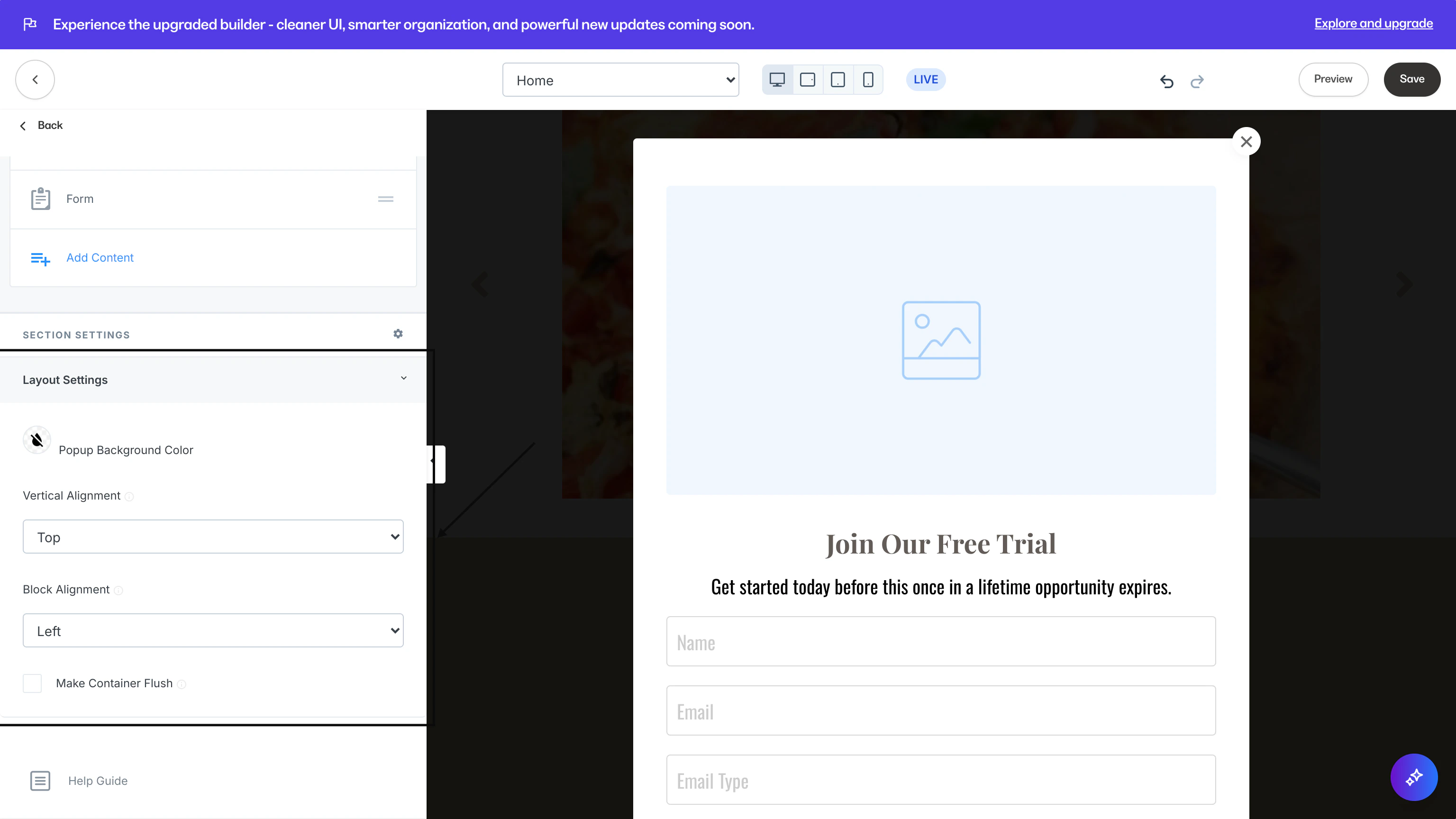
To further customize the appearance of your popup:- Open the Layout Settings dropdown menu to customize the layout of your Two Step Optin Popup.
- Open each Content Block to customize the appearance of each Block.
Two Step Optin layout settings
- Customize your Popup Background Color.
- Configure the Vertical and Horizontal alignment of your blocks in the section.
- Check Make Container Flush to remove the padding surrounding the blocks in the two step optin popup.