

Overview
A Section describes a specific area of your page containing Block(s) used to organize and break up your content. Your page will typically contain multiple Sections, which can be customized and previewed in the sidebar editor: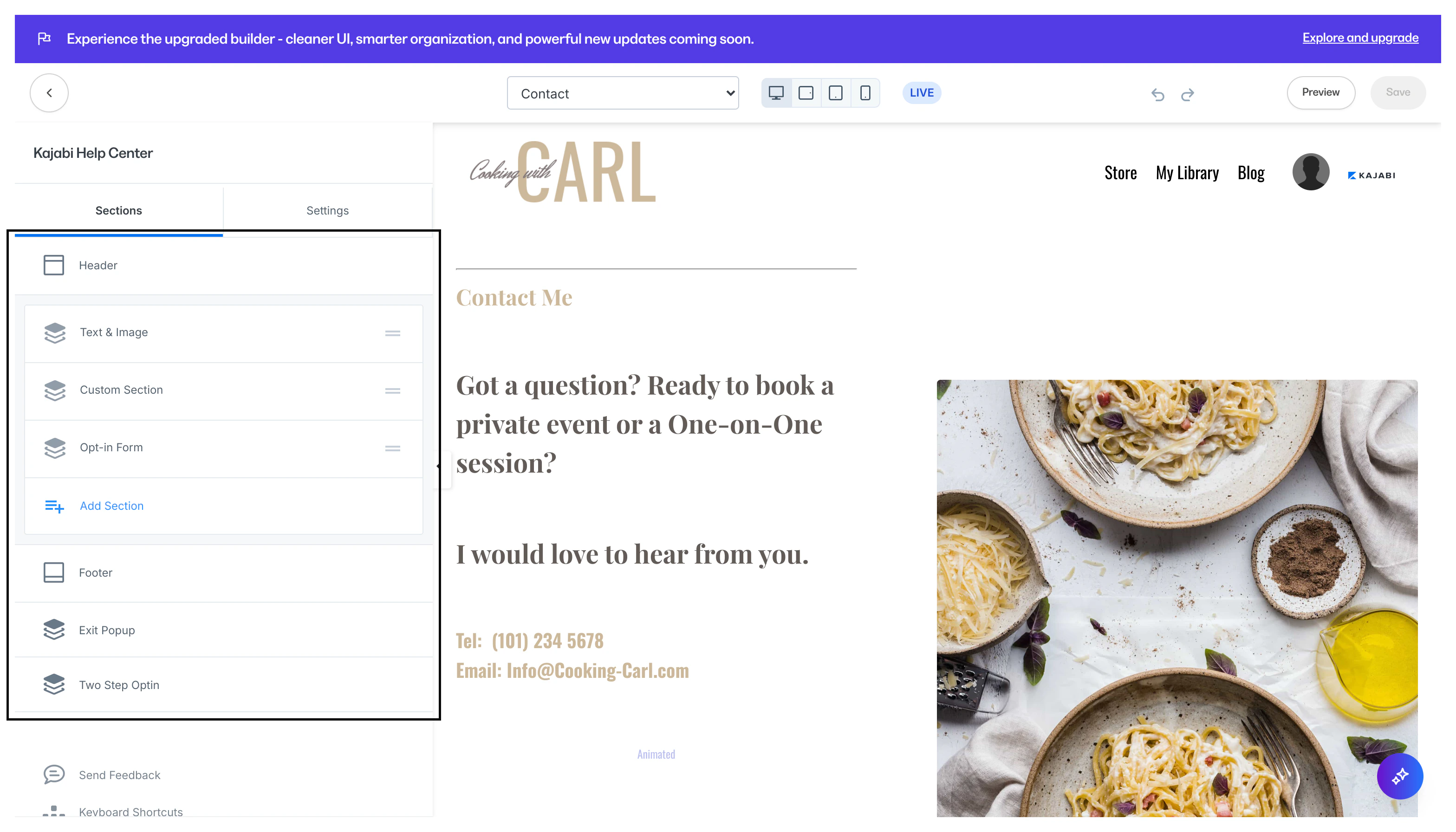
Preset Sections
To help you build fully-integrated, powerful pages even faster, we’ve added more Preset Sections. With over 45 preset Sections to choose from, design your page exactly as you want:- Basic Content sections include various preset Text Blocks, a Text Block with a Call to Action preset, or a Form Block and a Text Block.
- Hero sections have preset backgrounds that can include a Countdown overlay, Form overlay, Image overlay, or a Video overlay.
- Features can be used to showcase your brand, product, or service with Feature Cards or Feature Columns.
- Carousel can be used to display images, testimonials, and videos in an interactive Carousel section.
- Marketing & Events sections help you grow your list, register visitors to an event, and more with Forms, Event Blocks, and more.
Add a Section
- Open the Website tab from the Dashboard.
- Click the Pages tab.
- Select the Landing tab.
- Open the page editor for your Page. Learn more
- Click + Add Section from the sidebar.
- Select your desired Section and click Add.
- Click Save to keep your changes:
Note:
Each page supports a maximum of 50 Sections. If you need additional content, consider consolidating related content into fewer Sections with multiple Blocks.