Adding a video block
- Open the Website tab from the Dashboard.
- Select the Pages tab.
- Open the page editor for your Page. Learn more
- Click the Section you want to edit or create a new Section.
- In the sidebar, click Add Content.
- From the list, select Video.
- Your newly created Video Block will generate at the bottom of the Section.
- Click Video Actions from the side panel to upload your video to the Video Block as a New File or a Recent File.
- Click Save to keep your changes:
Note:Want to delete the video? Remove the Block from your page. Learn more
Customizing your video block
In a Video Block, customize the width of the Block in the Section, upload your Video, upload the Video Thumbnail, customize the Video Player Controls, and change the look and feel of your Block with the Video Block Settings.Select the video
Select the Video displayed in the Block:- Navigate to the side control panel.
- Click Video Actions.
- Then, choose your desired upload method:
- Upload a New File
- Select a Recent File
Select the video thumbnail
Select the Image displayed as the Video Thumbnail:- Upload a New File
- Select a Recent File
Note:You will need to add a thumbnail image to your Landing Page video or our default image placeholder will remain as the thumbnail for the video.
Block settings
To adjust the look and feel of the Block, customize your Block Settings by customizing the:- Player Settings
- Background
- Desktop and Mobile Layout
- Animations
- Time Reveal
Player settings
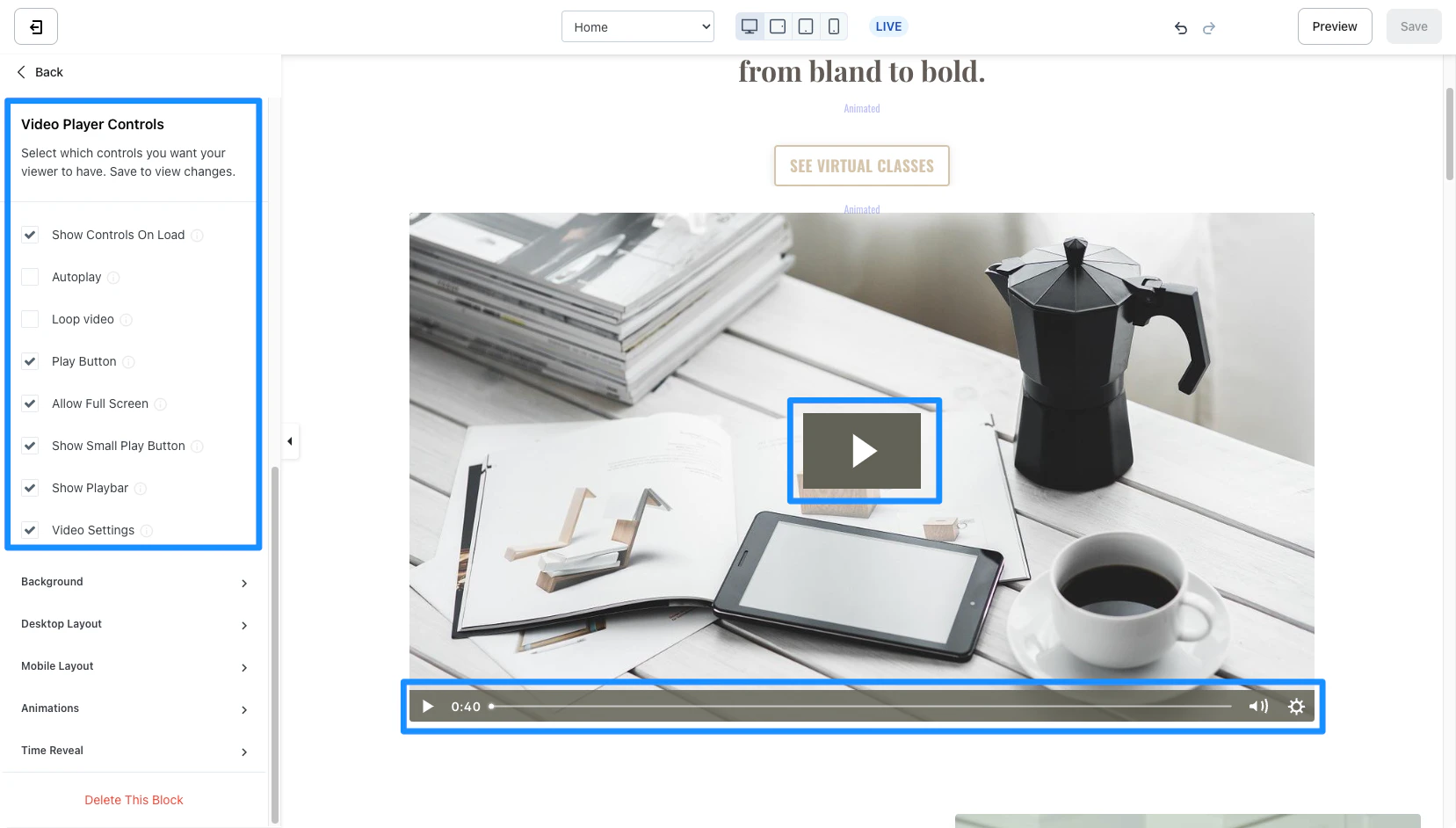
Customize the Video Player Controls to select which controls you want your viewers to have when viewing your video content:- Check or uncheck Show Controls On Load to display player controls when autoplay is disabled.
- Check or uncheck Autoplay to autoplay a muted video when the page loads.
- Check Loop Video to infinitely replay the video each time it ends.
- Check the Play Button setting to display a play button when autoplay is disabled or the volume badge when autoplay is enabled.
- Check Allow Full Screen to allow your viewers to watch the video in fullscreen.
- Check Show Small Play Button to display a small play button in the bottom left corner of the video.
- Check Show Playbar to display a playbar.