Create a Calendar Button with AddEvent, a tool compatible with Apple Calendar, Google Calendar, Outlook, Outlook.com, and Yahoo Calendar, to help your site visitors easily add your events to their calendars.
Important: Kajabi now allows members to save upcoming coaching sessions to their personal calendar. Learn more Overview
Calendar Buttons provide a quick, effortless way for your users to add your events to their personal calendars. With Kajabi, you can add your preferred Calendar Button using the Custom Code Block. This guide walks you through adding a Calendar Button with AddEvent.
Note: If you have a custom domain connected to your Kajabi site, you will need to register your custom domain with AddEvent. Adding your domain to AddEvent is available with AddEvent’s free “Hobby” plan.
Add custom code to your page
Create a Custom Code Block:
- Open the Website tab from the Dashboard.
- Select the Pages tab.
- Open the page editor for your Page. Learn more
- In the sidebar, select the Section of your Page where you wish to include your Add to Calendar Button.
- Click Add Content.
- Select Custom Code:
Learn more about adding Custom Code for details.
To use the AddEvent add-to-calendar button, create an account with AddEvent. Learn more
Tip: The add-to-calendar button is available with AddEvent’s free “Hobby” plan!
- Navigate to your AddEvent account.
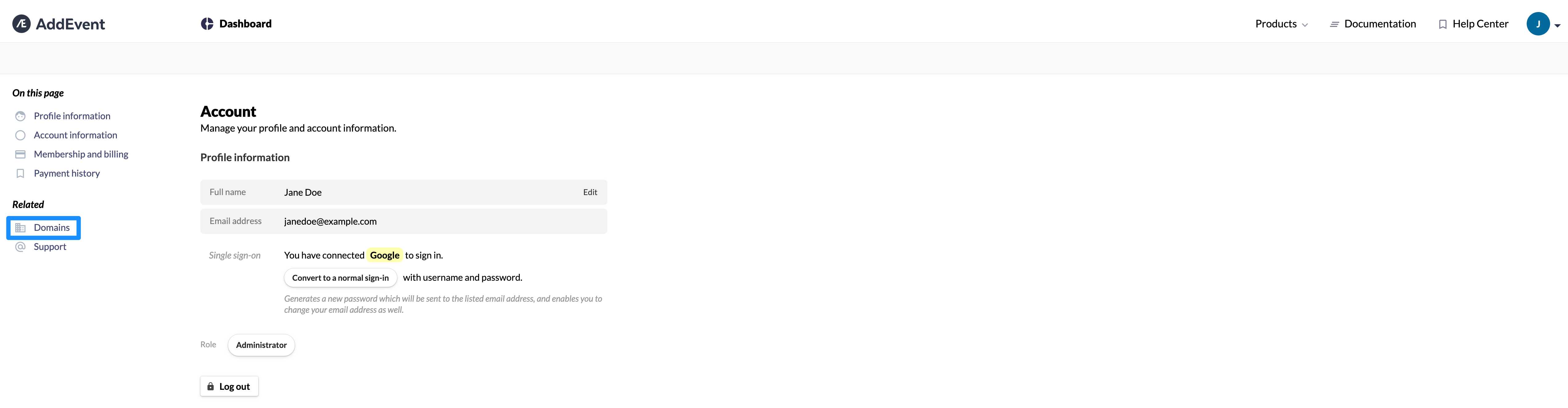
- Click Domains from the left menu.
- Enter your full custom domain.
- Click Add domain:
 After creating your AddEvent account and adding a Custom Code Block to your page on Kajabi, add the AddEvent Calendar Code Snippet.
Important: Introducing custom code to your site can open you up to vulnerabilities and potential malware attacks. We recommend using vulnerability tools like VirusTotal or Snyk to scan any custom code that you intend to use and apply certain best practices to help reduce potential impact.
- Copy the entire code exactly as shown below:
<html><head><!-- AddEvent script --><script type="text/javascript"
src="https://addevent.com/libs/atc/1.6.1/atc.min.js"
async defer></script></head><body><!-- Button code --><div title="Add to Calendar" class="addeventatc">    Add to Calendar    <span class="start">04/26/2020 06:00 PM</span>    <span class="end">04/26/2020 11:00 PM</span>    <span class="timezone">America/Los_Angeles</span>    <span class="title">Summary of the event</span>    <span class="description">Description of the event</span>    <span class="location">Location of the event</span></div></body></html>
- Navigate back to your Custom Code Block on Kajabi.
- Click the Custom Code Block to open the sidebar editor.
- Navigate to the sidebar panel and paste the copied code into the Custom Code field.
- Click Save to keep your changes:
Edit your calendar event
To customize your Event information in your Add to Calendar Button:
- Locate this snippet of Code in your newly pasted Add to Calendar code:
<span class="start">04/26/2020 06:00 PM</span> <span class="end">04/296/2020 11:00 PM</span> <span class="timezone">America/Los_Angeles</span> <span class="title">Summary of the event</span> <span class="description">Description of the event</span> <span class="location">Location of the event</span>
Tip: Expand your view of the Code by clicking and dragging the bottom right corner of the Text Box field in the left sidebar.
- Configure the parameters within each line of code.
- Enter your Event information for each parameter as shown below:
To learn more about formatting your parameters, click here.
Be sure to click Save to keep your changes.
Calendar parameters
Start Date and Time
<span class="start">04/26/2020 06:00 PM</span>
<span class="end">04/26/2020 11:00 PM</span>
<span class="timezone">America/Los_Angeles</span>
<span class="title">Summary of the event</span>
<span class="description">Description of the event</span>
<span class="location">Location of the event</span>
Customize your custom code block
After editing your Calendar Button to fit your Event, customize the appearance of your Block on your page. Learn to customize your Custom Code Block for details.
Remember to click Save to keep your changes.
Lastly, preview your page and test your calendar button:

