

How the Coaching Product works
The Coaching Product is built to leverage Kajabi’s Scheduler and Built-in Live Video to help you schedule and meet with your coaching clients. You can also use third-party scheduling tools like Calendly, Acuity, or Google Calendar and meeting tools like Zoom or Google Meet to complete your coaching sessions if you prefer. When a customer purchases the Offer connected to your Coaching Program they are redirected to their Library page to access their Coaching Product. From there, they can schedule sessions and access the agenda and resources for each coaching session.Create a Coaching Product on Kajabi
Create a Coaching Program and schedule sessions with your clients from your Kajabi account.Get started
- Open the Products tab from your Dashboard
- Select Coaching
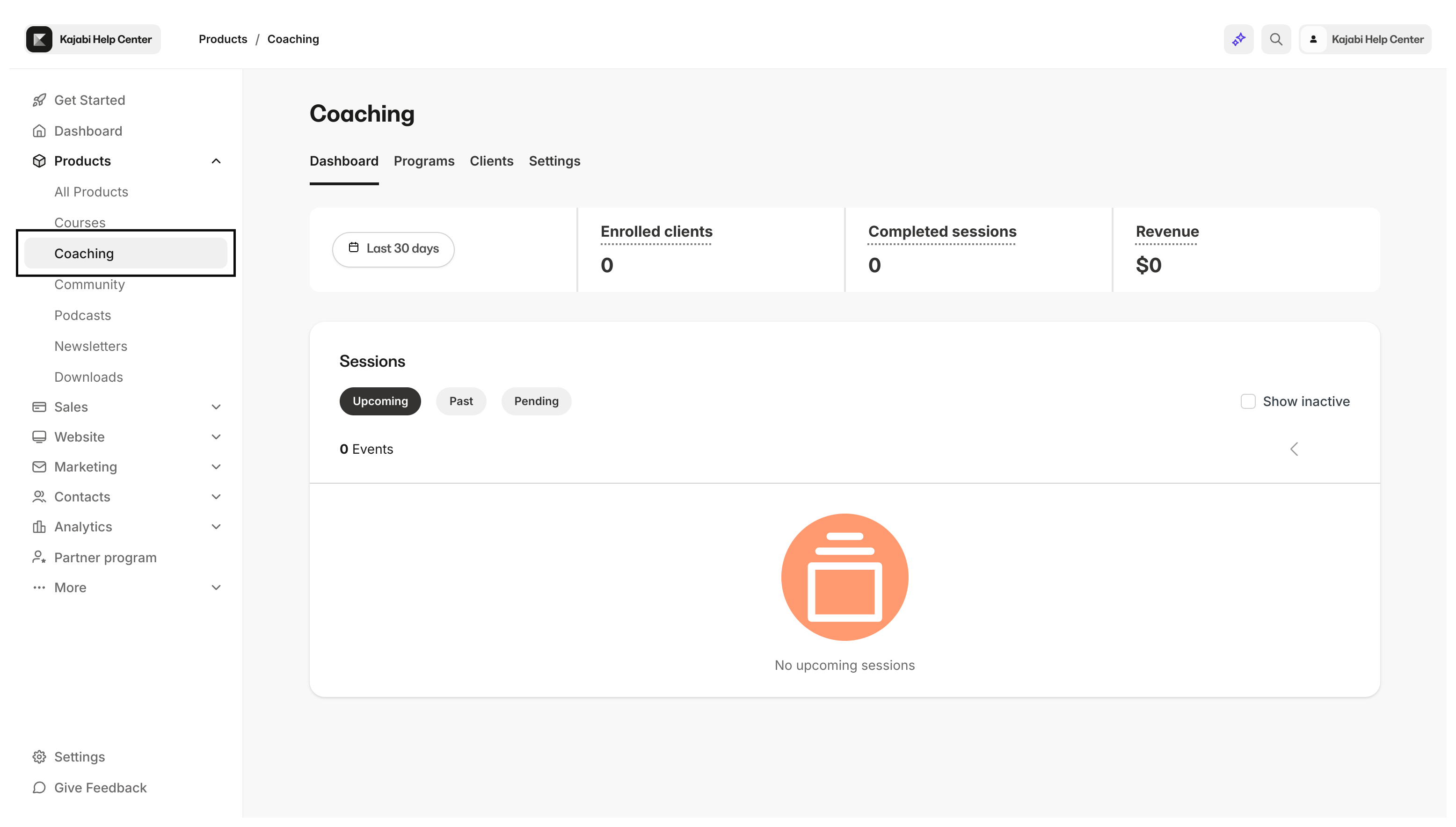
Add details
- Select + New Coaching Program
- Add the details of your Coaching Product:
- Title
- Coach name (optional)
- Description (optional)
- Thumbnail image (optional)
- Click Continue
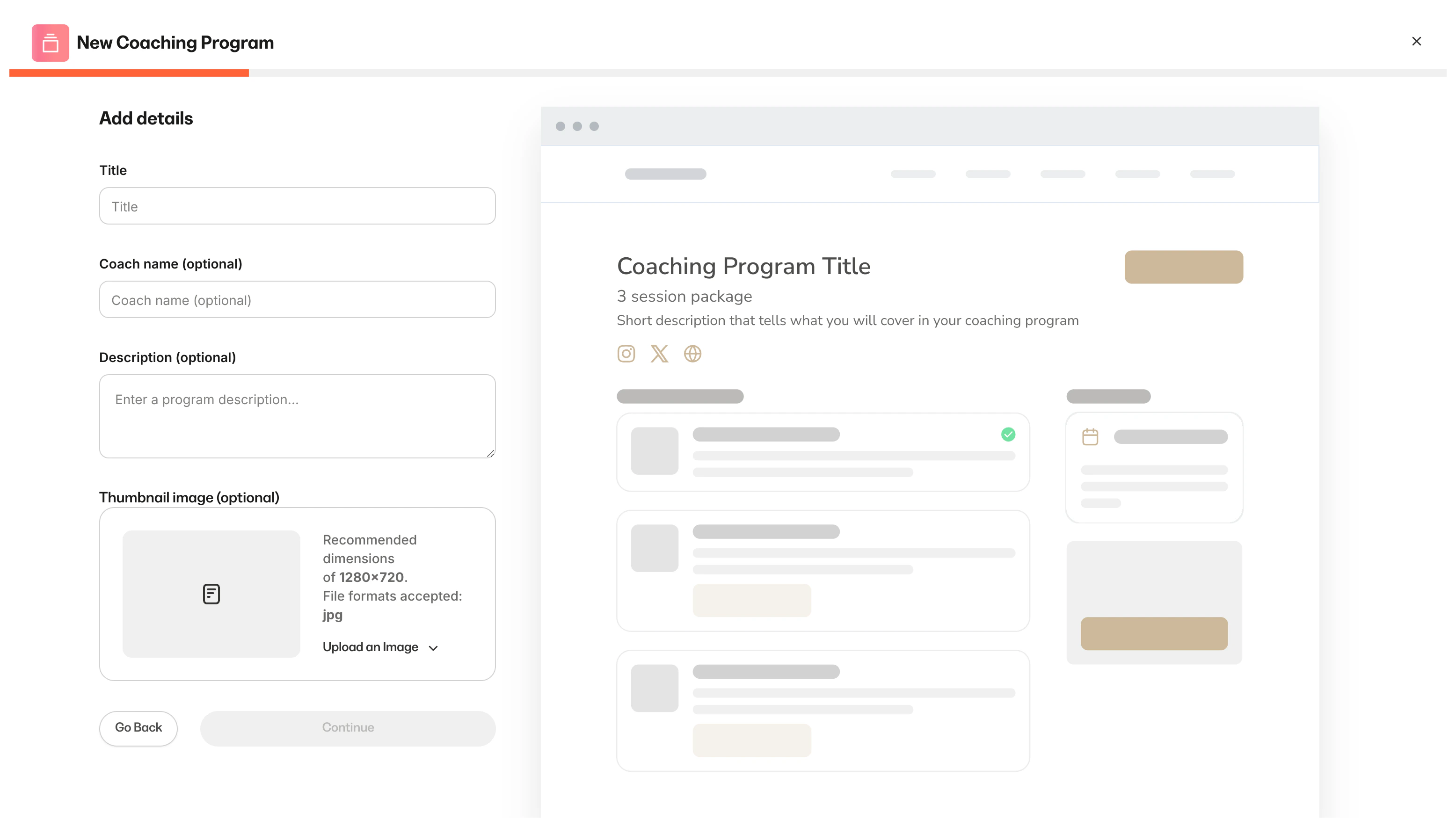
Select a Coaching Program type
- Choose Programs
- Click + New Coaching Program or Get Started to create your Coaching Program
- Select 1:1 coaching or Group Coaching
- 1:1 Coaching: Exclusive, individual access in a one-to-one coaching experience
- Group Coaching: Coaching Program for multiple clients in each session
- Complete the prompt to include:
- The number of sessions
- And if you are creating a Group Coaching Product, the Group Name
- Click Continue
Customize scheduling preference and appearance
- Select your scheduling preference:
- Kajabi (the Kajabi Scheduler)
- Calendly
- Custom link (Enter a custom URL. e.g., Acuity, Google Meet)
- Manual booking (e.g., Physical address, Zoom meeting link)
- Select the Location:
- Built-in live video
- Custom (enter a custom location)
- Select the Session Duration for every session in the Program
- Click Continue
- Customize your program’s appearance by selecting the following:
- Primary Color: buttons and icons
- Secondary color: section background
- Thumbnail image
- Click Continue
- Set up your pricing for your Coaching Program with an Offer
Customize session details
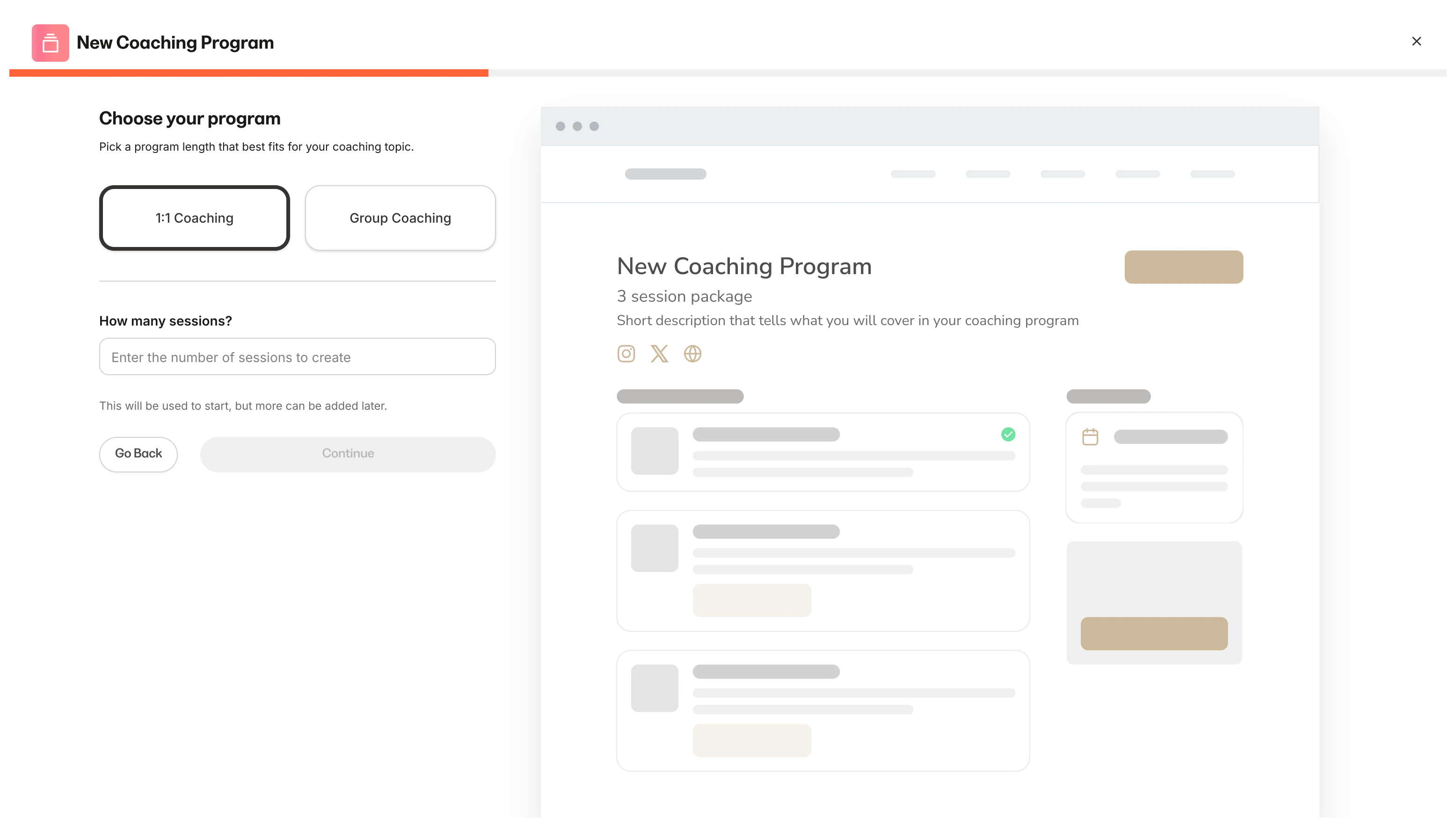
After creating the Program, customize your Sessions for your client(s) to join.Customize a session
- From the Coaching tab, select the title of your newly created Coaching Program
- Click Package outline or Session template
- Begin editing your session by selecting the title of the Session
- Customize the title of your Session
- Include a Session Description
- List your agenda items for the Session
- Include any resources you wish to share during the Session
Manage a Coaching Product
After setting up your Coaching Program, you can manage, update, and review your Coaching Product from the Coaching tab. Learn to identify inactive Coaching sessions. Schedule sessions with your clients, update your Program details, access the Offers connected to your Coaching Product, review client status, create sessions, and update existing sessions: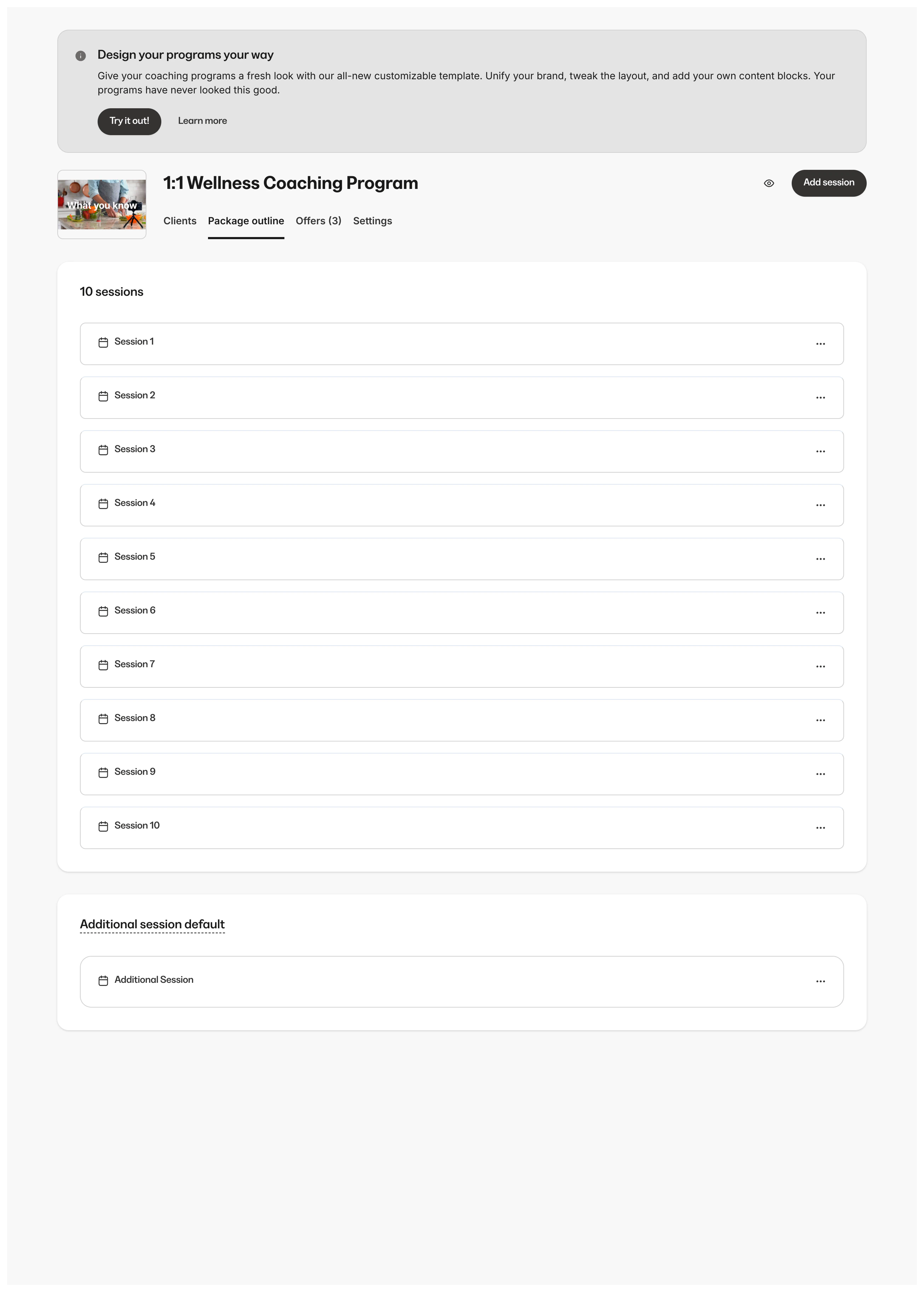
Edit details
Update your Program details:- Program details - The thumbnail image displays in your customer’s library of products
- Scheduling details - Customize how your clients can schedule sessions. Connect the Kajabi Scheduler, your Calendly account, add custom links, or set up manual bookings
- Page customization - Brand your page by selecting the primary and accent colors to complete the look and feel of your Product page
- Page Upsell - Control whether or not a Coaching Product upsell button appears after your client completes the session
Note: The Upsell buy button displays inside each session page after the session has been completed and in the main package outline after every session in the package has been fully completed. Learn to add a Coaching Product upsell.
Offers
View the list of Offers that include your Coaching Product and jump into the Offer Editor to update or review your Offer details.Clients
View your list of clients and schedule their sessions, review their progress, their notes, and contact details: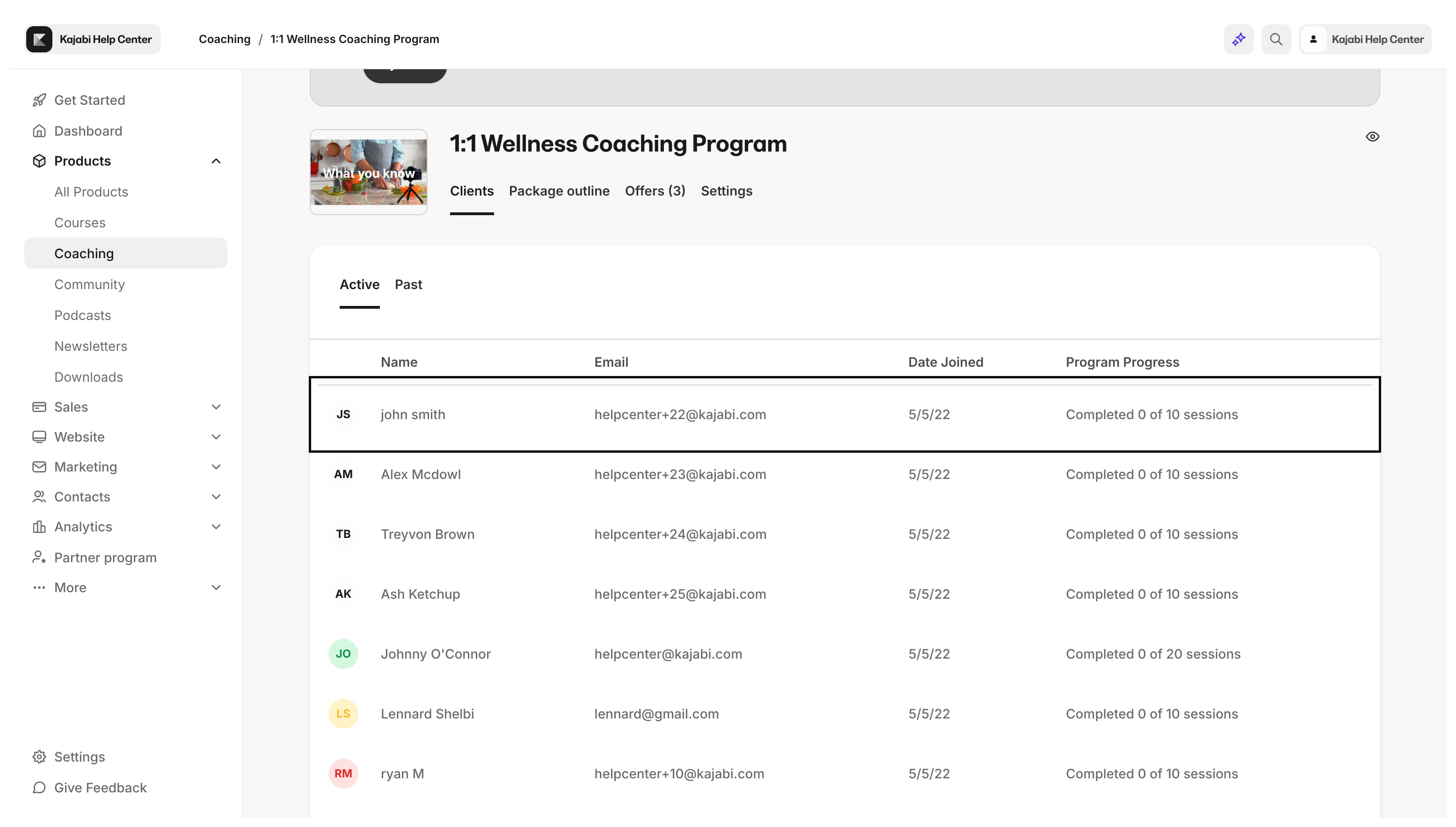
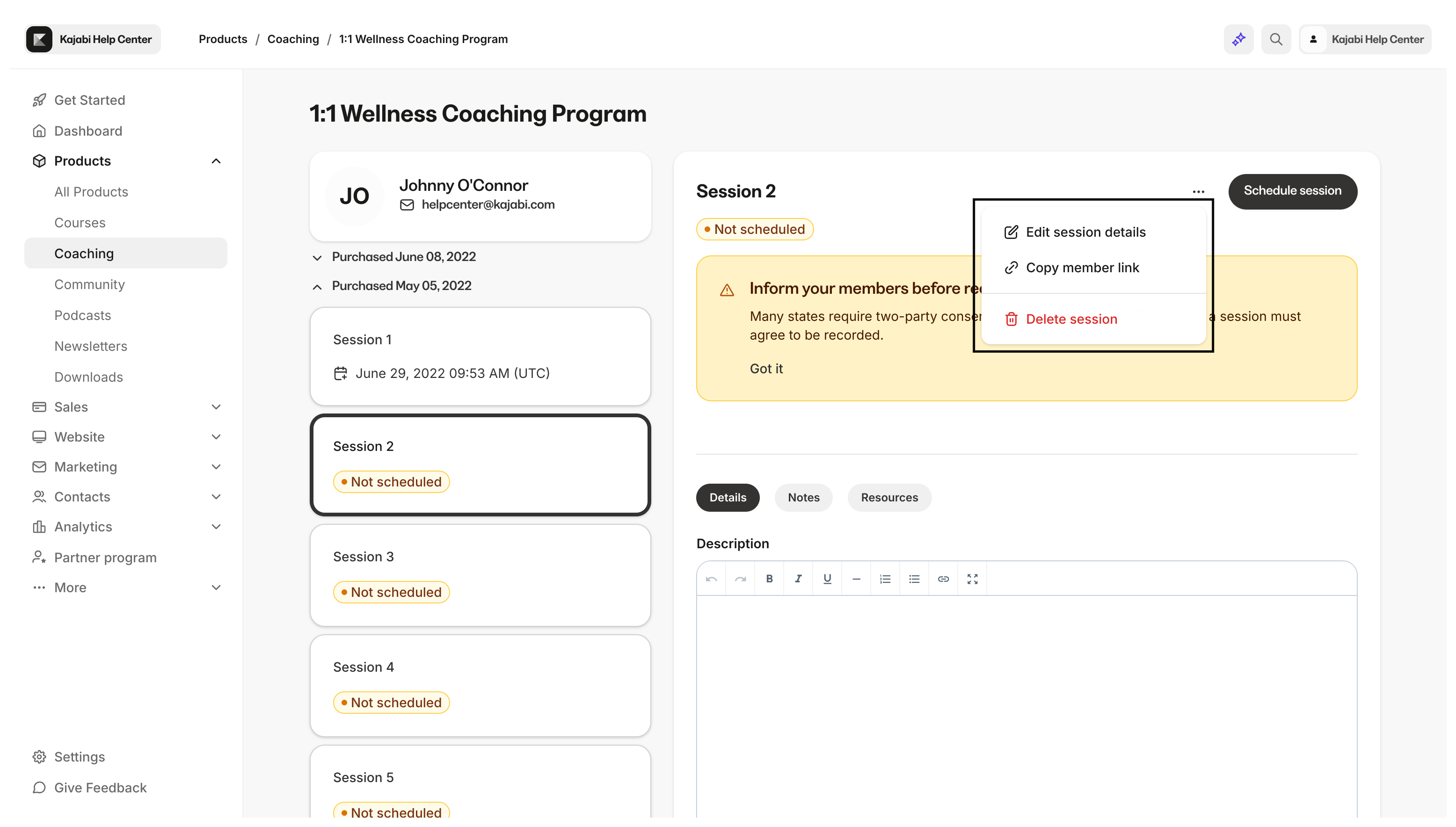
… drop-down menu to edit session details, such as session title, schedule, location, and duration, or copy the link that your member will use to access the coaching session so that you can send this link directly to them if needed:
Add to Calendar for Coaching Sessions
The “Add to Calendar” feature lets members save upcoming coaching sessions to their personal calendar. Calendar links are automatically included in confirmation emails and displayed on member-facing pages.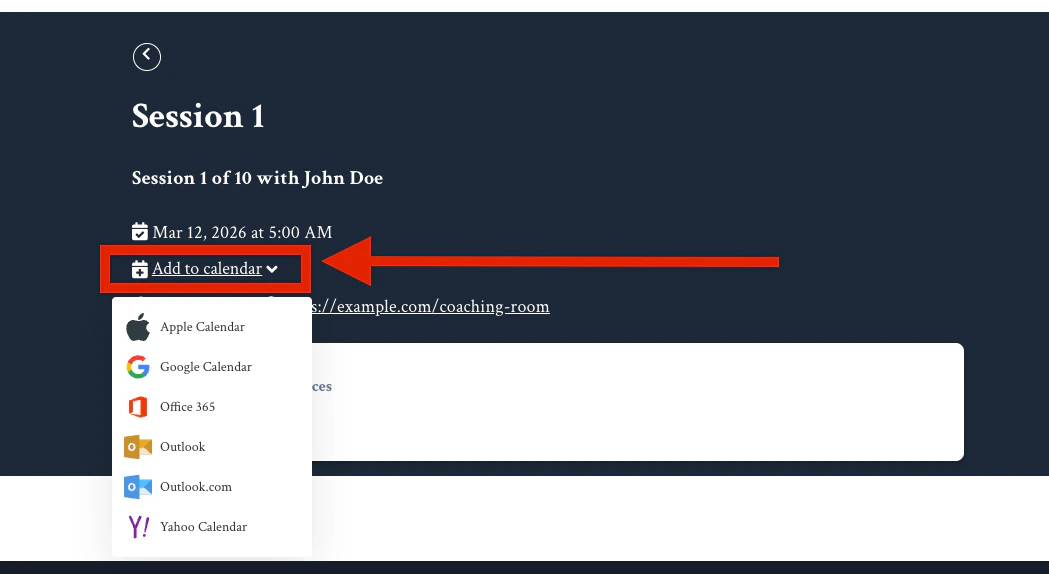
Where Members See Calendar Links
- Coaching session emails — Links appear alongside the existing ICS attachment
- Member-facing coaching pages — Links are displayed on the session detail view
How Calendar Links Work
Each calendar link contains a secure, time-limited token tied to the coaching session.Important:
- Calendar links expire after 1 year from generation
- This feature is separate from Cronofy calendar sync, which handles coach availability and session booking. “Add to Calendar” is for members saving confirmed sessions to their personal calendar
Third-party scheduling and meeting resources
With the Coaching Product, you can use the Kajabi Scheduler to book your Coaching Sessions and use Kajabi’s built-in live video to meet with your clients. You can also use a third-party application for scheduling and meeting with your clients like Calendly and Zoom.Note: Set your Coaching Product to Manual Booking or with the Kajabi Scheduler to use Kajabi’s Built-in Live Video to meet with your clients. Learn more about live video sessions.