

Note:
This feature is available with Premium Video enabled and Group Coaching. If you do not see this setting, enable Premium Video or create a Group Coaching Product.
Create a breakout room
- Open a Kajabi Live session (available in Group Coaching and Course Products). Learn more about live video sessions
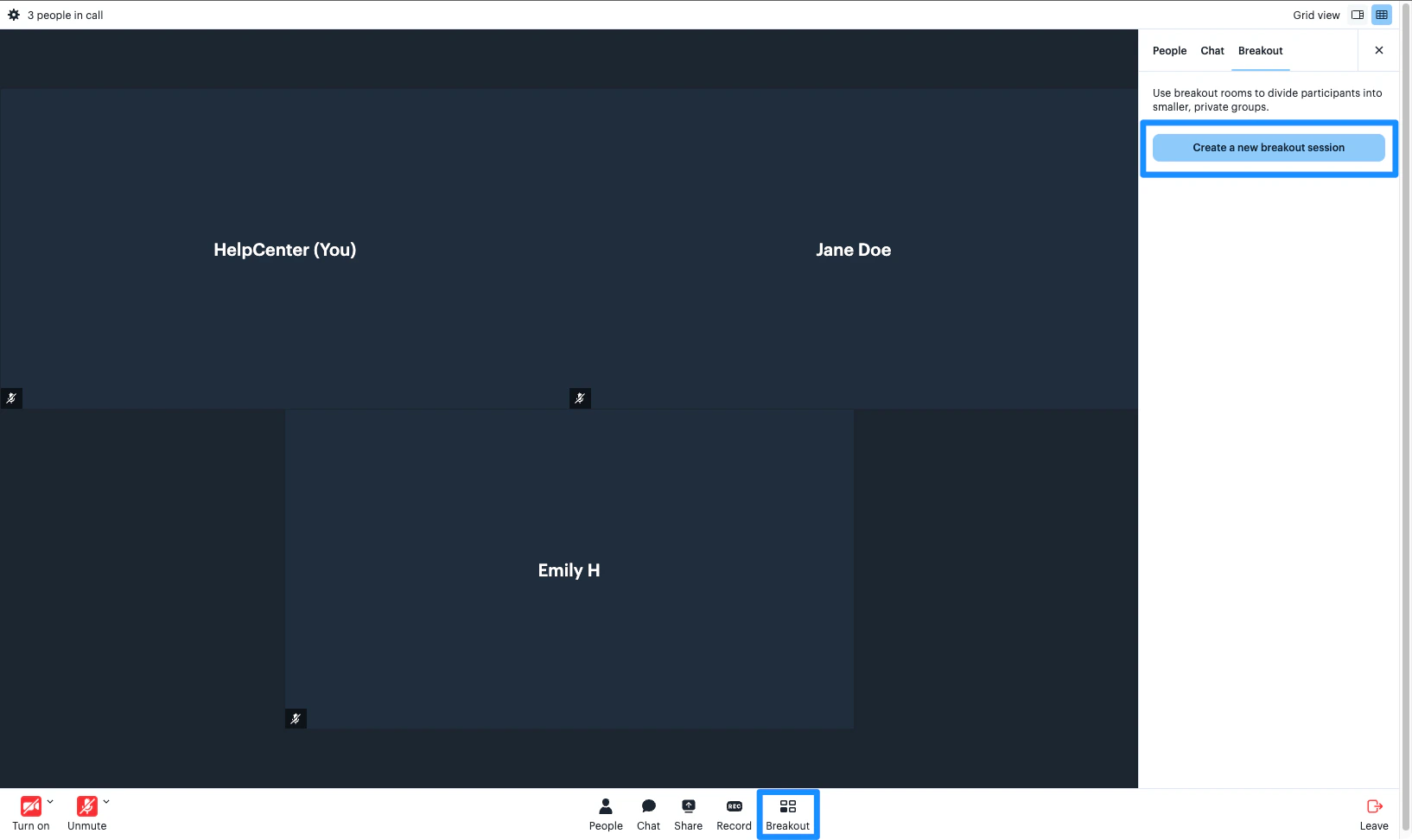
- Click Breakout from your Kajabi Live control bar
- Click Create a new breakout session
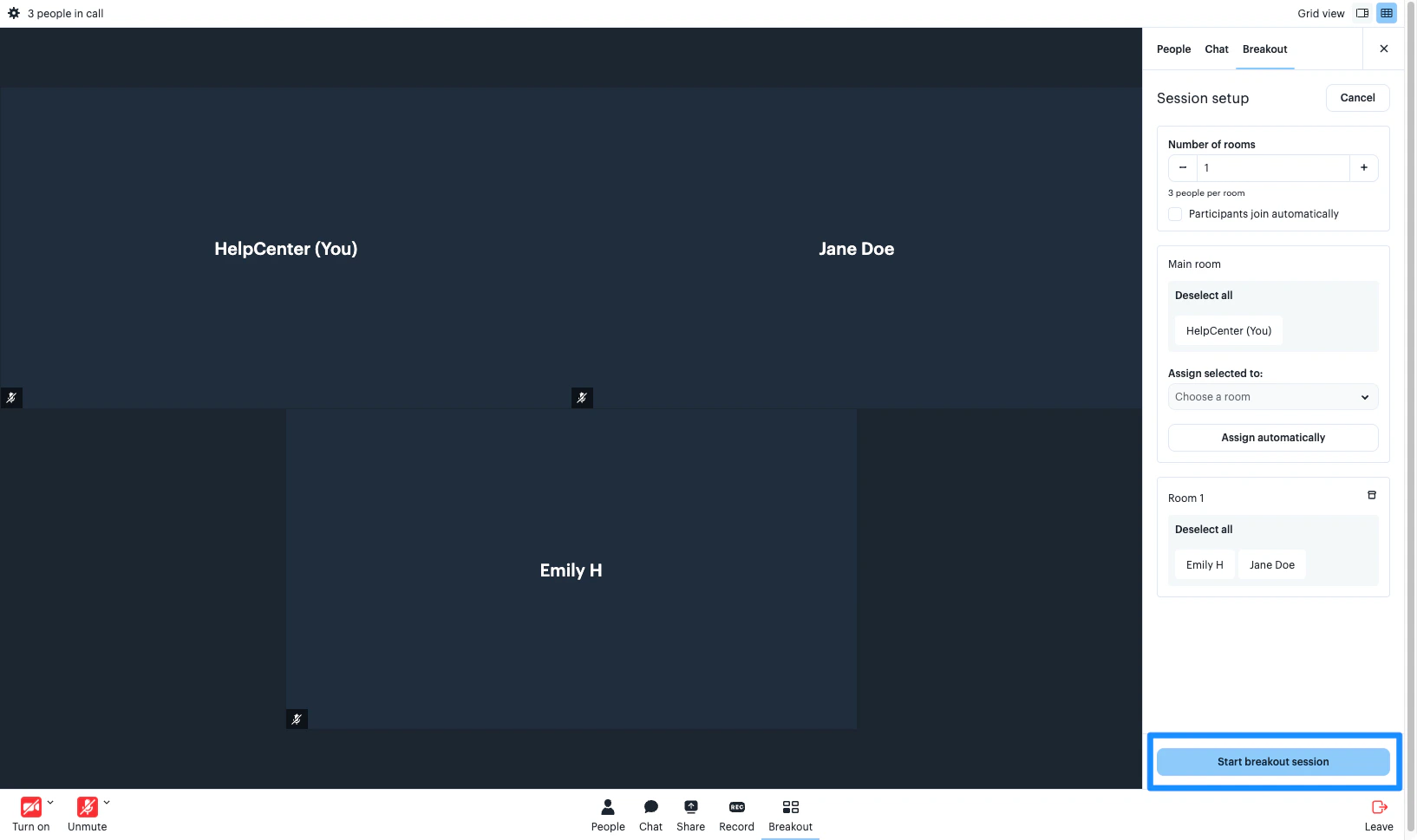
- Customize your Breakout Room Settings:
- Edit the number of rooms
- Select Participants join automatically to have your attendees join the breakout rooms as soon as you click Start breakout session
- Assign your attendees to the breakout rooms. Learn more about assigning attendees
- When you are ready to begin your breakout rooms, click Start breakout session
Note:
Breakout rooms cannot be recorded. Starting your breakout session will end your recording. If you want to continue recording after the breakout session, you will need to click Record to begin a new recording.
End a breakout session
When you are ready to end the breakout session, you can warn your clients that the session is coming to an end or end it immediately: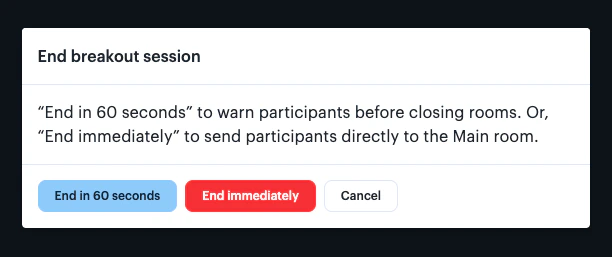
Note:
Breakout sessions cannot be recorded. Starting a breakout session will end your recording. If you want to continue recording after the breakout session, you will need to click Record to begin a new recording. Your recordings will be uploaded and shared as separate files. If you have set up your Course Product to create a lesson for your recording, the recordings will create separate lessons for each file.
Assign attendees to breakout rooms
Breakout rooms in Kajabi Live allow you to manually assign or automatically assign attendees to a designated breakout room.Manually assign
- Open the Breakout settings from your Kajabi Live control bar
- Customize the number of breakout rooms
- Locate an attendee you wish to assign
- Click and hold the attendee’s name, then drag it to your desired breakout room
- Repeat for all of your attendees
- Click Start breakout session when you are ready to separate your attendees into small group discussions
Automatically assign
- Open the Breakout settings from your Kajabi Live control bar
- Customize the number of breakout rooms
- Click Assign automatically
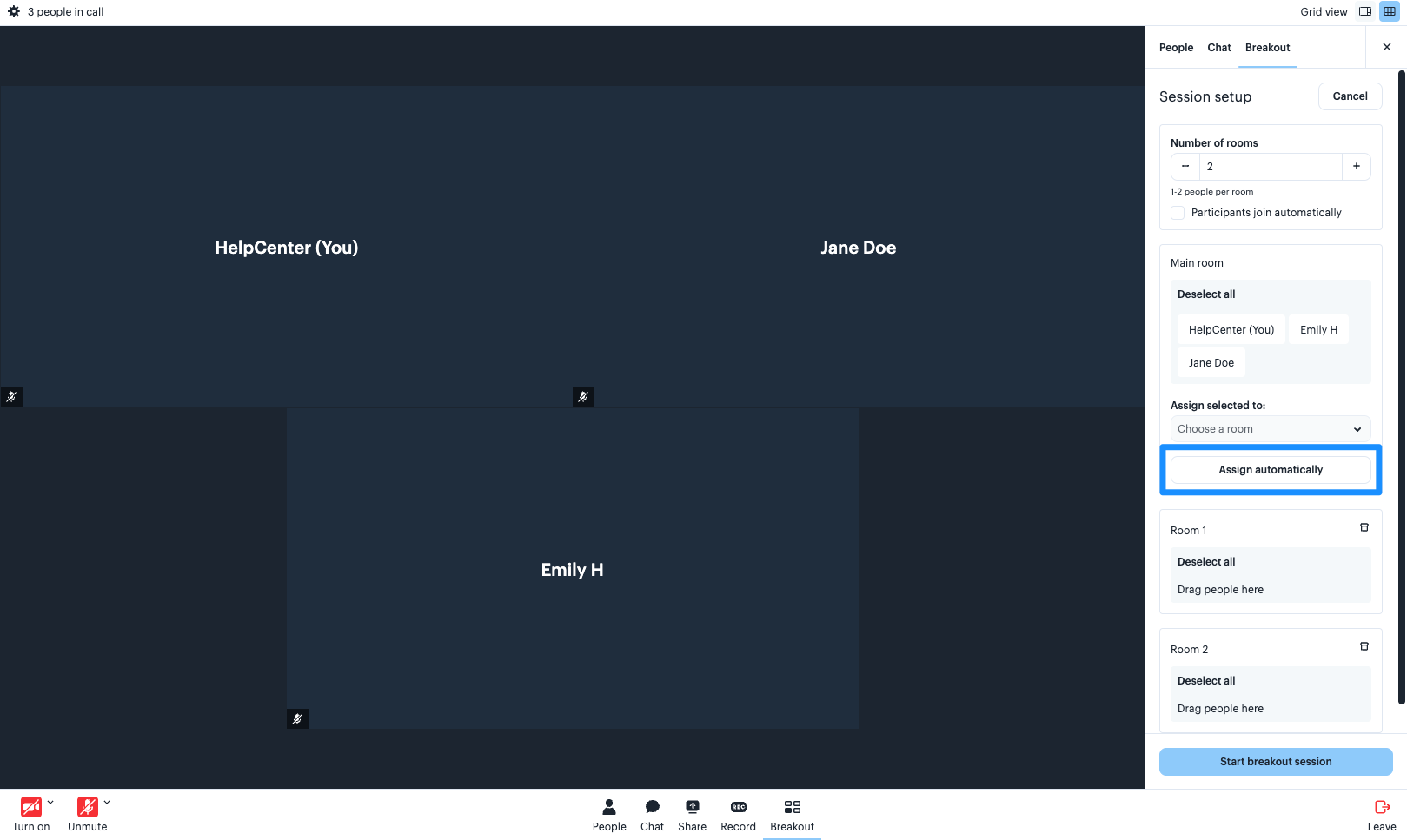
- Click Start breakout session when you are ready to separate your attendees into small group discussions