

Access the Coaching theme builder
- Create a Coaching Program
- Within that program, navigate to Settings
- In Settings, go to Coaching Template
- Click Customize to access the Coaching Theme Builder
Header settings
Customize how the header displays across your Coaching Program, Coaching Search, and Coaching Session pages:- Toggle on or off Display Cart
- Change font size and Header text
- Toggle on or off the Sticky Header
- Customize existing blocks or add a custom block
Coaching Program
The main page of your Coaching Program is flexible, with customization options available.Coaching Hero
- Customize the Subtitle connecter text
- Toggle ON/OFF to show the description. The description text width and spacing can be customized
- Edit or add Social Icon blocks
- Customize thumbnail image width and border radius
- Toggle and customize the Additional Session button
- Change the background color or display an image/video as the background
Coaching session listings
Edit the display for your Coaching Sessions Listings:- Edit heading text, color, and title weight
- Toggle Sidebar ON/OFF and set position for desktop and mobile
- Customize the Sidebar Search block
- Customize upcoming Coaching Session listings
- Edit advanced header options
- Customize session listings, session status, and the Additional Session button
- Customize background, desktop, and mobile views
Coaching Search
Customize the Coaching Search page to fit your branding needs.Coaching Hero
- Customize the Subtitle connecter text
- Toggle ON/OFF to show the description. Customize width and spacing
- Edit or add Social Icon blocks
- Customize thumbnail image width and border radius
- Toggle and customize the Additional Session button
- Change the background color or display an image/video as the background
Coaching search results
- Edit the “searched,” “showing,” and “results” text terms
- Customize the color of search terms
- Adjust results per page settings
- Edit pagination controls
- Toggle Sidebar ON/OFF and set position for desktop and mobile
- Customize the Sidebar Search block
- Customize the Coaching Session Upcoming block
Coaching Session
The Coaching Session page is displayed during each session and includes extensive customization options.Page state
Use the Page State dropdown to select which session state to customize:- Unscheduled
- Scheduled
- Completed
- Recording Uploaded
Offer block conditionals
If you’d like to add an Offer block to the page sidebar, you can then choose to do the following:- Open in new tab
- Hide if owned
- Only show upon session completion
Session customization blocks
- Toggle Sidebar ON/OFF and change its position (desktop and mobile)
- Customize the Sidebar Search block
- Edit the Coaching Session Resources block (title, empty state text, link text, advanced settings)
- Edit the Coaching Session Details block (title, program text, sessions text, advanced settings)
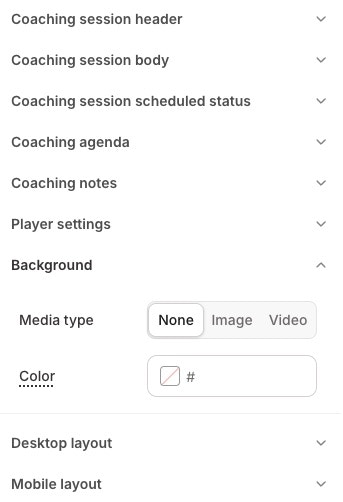
- Coaching session header
- Coaching session body
- Coaching session scheduled status
- Coaching session agenda
- Coaching notes
- Player settings
- Background
- Desktop view
- Mobile view
Further customizations
Additional sessions
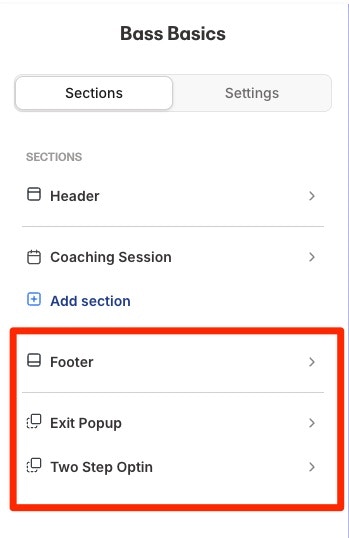
Once you have set up Coaching Additional Sessions, the CTA button advertising additional sessions for purchase can be customized within the Coaching Program and Coaching Search pages:- Footer
- Exit Pop Up
- Two-Step Opt-in
Template sessions for upsells, invoicing, and renewals
A Coaching template session is available in the Coaching package outline. You can add a session and customize it with a session description, agenda items, and resources. This template can be used for:- Additional session upsells
- Invoicing flows
- Subscription renewals
Invoice for Coaching Sessions
Kajabi Coaching supports invoicing to help you manage client payments and ongoing session access.Note:
Invoicing is only available with Kajabi Payments.
- Invoiced sessions are granted up front to the recipient
- Payment management is left to you. If an invoice goes unpaid, you can use automations or manual actions to decide how to handle access
- From the Kajabi Dashboard, select Products > Coaching
- In Coaching, select Programs and your desired Coaching Program
- Click on the Coaching member you wish to add an additional session for
- At the bottom of the Session list, click +Add Session, then select Paid Session
- In the Invoice pop-up, select an Offer or create an Offer
- Enter how many sessions you wish to add. This price will be determined by the offer and quantity
- Select a due date
- Click Create and Send Invoice to add the additional sessions and send the invoice to be paid
Coaching subscriptions
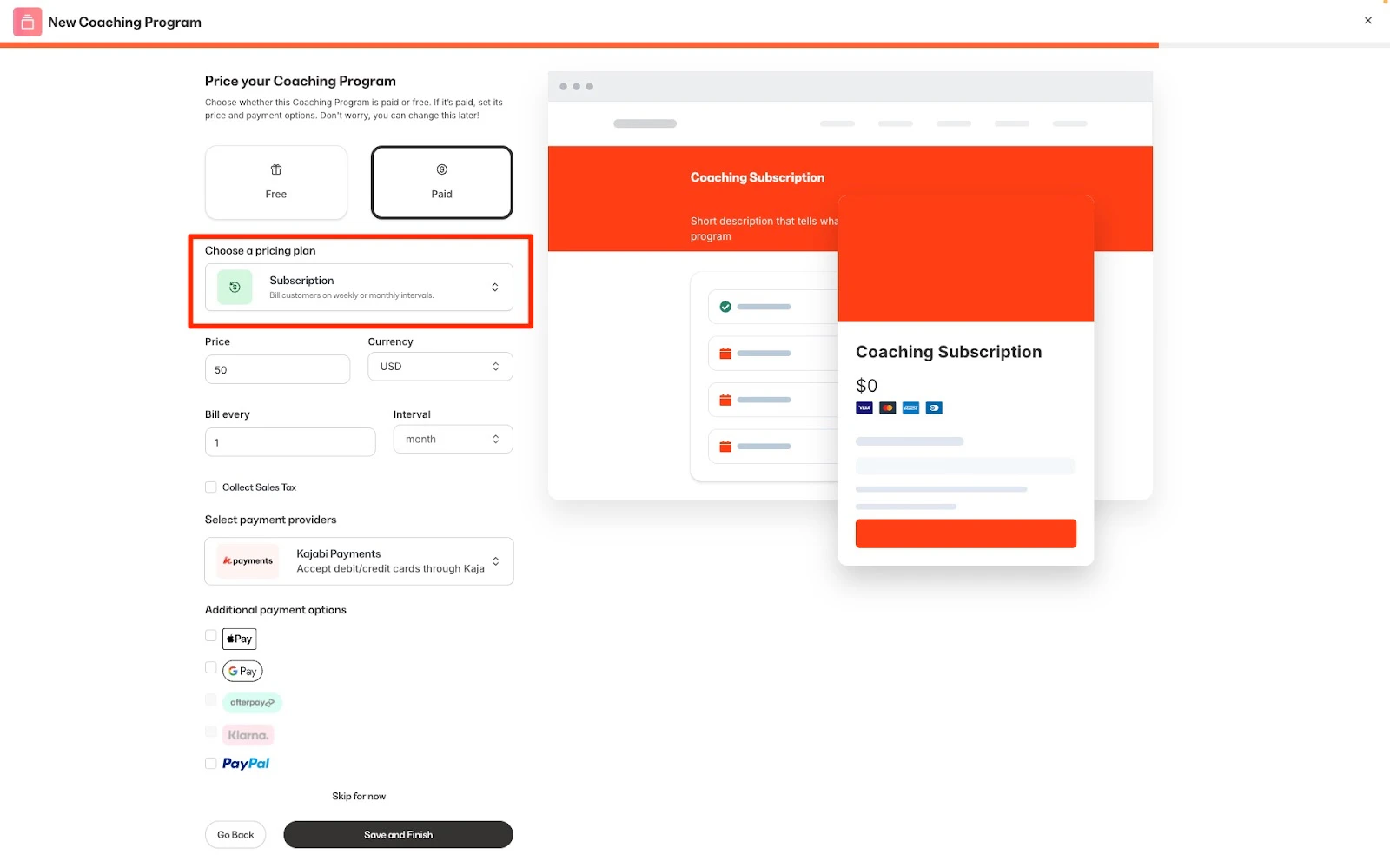
Coaching programs can be offered with a Subscription pricing plan.- From your Kajabi dashboard, select Sales
- Navigate to Offers
- Click +New Offer to enter the Offer Creation Flow
- Once inside the Offer Creation Flow, enter an Offer Title and choose the Coaching Product(s) to sell with this offer
- Use the Pricing Plan drop-down menu to select Subscription
- Select Save and Finish to complete creating your offer
- A member subscribes to a Coaching Program that includes five sessions per billing period
- During that billing period, they purchased an additional session, giving them six total sessions for that month
- When the subsequent subscription payment processes, the member will again receive five sessions, as per their original subscription
Coaching Automations
Kajabi Automations can be used with a Coaching Program. Coaching Automations can be triggered when a client has:- Completed a session
- Completed all sessions
- Has x (customizable number) sessions remaining
- Purchased additional sessions
- An invoice due in x (customizable number) days
- An overdue invoice