

Set up Kajabi Scheduler
Set up your Kajabi Scheduler with a new or existing Coaching Program. With Kajabi Scheduler you can select the Kajabi option when setting up your Coaching Program.Set up a Coaching Product with Kajabi Scheduler
- Open the Products tab from your Dashboard
- Select Coaching
- Choose Programs
- Click + New Coaching Program to create your first Coaching Program
- Click Get Started
- Select Single session or Package
- Single session: single coaching session
- Package: coaching program with multiple sessions
- Complete the prompt to include:
- Title of the program
- Coach name (optional)
- Description of the program
- Click Continue
- Select your scheduling preference:
- Select Kajabi to set up the Kajabi Scheduler for your Coaching Program
- Select your Location (e.g., Built-in live video or enter a custom location)
- Select the Session Duration (maximum of 90 minutes) to set the allotted time for every session in your program
- Click Continue to continue customizing your Coaching Program
Set up an existing Coaching Product with Kajabi Scheduler
- Open the Products tab from your Dashboard
- Click Coaching
- Select Programs
- Select the Coaching Program that you wish to use
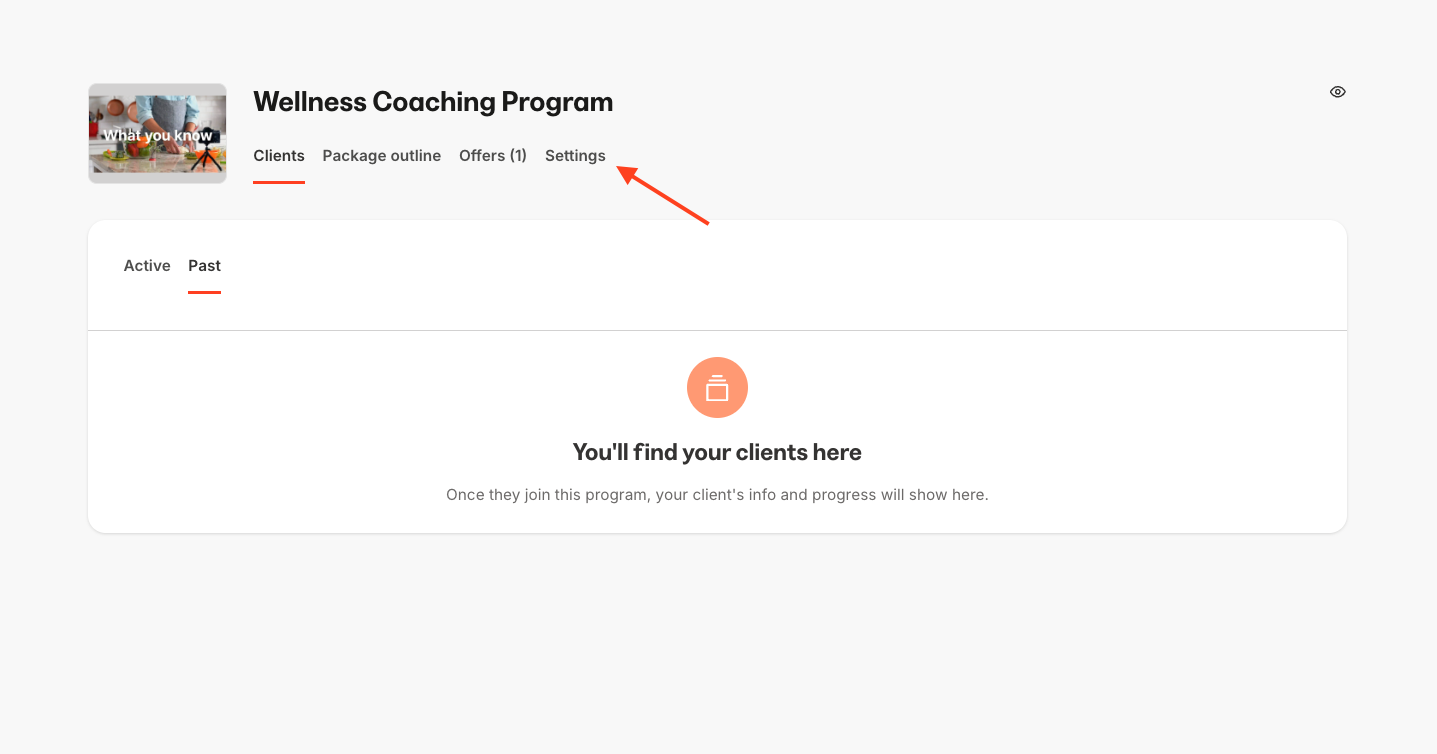
- Open Settings from the top menu of your Program
- Navigate to Scheduling
- Select Kajabi
- Enter your Location (e.g., Built-in live video)
- Enter the Duration of every session
- Scroll to the top or bottom of the Settings page and click Save
Manage availability
Set your availability to help your clients schedule their sessions.Note:
Your availability will default to your local time zone. Learn to adjust your time zone in your Account Details.
Set availability
- Open the Products tab from your Dashboard
- Select Coaching
- Click Settings from the top menu
- Navigate to Scheduling options
- Select each day of the week to add your availability
- Click Save to keep and apply your changes
Set custom scheduling options
- Open the Products tab from your Dashboard
- Select Coaching
- Click Settings from the top menu
- Navigate to Scheduling Options
- Set your Booking time window and Immediate scheduling buffer
- Click Save to save your preferences
Note:
If you are experiencing scheduling issues, double-check that your availability was set up correctly. If you are still encountering issues, reach out to our support team.
Program level overrides
The Kajabi Scheduler offers the ability to override your default scheduling availability for both 1:1 Coaching and at the group level.Use cases
1:1 Coaching Create custom availability to prioritize your higher ticket programs. Offering a VIP tier for your 1:1 Coaching Program? Consider offering extended booking windows so your VIPs get first crack at scheduling. Managing availability by groups Override your global availability to allow for scheduling group sessions when it makes sense for you. If you want the ability to book your group sessions outside of your standard coaching availability hours, you can enable wider availability windows to book sessions for your group.Set custom scheduling options for a program
- Open the Products tab from your Dashboard
- Select Coaching
- Click Programs and select the Program for which you would like to customize availability
- Navigate to the Settings tab
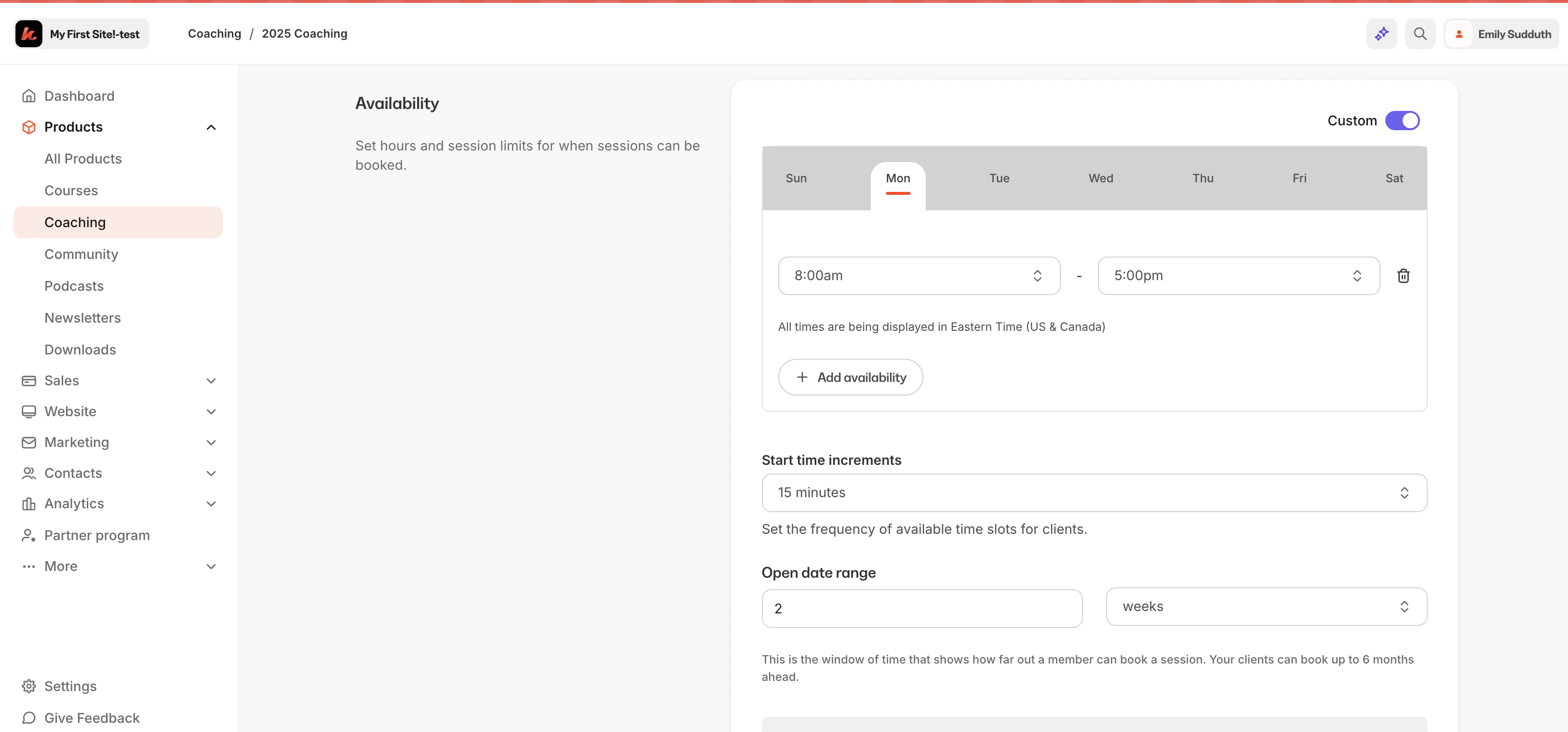
- Scroll down to the Availability section and toggle on Custom Settings
- Set custom hours and session limits for the specific Program you’re editing
Connected calendars
Kajabi uses Cronofy for 3rd party calendar integrations, enabling features such as:- Coaching sessions can be scheduled 200 days in advance
- Sessions can be scheduled in 15-minute intervals and based upon defined session length
- From your Kajabi Dashboard, select the Products tab
- In the Products tab, select Coaching
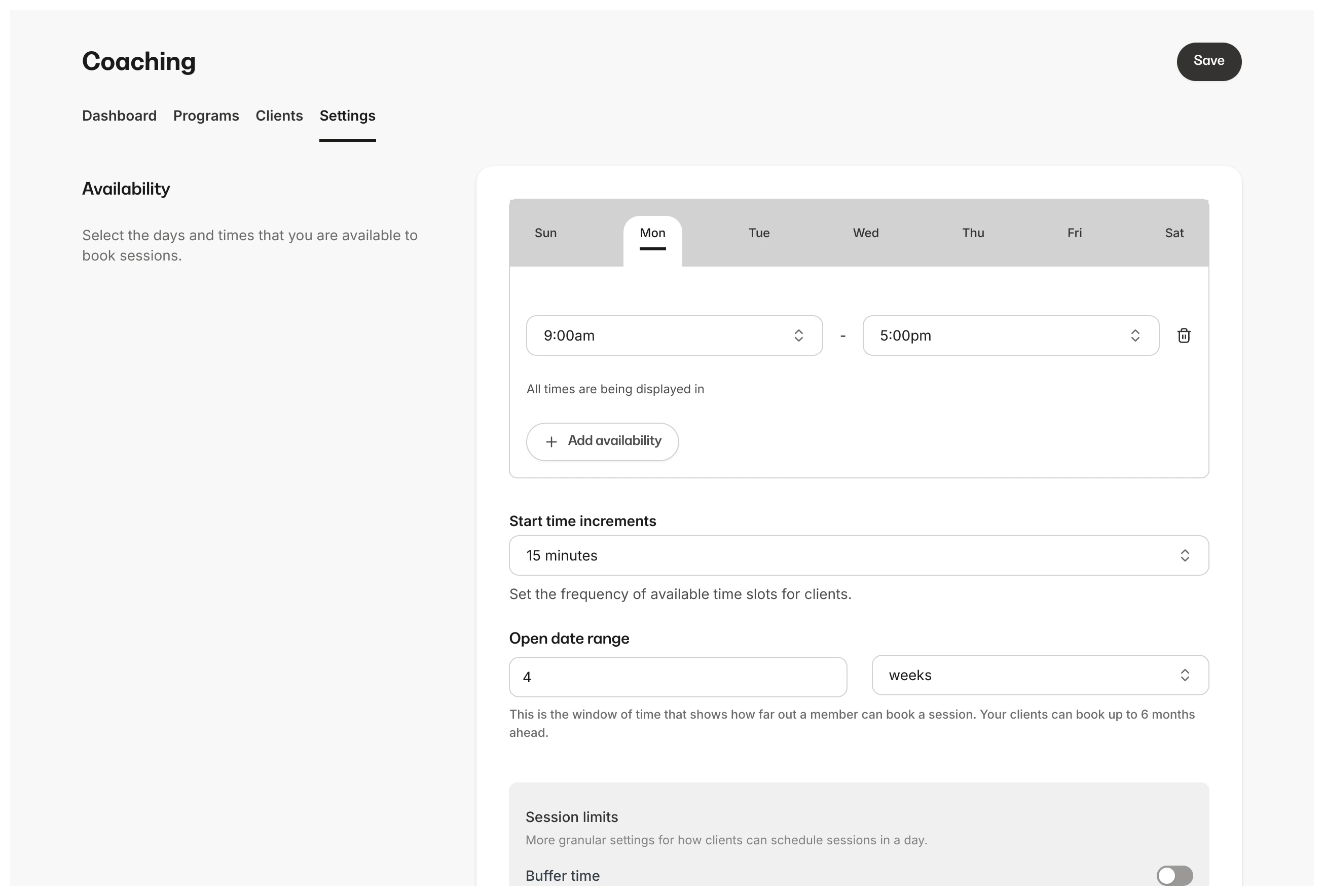
- From the Coaching dashboard, click Settings
- In Coaching Settings, click the Reauthorize button shown on the Reauthentication banner to start the 3rd party reauthentication process
Note:
If you have already integrated a 3rd party calendar, you must reauthenticate your calendars by October 15th, 2024. Failure to do so may result in interruption of service for coaching bookings. Once you have done that, you will have access to these features. If you have not yet integrated a 3rd party calendar, you can integrate using the steps listed below.
Integrate Google Calendar
With Kajabi, you can integrate Google Calendar into your Coaching Products. Once integrated, when a Coaching client schedules a Coaching Session, that session will automatically be added to your Google Calendar.Connect Google Calendar
- From the Kajabi Dashboard, navigate to Products
- Select Coaching
- In Coaching, select Settings
- Press the Sign in with Google option in the Google Calendar option
- Choose the Google account you wish to connect
- Press Allow to grant Kajabi permission to integrate with your Google calendar
Integrate Microsoft Outlook and Microsoft Office 365
Microsoft Outlook and Microsoft Office 365 can be integrated with your Coaching products. Microsoft Outlook is for personal email accounts, and Microsoft 365 is for business/school email accounts. Learn more about their differences.Connect Microsoft Outlook
- From the Kajabi Dashboard, navigate to Products
- Select Coaching
- In Coaching, select Integrations
- Press the Sign in with Microsoft button next to the Microsoft Outlook selection
- Log into your Microsoft Outlook account by using your Microsoft Outlook login credentials
- Press the Login button to complete the integration
Connect Microsoft Office 365
- From the Kajabi Dashboard, navigate to Products
- Select Coaching
- In Coaching, select Integrations
- Press the Sign in with Microsoft button next to the Microsoft Office 365 selection
- Enter the email address for the Office 365 account you wish to connect
- Press the Continue button to finish the login process with Microsoft Office 365
Note:
Only one third-party calendar can be connected at a time. If you have a calendar integrated and wish to switch to a different calendar, you must first disconnect that calendar from your account before changing to the calendar.