Create an Offer
First, create an Offer to begin packaging and selling your Product(s) to your customers. To create an offer with the Offer creation flow:- From your Kajabi dashboard, select Sales
- Navigate to Offers
- Click +New Offer to enter the Offer creation flow
- Once inside the Offer creation flow, enter an Offer Title and choose the Product(s) to sell with this offer
- Price your offer if you have a payment provider connected, or choose to list the offer as free
- Select Save and Finish to complete creating your offer
Build the Offer with the Offer Editor
After creating an Offer, you can edit it further to design an Offer that best fits your business. With the Offer Editor you can add Products, adjust your customer’s Product Access, customize your post-purchase experience, add Automations, and more.Products in this Offer
During the creation of an Offer, you will be prompted to select a Product to attach to your Offer. In the Offer Editor you can update your included Products to include additional Product(s), remove Product(s), or replace your connected Product(s):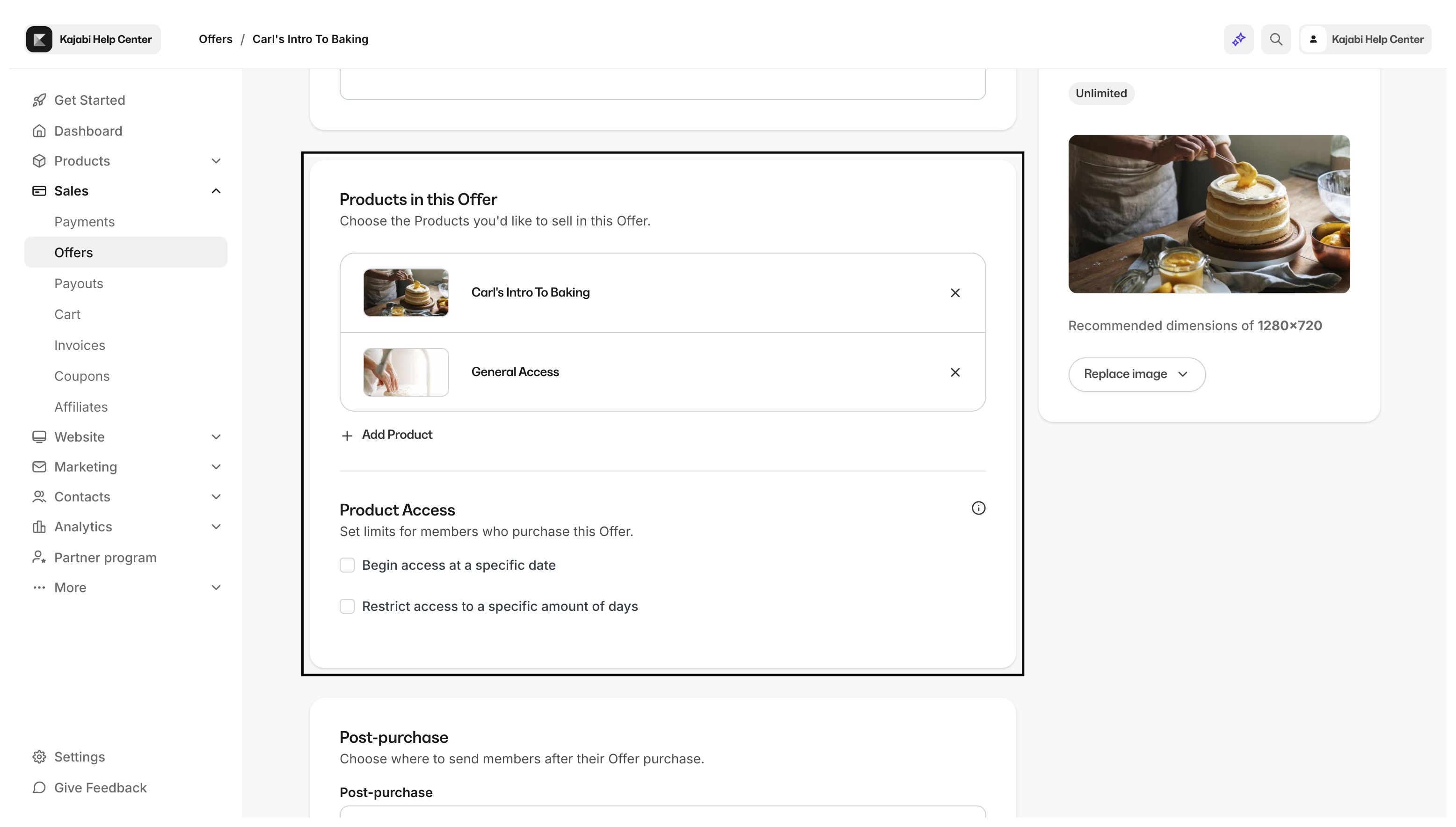
Product Access
Adjust the access dates for customers that purchase your Offer: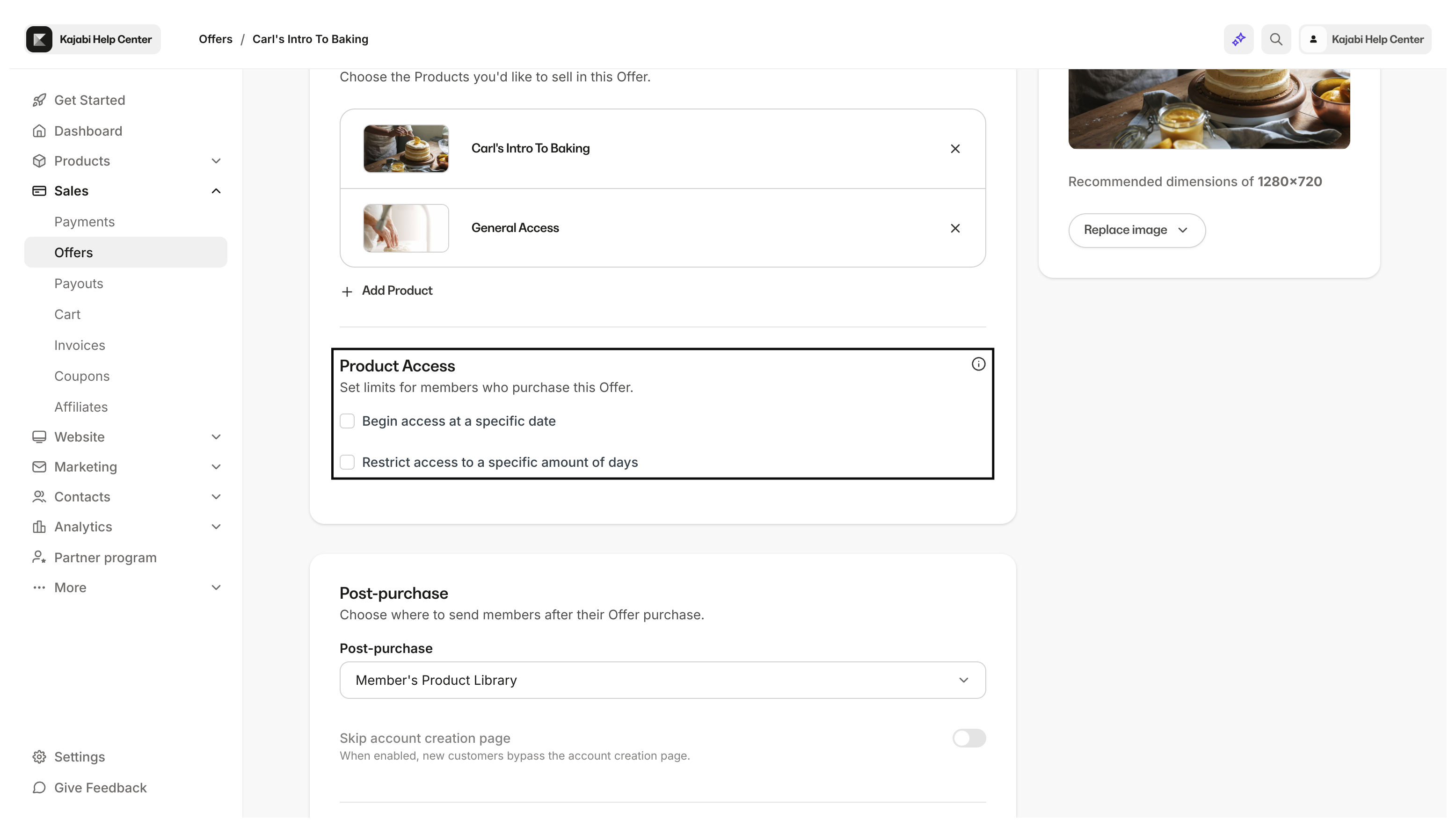
Post-Purchase
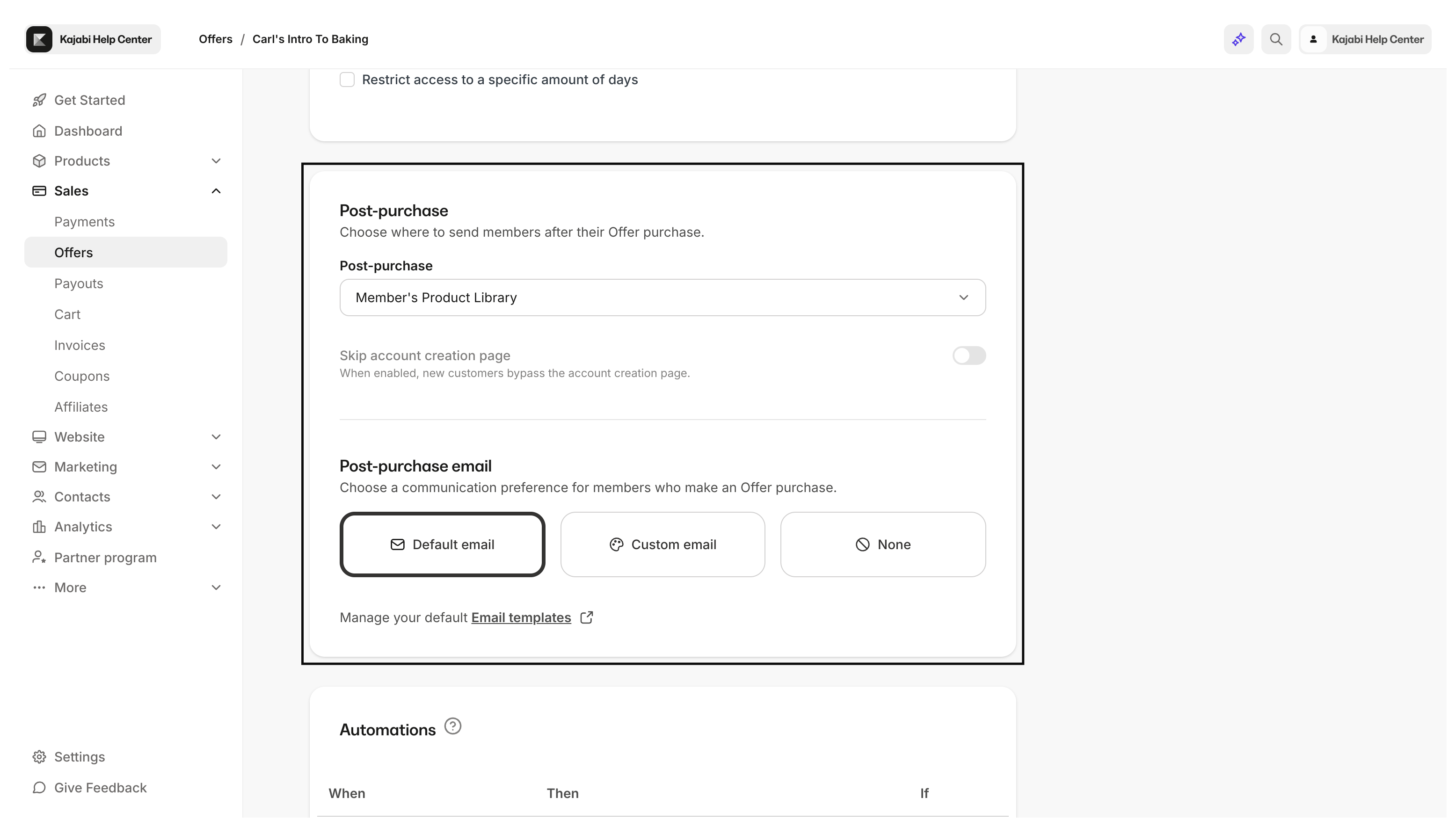
The Offer Editor is designed to give you the power to determine how your Product(s) should be packaged, sold, and delivered. The Post-Purchase settings take your Offer to another level by allowing you to customize the settings and user experience after the Offer has been purchased. With the Post-Purchase settings:- Send the customer to a thank you page, landing page, or custom page
- Send the customer a post-purchase email
Automations
Streamline your processes with Kajabi by creating Automations for your Offers. Learn more about Automations.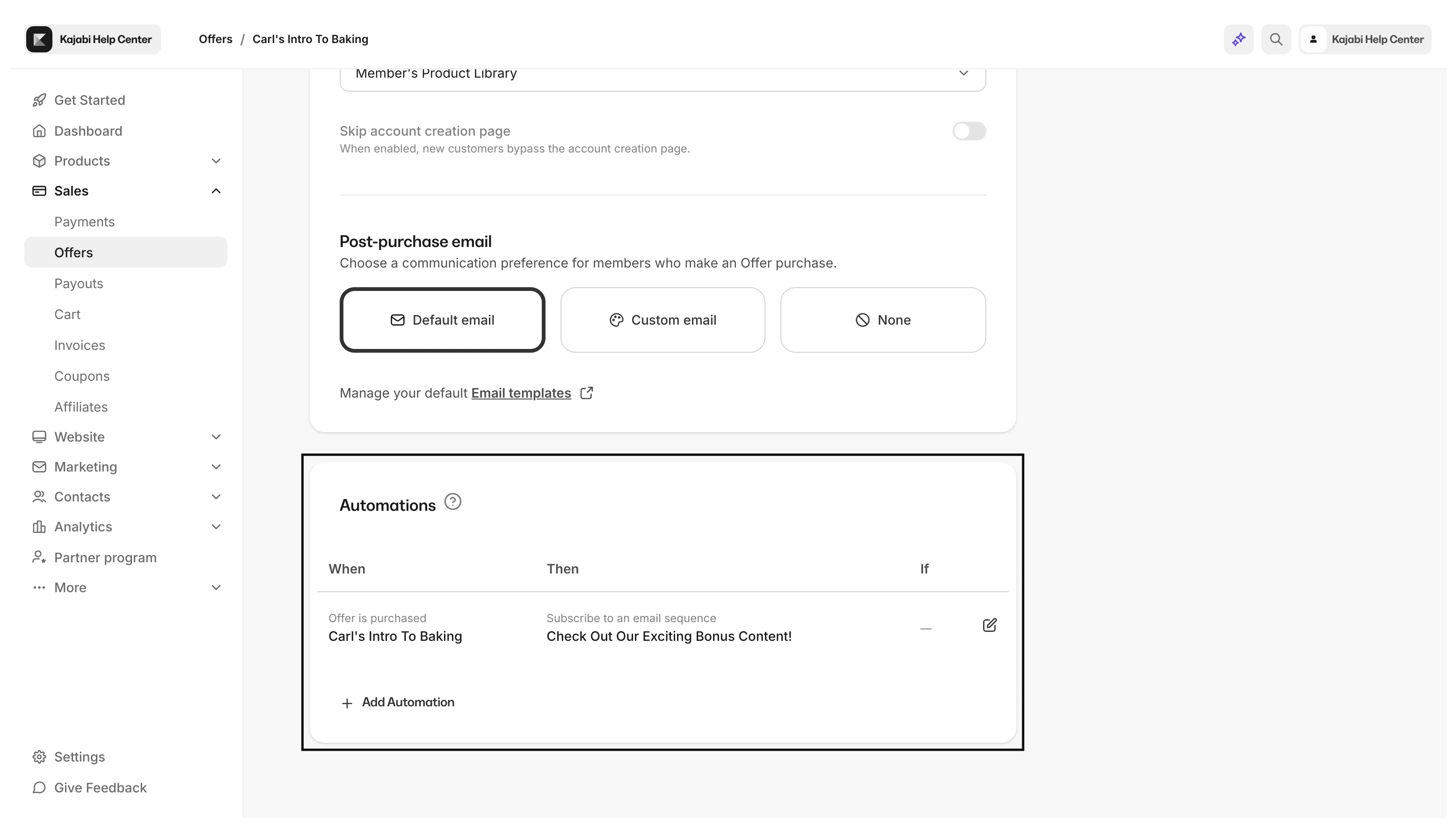
Offer Status
Creating an Offer will automatically publish the Offer and allow potential customers to locate and purchase the Offer through the Offer Checkout Page: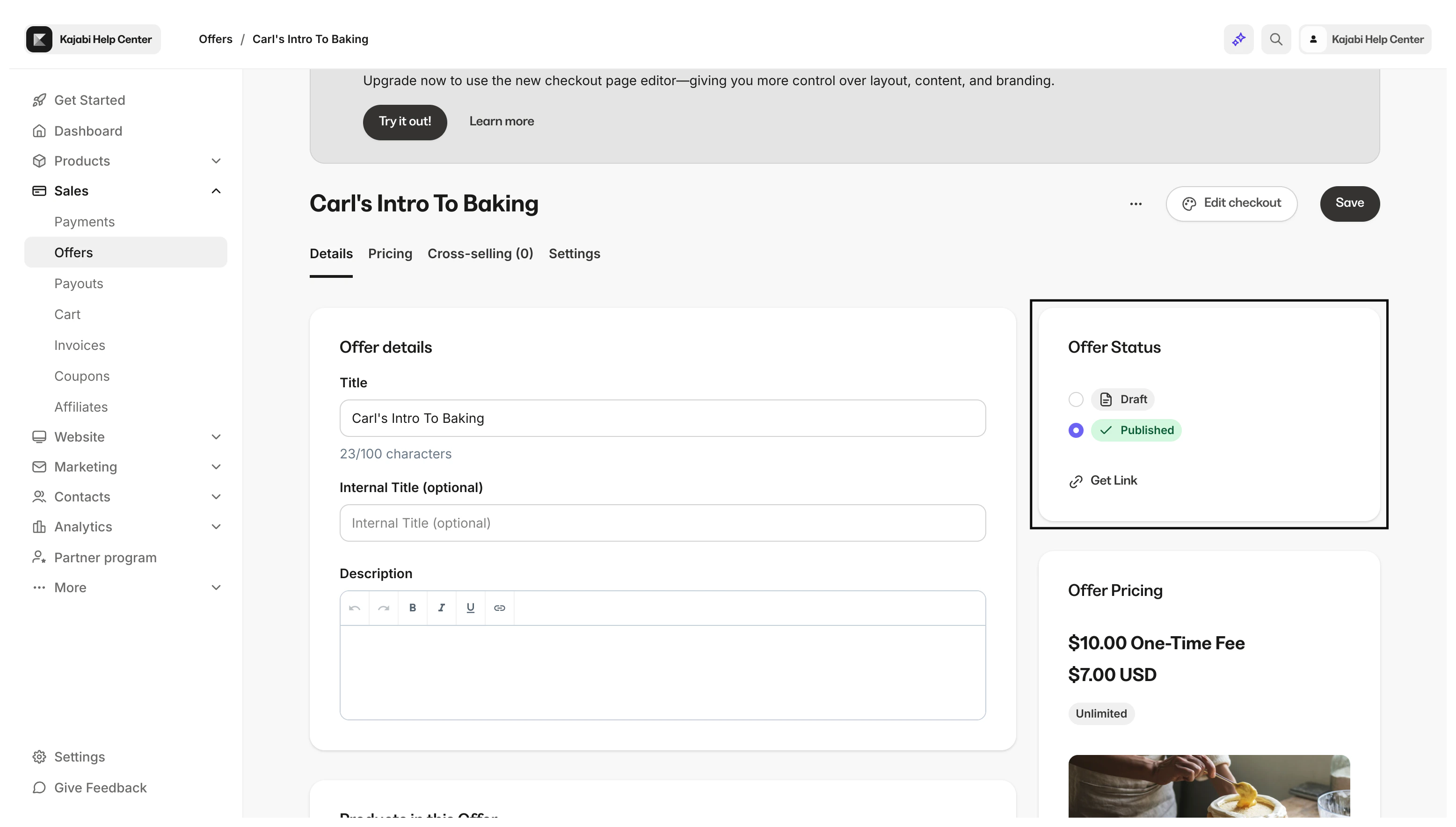
Offer Details
With the Offer Editor, add an Internal Title to help you and your team easily identify your Offer, update the public Title for your Offer to communicate the Offer to your customers, and include a Description to display on a page with an Offer card: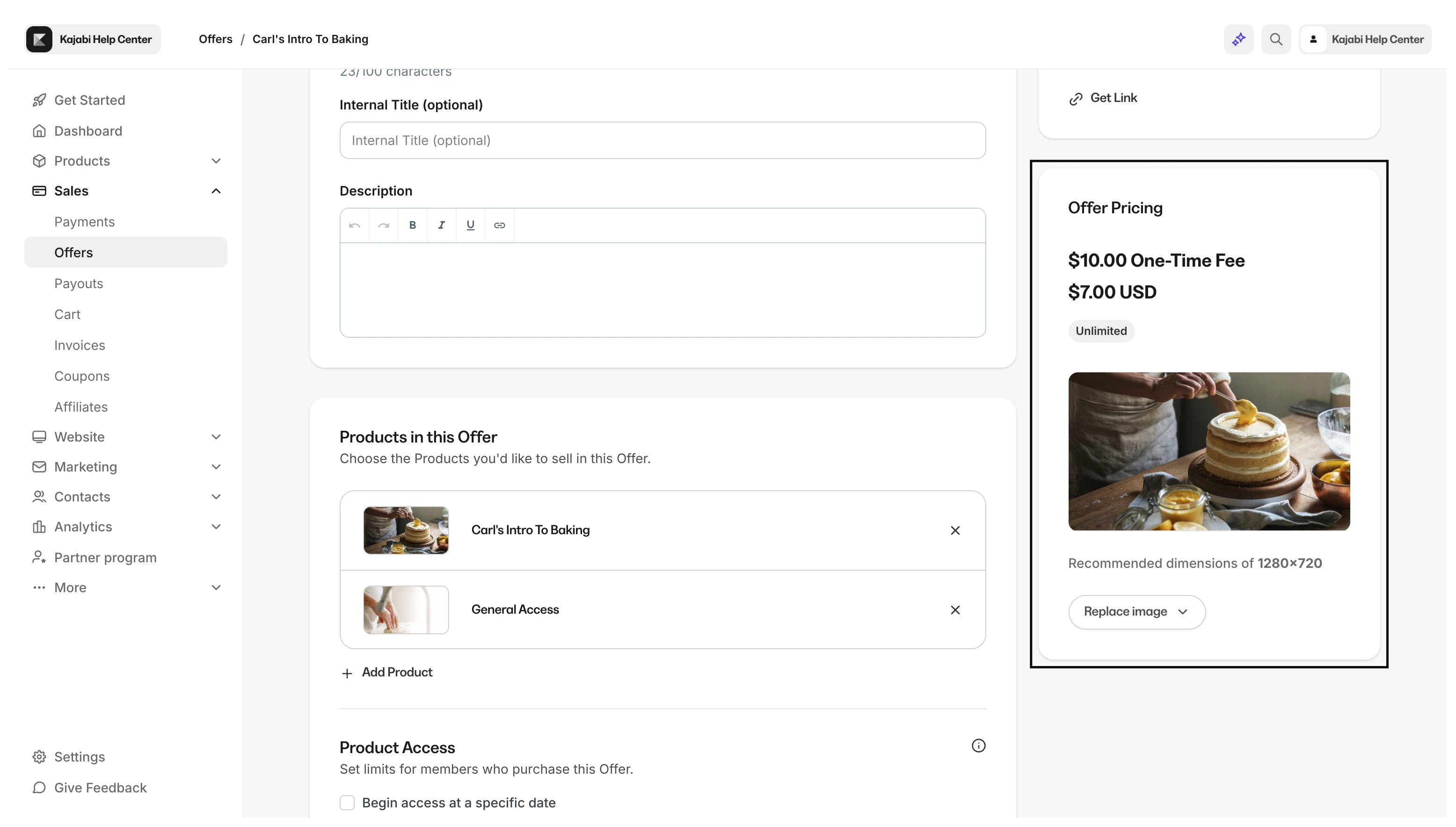
Offer Description
Within your Offer Details page you can customize your Offer Description. If you attach an Offer card to a page on Kajabi, the Offer Description will display in the card: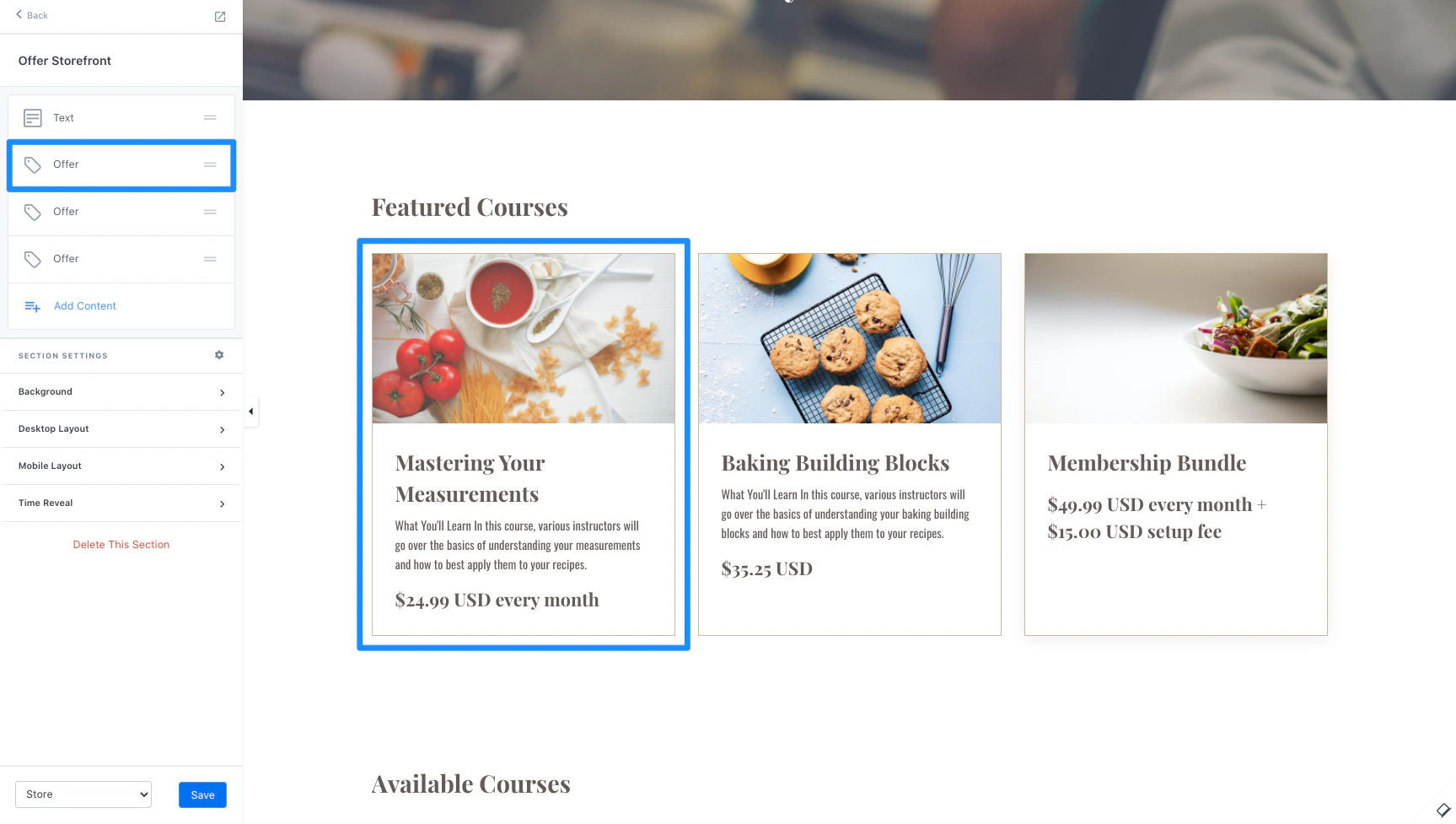
Pricing
Within your Offer Details page you can customize your Offer Price. Customizing your Offer Price is a crucial step to setting up your Offer. The Offer Price will be displayed in the Offer Checkout Page and if you choose to add an Offers or Pricing Block to a page on Kajabi, the Price will display in the block. The purpose of the Offer is to package and deliver your included Product(s) to your customers. Update the Offer pricing to ensure that your Product(s) are being purchased for the price you intend. To learn how to customize the price of an offer, follow along with our guide here: How to customize the pricing of an Offer.Offer Thumbnail
Within your Offer Details page you can customize your Offer Thumbnail Image. Upload an image to display as your Offer Thumbnail. The Offer Thumbnail will appear in the Offer Checkout Page and if you choose to add an Offers block, the block will display the Offer Thumbnail image. Learn to add an Offers block to your page.Note: Once you add an offer thumbnail, it can’t be removed. However, you can replace it with a different thumbnail.
Checkout
Customize your Checkout Page to best suit your brand and create a fluid and consistent user experience when purchasing your Offer. Learn more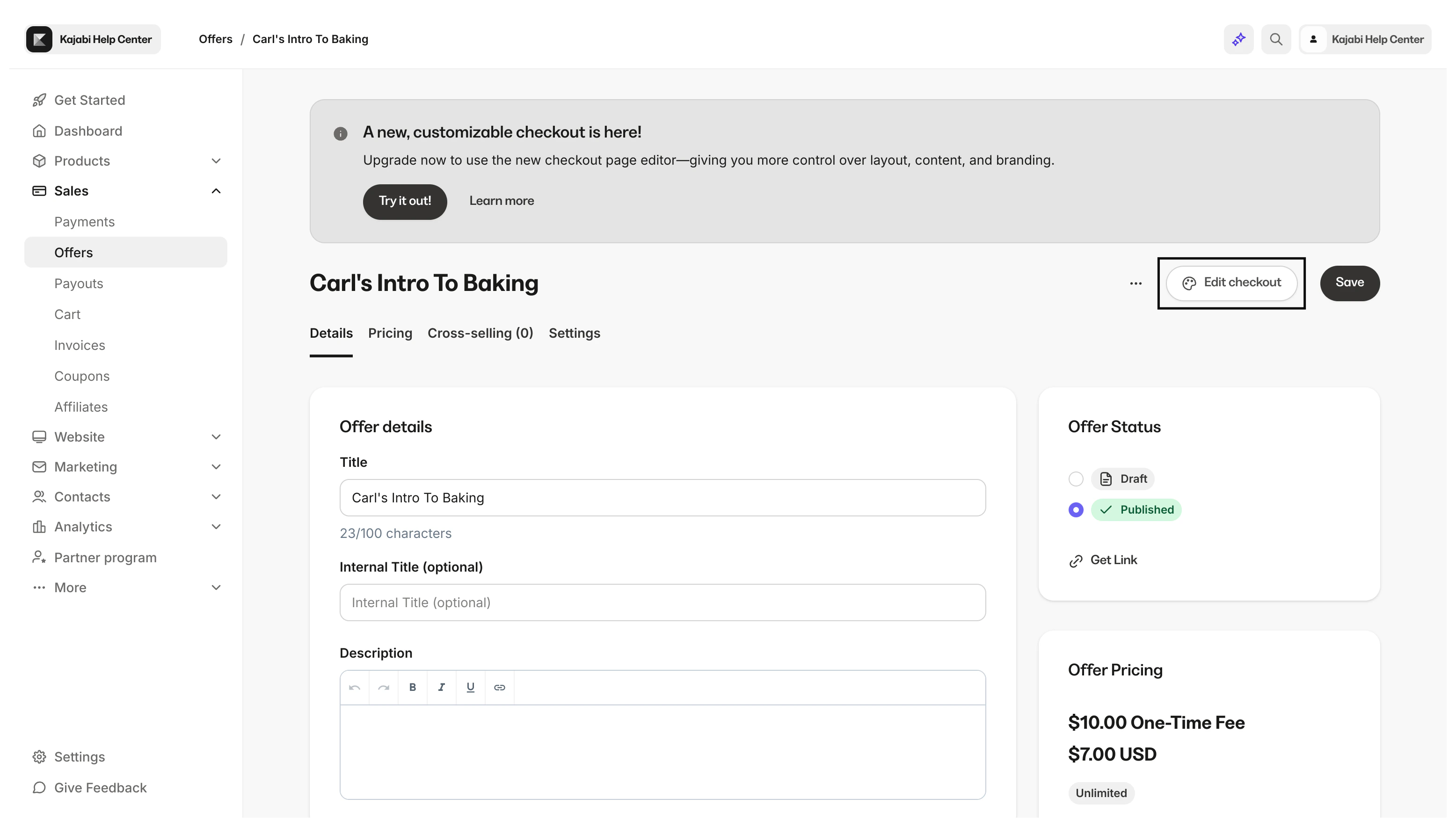
Upsells
Maximize your profit by adding an Upsell Offer to your order flow. With the Upsell, your customers can choose to purchase another product with just one click. Learn more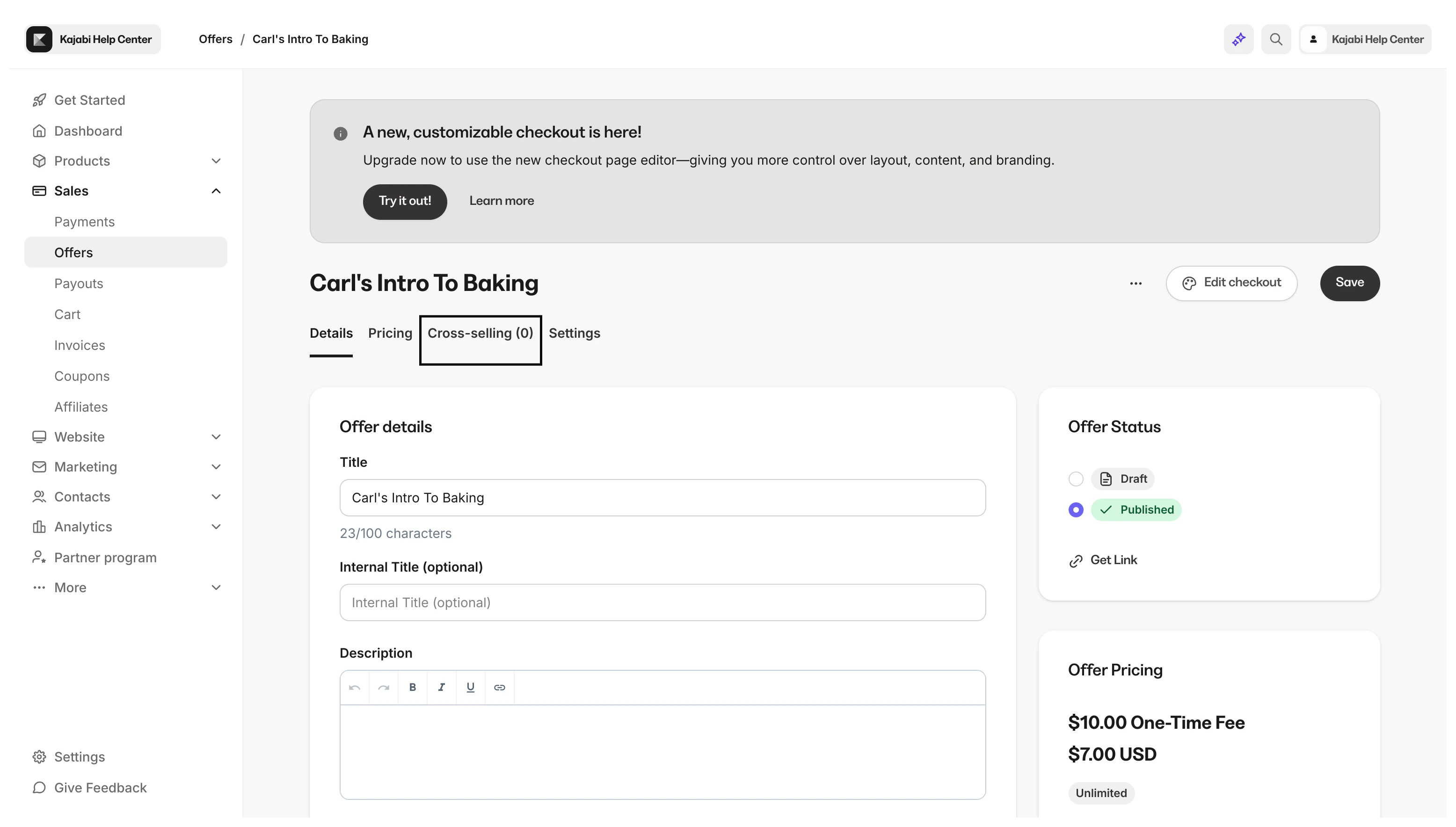
Settings
Notifications
Manage communication options for you and your team and customers that have purchased your Offer:- Send customers to third-party email provider
- Get notified when a purchase has been made
- Send cart abandonment emails if a customer abandons the Offer Checkout page
Affiliate Commission
Activate Affiliate Commission to credit your Affiliates for transactions made with their Share Links. Learn more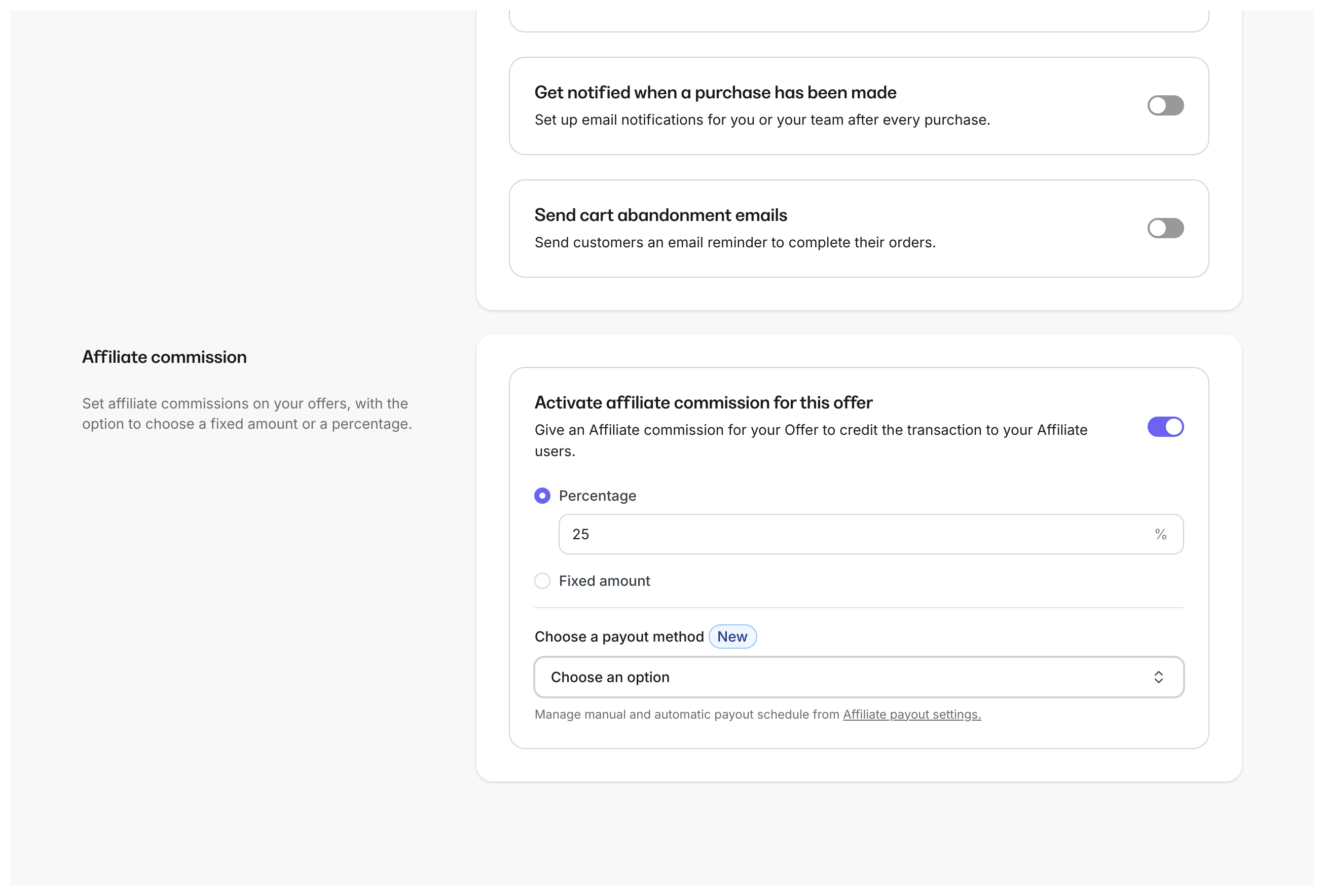
More actions
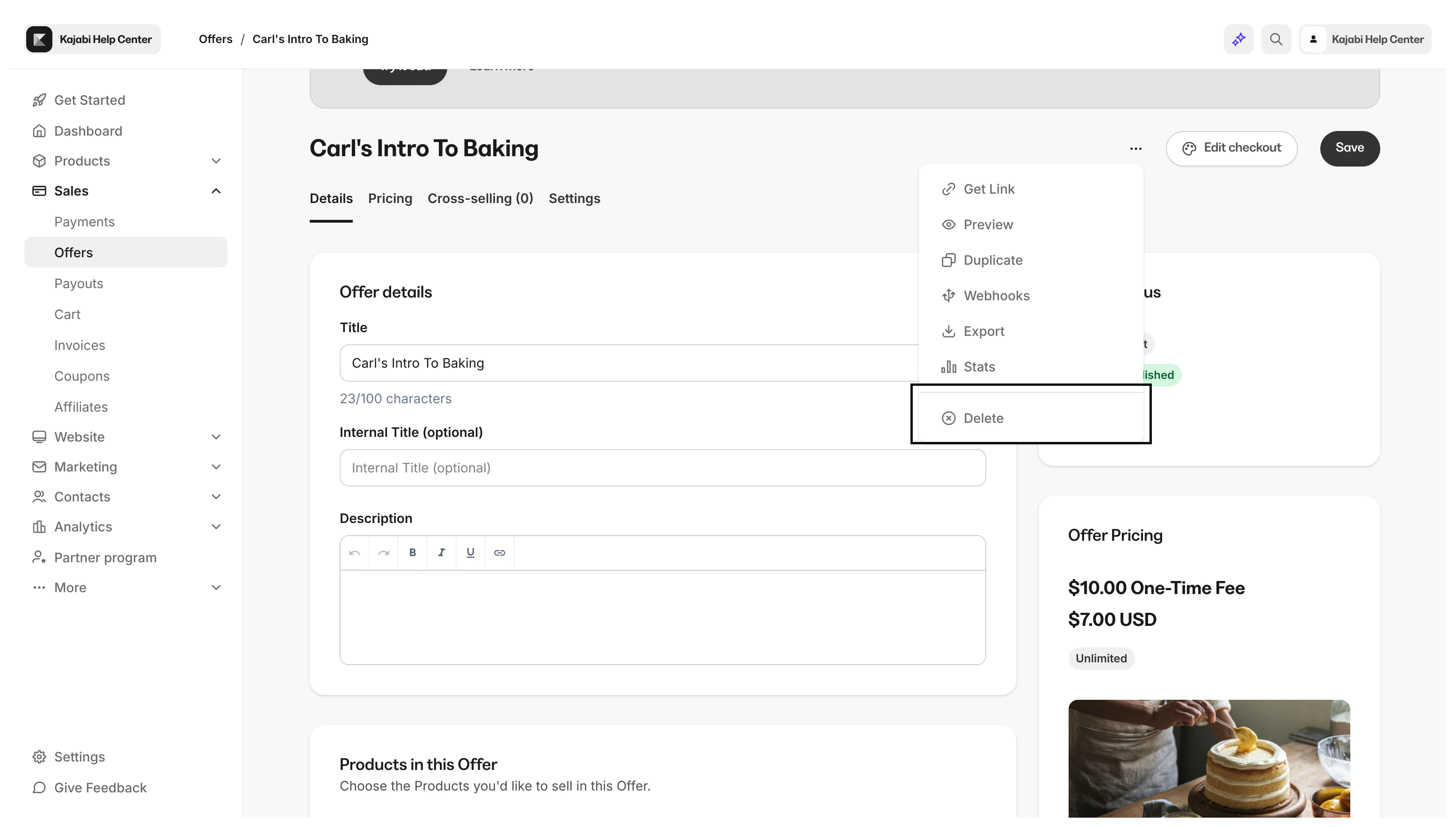
With your More actions, copy the link to your Offer checkout page, preview your Offer checkout page, duplicate your Offer, communicate with other applications through webhooks, view your Offer Stats, or Delete your Offer.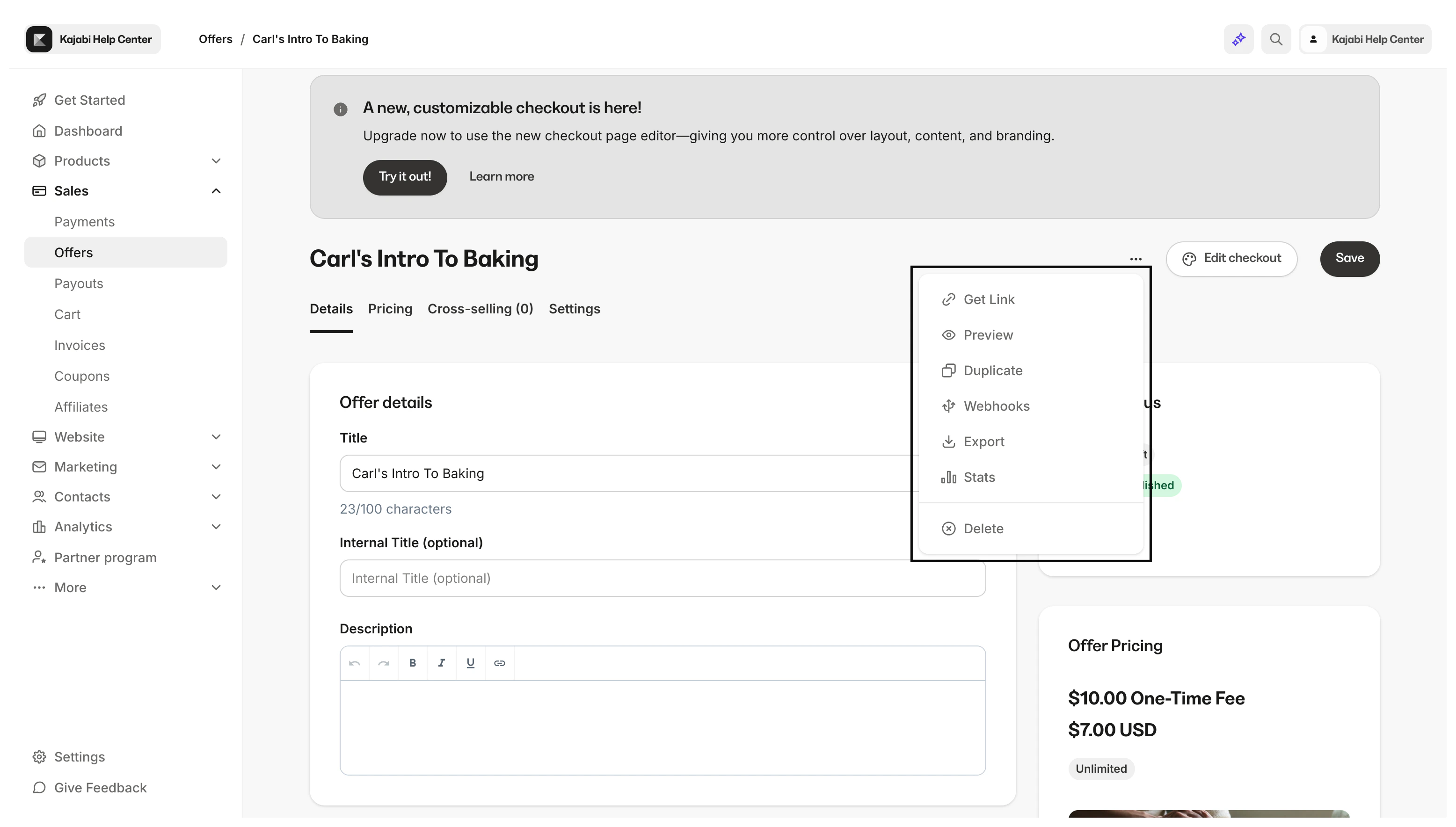
Customize the Offer Checkout Page
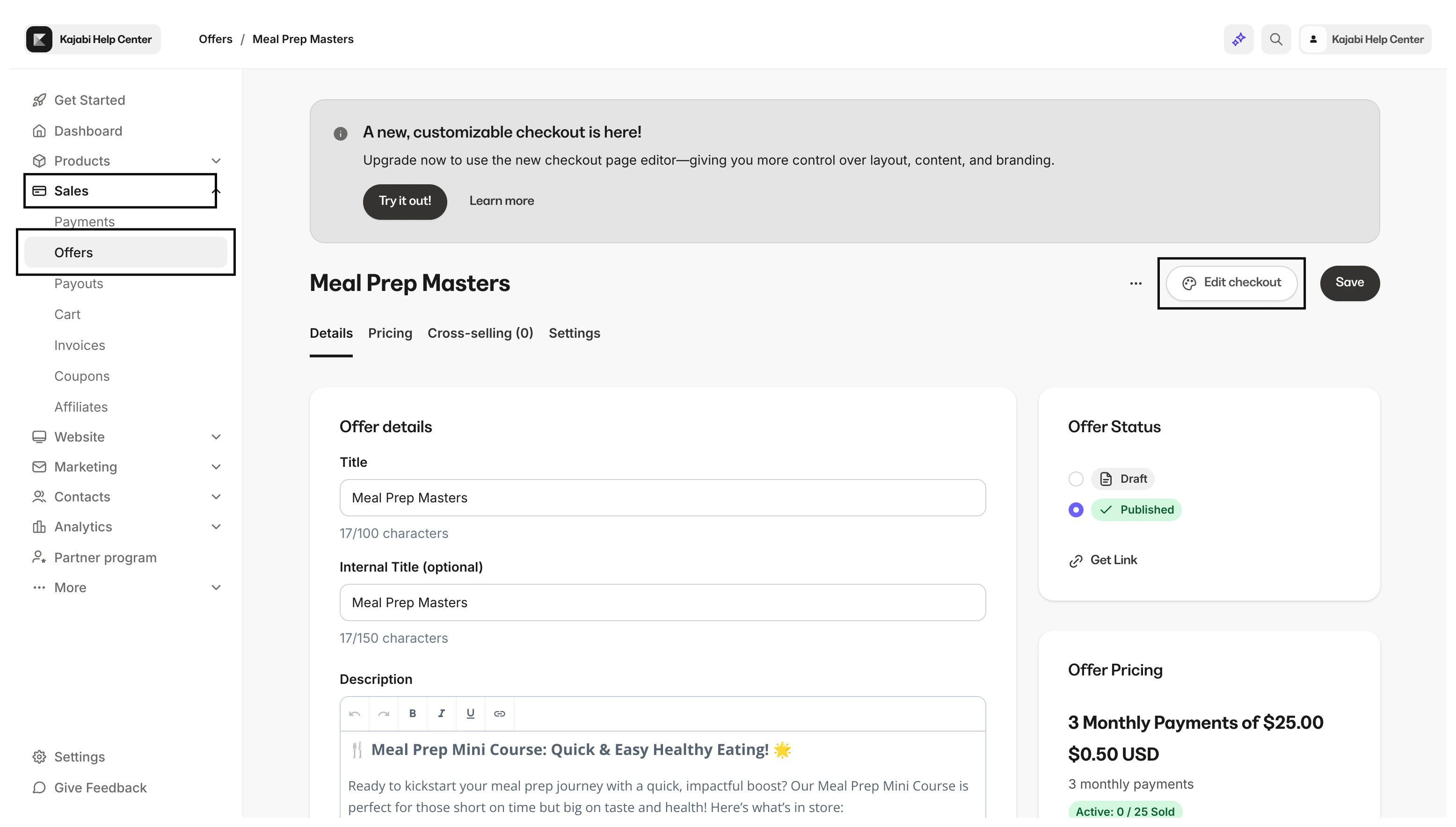
Design your users experience by customizing the Offer Checkout Page after customizing the details of your Offer:- Open the Sales tab from your Dashboard
- Click Offers
- Select the Offer you wish to edit
- In the top menu, click Edit Checkout
Add the Offer to a Page
Last but not least, it is time to share your Offer by adding it to your website. First, add an Offer Section to your Page:- Open the Website tab from your Dashboard
- Click Pages and select the Page you wish to edit
- Click customize to open the Editor
- In the sidebar, select Add Section
- From the list, select Offer
- Your Offer block will generate at the bottom of the section
- Click Save to keep your changes
- In your Page, hover over the Offer block you want to edit and click Edit
- Navigate to the sidebar and select the dropdown menu under the Offer header
Delete an Offer
Looking to permanently delete your Offer?Permanently remove an Offer from the account
- Open the Sales tab
- Click the Offers tab
- Select the Offer you wish to permanently remove
- Click
…in the top right corner of the Offer Editor - In the drop-down menu, select Delete and then confirm that you would like to Delete Offer