

Upsells and Downsells
What is an Upsell?
An Upsell is used as a way to advertise another Offer after the initial Offer has been purchased. A user will complete a purchase and the Upsell will appear as a separate page after checking out and before the account creation page:
Note: Add up to 10 upsells and downsells to your Offer checkout process. Standard business practice is to use between 3 - 4 upsells and downsells to avoid overwhelming your customers.
What is a Downsell?
A Downsell is another Offer presented to customers that decline to purchase the Upsell. This gives you a second chance to make an additional sale if your customer declines the original Upsell. Downsells are typically lower-priced Offers, a discount on the same Product, or an Offer for a completely new Product. Learn more about adding and editing Downsells.Add an Upsell
Add an Upsell to a paid Offer
- First, create an Offer to use as an Upsell
- Then, return to your Offers Dashboard and select the Offer you wish to attach your Upsell to
- Navigate to the Cross-selling tab and click Get Started
- In the dropdown menu, select the Offer you want to use as the Upsell
- Add a Title and Description for your Upsell, and optionally upload a Video and customize the Purchase and Cancel button text
- Click Add Upsell to apply your changes
- Finally, toggle your Upsell to Active to ensure your customers will see it when checking out
Note: Upsells can only be added to paid offers. This means that Users with a 100% off coupon for an Offer with an Upsell will not be given the Upsell because it is no longer a paid offer with their coupon applied. Learn more about troubleshooting your Upsell.
Preview your upsell
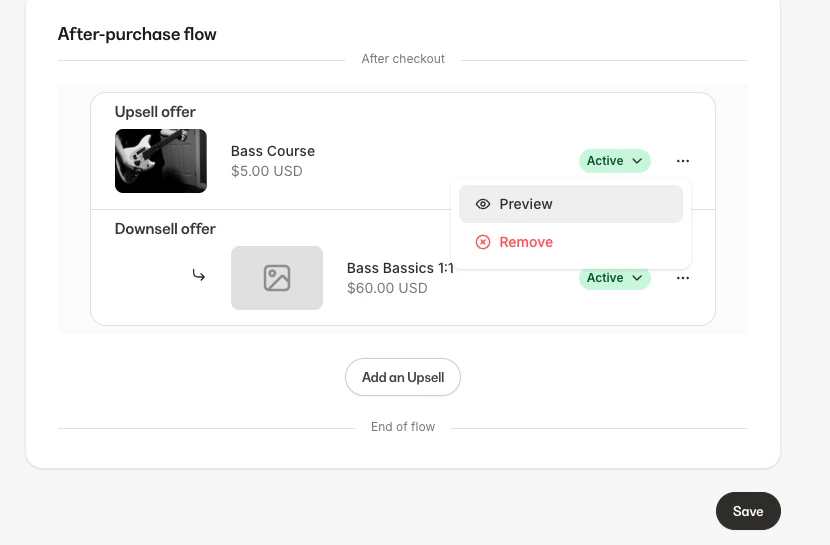
View your upsell purchase experience by clicking... to the right of your Upsell status and selecting Preview:
Remove an Upsell
Remove an Upsell from an Offer
- Open the Sales tab from the Dashboard
- Click Offers
- Select the Offer from which you’d like to remove the Upsell
- Navigate to the Cross-selling tab on the Offer page
- On the Cross-selling page, click the
…menu next to the Upsell Offer - Click Remove to delete it
Note: If you’ve added a Downsell to your Upsell, you must delete it first prior to deleting the top-level Upsell.