

Edit the price: Free
- Open the Sales tab from the Dashboard
- Click Offers
- Select the Offer you wish to edit or create a new one
- In the Offer Editor, click Pricing
- Navigate to the Price Details card
- Then, select Free
- Be sure to click Save to keep and apply your changes
Customize the free Offer
If the Offer Pricing Option selected is Free, there are no additional fields to be edited. Instead, you have the option to override the default Price text. If you wish to edit the text describing the Price for the Offer, enter a custom phrase to describe the price in the Price text override field: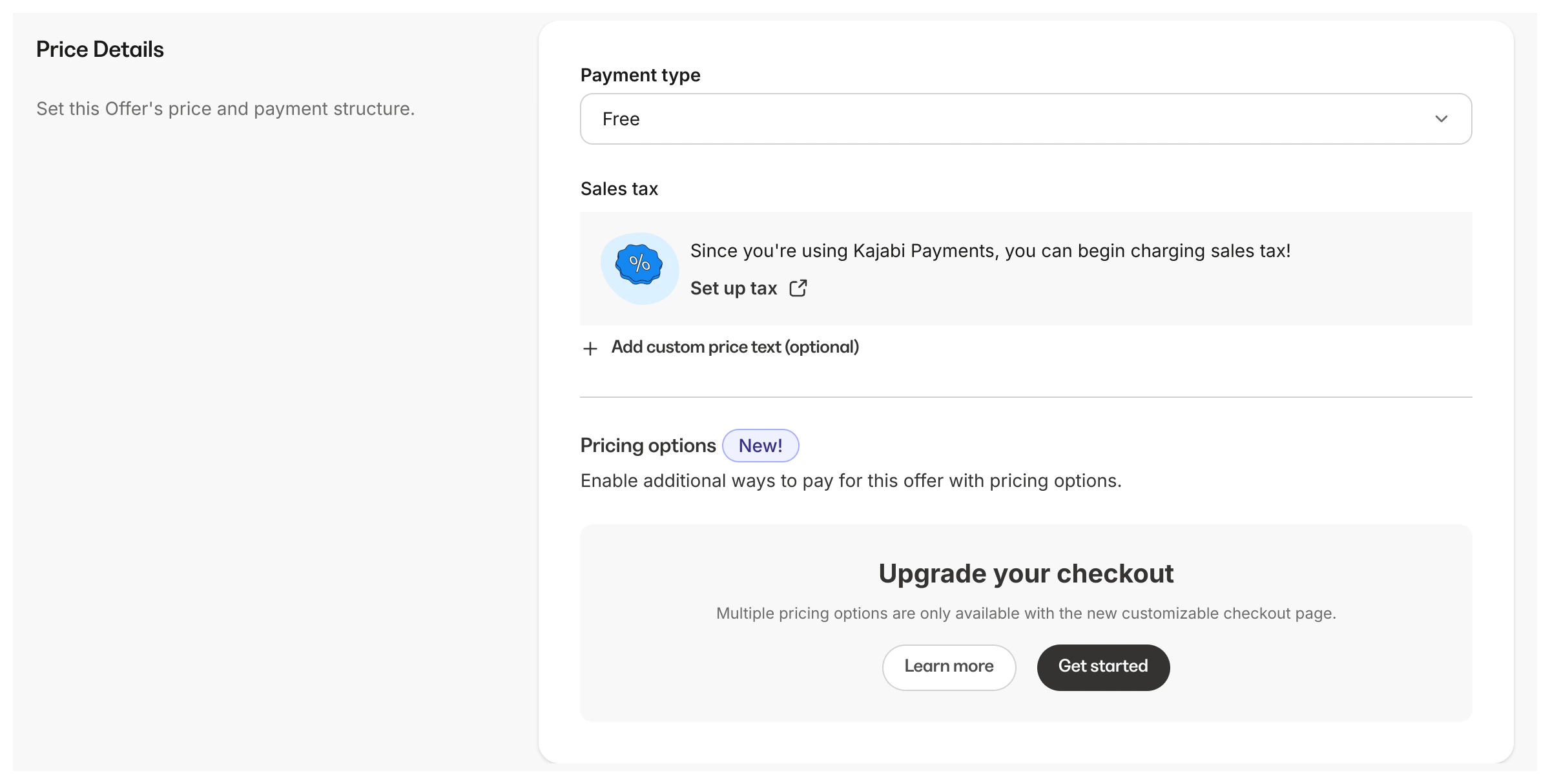
Note: Free Offers cannot include an Upsell Offer. Add an Upsell to Offers with a price to encourage your customers to purchase additional Offers. Learn about Upsells