

Note: Kajabi Receipts provides an easy and seamless way to send payment receipts to customers who purchase your Offers via Kajabi Payments. If you choose to use Kajabi Receipts with a third-party payment provider like Stripe or PayPal, be sure to disable receipts with Stripe or PayPal.
Set up email receipts
- Open the Settings tab from your Dashboard.
- Click Customer Payments under Payment settings.
- Find the Receipts section.
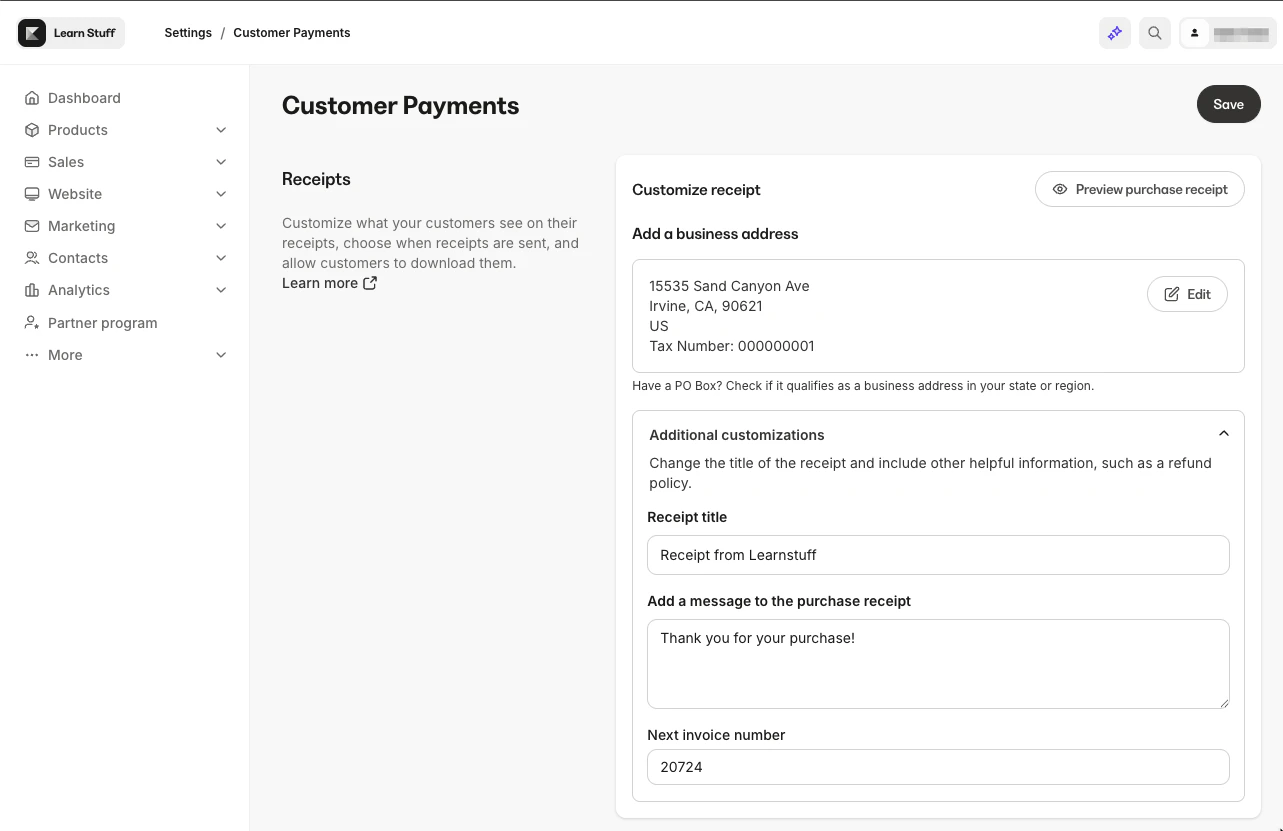
Customize receipts
Business address (required): Your business address appears at the bottom of every receipt. Make sure this information is accurate. By default, this pulls from your Marketing Settings. Additional items (optional):- Receipt title: Choose a title for the top of your receipt. If left blank, this will default to “Purchase Confirmation”.
- Custom message: Include other helpful information, such as a refund policy or your support contact information.
- Next invoice number: You can only increase the next invoice number. If you try to decrease it from its current number, you will receive an error.
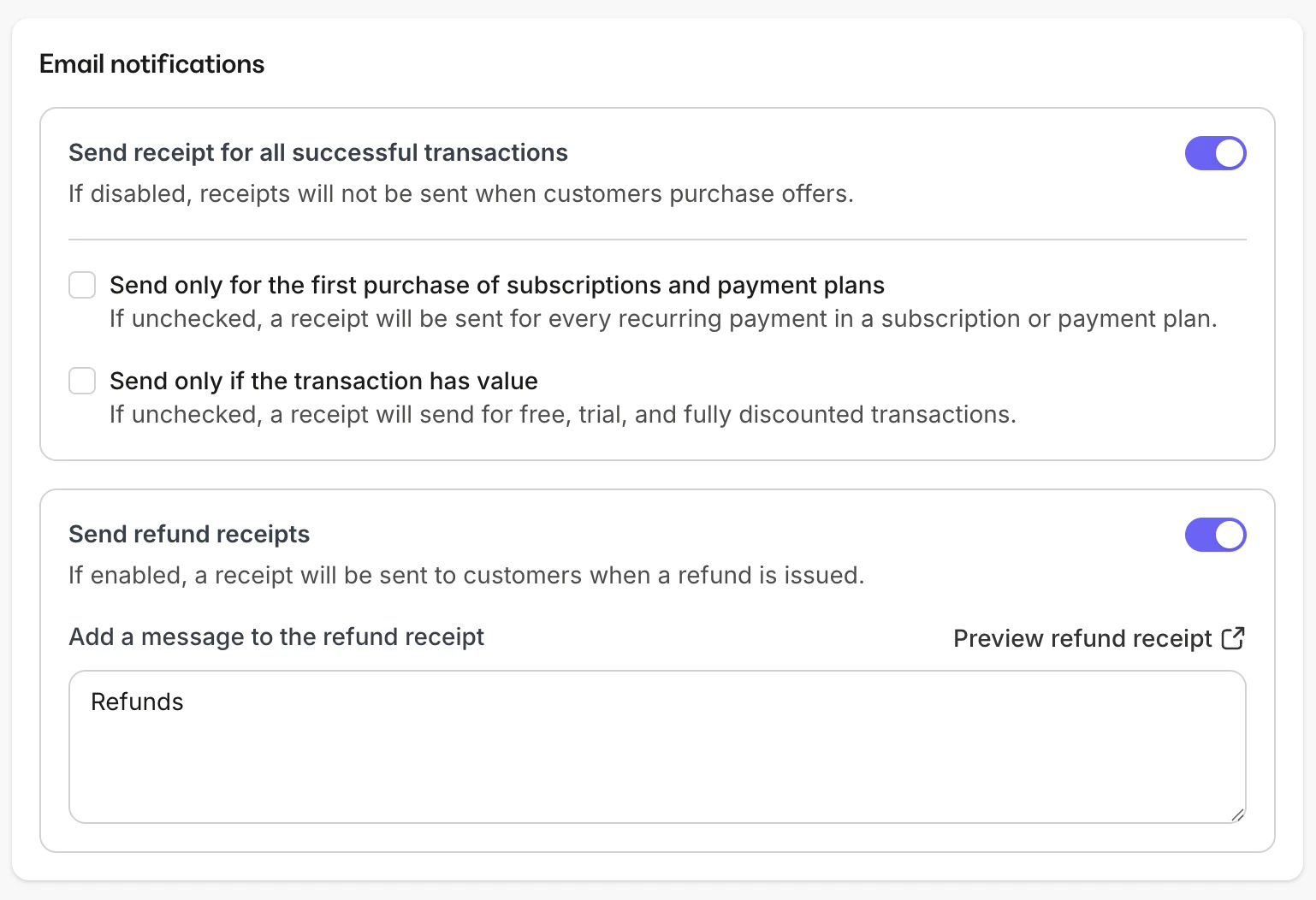
Email notifications
Choose if and when you want to send receipts for successful transactions under Email notifications:- Select if you’d like to send an email to your customers for all successful transactions:
- Choose to only send receipt emails for initial purchases on recurring transactions. This applies to Offers with recurring billing (i.e., subscriptions and payment plans).
- Check if you’d like to send a receipt only if the transaction has value (i.e., Free offers will not send a receipt)
- Select if you’d like to Send refund receipts. You can also add a customized message to your refund receipt emails here.
Download options
Toggle this setting on if you want to attach receipts as a PDF to your receipt emails. Email receipts must be enabled for PDFs to send successfully.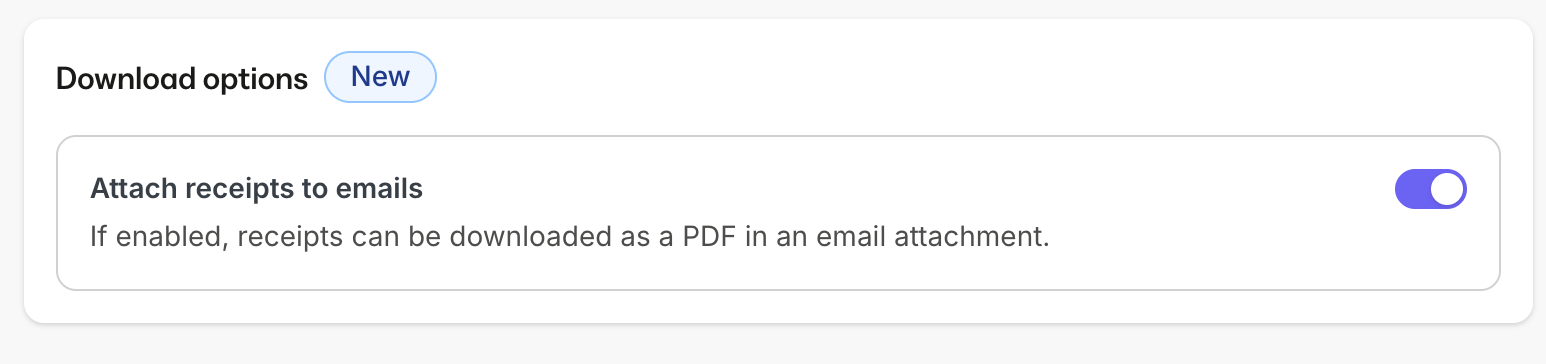
Customize email templates and branding
To modify the receipt email template content, follow these steps:- Navigate to Settings > Email Templates in Kajabi.
- Open the receipt template to adjust the messaging or design elements.
- To update the branding logo that appears on receipt emails, go to Settings > Site Details.
- Update the Branding Logo with the desired image.
Change the language of receipts
The receipt language can be edited by you or your customers. Receipts will be sent in your site’s default language. You and your customers can control the language used in Kajabi receipts.Edit receipt language for a customer
- Open the Contacts tab from your Dashboard.
- Select All Contacts.
- Search for your Customer.
- View your Customer’s profile.
- Select Edit Details.
- Locate Receipt Language dropdown and select language preference.
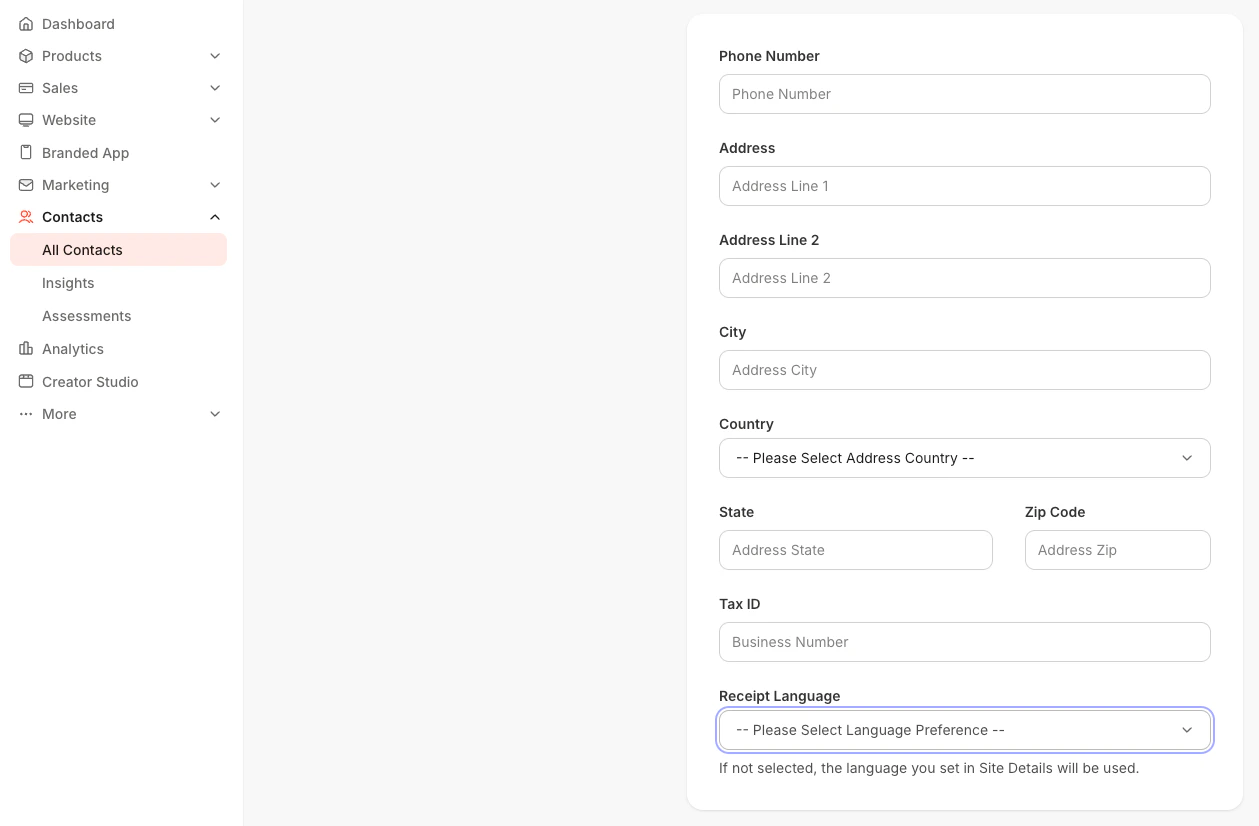
Edit receipt language as a customer
- Log in as a customer of your site.
- Select User Menu from your site’s header.
- Select Settings.
- Under the Contact & settings tab, locate the Receipt Language dropdown and select the language preference.
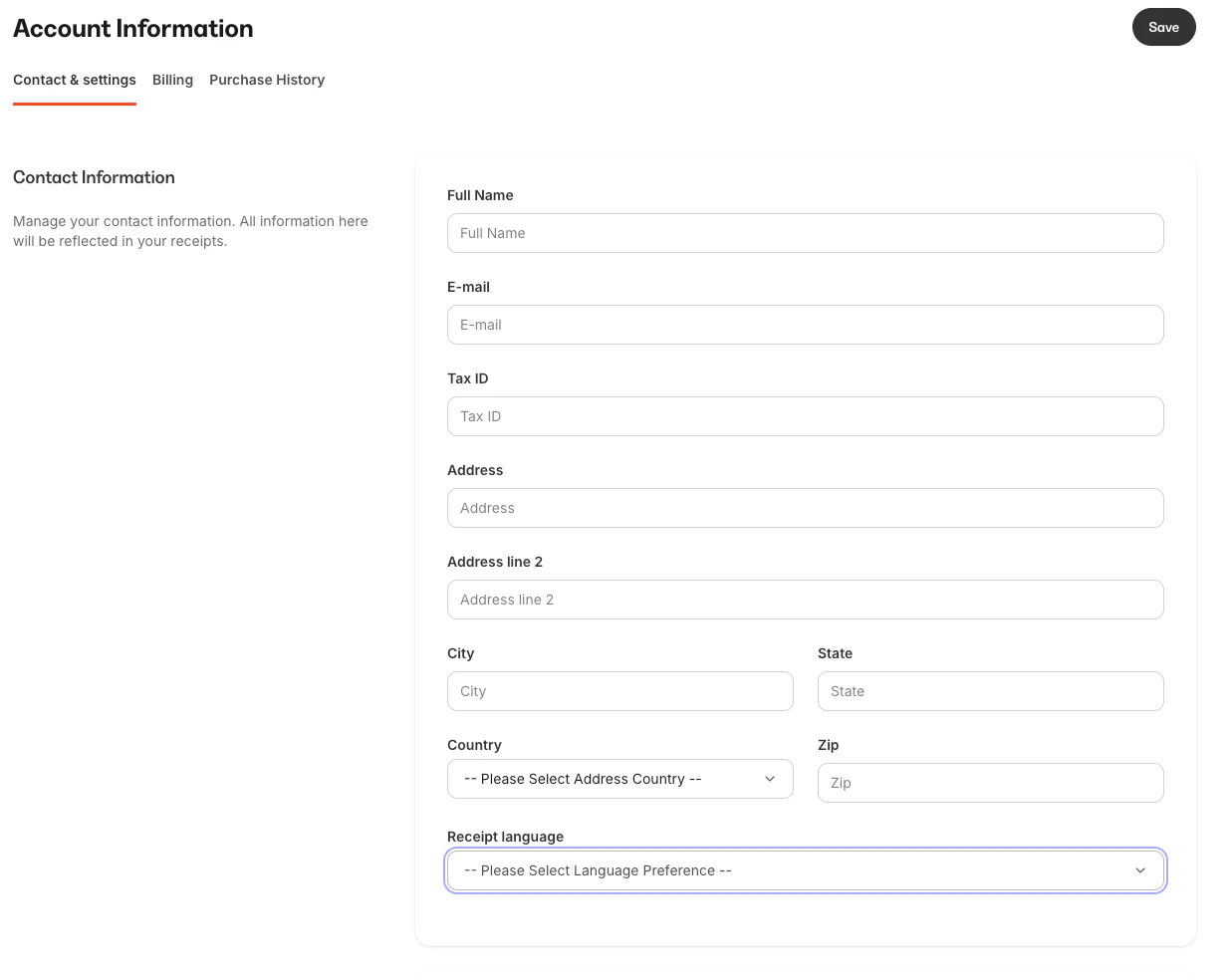
Note: Language setting does not impact receipt title, receipt message, offer title, tax name, business address, business name and address or form information submitted by your customer.
Edit receipt contact information
Note: Editing contact receipt information is not available for transactions made through Cart.
Edit contact receipt information
- Open the Sales tab from your Dashboard.
- Open the Payments tab.
- Select Transactions.
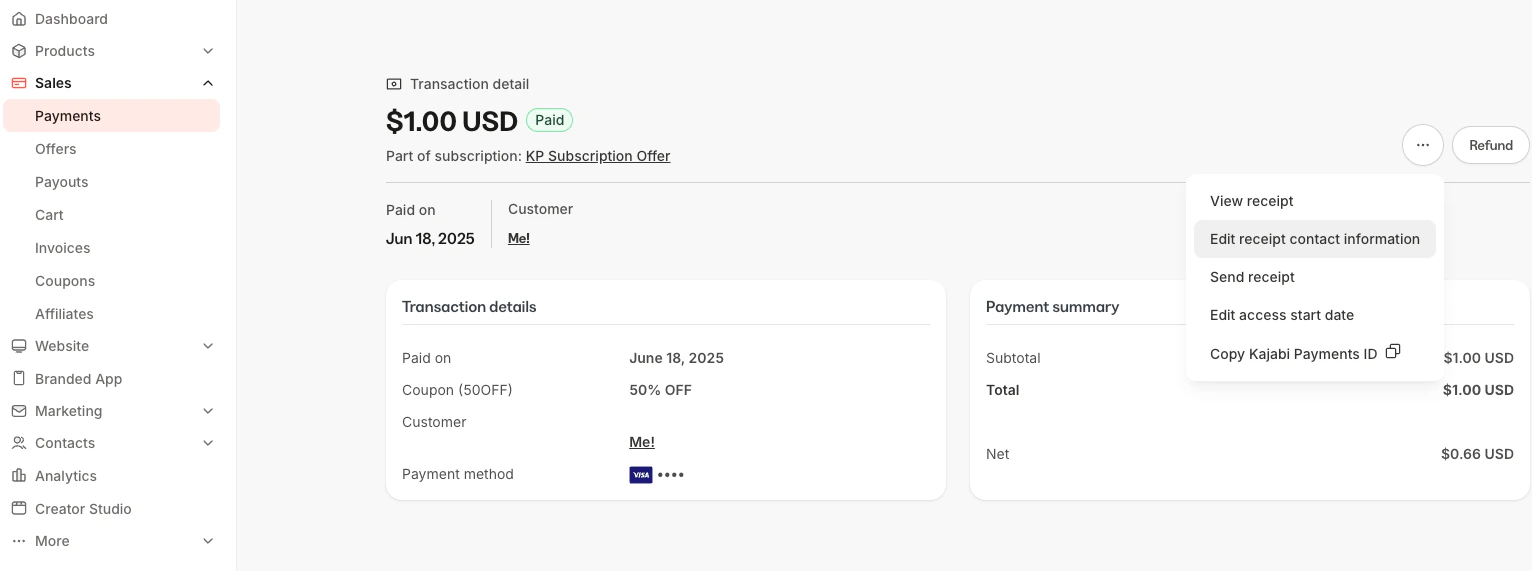
- Locate the Transaction you wish to edit and click on the transaction Amount. (Or, click … at the far right and select “View more details”.)
- Click the ellipses ….
- Select Edit receipt contact information.
- Edit the information you wish to edit, then hit save.
Test customizations
To ensure your receipt email customizations appear as desired, complete a manual test purchase:- Create a test offer.
- Make a test purchase as an end-user.
- Check the confirmation email to validate the content and design changes.
Download receipts as a PDF
You can download a PDF version of any receipt.Download a single receipt
- From your Kajabi Dashboard, navigate to Sales → Payments → Transactions.
- Search for the transaction via your customer’s email and open the Transaction details page by clicking on the dollar amount of the transaction.
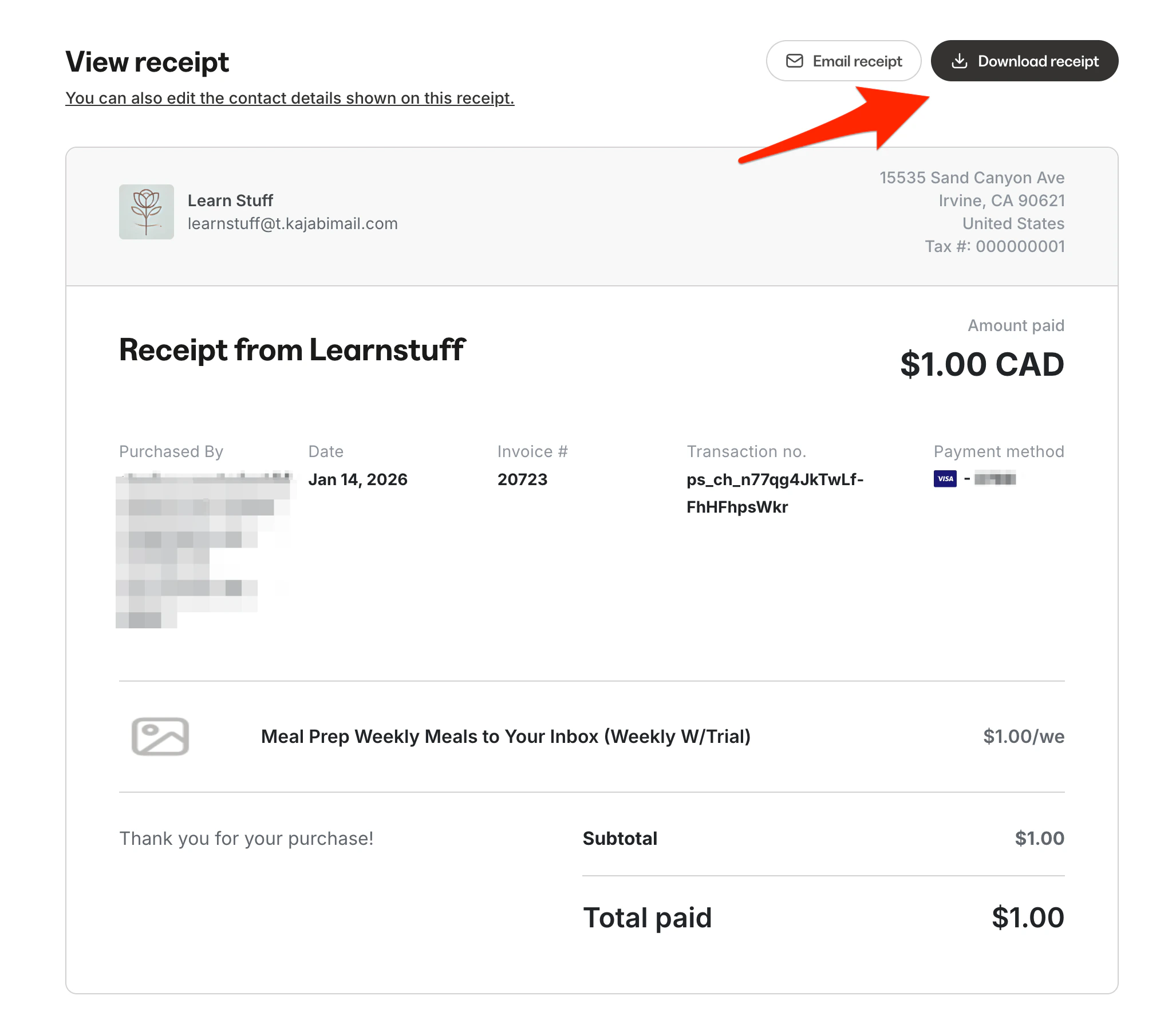
- From the Transaction detail page, click on the ”…” menu, selecting View and send receipt.
- Select Download receipt.
Bulk download receipts
Bulk exports are helpful for accounting, audits, and tax prep.Download receipts in bulk
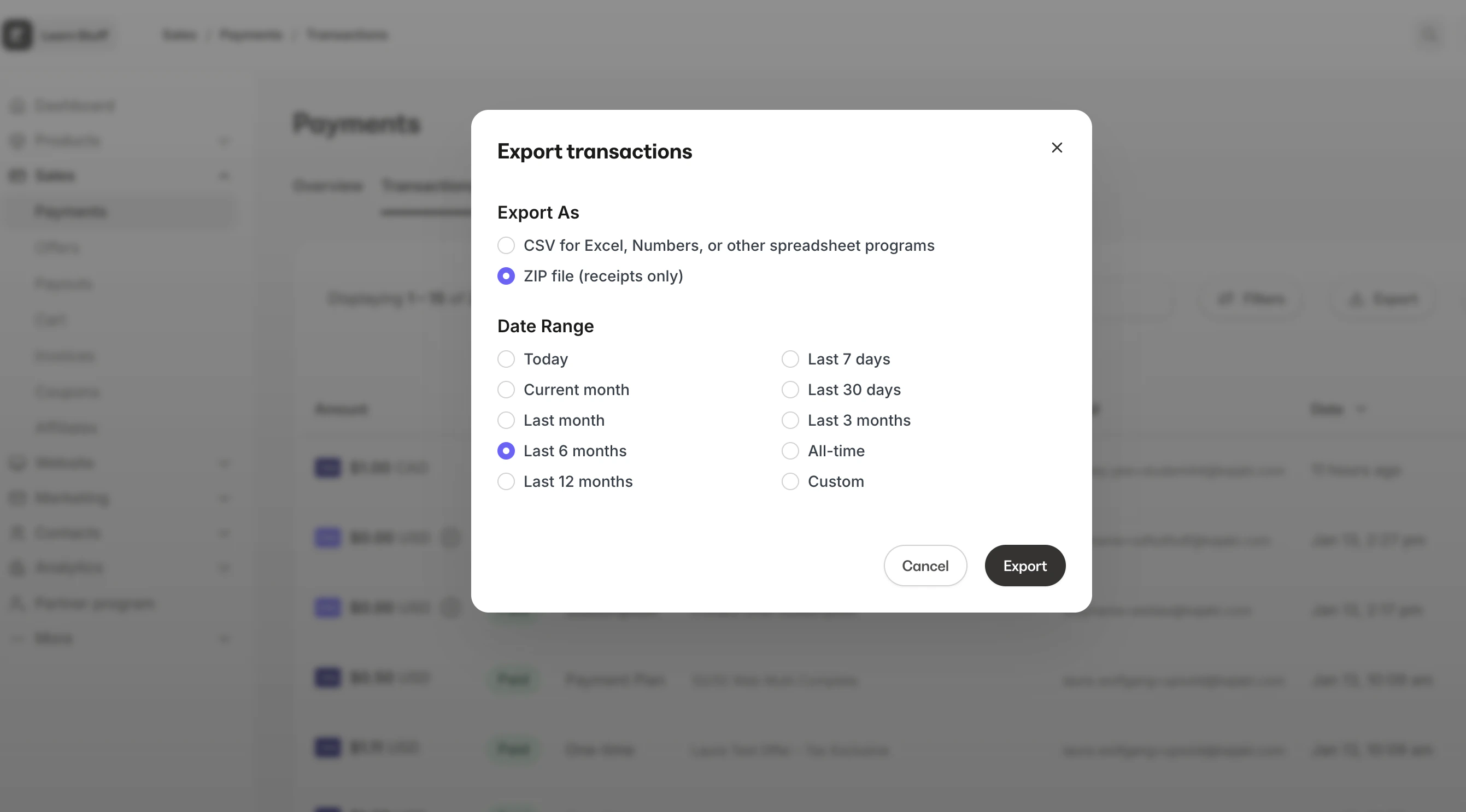
- From your Kajabi Dashboard, navigate to Sales → Transactions.
- Click Export.
- Choose:
- Date range
- Receipt type
- Click Export.
- You’ll receive an email with the subject: Your transaction receipts export is ready.
- The email will prompt you to log in to your Kajabi account which will then download your ZIP file once you’re logged in.
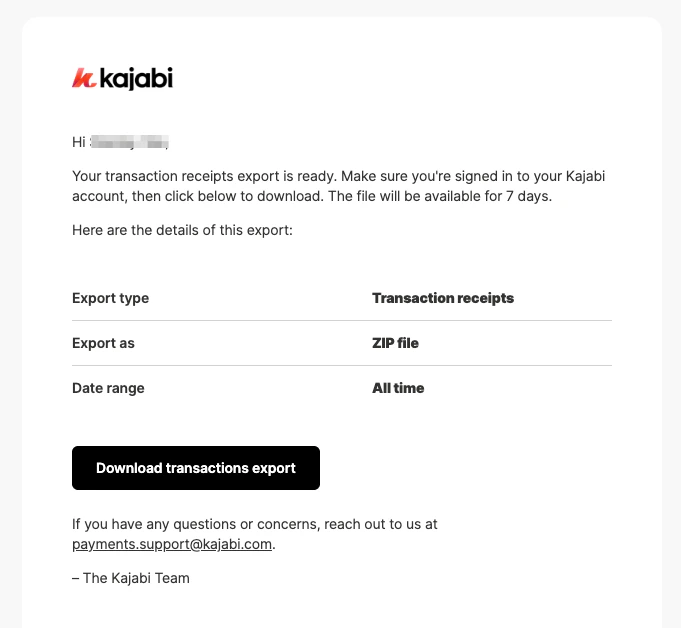
Note: Download links expire after 7 days.
Resend email receipts
Note: Your customers can view and download their purchase receipts. Learn more here.
Resend an email receipt from the Transactions page
- Open the Sales tab from the Dashboard.
- Select Payments.
- Click Transactions.
- Search the email of the Customer you wish to refund.
- Open the More Actions Menu
…. - Select Send Receipt.
Resend an email receipt from Contacts
- Open the Contacts tab from your Dashboard.
- Select the name of the contact you wish to resend the receipt, then click Open full profile.
- Select the Purchases tab.
- Locate the Offer that was purchased and click View Details.
- Select the Transactions tab.
- Next to the transaction you want to send, click the
…menu. - Click Send receipt.
Resend refund receipts
Note: Remember to activate your Refund Receipts feature. Learn more here.
Resend a refund receipt from the Transactions page
- Open the Sales tab from the Dashboard.
- Select Payments from the Sales tab.
- From the Payments page, select Transactions to be taken to the Transactions page.
- Find the payment you wish to send a receipt for and select the
…button for More Actions. - In the More Actions drop-down menu, select Send refund receipt.
Resend a refund receipt from the Contact page
- Open the Contacts tab from your Dashboard.
- Select the name of the contact you wish to resend the receipt, then click Open full profile.
- Select the Purchases tab.
- Locate the Offer that was purchased and click View Details.
- Select the Transactions tab.
- Next to the transaction you want to send, click the
…menu. - Click Send receipt.