Checkout page
The first step in your checkout flow is the Checkout Page. The Checkout Page collects your customer’s payment information to purchase the Offer.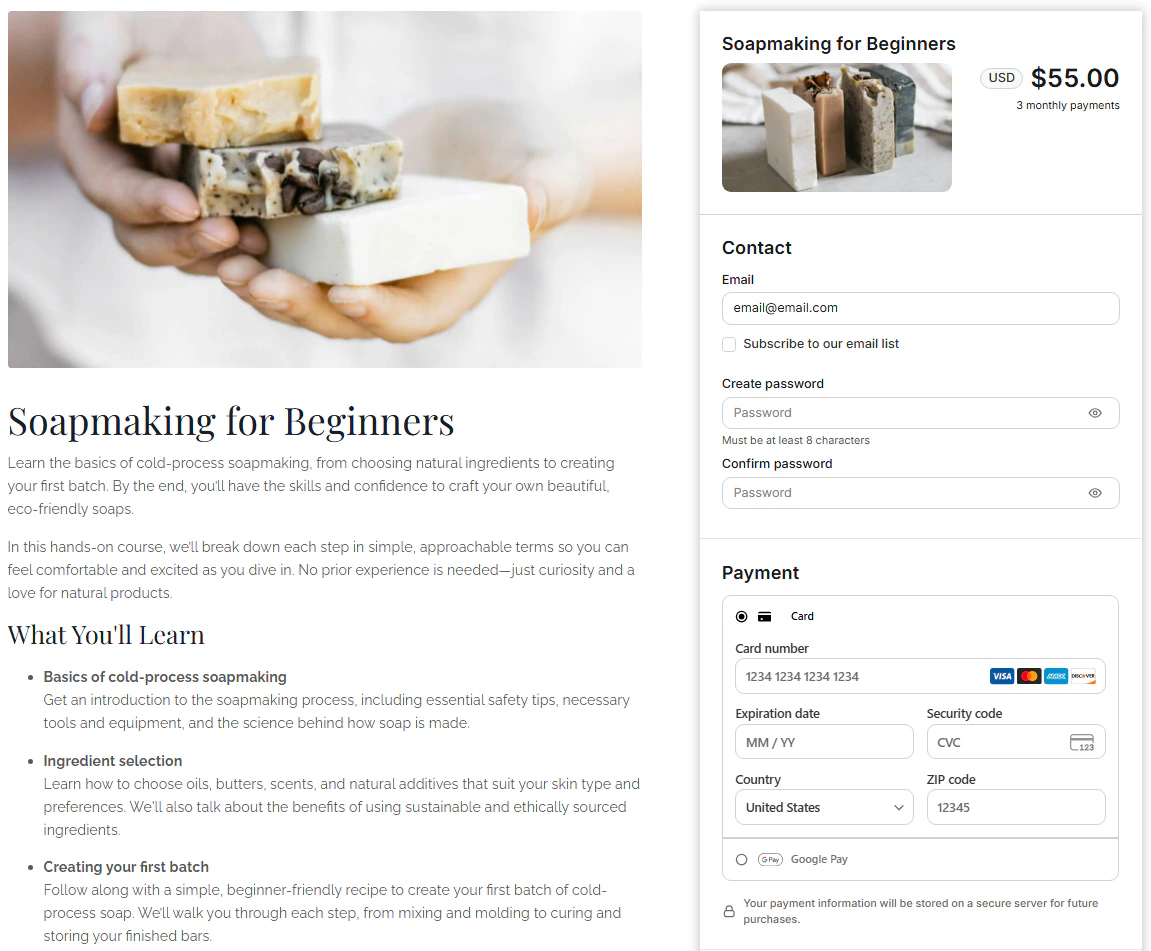
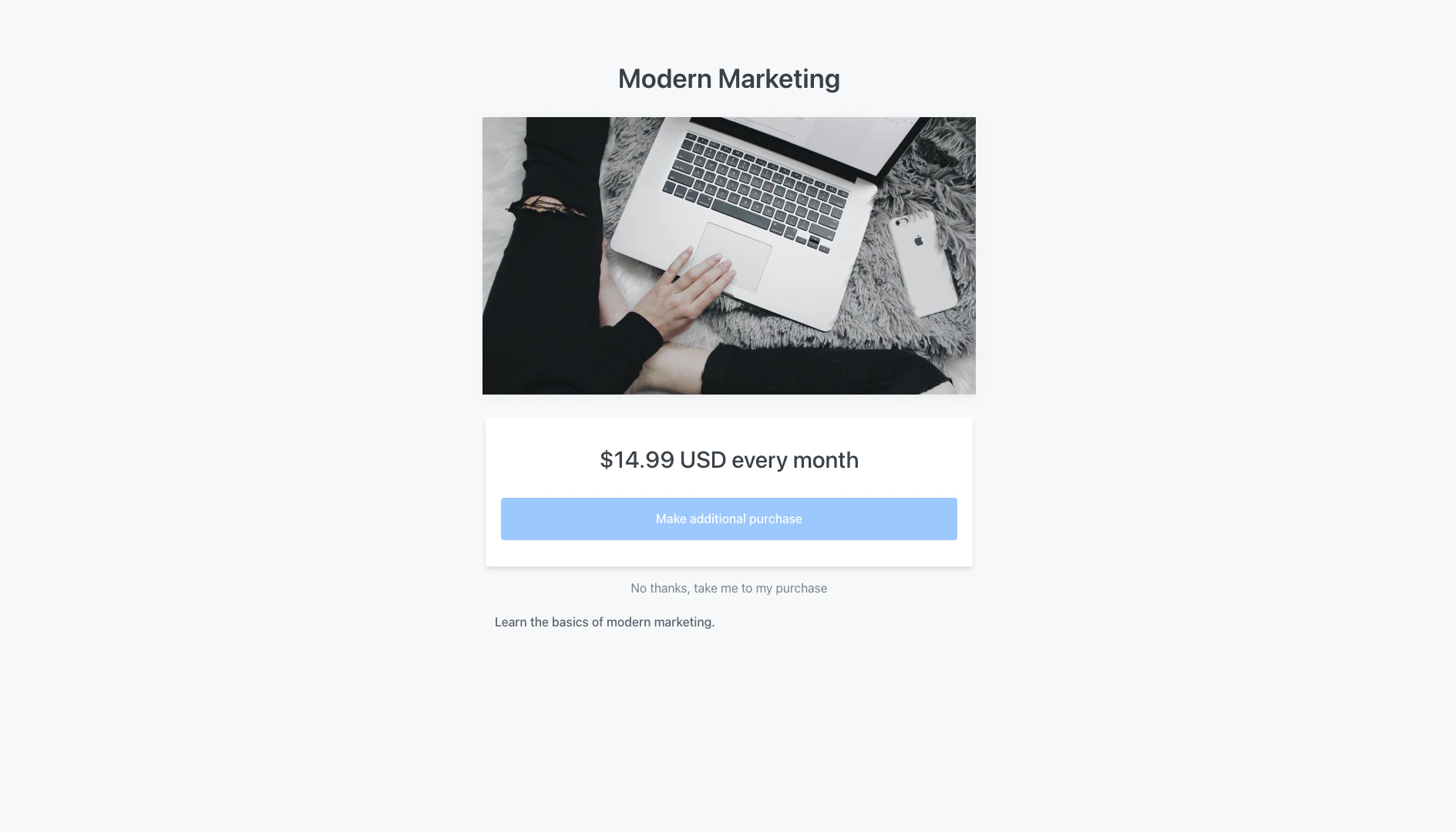
Purchase Upsell
If you have included Upsell(s) to your Offer, then your customer will be prompted to purchase your upsell before completing their login information in step 2. If they wish to purchase your upsell, they can select your custom purchase button. If they choose to include your upsell with their purchase, it will be processed as a separate transaction. Learn moreNote:
If your Original Offer is connected to an Upsell Offer with a different type of payment method (e.g., Kajabi Payments, Stripe, or PayPal) from the Original Offer, your Upsell will use the same payment method used for the Original Offer.
Note:
Add up to 10 upsells to your Offer checkout process. Standard business practice is to use between 3-4 upsells and downsells to avoid overwhelming your customers.
Create account or log in
After purchasing, your customer will be prompted to enter their name and desired password. Account creation behavior depends on your Offer settings:- If Require new customers to create password at checkout is enabled, new customers create their password directly on the checkout page, and the Account Creation Page is skipped automatically.
- If password creation is not required, customers are directed to the Account Creation Page after purchase to set their password and complete their account setup, and returning customers are directed to the Login Page.
Skip account creation page
You can control whether new customers see the Account Creation Page from your Offer’s Post-purchase settings by navigating to:- Open Offers
- Select an Offer
- In the Details subheading, scroll down to Post-purchase settings
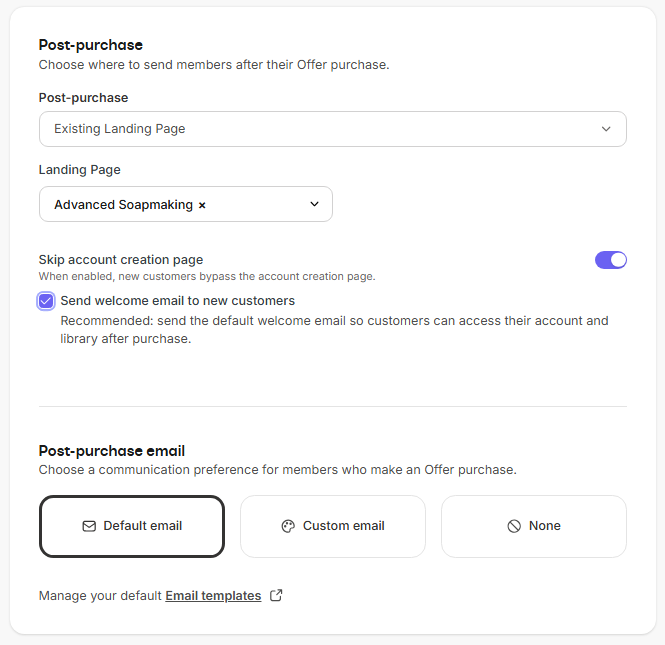
- Customers are redirected directly to the selected Existing Landing Page after purchase.
- This setting is only available when Existing Landing Page is chosen for post-purchase routing.
- A sub-option appears:
- Send welcome email to new customers (Recommended). Sends the default Member Welcome Email which includes an invite link for them to easily set up an account for your site.
Note:
Cart post-purchase settings will override post-purchase settings configured at the individual offer level.
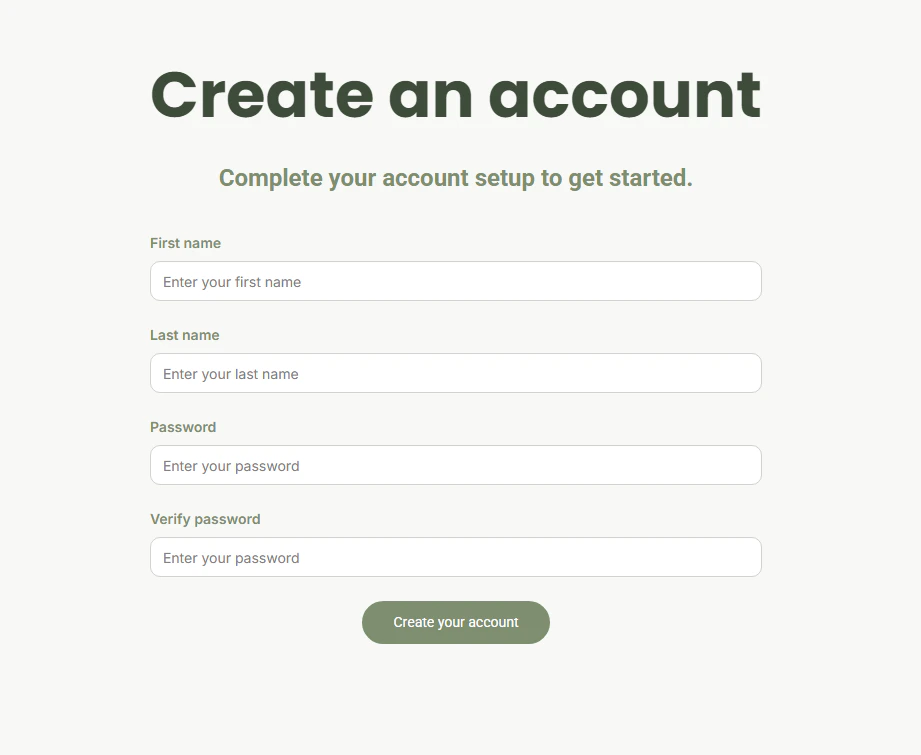
Colors
- Page Background Color: If you set a dark background, the page text will automatically switch to white for readability. (Background Images are not supported on this page.)
- Heading Font Color: The “Create an account” heading
- Body Font Color: Labels (First name, Last name, Password, Verify password) and the subheading (“Complete your account setup to get started.”)
- Placeholder Font Color
- Button Background Color: The “Create your account” button background (and button text when button style is Outline)
- Button Text Color: The text inside the button (only when the button style is Solid)
Fonts
- Heading Font: The “Create an account” heading
- Body Font: “Complete your account setup to get started.” subheading and “Create your account” button text
Font sizes
- H1: “Create an account” heading
- H4: “Complete your account setup to get started.” subheading
Button
- Button Width
- Button Style
- Button Size
- Button Border Radius
Note:
Theme-based customization of the Customer Account Setup Page is currently in beta. You can head to Labs from your settings to enable these changes for your account.
Library page
After your customer completes Step 2 to create their account on your site, they will be sent to their Library Page to access any Products included in the Offer purchased: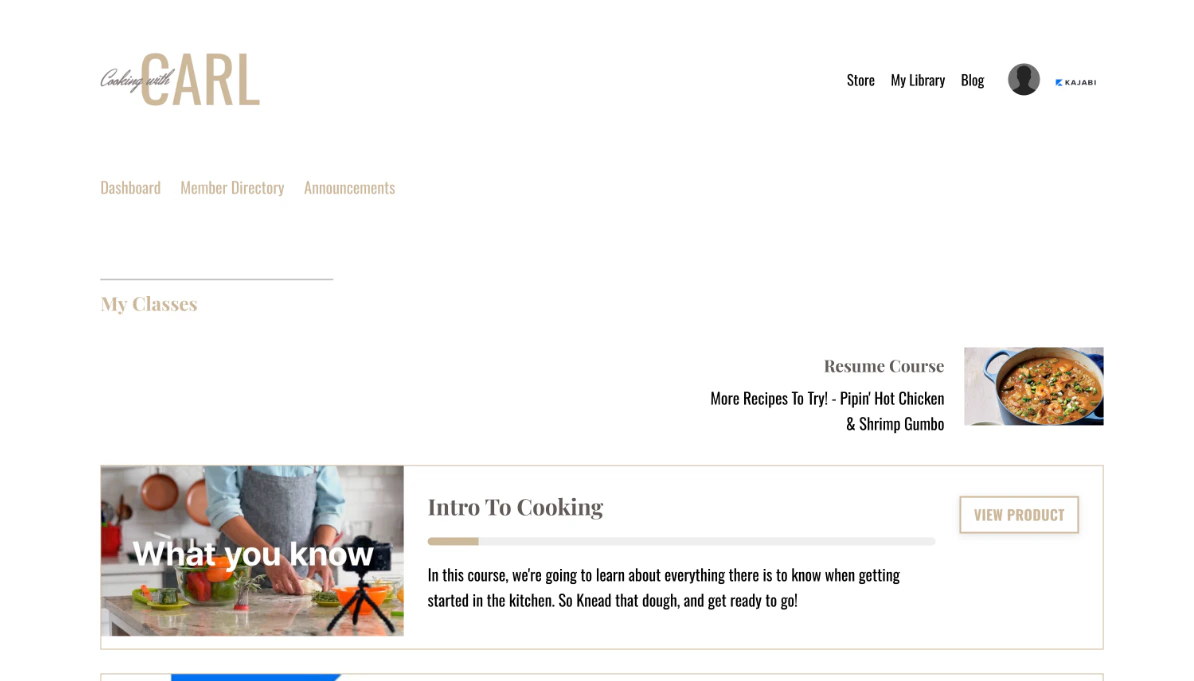
Automatic post-purchase email
After purchasing the Offer, your customer will be redirected to your Library Page by default. Simultaneously, your customer will receive an automated Post-Purchase email in the inbox of the email address entered in the Checkout Page. The Post-Purchase email will contain default copy and a Login button for your customers to log in to their Library to access their purchased Product(s). Don’t want to send this email? Learn to disable the Purchase Confirmation Email. Post-Purchase Email (Purchase Confirmation email):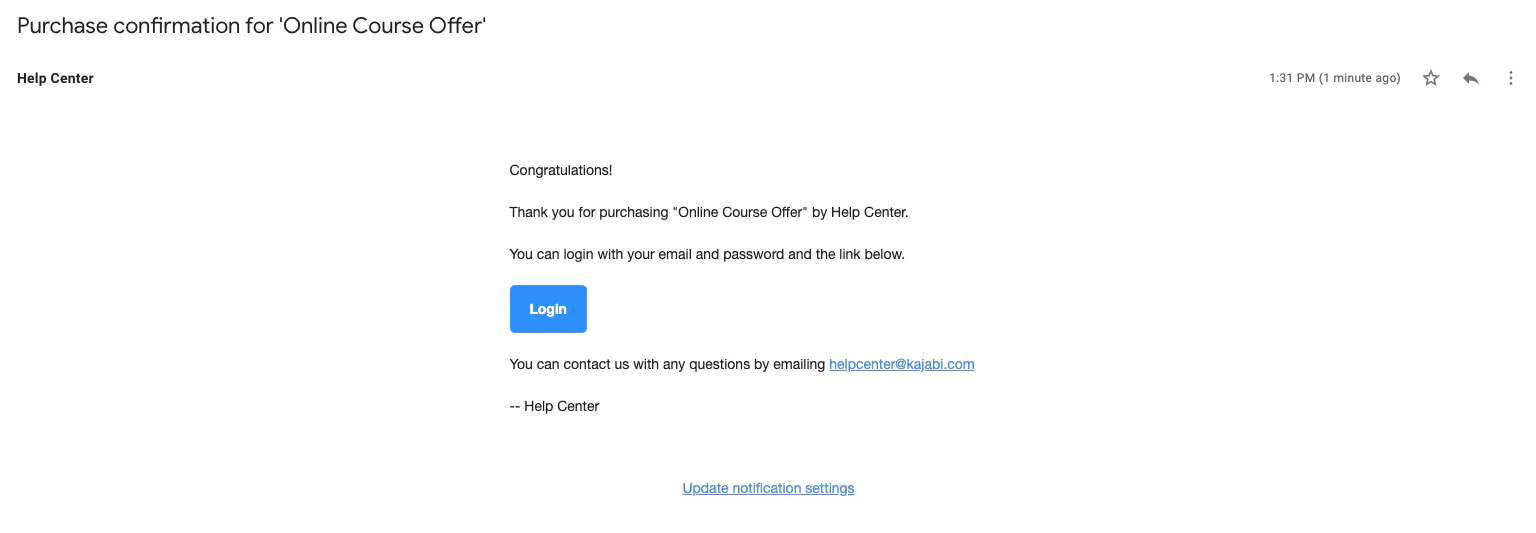
Logging in and accessing Products
Now that your customer has completed their purchase and created their customer account, they can return to your site to log in and engage with their purchased content.Checkout experience flowcharts
New customer checkout flow
This workflow provides a visual overview of the complete checkout experience for new customers purchasing from your Kajabi site.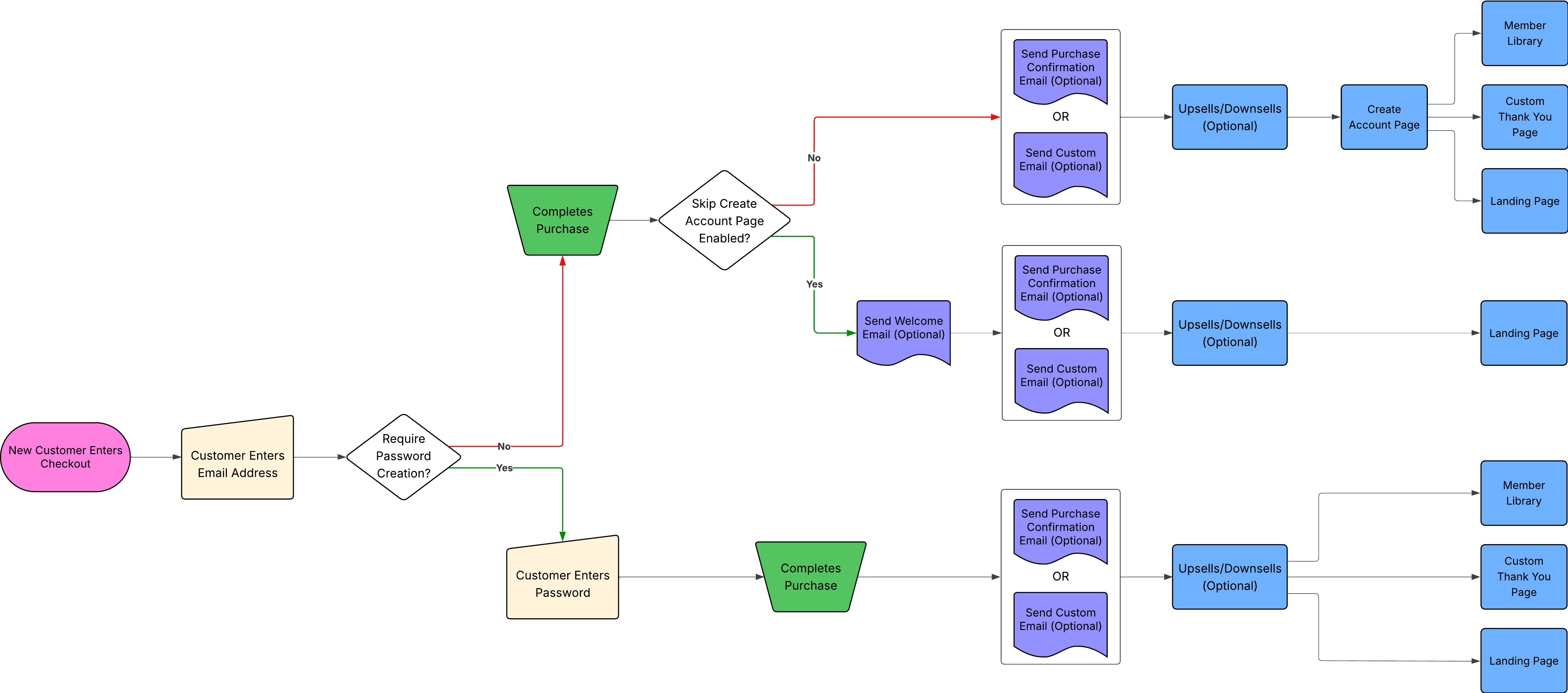
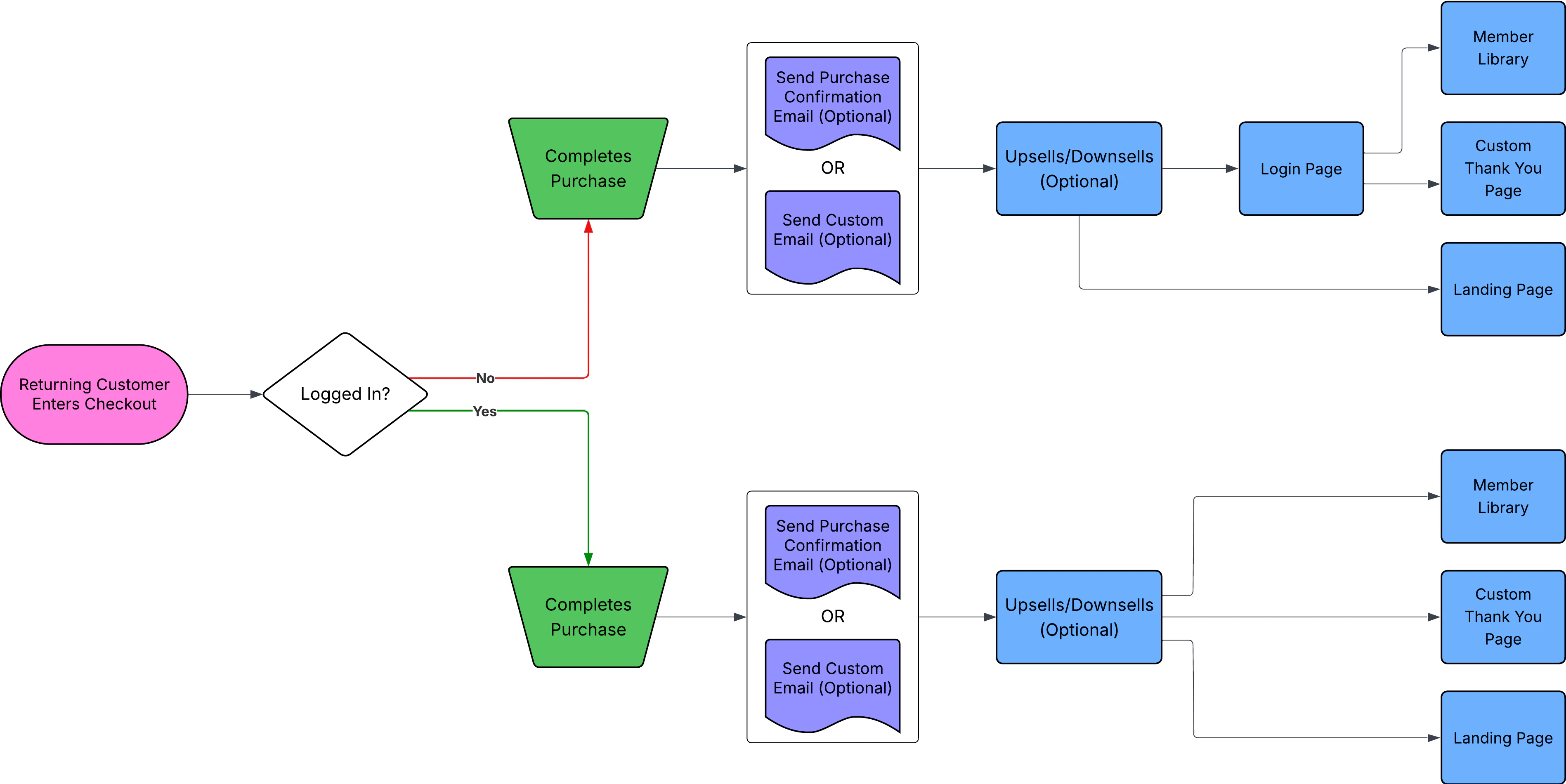
Returning customer checkout flow
This workflow illustrates the streamlined checkout path for returning customers.