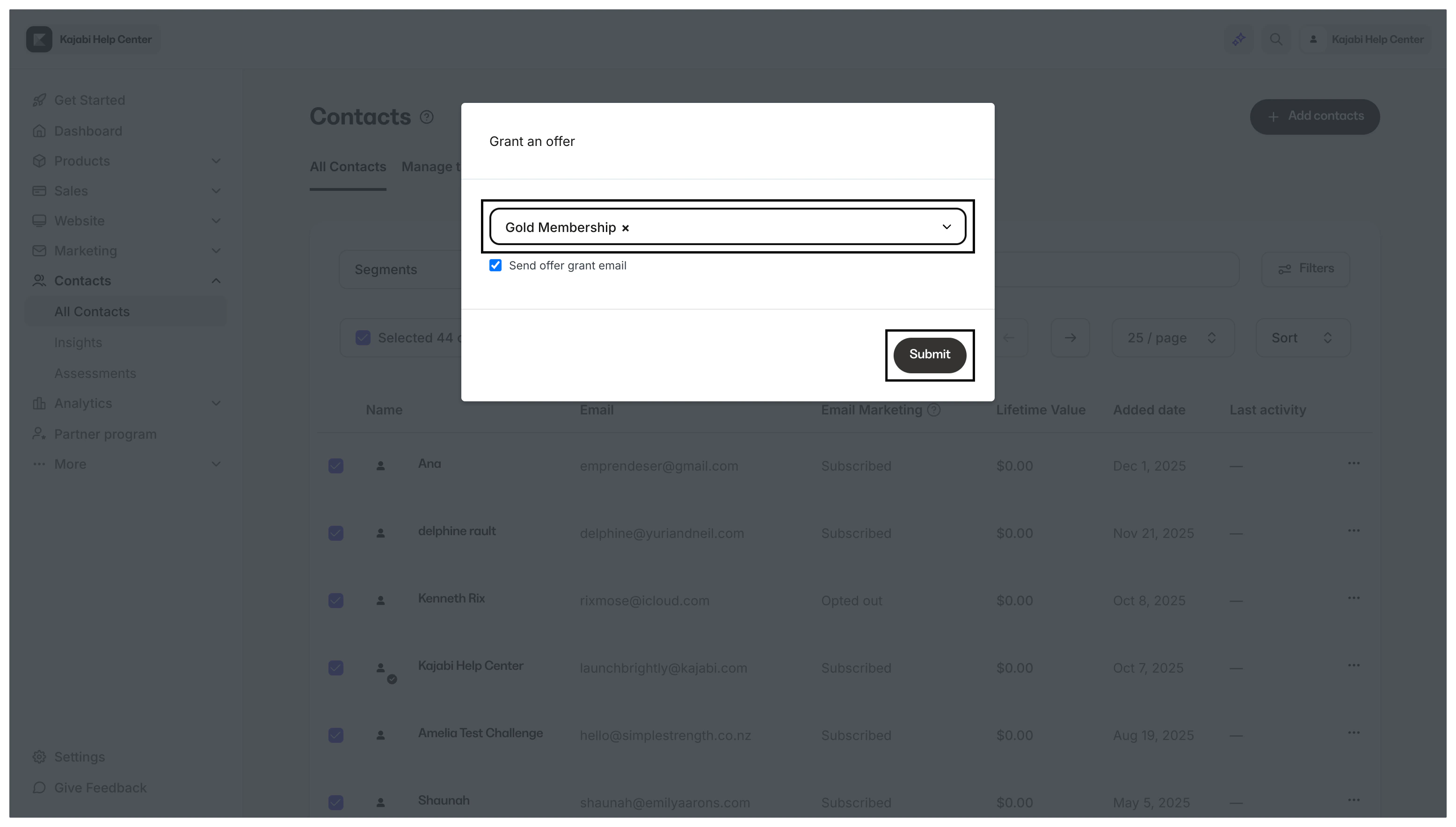
Grant an Offer
Give free access to the Product(s) and services included with an Offer by granting Offers on Kajabi. Granting an Offer will send the Offer Confirmation Email. If the customer is new, they will receive the Member Welcome Email containing their login information. Learn to edit your auto-generated email template(s). Granting an Offer is similar to creating a Free Offer, but with the granting of an Offer, you have the flexibility to sell a paid Offer and the power to give others free access by granting the Offer. Although Granted Offers and Free Offers ultimately give access to your content for free, Free Offer purchases will go through the Offer Checkout process, and a Granted Offer will not require the customer to go through the Offer Checkout process.Note: If you have customized product access for the Product connected to your Offer, granting the Offer will not impact the access date. However, it is important to remember that if you grant an Offer after your specified access date, the customer granted the Offer will have immediate access to the Product.
Grant an Offer to an individual contact
- Open the Contacts tab from your Dashboard
- Click All Contacts
- Search and select your contact
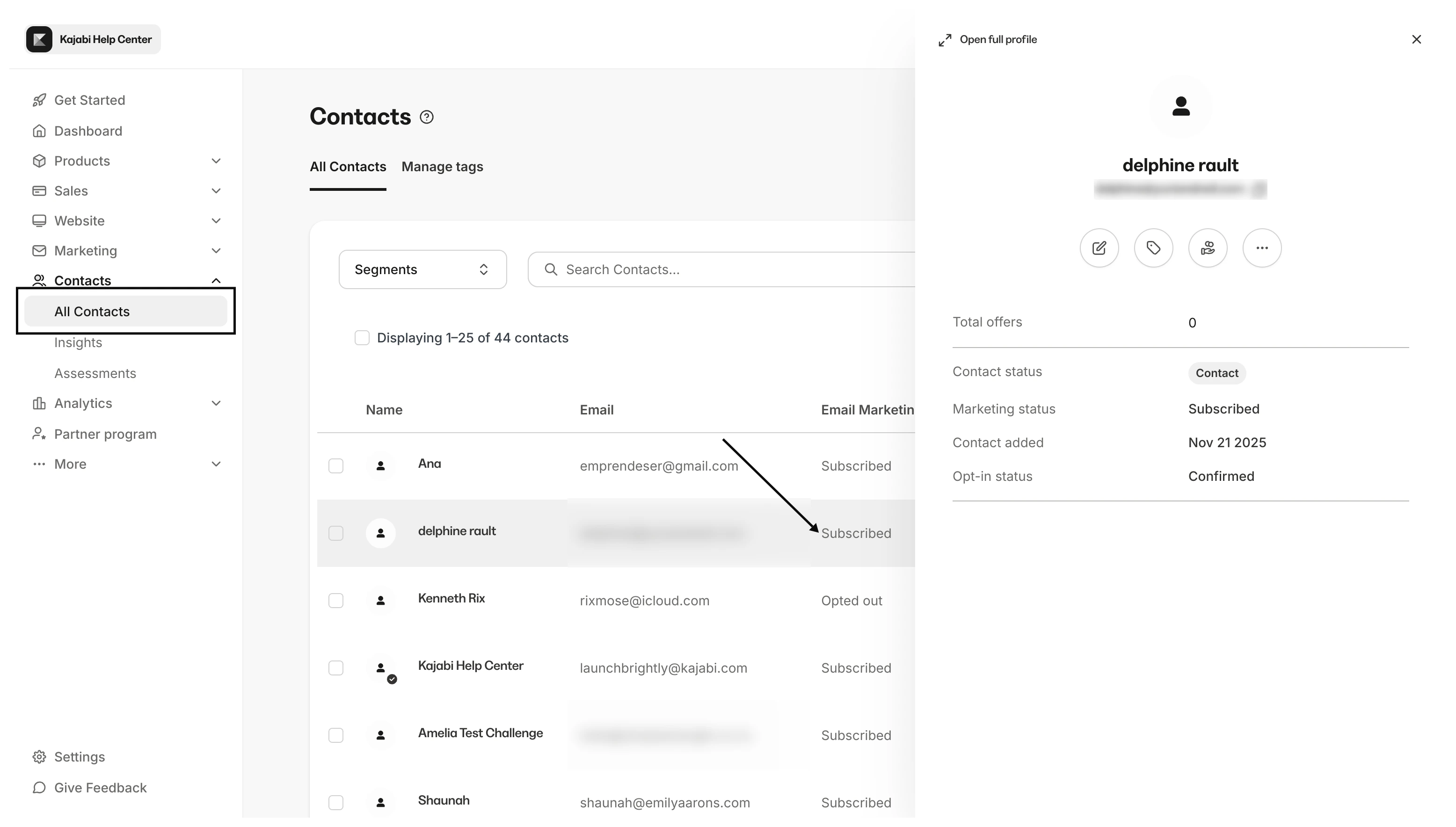
- Click Grant Offer
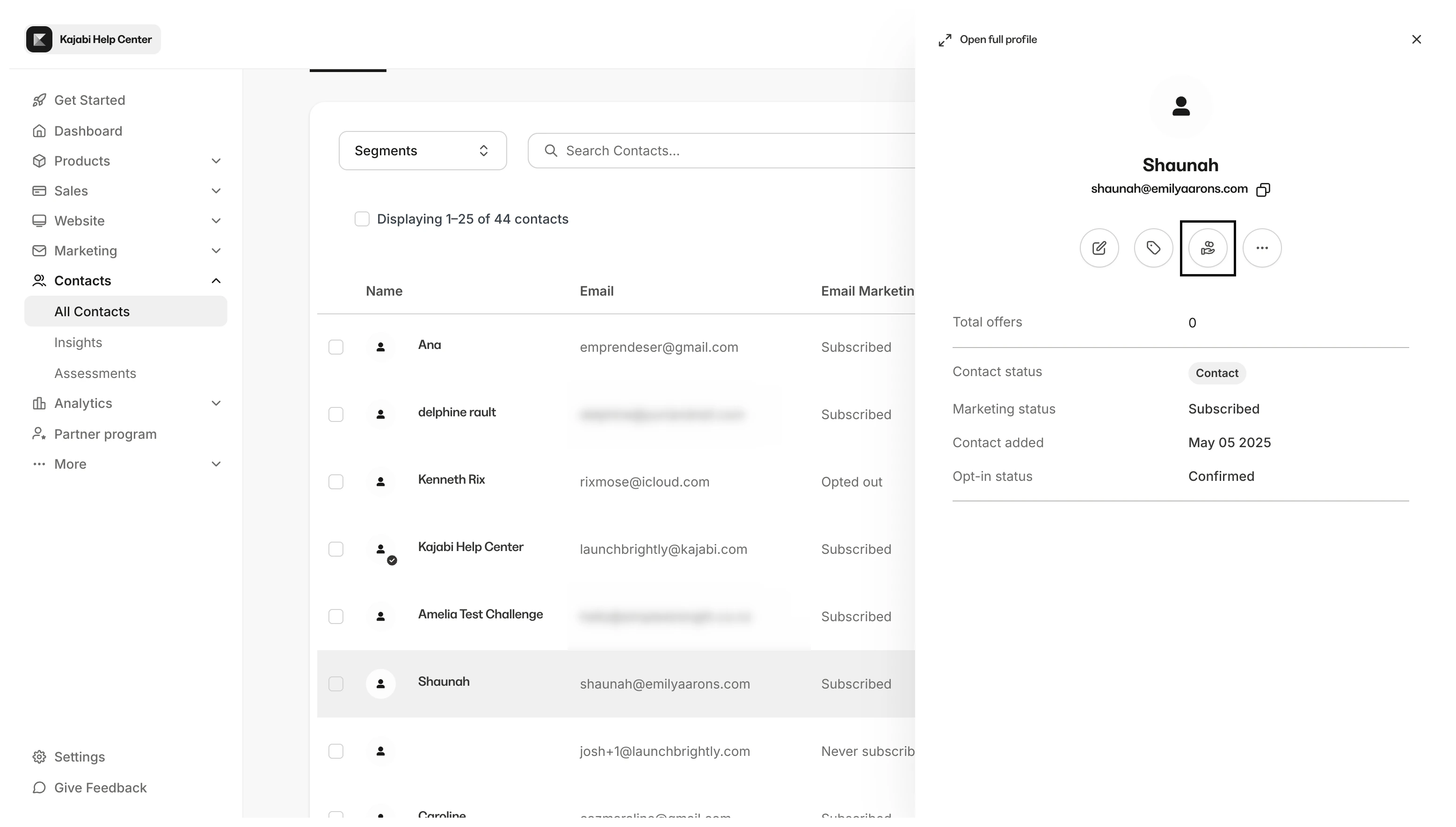
- Select the Offer you wish to grant
- Click Grant Offer
What do I do if my customers don’t receive my Offer Grant Email?
Your Offer Grant Email is categorized as a transactional email. If your customers have unsubscribed from similar Offer Grant Emails from you in the past, they may not receive the Offer Grant Email. If you need additional assistance sending your Offer Grant Email to your customers, reach out to our support team.Grant an Offer to multiple contacts
Looking to grant an Offer to multiple contacts? Give access to the Product(s) included with your Offer to multiple contacts with bulk actions:- Open the Contacts tab from your Dashboard
- Then, select All Contacts
- Search and select your desired contacts from your list or segment and filter your desired contacts
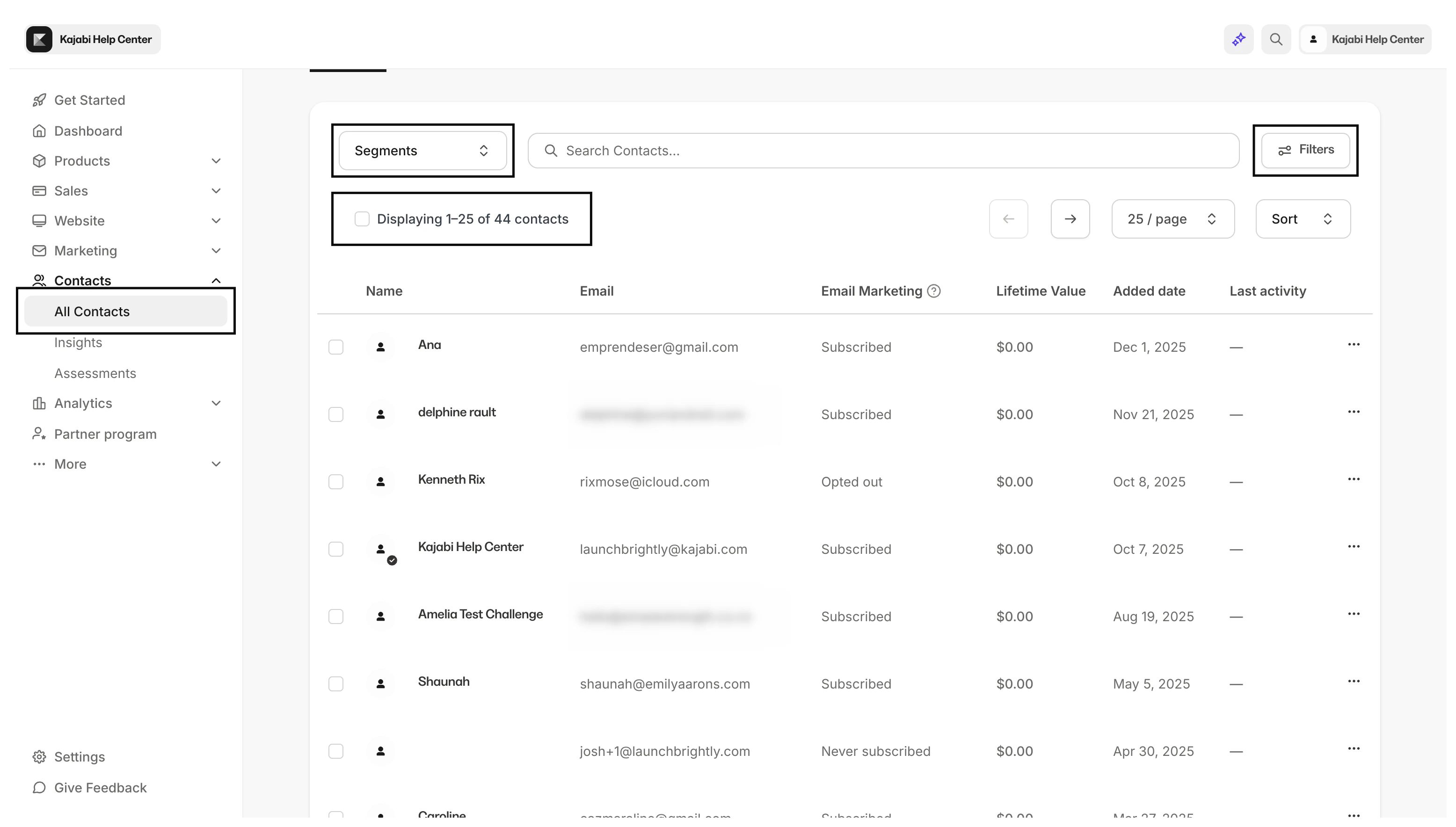
- Open the Bulk Actions menu
- Click Grant Offer
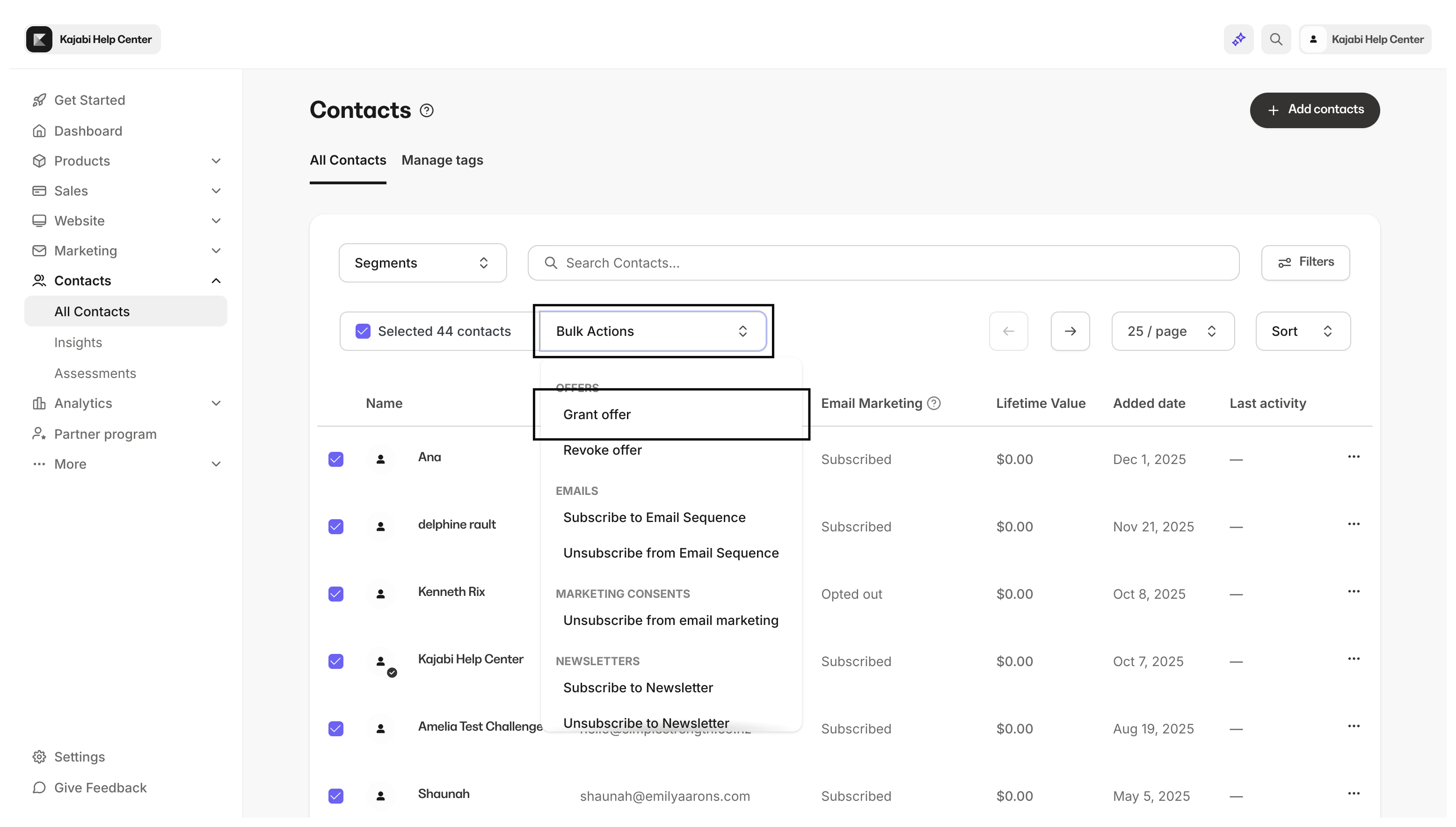
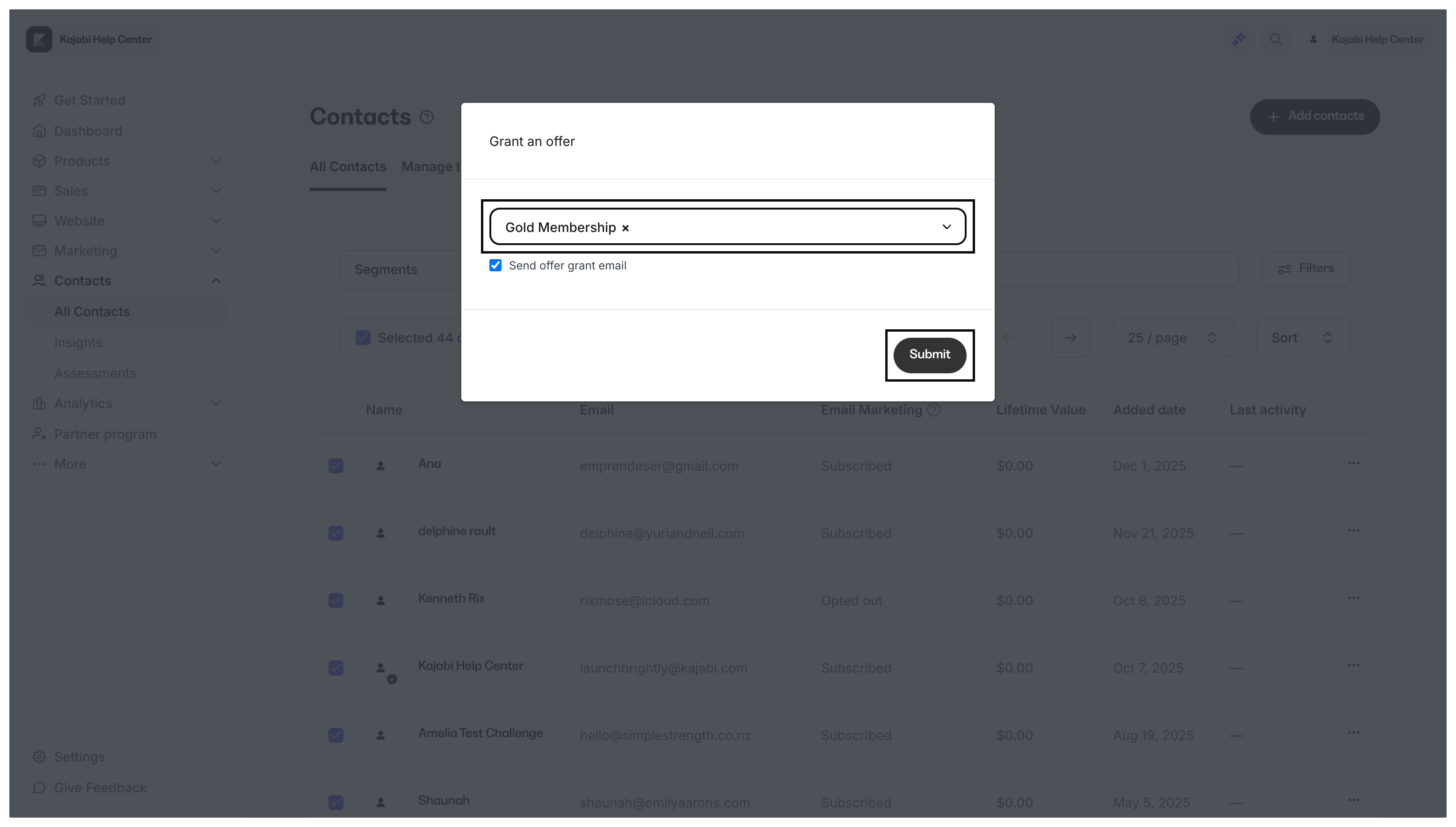
- Select the Offer you wish to grant
- Click Submit to apply the bulk action