Note:
The automated emails sent by your site are not meant for marketing content, as they do not require recipient consent to deliver transactional emails. Learn more about marketing and transactional emails.
Access automated Email Templates
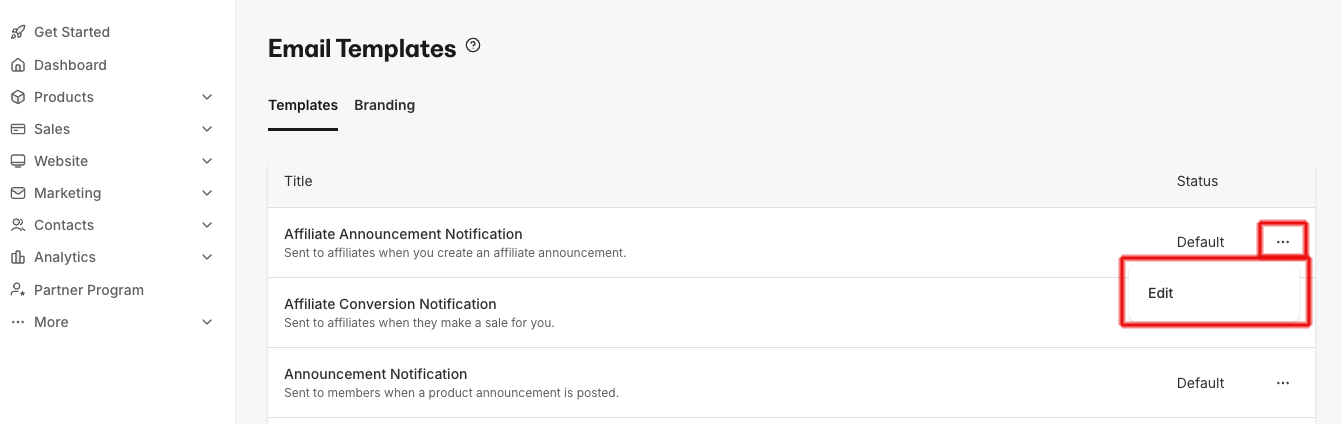
Automated messages are Email Templates in Kajabi and can be edited and customized under your Settings tab.- Open the Settings tab from the Dashboard.
- Select Email Templates.
- There, select the ellipsis … next to the title of the Email Template you wish to edit.
- Click Save to keep and apply your changes.
Note:
It is important to keep in mind that your automated email templates cannot be personalized for individual contacts, offers, etc. Customizing an automated email template displays your customization to each recipient for every transaction that triggers the email. Learn more about each email template below.
Auto-generated Email Templates
- Affiliate Announcement Notification: Sent to Affiliates when you create an Affiliate Announcement.
- Affiliate Conversion Notification: Sent to Affiliates when they make a sale for you.
- Announcement Notification: Sent to customers when a Product Announcement is posted.
- Assessment Completion: Sent to users when they complete an Assessment. It contains a link they can follow to view their graded results.
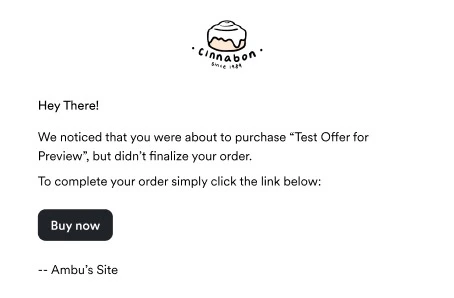
- Cart Abandonment: Sent to a user when they do not complete the checkout sequence for an Offer.
- New Community Admin Post Notification: Sent to customers of your Community when an admin creates a Community Post.
- New Community Comment: Sent when a Community customer is following a Post and a new comment is made on the post.
- Community Connect Request: Sent to Community customers when another customer of the Community sends a message through the Community.
- Double Opt-in: Sent to a user when you have double opt-in enabled on your Form. This asks the recipient to confirm their opt-in.
- Double Opt-In Resubscription: Sent to contacts that have previously unsubscribed from your email marketing.
- Checkout Double Opt-In: Sent to unsubscribed contacts that are subscribed when checking out (purchasing an Offer).
- Member Drip Notification: When new content has been dripped in your Product, the customer will receive this email notification.
- Member Welcome Email: Sent to customers when they are granted an Offer for the first time.
- Member Payment Action Required: Sent to customers when a payment requires their confirmation.
- Member Payment Subscription Failed: Sent to customers when their payment is declined, rejected by their bank, or does not go through successfully.
- Mention Notification: Sent to a user when they have been mentioned in a comment.
- Offer Purchase Confirmation: Sent out when a user purchases an Offer through the Kajabi checkout page. This is also referred to as the Post-Purchase Email. This template includes copy congratulating the customer on their purchase and provides the link to your Login page. This email does not contain login credentials.
- Reply Comment Notification: Sent to users whenever a reply is made directly to their comment. Notifications do not go out to everyone involved in the thread, only to the author of the parent comment. It includes a link to where they can view and reply to the comment.
- User Cancelled Subscription: Sent to customers when they deactivate (i.e., cancel) a purchased Offer.
- User Paused Subscription: Sent to customers when their subscription is paused.
- User Resumed Subscription: Sent to customers when their subscription is resumed.
Liquid objects in email templates
Learn more about Liquid Objects.Determine available Liquid Objects
- Open the Settings tab from your Dashboard.
- Locate the Site Settings section.
- Click Email Templates.
- Select the Email Template you’d like to edit.
- Locate the text below the content text body to determine which objects are supported in your selected email template.
Note:
The liquid objects only work in the Member Welcome Email. If you need to send your customer their password, see Reset your customer’s password.
Add branding to automated Email Templates
Build brand recognition whenever your site sends your automated emails. When you add a Logo and customize the Button color to the primary link in a transactional email, your recipients will connect your message with your brand. Example email with branding - Cart Abandonment Email Template: