Why does this happen?
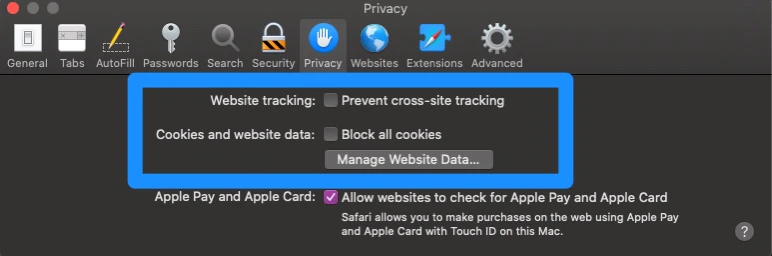
The Login Page may appear when attempting to customize your Website Pages or Product Pages if your web browser is set to block third-party cookies. Are you seeing a 404-page not found error when customizing a Website or Product Page? This error appears when a page’s visibility is set to draft, and not published, while your web browser is set to block third-party cookies. Learn more about page visibility settings here. If you are experiencing either of these issues, you may have cookie blockers, plugins, or extensions blocking Kajabi’s cookies. Resume customizing your Website Page or Product Page by enabling third-party cookies on your web browser or clearing your web browser’s cache and cookies from the web browser settings. In this guide, you will find instructions for how to enable cookies for a few of the most popular web browsers. If you are using another web browser, check its support site for instructions on enabling cookies or clearing cache and cookies.Login displayed when attempting to customize a Product Page:
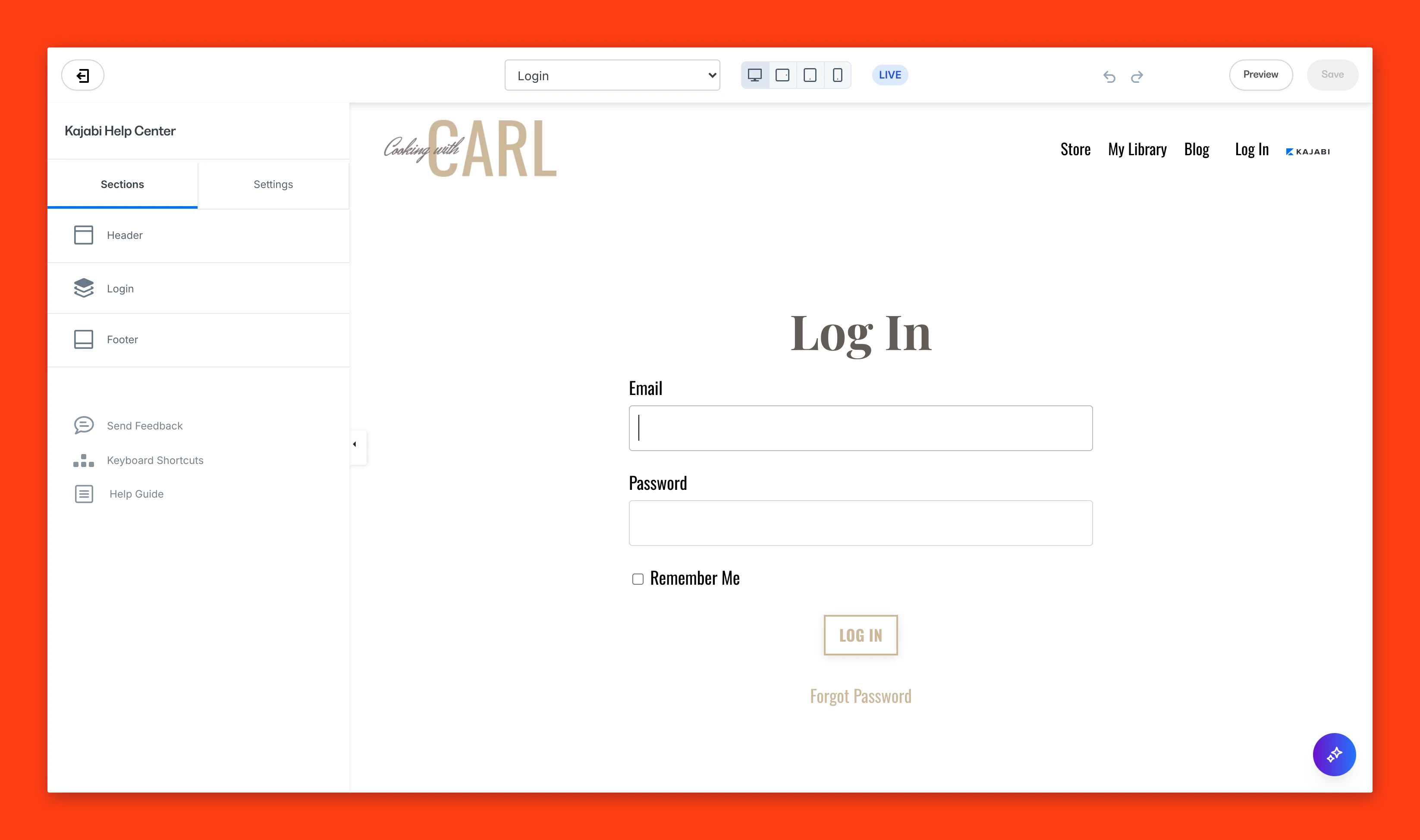
Note:Entering valid credentials into the displayed log in will not fix the issue you may be experiencing. Instead, you will see an error message stating “the change you wanted was rejected.” If you are experiencing these issues, enable third-party cookies on your web browser or clear your browser’s cache and cookies to continue customizing your page.
Chrome
Enable third-party cookies
- On your computer, open Chrome.
- In the top right, click the More icon (the three vertically-aligned dots).
- Then, click Settings.
- Click Privacy and Security from the left sidebar.
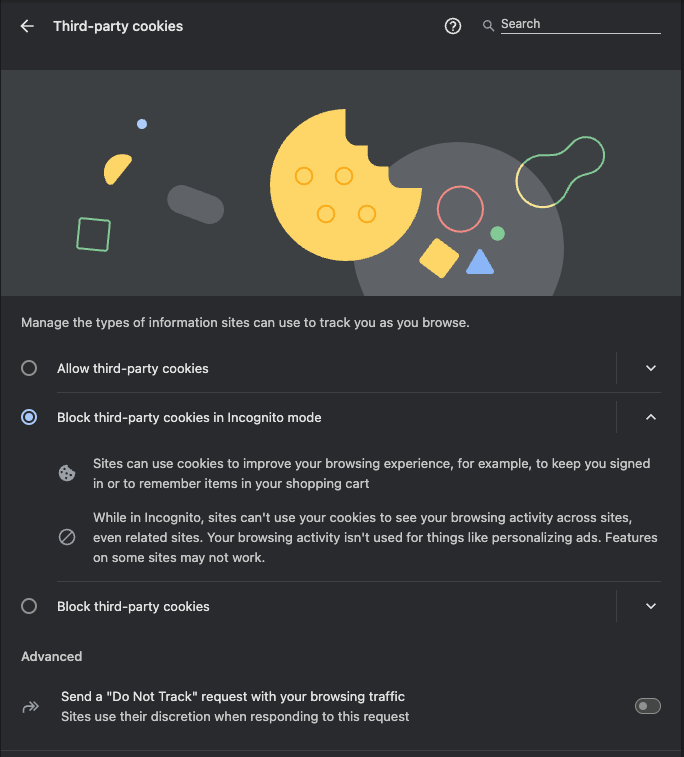
- Scroll down and open Third-party cookies.
- Then, select Block third-party cookies in Incognito Mode:
Safari
Enable website tracking and cookies
- On your computer, open Safari.
- Click the Safari drop-down menu then open Preferences.
- Click Privacy from the top menu.
- Uncheck both:
- Website tracking
- Cookies and website data