Overview
Design the images uploaded to your landing pages, website pages, email campaigns, and newsletters with Adobe Express at no additional cost.Adobe Express
Create beautiful images with Adobe Express. With Kajabi’s built-in Adobe Express editing tools, you can level up your content without any design experience. When selecting images for your landing pages, website pages, email campaigns, and newsletters, you will see the option to generate or customize your image with Adobe Express for free. For no additional cost, you get access to an all-in-one design tool that makes generating and customizing your images on Kajabi even easier. Simply make a free Adobe Express account when prompted. Learn more about Adobe Express.How to access Adobe Express in Kajabi
Kajabi pages
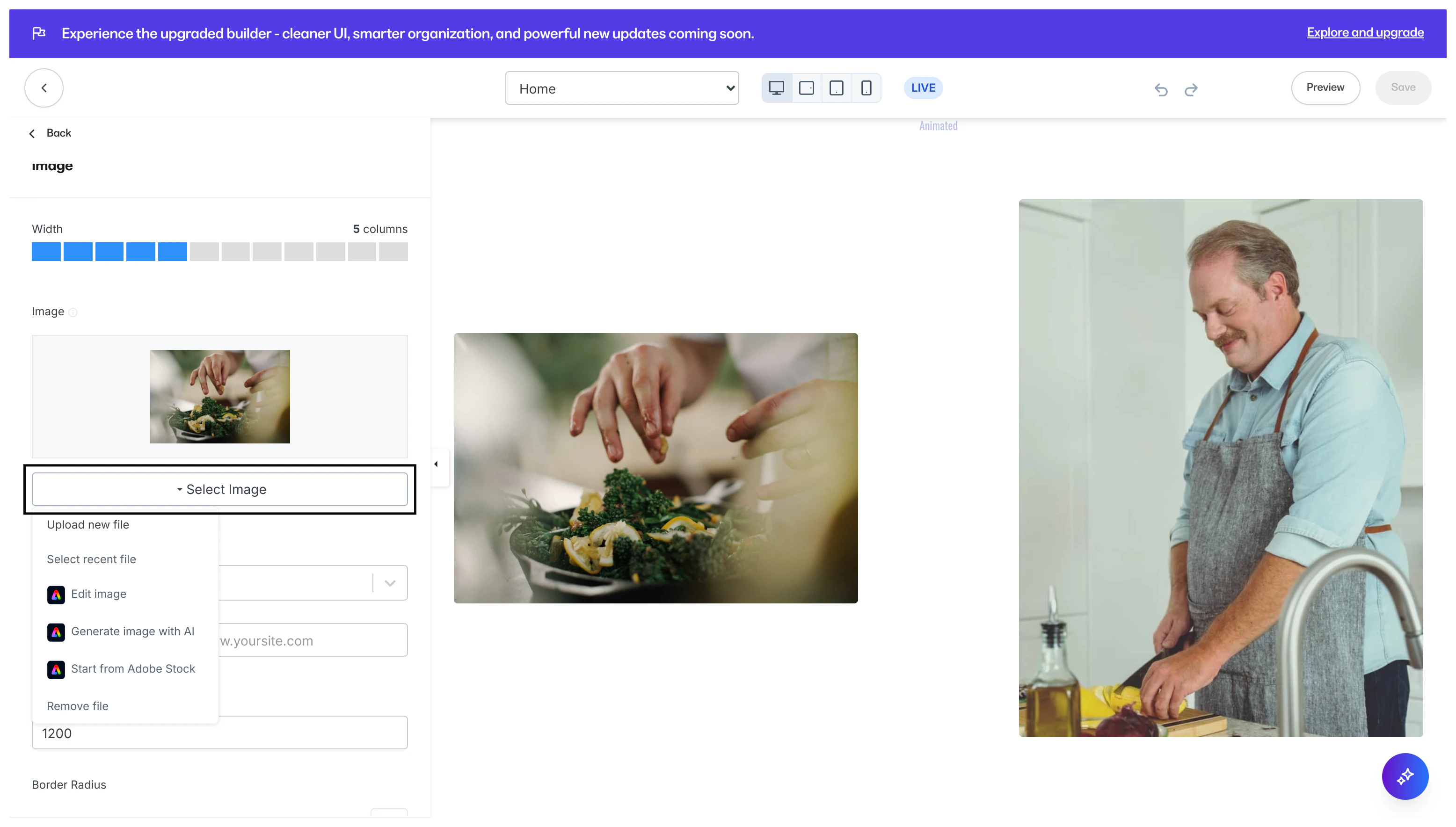
To edit your images with Adobe Express in Kajabi Pages, open your desired page (e.g., landing page, website page):- Select the image block you wish to edit or create a new image block.
- Click Select Image.
- Then, select Edit Image if you are editing an existing image or Generate image with AI, Start from Adobe Stock next to the Adobe Express icon:
Email campaigns
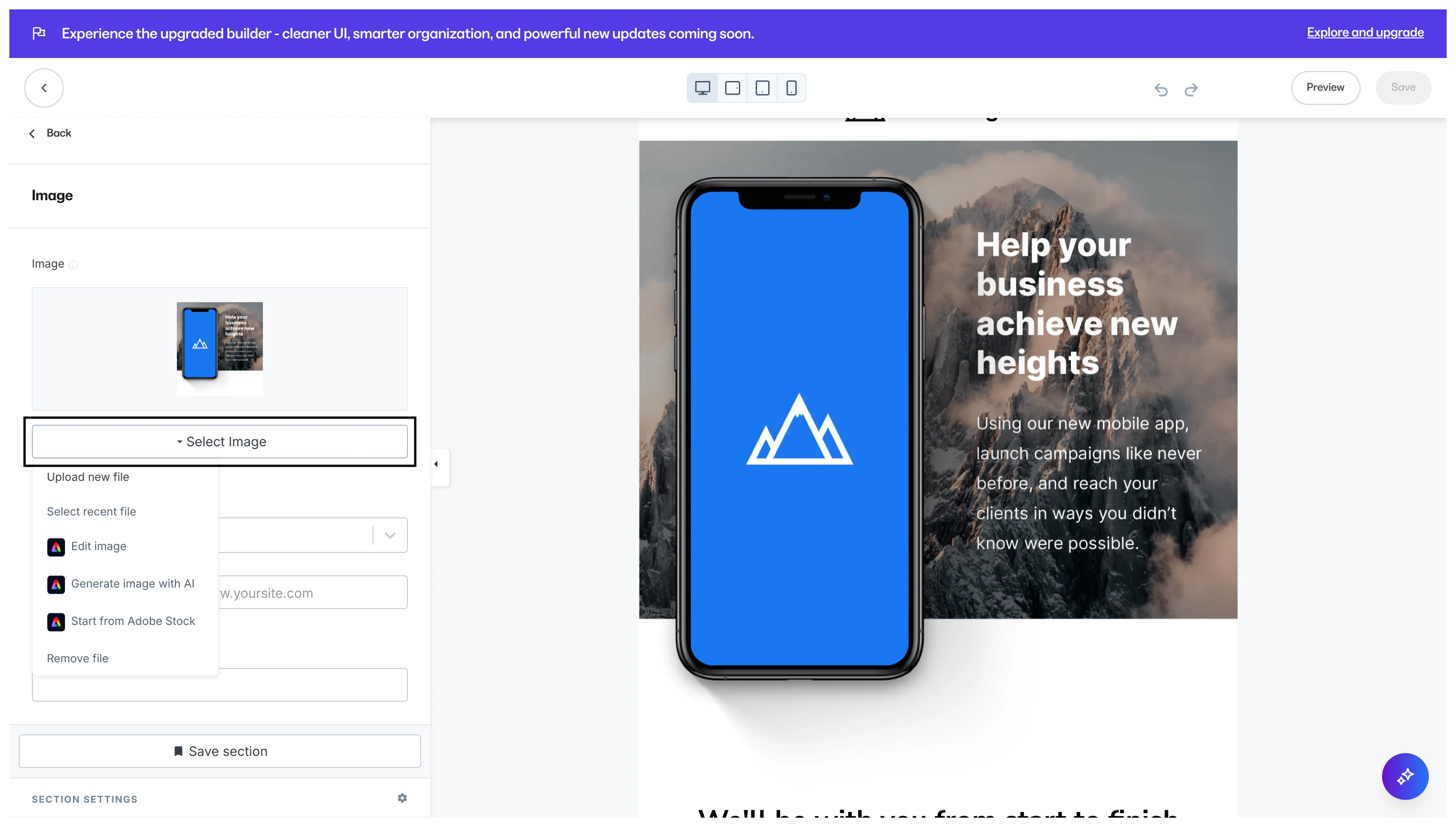
To edit your images with Adobe Express in your Email Campaigns, open the Email Visual Editor for your desired email:- Select the image block you wish to edit or create a new image block.
- Click Select Image.
- Then, select Edit Image if you are editing an existing image or Generate image with AI, Start from Adobe Stock next to the Adobe Express icon:
Newsletters
Note: This feature is being released in phases to ensure stability across all accounts. If you do not see this setting, the feature has not been made available to your account yet. Check back at a later time to try the experience.
Add images
To add images with Adobe Express in your Newsletter Product, open the Newsletter Post Editor for your desired Newsletter Post:- Place your cursor in the location you wish to add an image or select the image you wish to edit.
- If you wish to create an image, click the
+icon or clickCMD+/to open the text formatting options.
- If you wish to create an image, click the
- Then, click Adobe Express:
Edit images
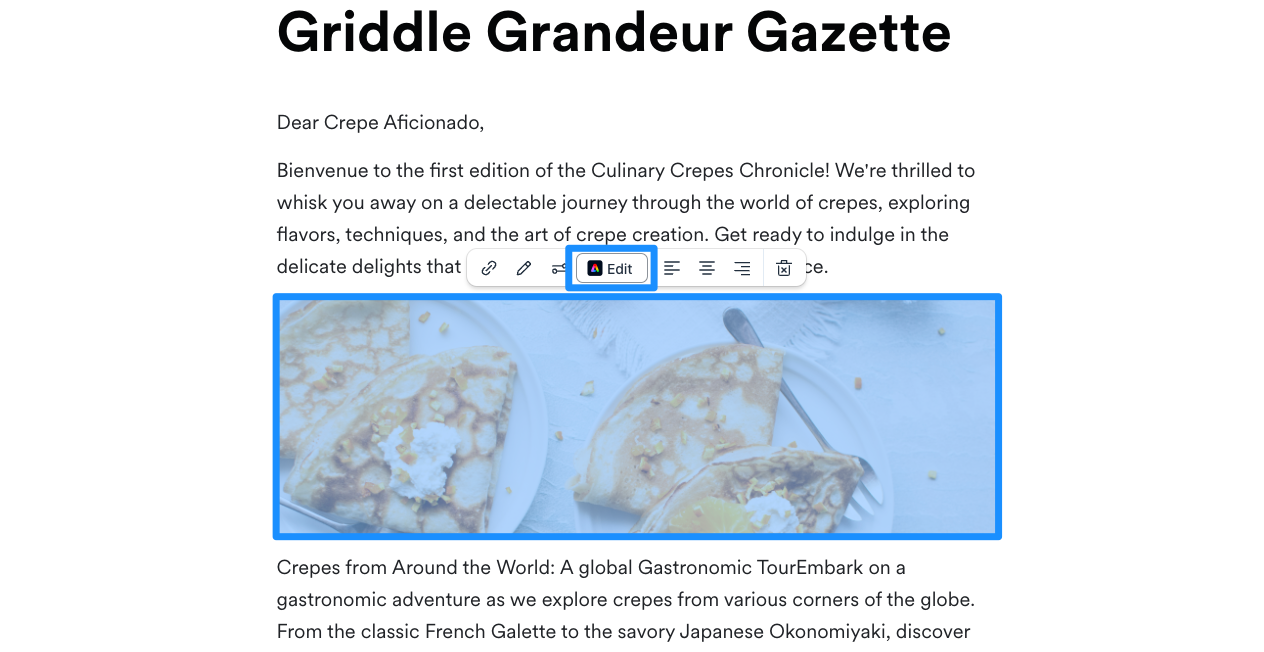
To edit images with Adobe Express in your Newsletter Product, open the Newsletter Post Editor for your desired Newsletter Post:- Select the image you wish to edit with Adobe Express from your Newsletter Post Editor.
- Then, click Edit next to the Adobe Express icon: