

What are saved sections
Do you have a favorite section or a custom-designed section on your page that you want to repurpose on a different page? With Saved Sections you can build a cohesive, branded landing page, website page, and email campaigns quickly and easily by utilizing your favorite sections from previous pages. With the page builder, you can design and save a section to your Saved Sections library. Then, when you are designing another page, you can open up your Saved Sections library to use in your new page:Create a saved section
To add a saved section to a page, you will first need to save sections:
- Open the Website tab from the Dashboard.
- Select Website, Landing, or the Funnel tab to navigate to your page or create a new page.
- Open the page editor for your Page. Learn more
- Click + Add Section from the sidebar.
- Select your desired Section and click Add.
- Customize your Section.
- Then, click Add to Saved Sections:
- Click Save to keep and apply your changes.
To add a saved section to an email, you will first need to save a section in your email builder:
- Open the Marketing tab from the Dashboard.
- Select Email Campaigns.
- Click + New Email Campaign to design a new email campaign or select a drafted Email Campaign.
- Navigate to Email Content.
- Hover over the section and click Edit content.
- Click + Add Section from the sidebar.
- Select your desired Section and click Add.
- Customize your Section.
- Then, click Add to Saved Sections.
- Click Save to keep and apply your changes.
After you have saved a section in an email, you can use that saved section to build into another email:
- Open the Marketing tab from the Dashboard.
- Select Email Campaigns.
- Click + New Email Campaign to design a new email campaign or select a drafted Email Campaign.
- Navigate to Email Content.
- Hover over the section and click Edit content.
- Click + Add Section from the sidebar.
- Navigate to your Saved Sections.
- Select your desired Section and click Add.
- Then, click Save to keep and apply your changes:
Compatibility
Saved sections can only be used on compatible pages and emails. If you attempt to add a saved section to an incompatible page or email, you will not be able to select the saved section. Within the editor, you can select saved sections from the compatible section folder and view the incompatible sections. However, you will be unable to select a section from the incompatible sections folder: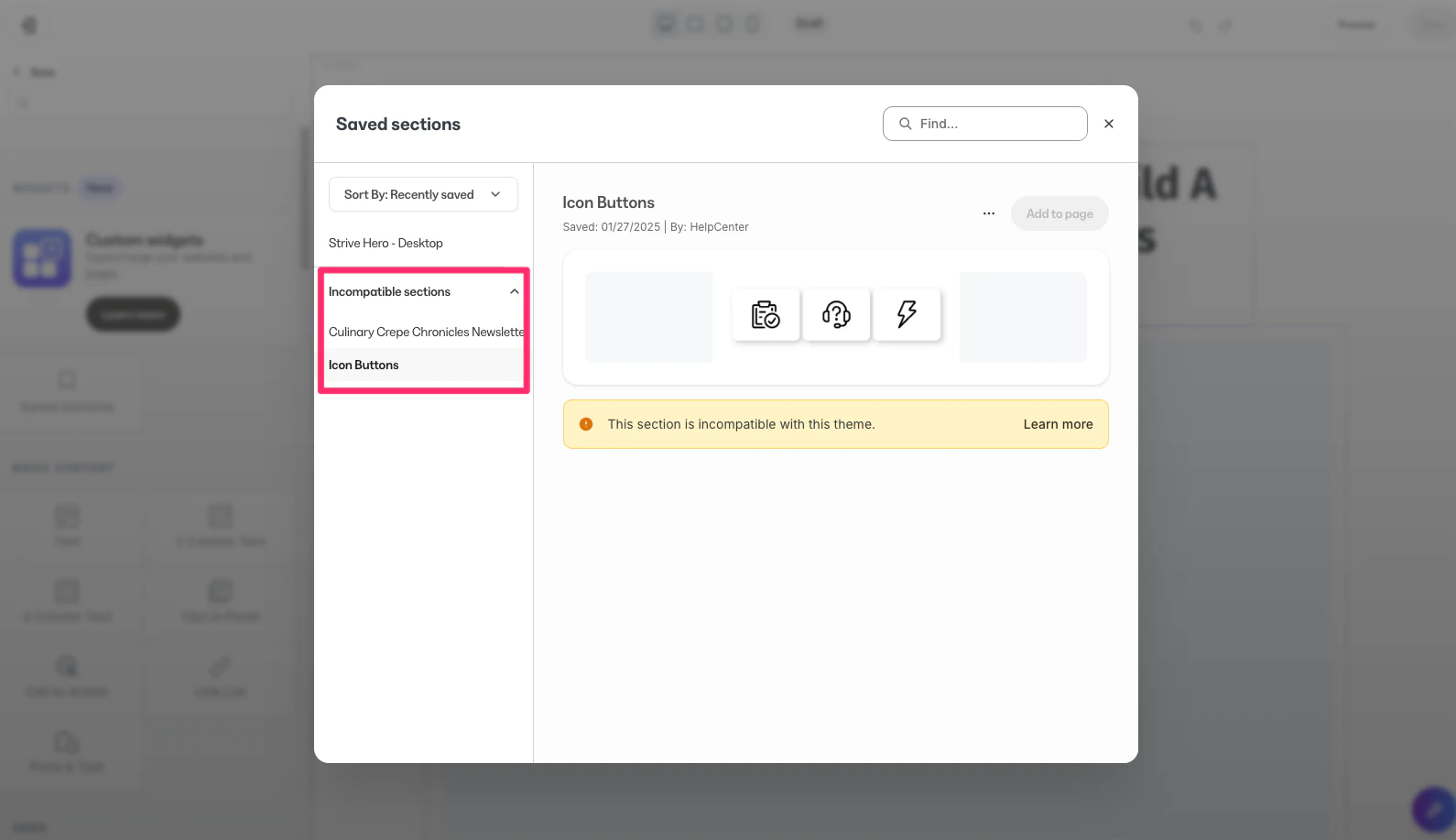
What is compatible?
Currently, saved sections are compatible with:- Website to website with the same theme
- Landing page to landing page with the same theme
- Email to email with the same theme
- Across different page types eg: Website to landing page
- Across different themes eg: Encore to Premiere
- Compatibility across websites and landing pages within the same theme
Compatibility specs
Utilize your saved sections between theme types. For example, you can use a saved section in a landing page within another landing page for the same theme type (i.e., Encore to Encore), but you cannot use a saved section from a landing page on a website page.- If the saved section is incompatible with the page you are editing, it will appear in the “incompatible” section.
- If you want to use a saved section from a custom theme, the section type must be available in the settings.json.
- If you attempt to add a saved section containing custom code to a different theme that does not support the settings in your custom section, the section will be added with the unsupported settings removed. This may result in a section that does not look exactly as it did in the originating theme.