

Overview
A Footer can be used to provide copyright information, and often menu items are duplicated in the Footer as well. Learn to customize your Footer using the Premier Template.Note: This article refers to the Premier Legacy Templates, which may be outdated. If you are using the Kajabi Pages Templates, please refer to the updated guide here.
Edit the footer
In the Section Settings, you can customize your Footer background color and visibility. You can also edit the Footer content:- Open the Website tab from the Dashboard.
- Click Pages.
- Click on the page you wish to customize, to open the page editor.
- From the page editor, click Footer in the sidebar.
- Then, begin customizing your Footer Logo, Copyright, Menu, and Social Icons.
- Click Save to keep your changes:
Customize the footer
In Kajabi, you can add a Logo, a Navigation Menu, and Copyright Content to your Website Footer. Additionally, the Footer is a great place to display your Social Icons.Logo
Click Show Logo to display your uploaded Logo image. If you wish to remove your Logo, simply deselect Show Logo: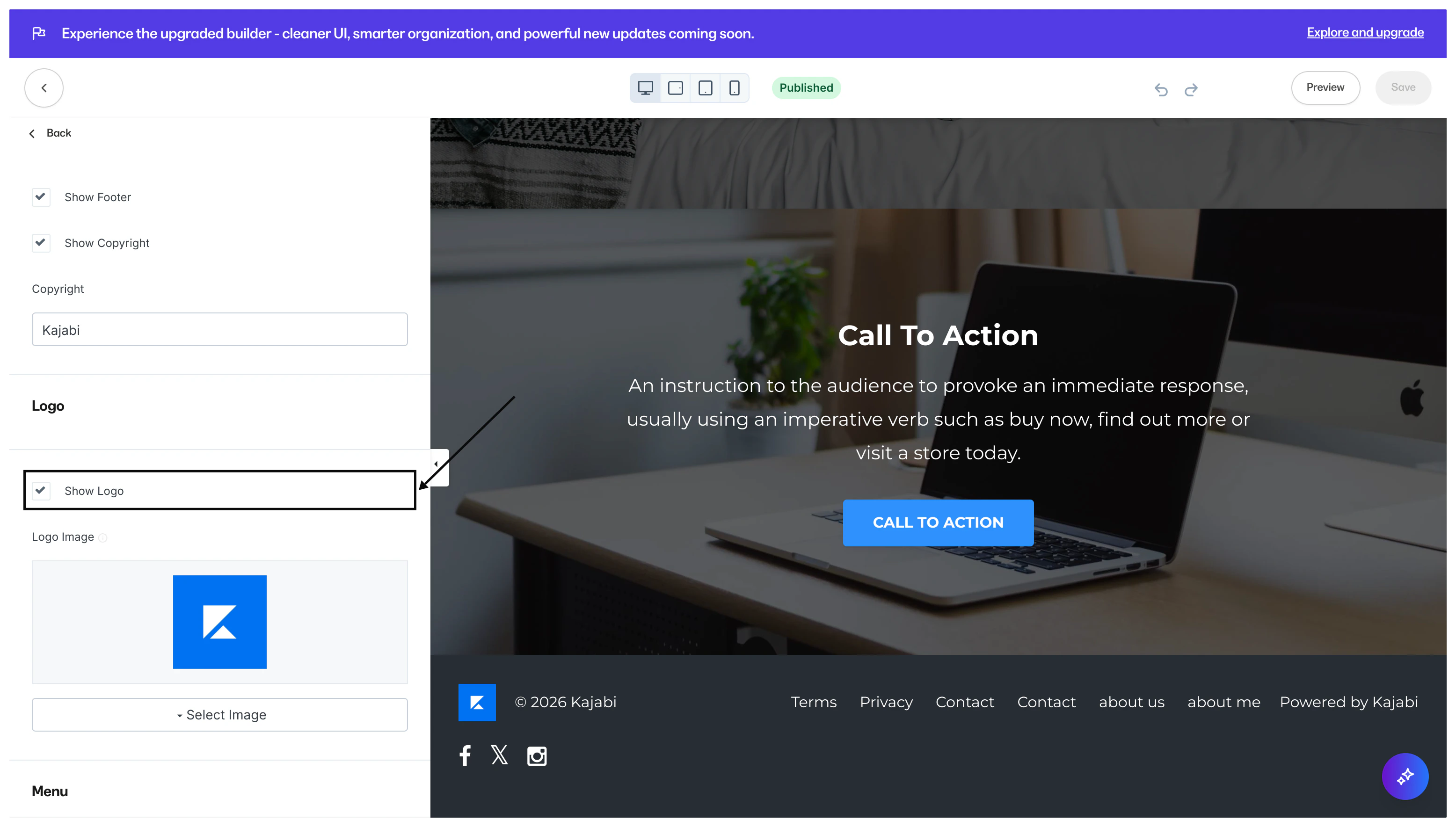
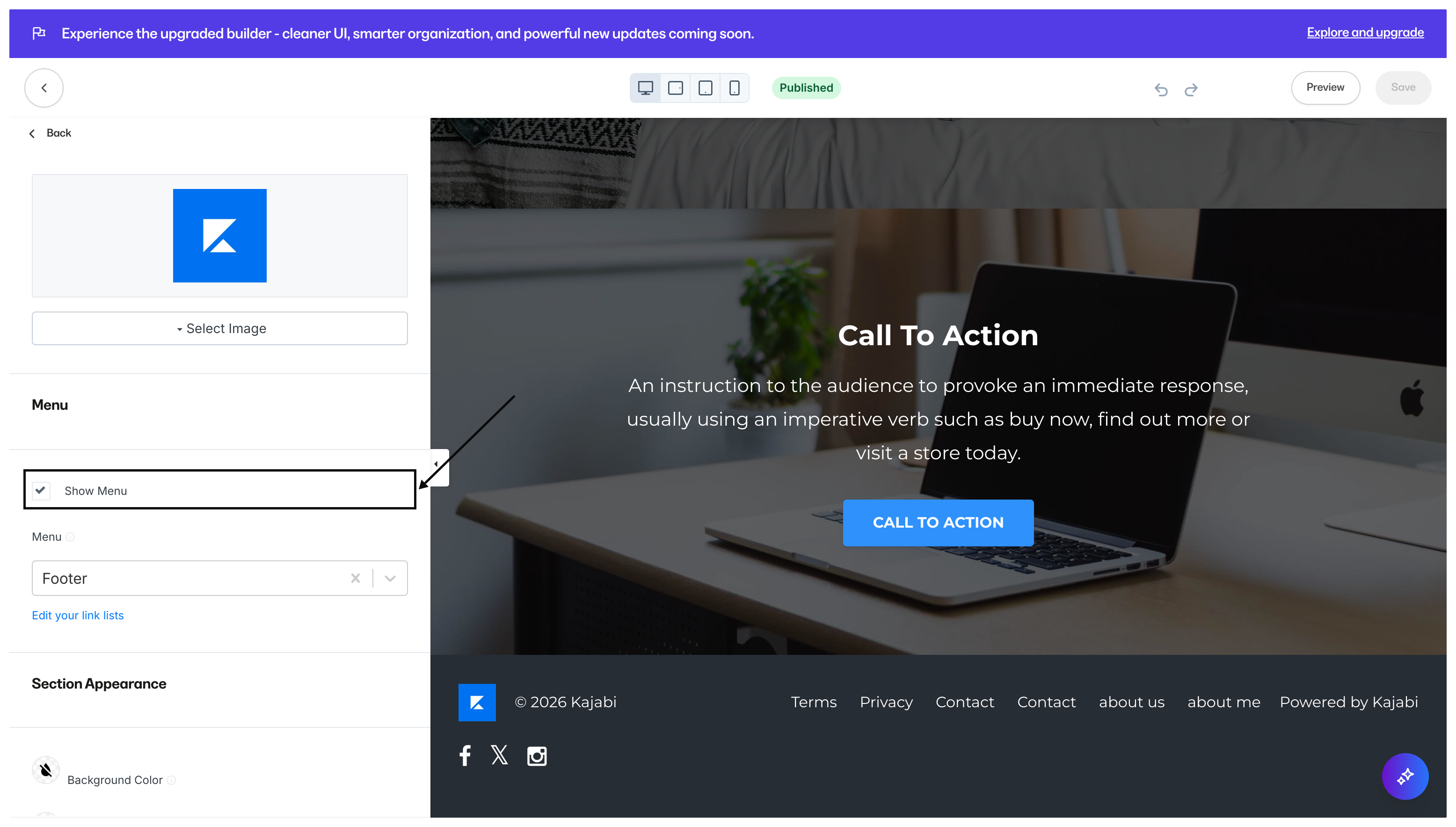
Menu
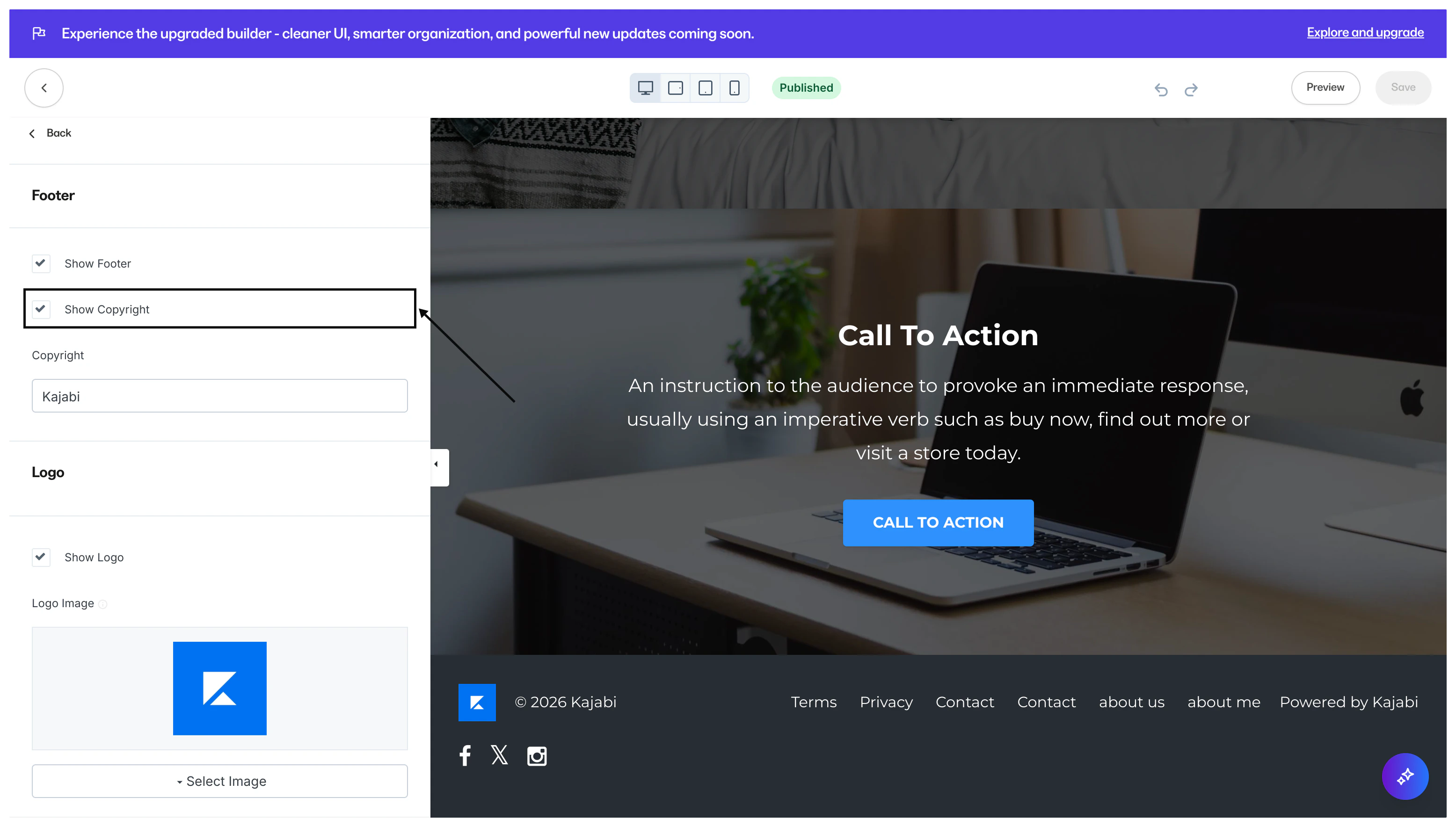
Copyright
Add social icons to your footer
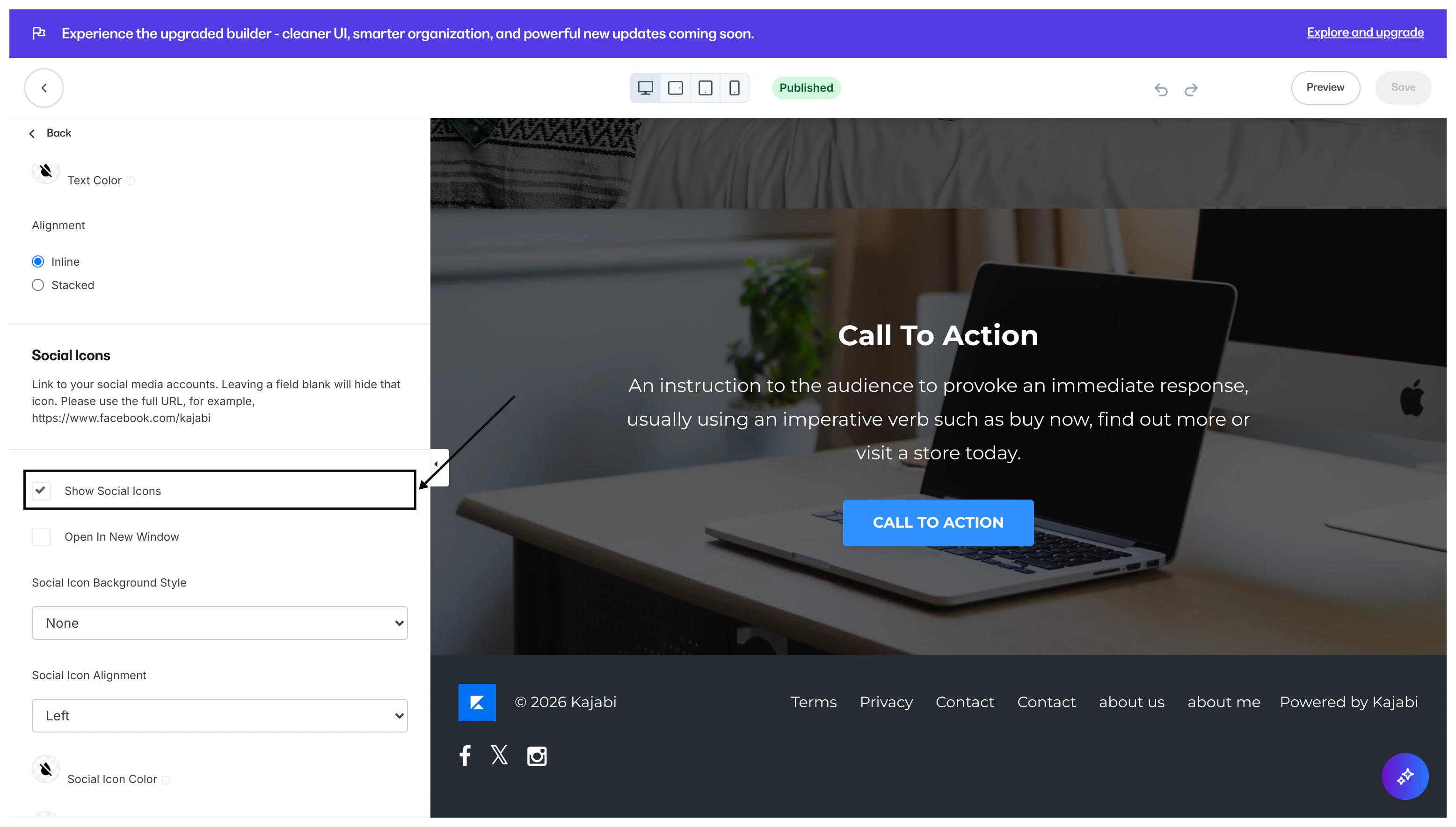
- Under the Social Icons header, check the Show Social Icons box.
- Then, enter the full URL for your social media accounts.
- Begin customizing the icons.
- Click Save to keep your changes:
Note: Kajabi currently only supports social links for the following:Facebook, X, Instagram, YouTube,Pinterest, Vimeo, Github, iTunes, LinkedIn, Soundcloud, Yelp, Tumblr, Slack, Flickr, Dribble, TikTok, Medium, Spotify, and Podcasts.
Hide the footer
If you prefer to hide the Footer altogether, you can do so in your Section Settings as well:- Open the Website tab from the Dashboard.
- Click Pages.
- Click on the page you wish to customize, to open the page editor.
- From the page editor, click Footer in the sidebar.
- Then, uncheck the Show Footer checkbox.
- Click Save to keep your changes: