What is a mailto link?
Mailto Links can be clickable text or buttons that automatically open a new email draft in your page visitor’s default email client with pre-filled information (such as your email address). Mailto Links can be used to encourage your page visitors to reach out to you with an easy-to-click, easy-to-create button. With a Mailto Link, create Contact Us pages, prompt contacts for specific information, and more. The best part: Mailto Links are simple to create. To create a Mailto Link, just include the linkmailto: followed by the email address you wish to pre-fill in the new email draft.
For example, the link could be “mailto:support@guitarlessons.com” to open a new email draft to send directly to the email address support@guitarlessons.com.
How to add a mailto link
Step 1. Create a call to action (CTA) button
Use a CTA to insert your Mailto Link in your Pages, Email Campaigns, and Products. Want to learn more about the Call to Action? Learn to use a Call to Action. For the purpose of this guide, we will create a Call to Action (CTA) in a page:- Open the Website tab from the Dashboard.
- Click Pages.
- Select the Page you wish to edit or create a new one.
- Click Add Section.
- Select Call to Action.
- Click Add. Your newly created Section will generate at the bottom of your Page:
Step 2. Insert your mailto link
Open the CTA to insert your Mailto Link:- In the sidebar, open the Text Block.
- Navigate to Block Settings and click Call To Action.
- Under Button Action, select Go to a URL.
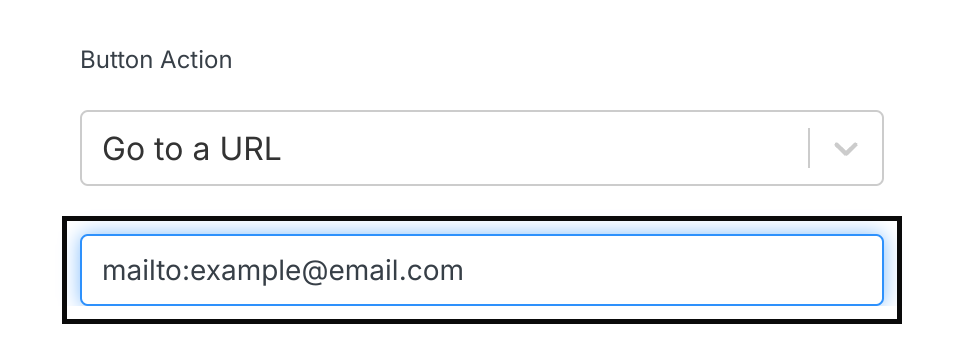
- In the empty field below Button Action, enter your Mailto Link (mailto:email@example.com).
- Click Save to apply your changes:
Step 3. Include additional pre-filled information (optional)
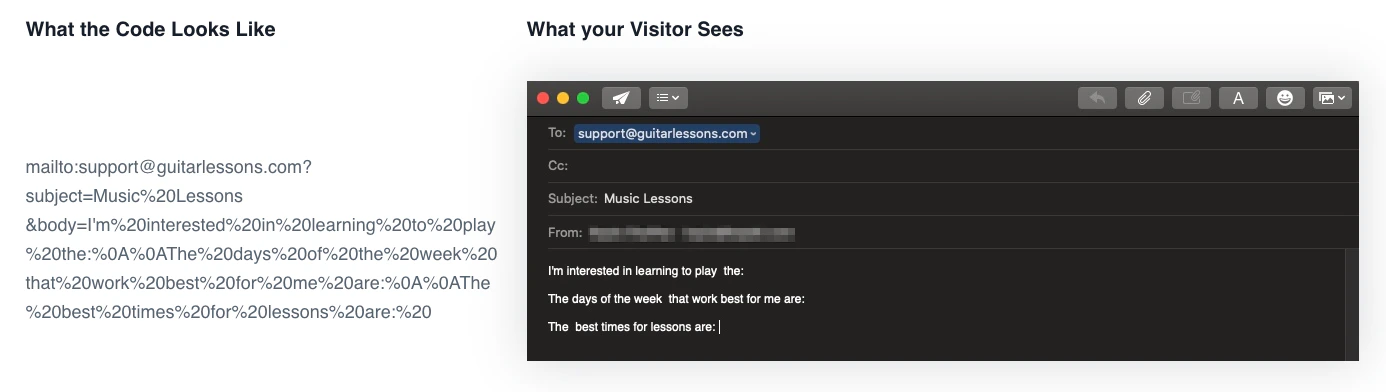
Want to include additional information in the generated email? Learn to add HTML code to your Mailto Link to include additional pre-filled content in the new email draft after your visitors click the Call to Action button on your page. For the fields you want to pre-fill, change the blue text with your content in the code extension:- CC - Add additional recipients to your email.
- BCC - Add additional recipients to your email that your contacts and CC’d recipients won’t see.
- Subject - Add a subject line to your email. Add a Space: Use “%20” to add a space between words in your subject line.
- Body - Add a personalized message to the body of the email. Add a Space or a Line Break: Use “%20” to add a space between words in your body text. Use “%0A” to add a line break.
- Place your cursor at the end of your Mailto Link in your Call to Action:
- Copy and paste your customized code extension. If you are including multiple extensions (e.g., Subject and Body), replace the question mark (?) with an ampersand (&) between each code extension: