What is an image gallery section?
An Image Gallery is a great way to showcase and display a group of images. Adding an Image Gallery Section generates six Image Blocks in a uniform layout to help you build and design a page filled with beautiful images:
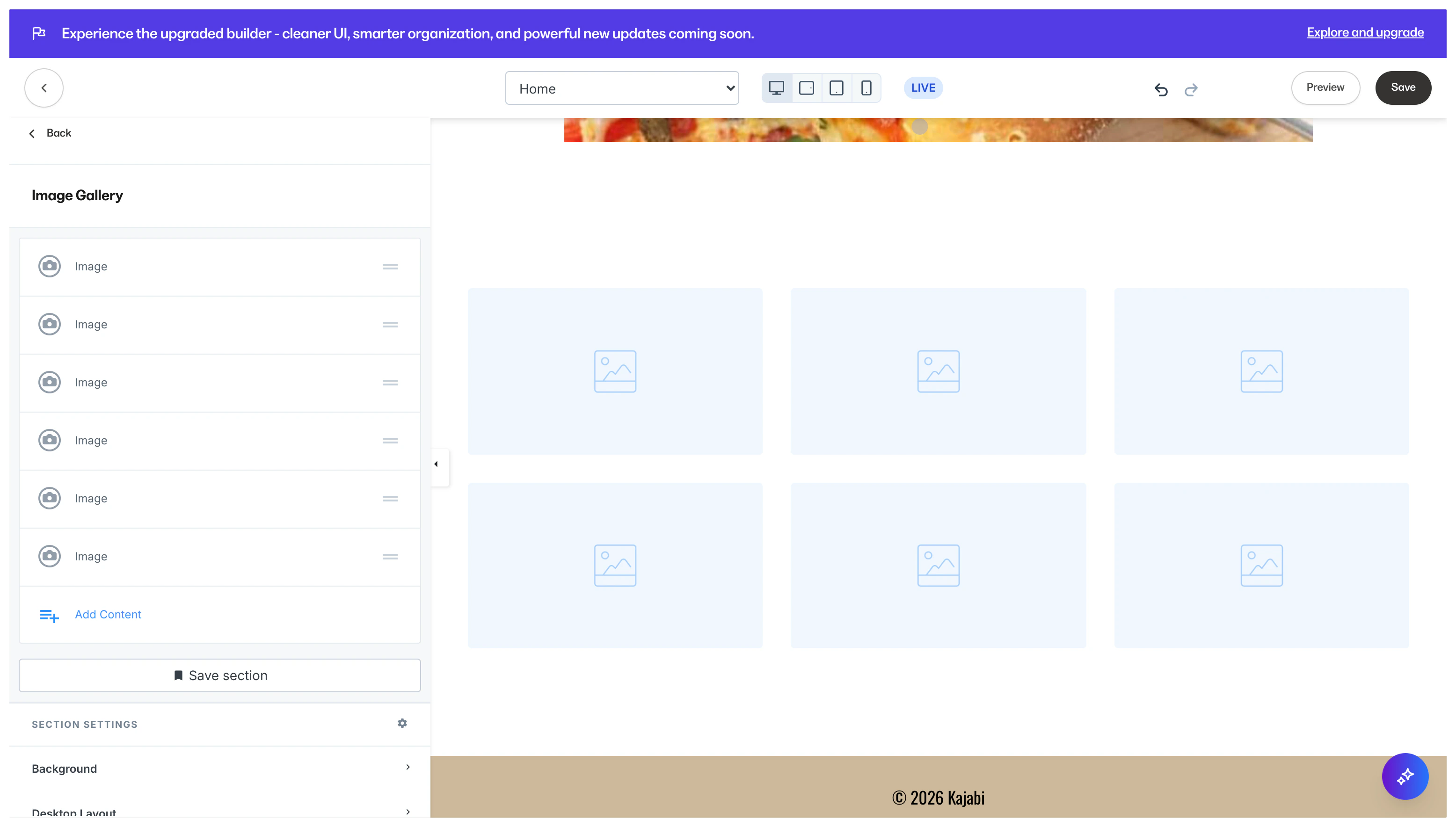 Learn more about the difference between an Image Gallery and a Section Gallery.
Adding an image gallery to your page
- Open the Website tab from the Dashboard.
- Select either Website Pages or Landing Pages.
- Open the page editor for your Page. Learn more
- Navigate to the sidebar panel.
- Click Add Section.
- Select your Section Image Gallery to Preview.
- Click Add to generate the Preset Section to your Page:
Uploading images to your image gallery
Upload your images to your Image Gallery from your hard drive or from recently uploaded images:
- From the Dashboard, click the Website tab.
- Select either Website Pages or Landing Pages.
- Open the page editor for your Page. Learn more
- In your Page, click the Image block to access the editor.
- In the sidebar, click Select Image.
- From the dropdown menu, click Upload a New File or Select a Recent File to select the image.
- Click Save to keep your changes:
Tip: Drag and drop your Image Blocks in the sidebar panel to rearrange your Images.
Adding more image blocks to your image gallery section
Include more images to your Image Gallery.
Keep in mind that your Image Gallery section is made up of six Image Blocks. Adding a new Image Block will give you the ability to add more images.
However, the Image Block will be disproportionate to the rest of your Gallery. Simply customize the Block Settings for the Image Block to fit in accordance with your vision for the Image Gallery section.
- Hover over the Image Gallery Section and click inside the Section, not inside an image block.
- Click Add Content in the sidebar editor.
- Click Image.
- Customize your newly added Image block to fit your Image Gallery Section.
- Click Save to keep your changes:
Customizing your image gallery section
Customize your Image Gallery Section by editing the Image Block and Section Settings to change the appearance, behavior, and content.
Learn to customize your images with Adobe Express.
Section Settings:

