

Overview
Customize the appearance of your Header Menu by adding a Dropdown Menu to lead page visitors with links to Landing Pages, Offers, and more within a streamlined, dropdown format.Note: This guide refers to Kajabi Pages Templates. If you are using Premier Legacy Templates, please refer to this guide.
How to add a dropdown menu block
- Open the Website tab from your Dashboard.
- Select either Website Pages or Landing Pages.
- Open the page editor for your Page. Learn more
- Navigate to the sidebar and open the Header section.
- Click Add Content.
- Select Dropdown Menu.
Customize your Dropdown Menu block
Dropdown text color & dropdown background color
Design your Dropdown Menu to complement your branding colors by configuring the dropdown text color and dropdown background color. Click the Color icon to select a color from your site color palette. If you prefer to use a custom color, click the color wheel and then either enter your RGB color code or use the sliders to choose your color.- The vertical bar allows you to select the hue.
- The square box allows you to select the brightness and saturation.
- The horizontal bar allows you to select the opacity of your color.
Dropdown text
Change the text displayed in your Header Section to indicate the Dropdown Menu to your users.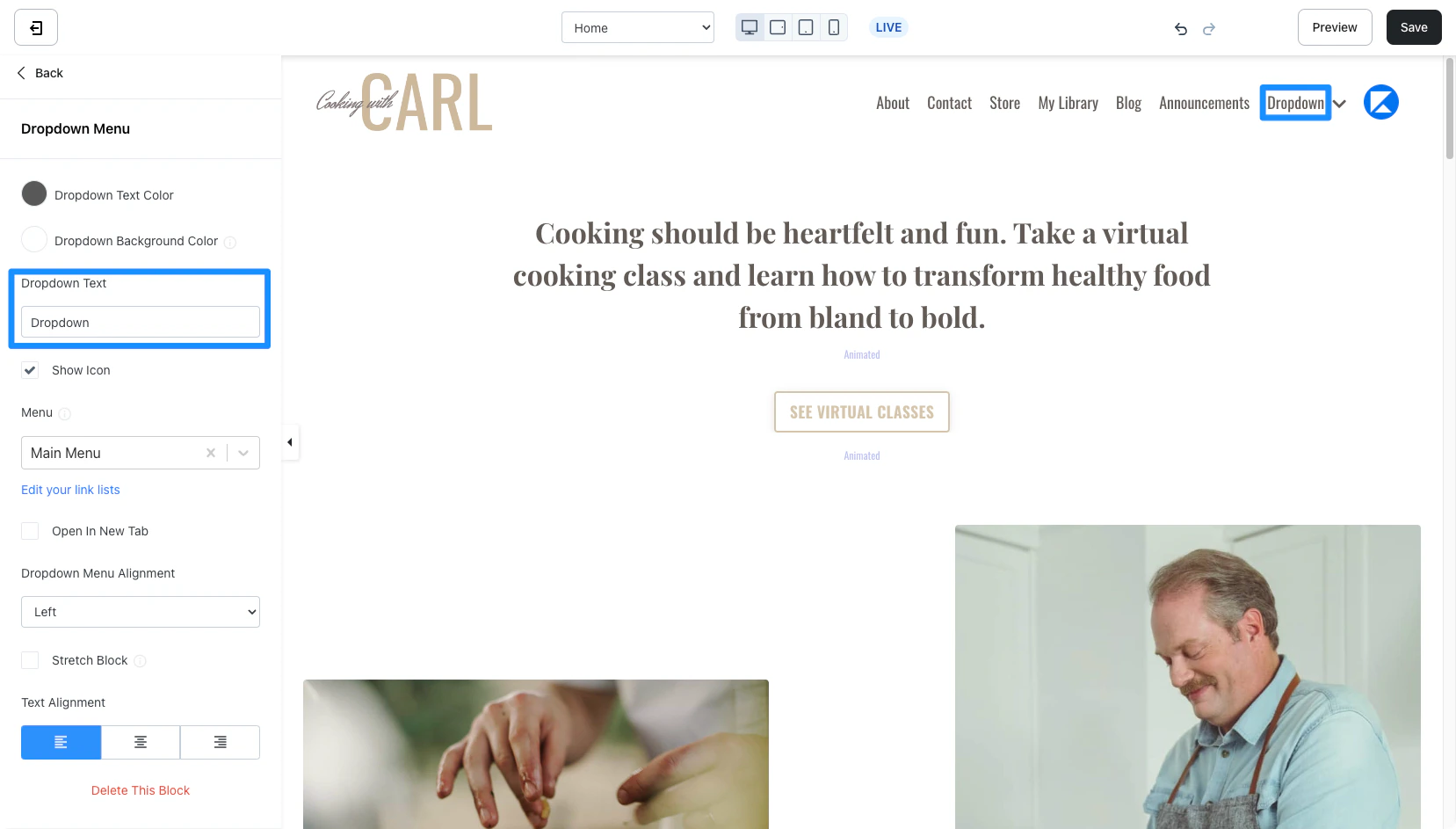
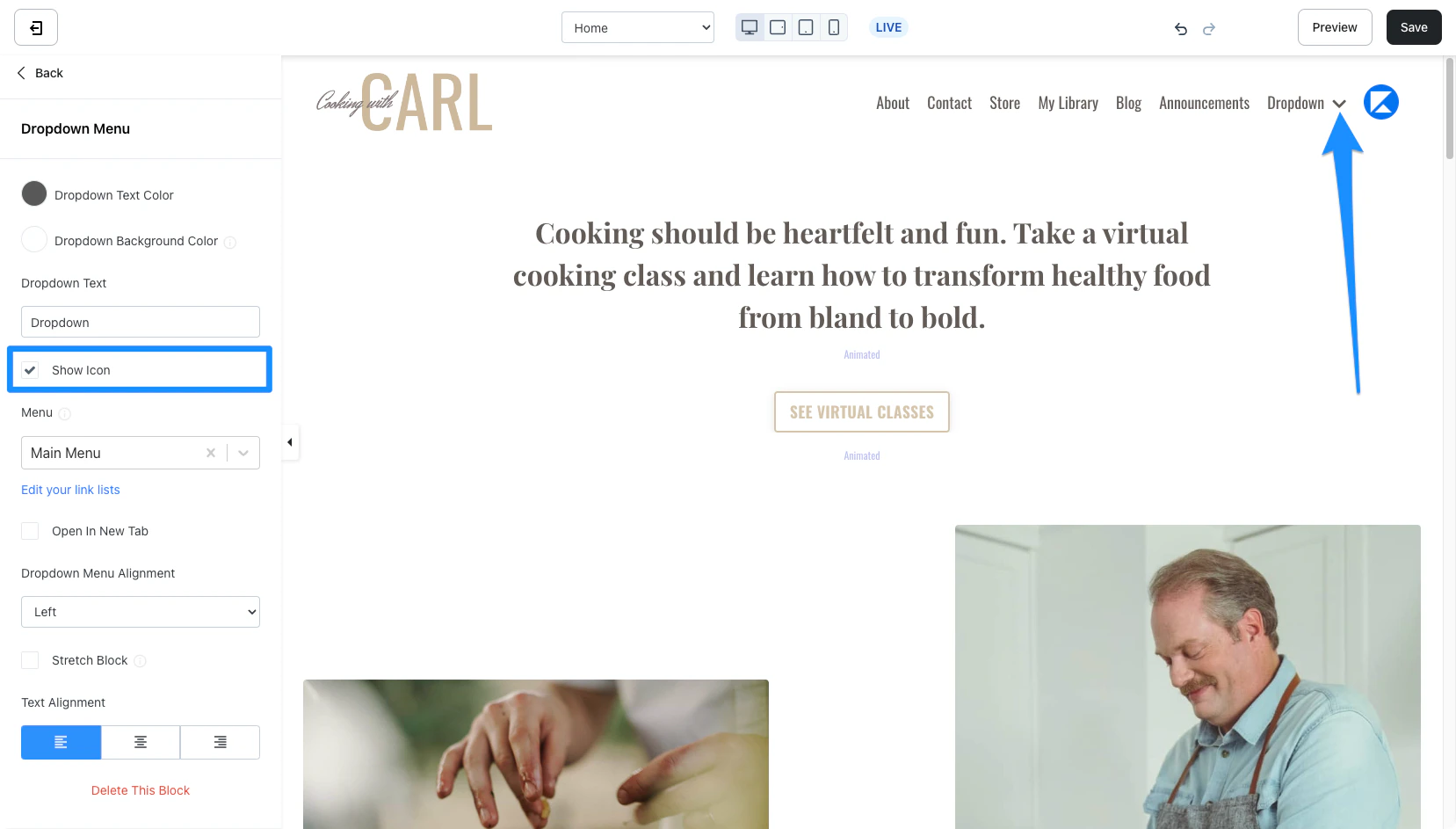
Show icon
Note: This feature is only available with your Website Builder pages. Learn about the Website Builder
Menu
Select the link list (or navigation menu) to use for your Dropdown Menu Block. The Dropdown Menu Block in the Header Editor includes simple settings to help you streamline the build of your page. To create, customize, and change the menu used in your Dropdown Menu Block, learn to customize your Website Navigation Menus.Note: Quickly navigate to your Website Navigation Menus from the Dropdown Menu Block by clicking Edit your link lists directly below the Menu field in the sidebar editor.