

What is a social icon block?
Social icons are a great tool for encouraging your site visitors to stay connected by providing links to your social profiles including Facebook, Twitter, Instagram, YouTube, and more.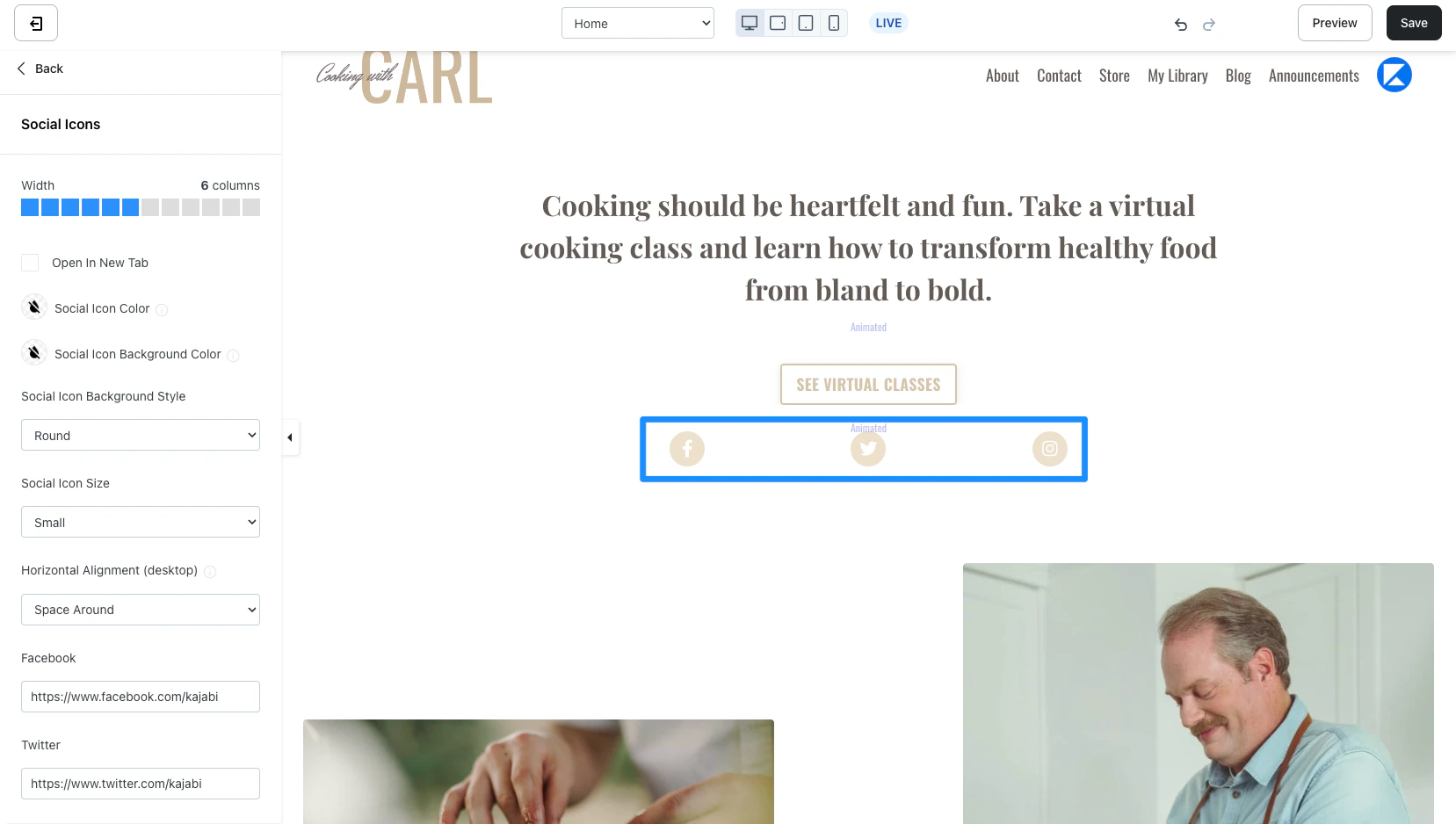
Adding a social icon block
- Open the Website tab from the Dashboard.
- Select either Website Pages Or Landing Pages.
- Open the page editor for your Page. Learn more
- In the sidebar panel, click the Section you want to edit or create a new Section.
- In the sidebar, click Add Content.
- From the list, select Social icon.
- Your newly created Social Icon Block will generate at the bottom of the Section.
- Click Save to keep your changes:
Customizing a social icon block
Customize your block by adjusting the width, adding social links, branding your links, and configuring your Block Settings:
Adding social links
Step 1. Add your social links
- Copy the links to your social platform pages (e.g., Facebook, Twitter, Instagram, Youtube, etc.). Note: Be sure to include the complete URL (i.e., https://facebook.com, https://instagram.com)
- Paste into the Social Icons Block of your Footer.
Note: Kajabi currently supports social links for the following:Facebook, X, Instagram, YouTube,Pinterest, Vimeo, Github, iTunes, LinkedIn, Soundcloud, Yelp, Tumblr, Slack, Flickr, Dribble, TikTok, Medium, Spotify, and Podcasts.
Step 2. Brand your social icons
Click the Social Icon Color:- Change the color for the Social Icon containing your Social Links.
- Select a color from your default site color palette or select the color wheel to choose a custom color.
- Change the background color for the Social Icon containers.
- Select a color from your default site color palette or select the color wheel to choose a custom color.
- Round
- Square
- None (no background shape for a minimal style)