

Note: This article refers to the Premier Legacy Templates, which may be outdated. If you are using the Kajabi Pages Templates, please refer to the updated guide here.
What is an offer?
In Kajabi, an Offer is the price tag and checkout page for your Product. For Products to be purchased or granted, they must first be connected to an Offer. With Offers, you can create multiple prices for the same products, provide different payment plans for your products, and bundle products together. To add an Offer Block to your Page, you must first create an Offer in the Products tab. Learn more about Offers in Kajabi for details.Adding an offer to your page
- Open the Website tab from the Dashboard.
- Click Pages.
- Select the page you wish to customize or create a new page.
- Click Customize to open the template editor.
- Click + Add Section from the sidebar.
- Select Offer.
- Click Add.
- Your newly created Offer Section will generate at the bottom of the page.
- Click Save to keep your changes:
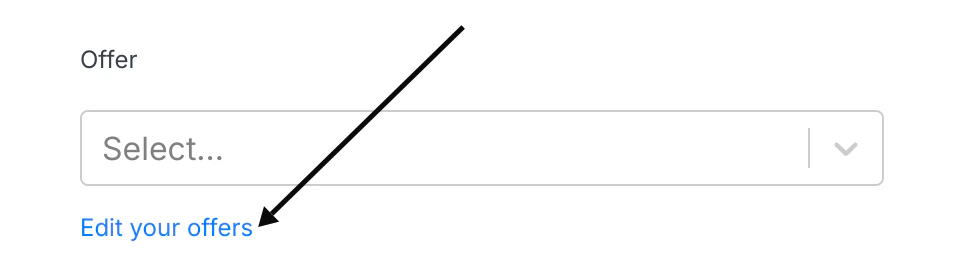
Note: To select an Offer from the dropdown, you must first create an Offer in your Products tab. Click “Edit your offers” to edit and create an Offer.
Customizing your offer section
Heading and subheading
Customize your Offers Section message displayed above the Offer and Custom Cards.Section appearance
Configure your Section Appearance to change the Background and Text Color, select the Text Alignment, and change the Spacing of the Section.Add content
Add Content to include your Offer Card or Custom Card to display your Offers on your Page.Customizing your offer content
Select the offer
- In the Offers sidebar editor, click Add Content.
- There, select either Offer Card or Custom Card:
Customizing an offer card
Offer card
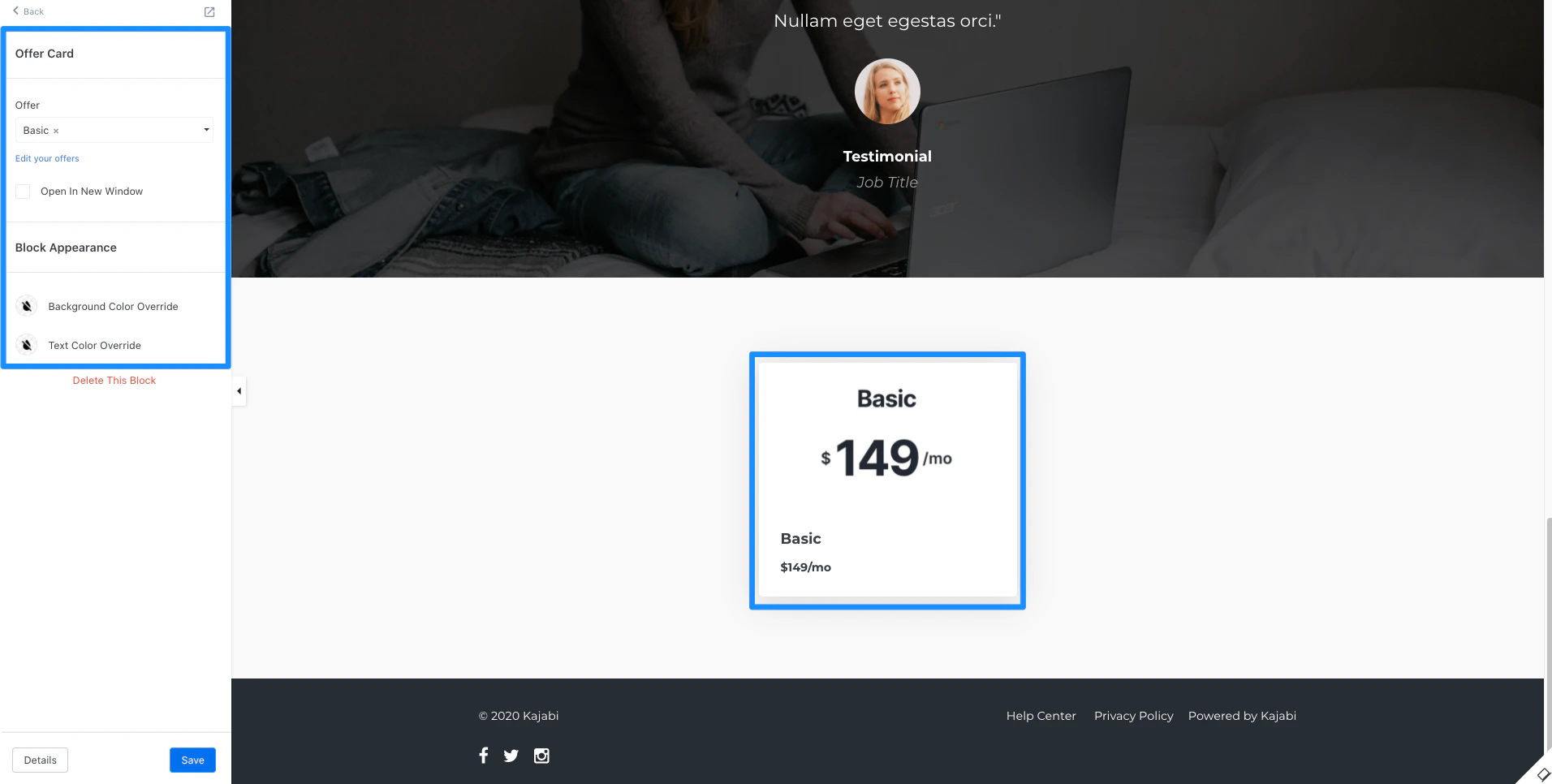
Block appearance
Customize the appearance of your Offer Card by changing the Background and Text Color.Customizing a custom card
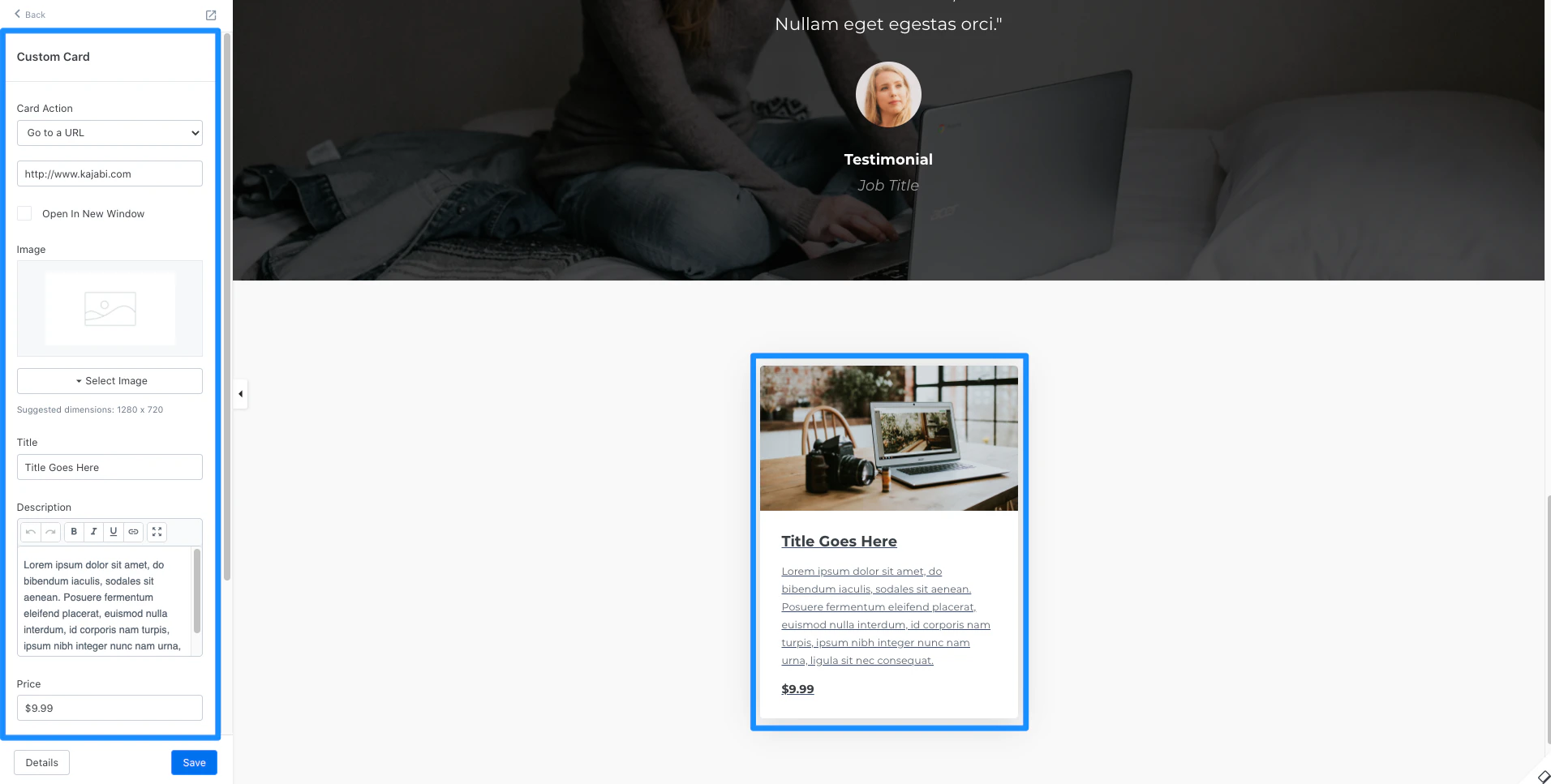
Card action
With the Custom Card, lead your site visitors to:- Go to a Landing Page
- Go to a Checkout Page
- Download a File
- Go to a URL
- Open a two step optin popup
- Go to a section on the page
Note: When using the Go to a URL action, be sure to enter a full URL (e.g., https://kajabi.com/).