

Overview
In Kajabi, you can add custom code to a single page or all pages on your website. If you want to edit the underlying code of your pages, see How to Access the Code Editor.Add custom code to a single page
Page settings
- Under Website, navigate to the website or landing page you want to edit.
- Next to the page, click the Customize button.
- In the page builder, click Settings.
- Click Custom Code.
- Add your custom CSS or JavaScript.
- Click Save.

Note: Do not include
<style> or <script> tags in the Custom CSS or JavaScript sections within the page settings.Custom code block
Adding custom code in a block can be helpful for embedding content on your page, such as a calendar booking widget.- Under Website, navigate to the website or landing page you want to edit.
- Next to the page, click the Customize button.
- In the page builder, open a section.
- Click Add block.
- Click Custom Code.
- Add your custom CSS or Javascript in the Code field.
- Click Save.

Note: In a custom code block, you’ll need to use
<style> (for CSS) and <script> (for JavaScript) tags for your custom code to work.Add custom code to all pages
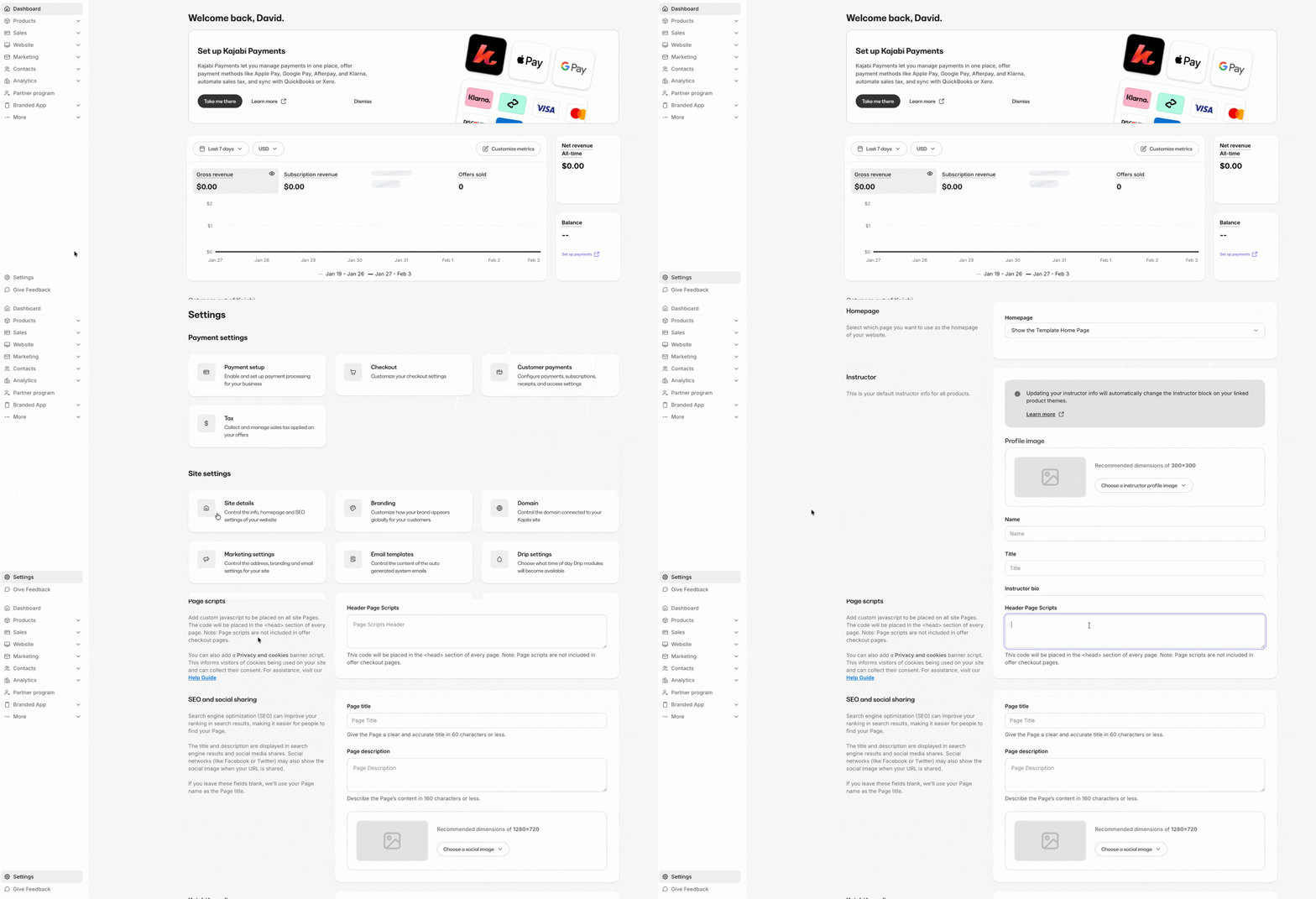
Adding custom code to all pages can be helpful if you want to add a cookie disclaimer, custom fonts, analytics, or more to your website.- Go to Settings > Site details.
- Under Page scripts, enter your custom code in the Header Page Scripts field.
- Click Save.
Note:
Custom code added to the Header Page Scripts field will be included in the
<head> tag of every page on your website, except Offer checkout pages and upsell pages. To add tracking code to checkout pages, see Add a JavaScript tracking code to checkout pages.