Overview
Add preset Image Sections to your custom landing page with Kajabi Pages to create visually engaging content.Note: This guide refers to the latest page template available with the Website Builder and Kajabi Pages. If you are using the Premier Legacy Templates, please refer to the guide here.
What is an images section?
The Images Section streamlines the build of your Page to display your uploaded Images in various layouts known as Preset Image Sections. Images draw your user’s attention and lead them through the story of your Page. The right images and layout can grow your brand while creating and setting the tone and style of not only your page, but also your business. Learn to customize your images with Adobe Express.Adding an images section
- Open the Website tab from the Dashboard.
- Select the Pages tab.
- Open the page editor for your Page. Learn more
- Navigate to the sidebar panel.
- Click Add Section.
- Select your Section from Images to Preview.
- Click Add to generate the Preset Section to your Page:
Preset image sections
Learn about each Preset Image Section:- Image
- Text & Image
- Image Gallery
Image
Use images to help set a tone, show your personality, and present your brand on your site. Adding an Image Section to your Page generates a single Image Block: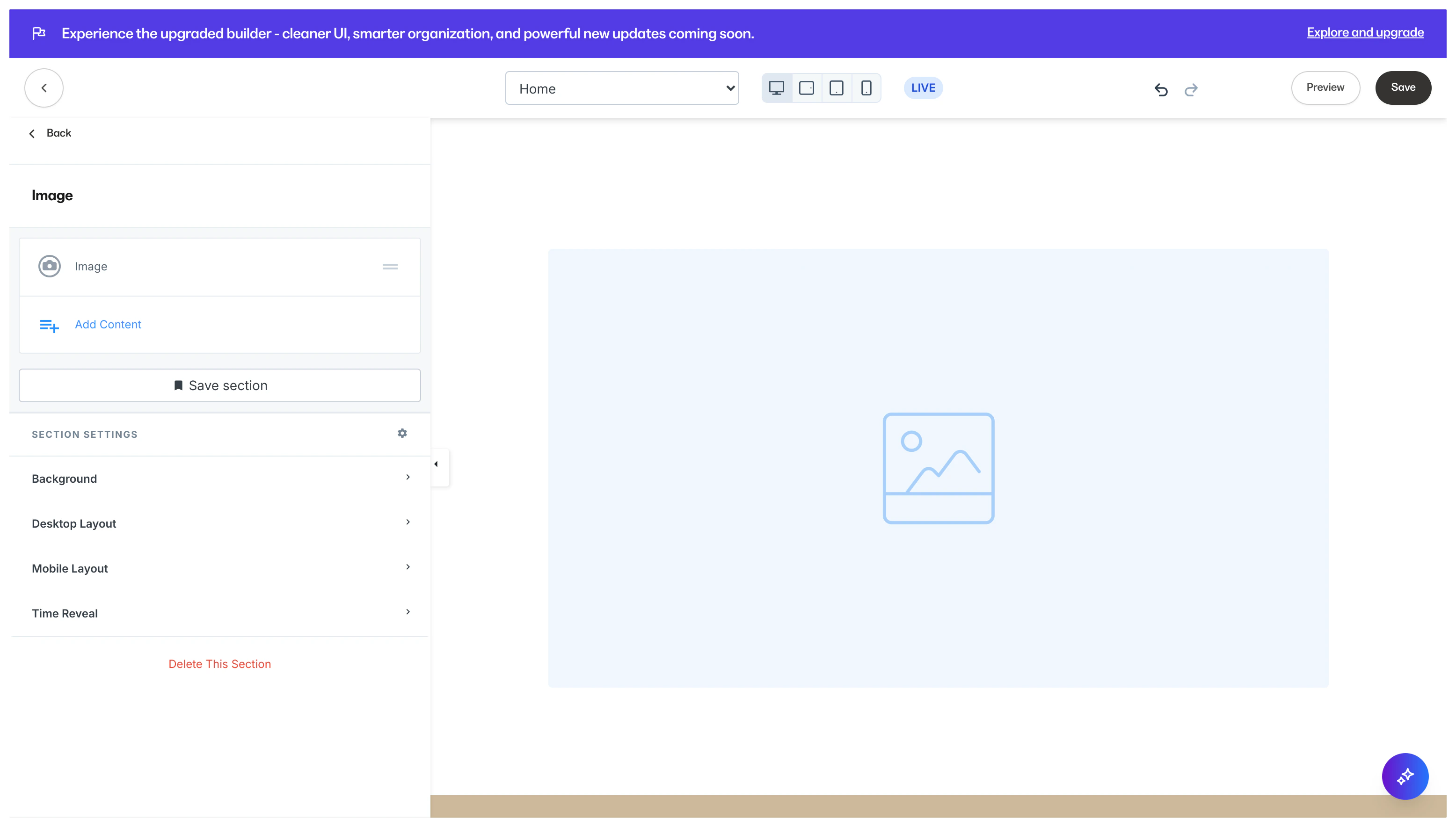
Text & Image
Combine image and text blocks to create a simplistic approach to show and tell your story to your audience. Adding a Text & Image Section generates a single Text Block and a single Image Block: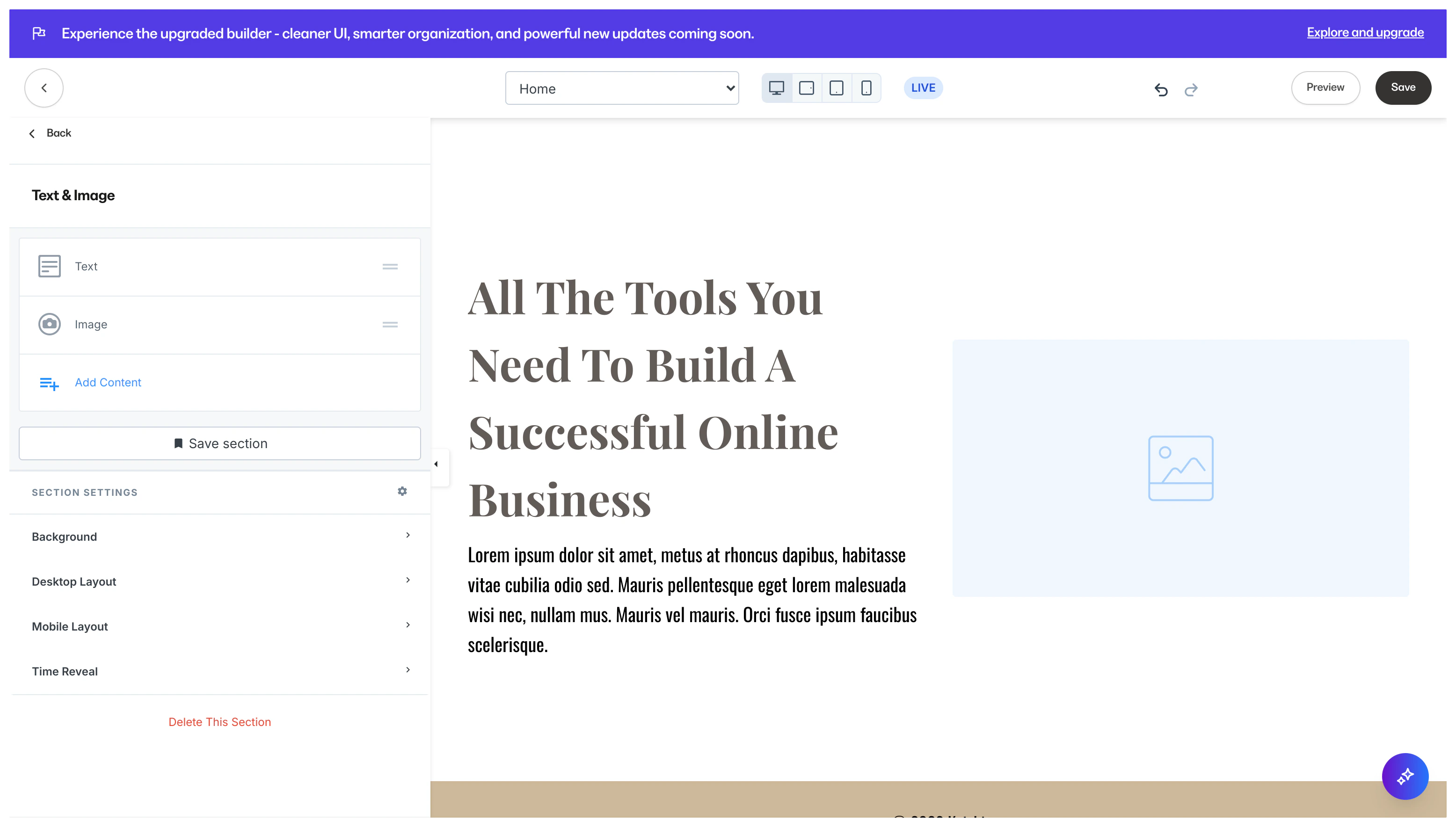
Image Gallery
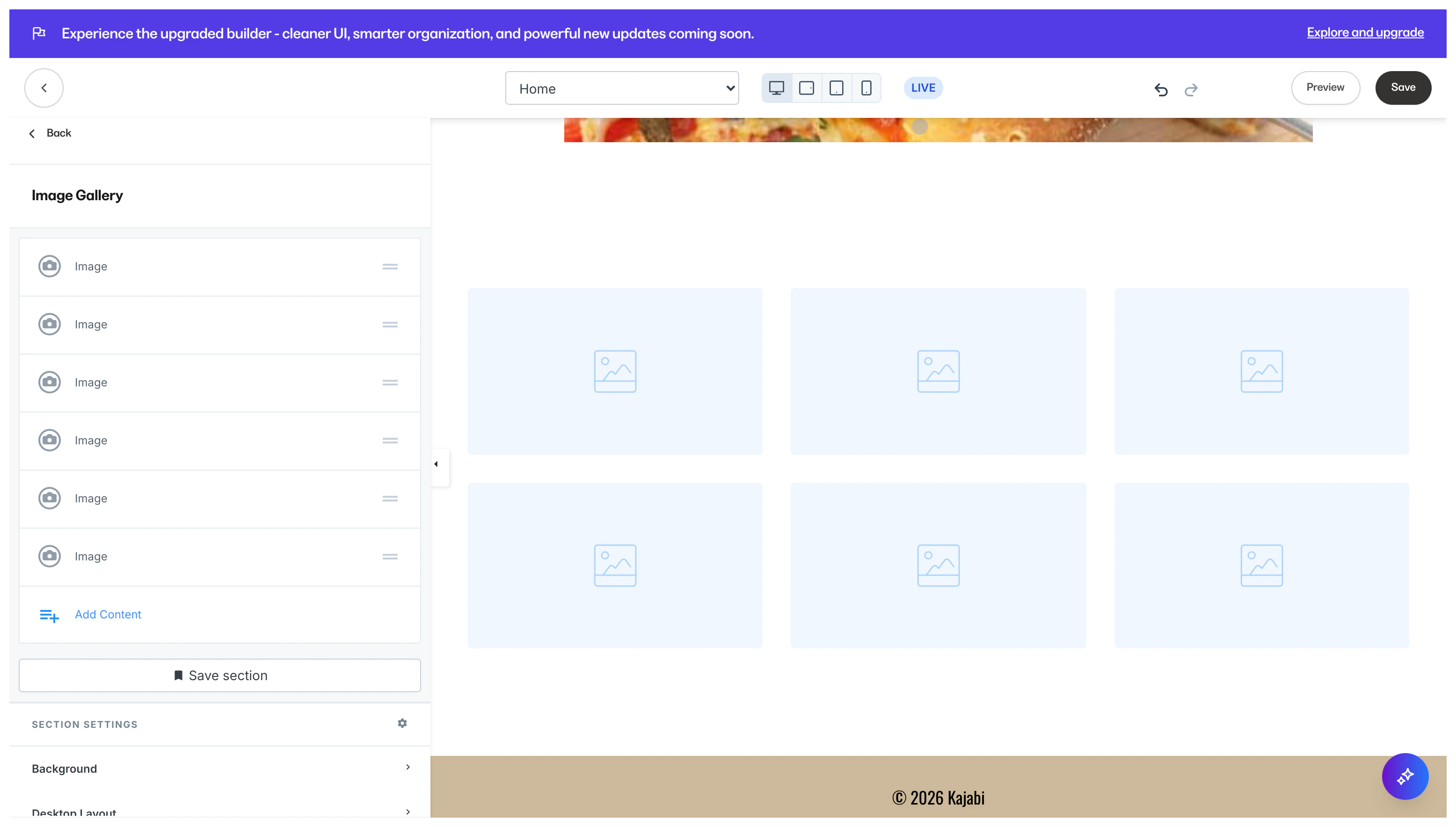
Display an array of Images without using an excessive amount of space on your site. This organization tool allows you to group a combination of photos with simplicity and uniformity. Adding an Image Gallery generates six Image Blocks to display your uploaded Images: