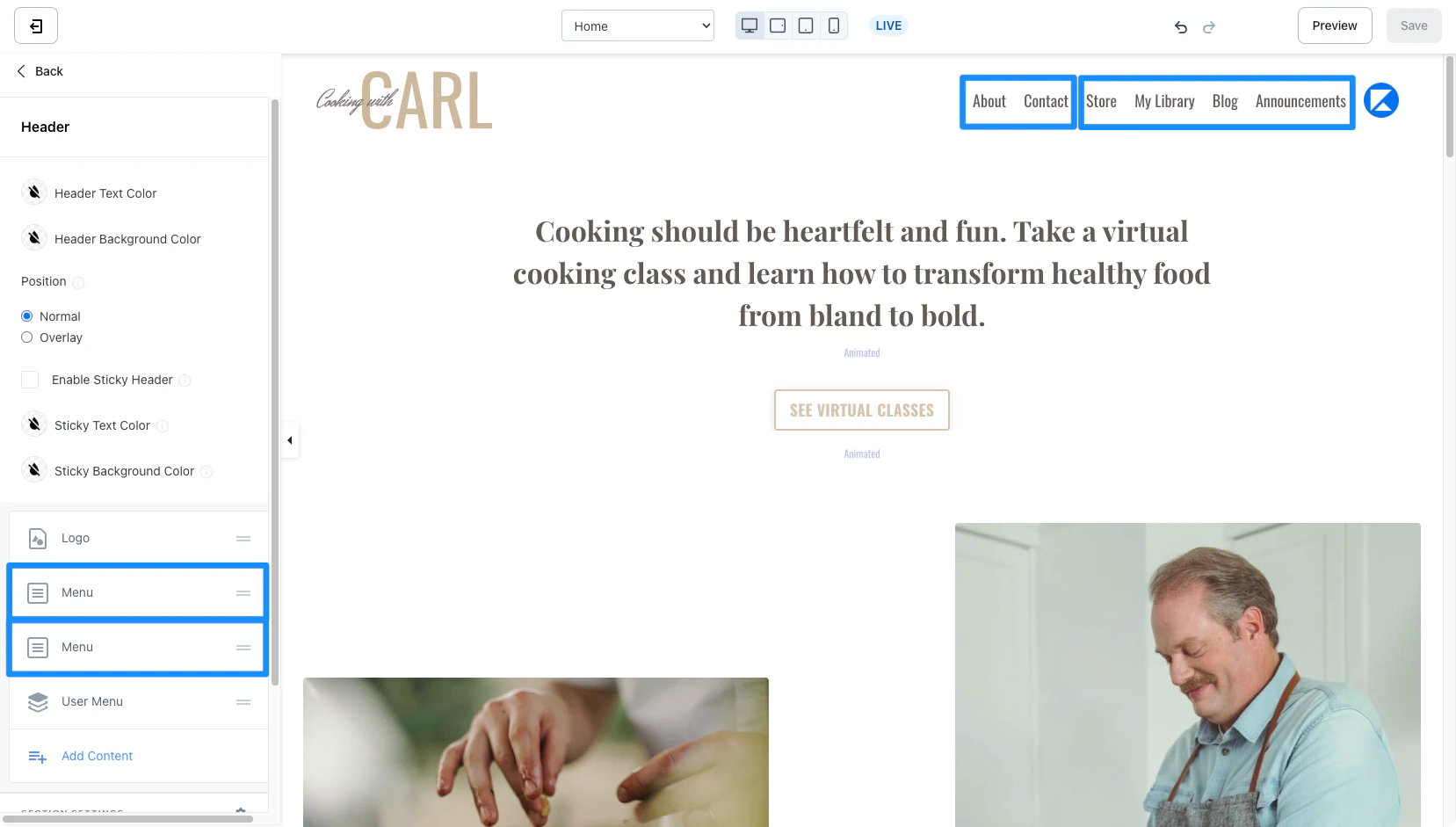
Adding a menu to your page header

Step 1. Select the menu block

  • Open the Website tab from your Dashboard.
  • Select the Website Pages or Landing Pages tab.
  • Open the page editor for your Page. Learn more
  • Navigate to the sidebar panel and click Header.
  • Click Add Content.
  • Select Menu:
C929CDD6-6C55-4201-8EE9-0664C42F7D35.png
Note:To create and edit your menu links, click Edit your link lists below the Menu Header in the sidebar editor.

Step 2. Select your navigation menu

  • Open the Menu dropdown.
  • Select the Menu/Link List that you wish to add to your Header.

Customizing your menu

Open in new tab

Enable this setting to open the item selected from your menu in a new tab of your page visitor’s browser.

Stretch block

Note:Only available with the Website Builder pages. Learn more
Enable the Stretch Block setting to fill the remaining space of the Header section. A good rule for using the Stretch Block feature is to enable the Stretch Block feature for the block on the far left of your Header section. For example, if you want to have a Logo on the far left side of your Header and a Menu and User Menu on the far right side, select Stretch Block for your Logo:
Control the alignment and positioning of your blocks by adjusting the Stretch Block and Block Alignment for the Blocks in your Header.

Text alignment

Adjust the horizontal alignment of your block in the Header to appear more left, centered, or right-aligned. Keep in mind, this setting will be impacted by the positioning and alignment of surrounding blocks.