

Note: This guide refers to the latest page editor available with the Website Builder and Kajabi Pages. If you are using the Premier Legacy Templates, please refer to the guide here.
What is a pricing card?
A Pricing Card is an excellent way to present an Offer by displaying all the features of your Product while encouraging your visitors to purchase with a Call to Action button. You can use multiple Pricing Cards together in a section to showcase multiple Offers you may have for one Product, such as pricing plans, bundles, and more. Learn to use multiple Pricing Cards with the Pricing Card Section.Adding a pricing card block
- Open the Website tab from the Dashboard.
- Select the Pages tab.
- Open the page editor for your Page. Learn more
- Click the Section you want to edit or create a new Section.
- In the sidebar, click Add Content.
- From the list, select Pricing Card.
- Your newly created Pricing Card Block will generate at the bottom of the Section.
- Click Save to keep your changes:
Customizing your pricing card block
In a Pricing Card Block customize the:- Block Width
- Image
- Image Alt Attribute
- Name
- Price
- Price Caption
- Text
- List Icon
- Pricing Card Block Settings
Image
Customize the image that appears in the Pricing Card and whether or not to display the image: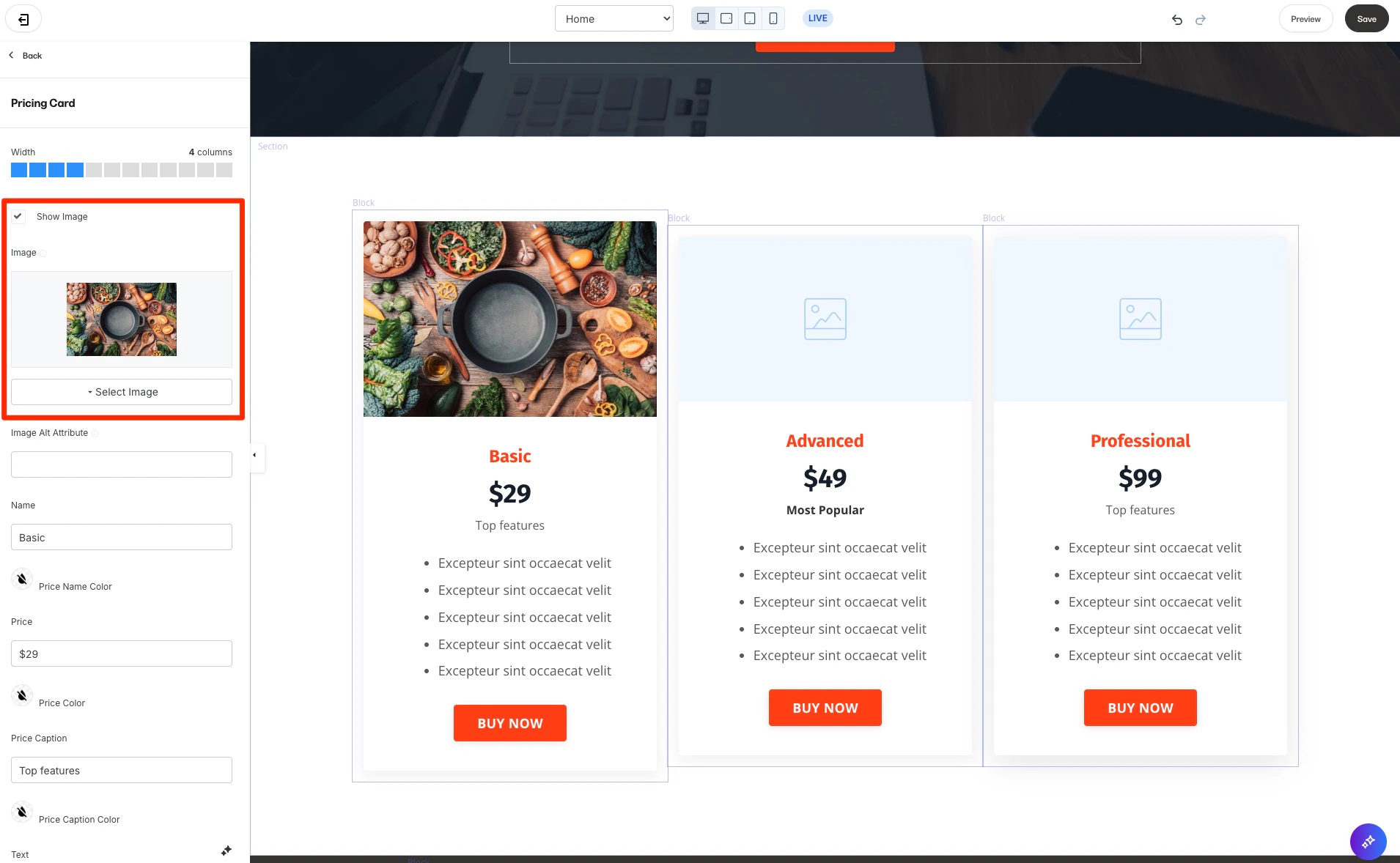
Image alt attribute
Customize the image alt attribute for SEO and toggle if the image will be displayed or not: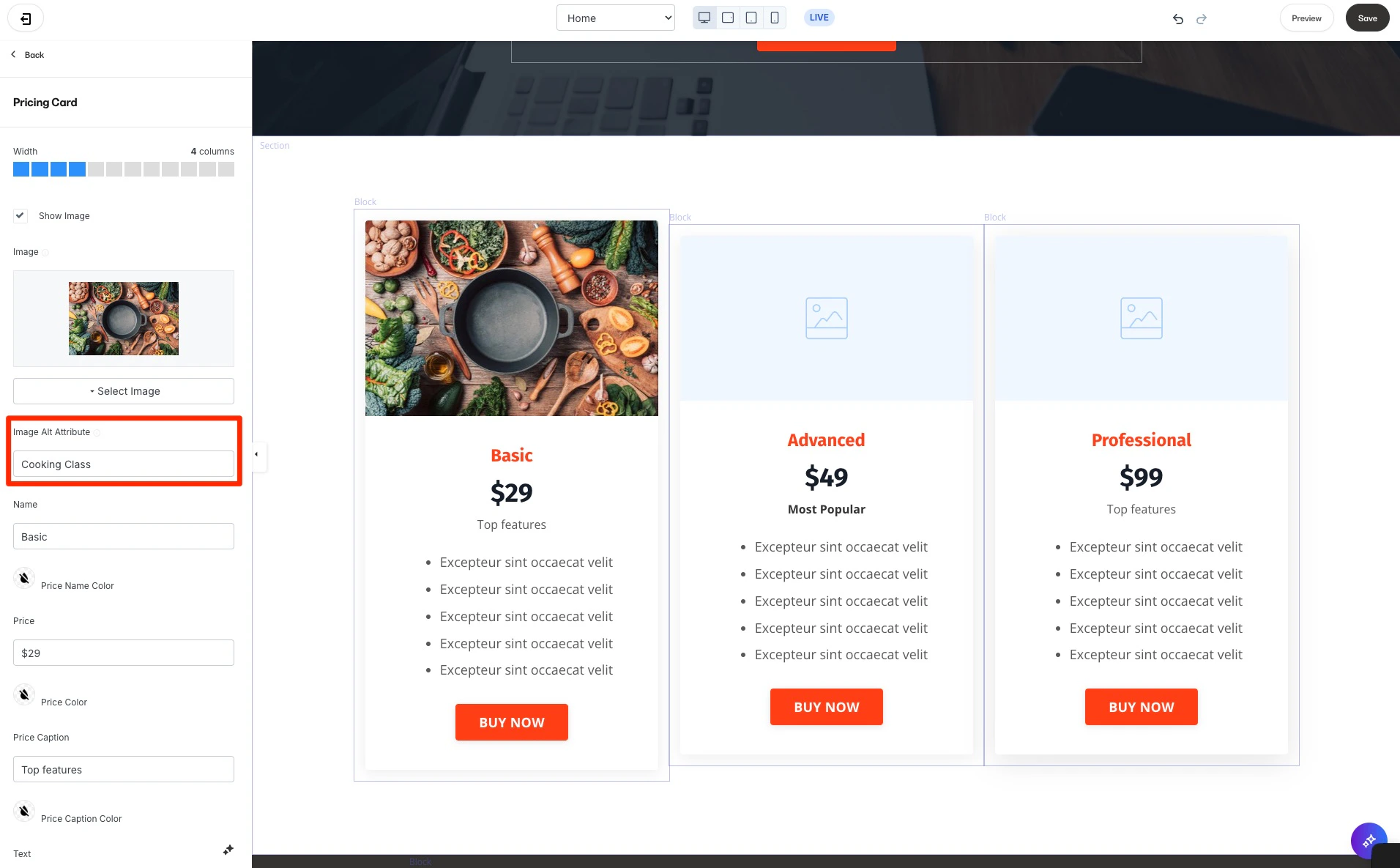
Name
Customize the text and color displaying the name of your Pricing Option: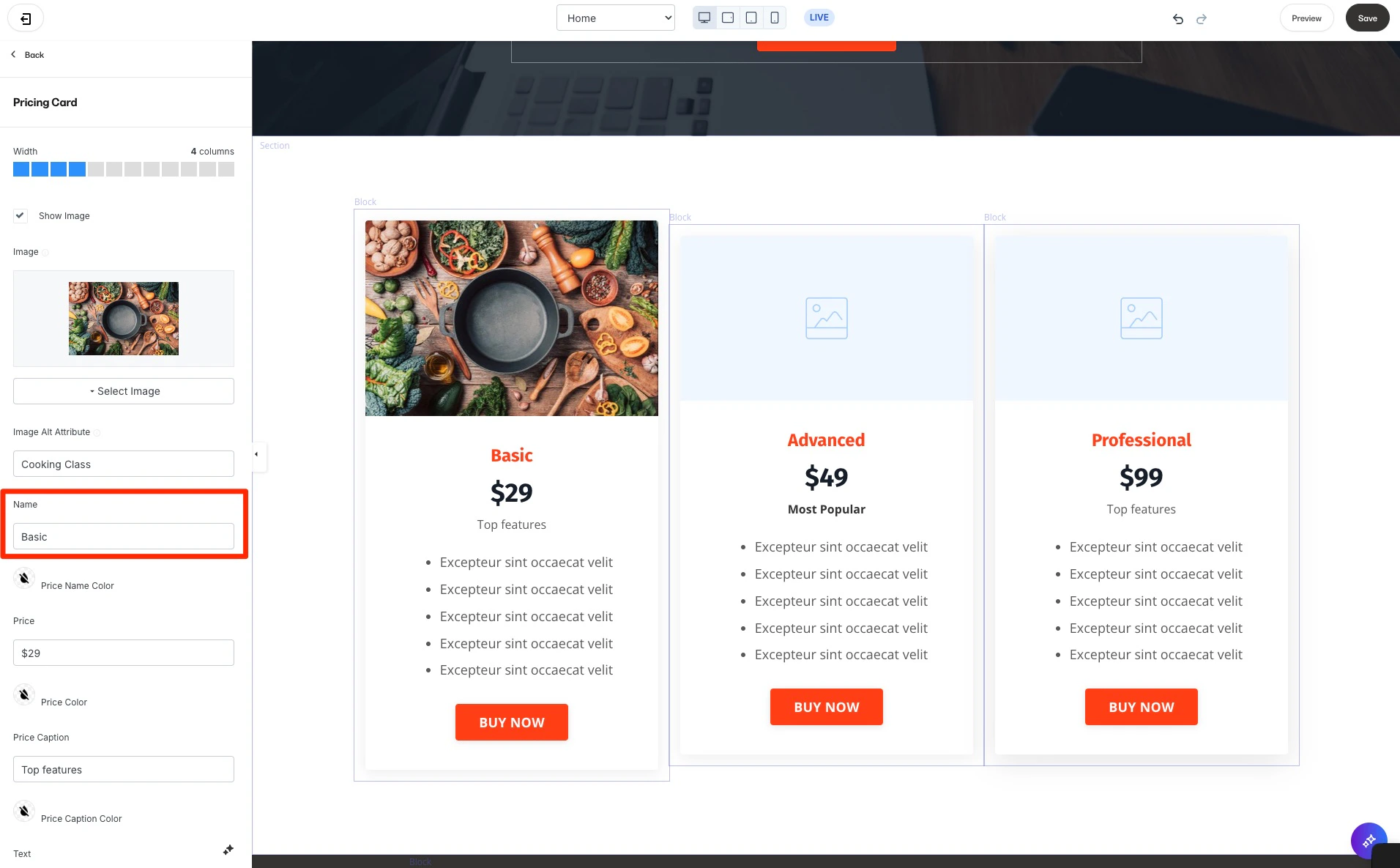
Price
Specify the text and color commonly used to display the Price of the specific Pricing Option: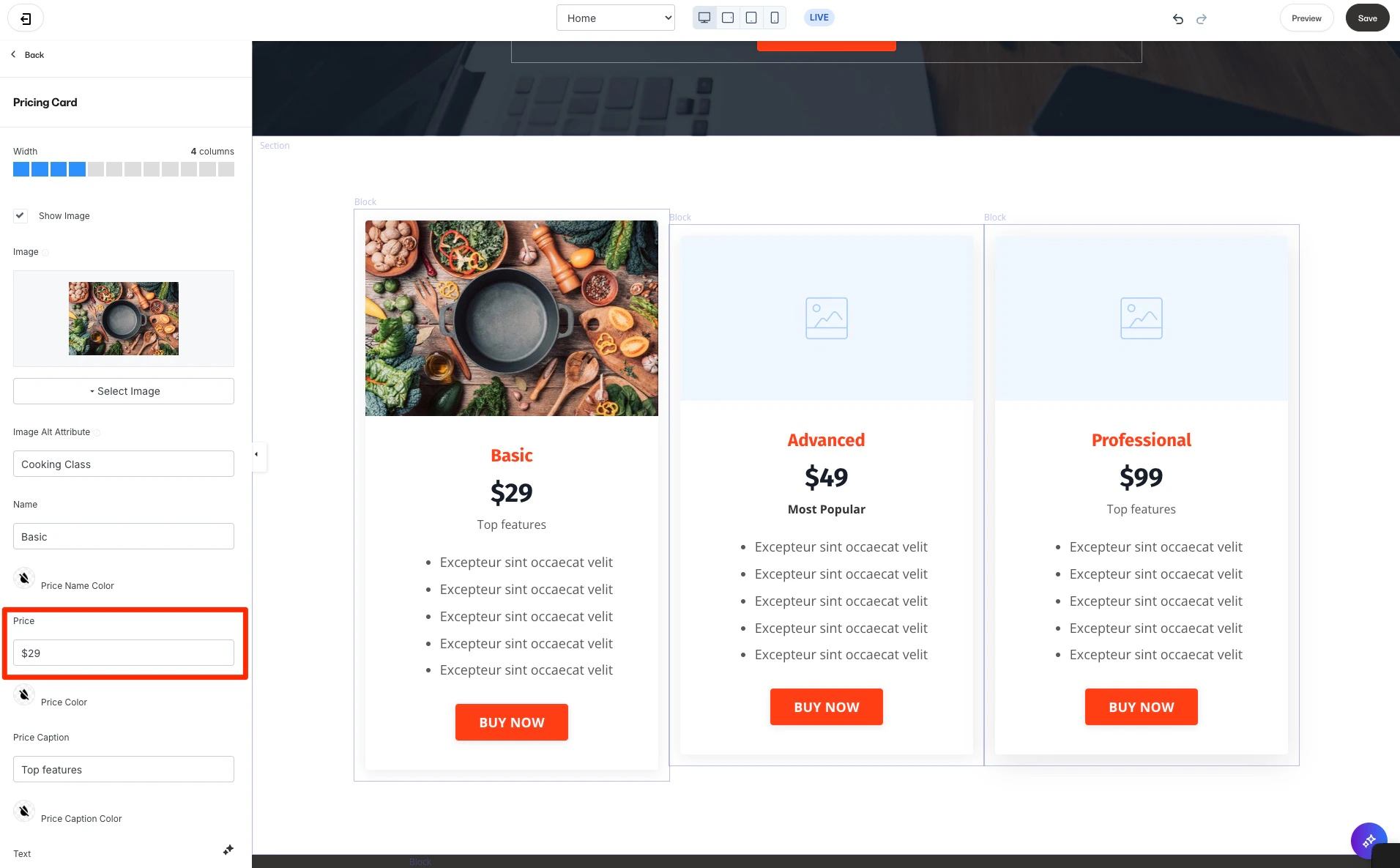
Price caption
Customize the caption text and caption color directly below the Price: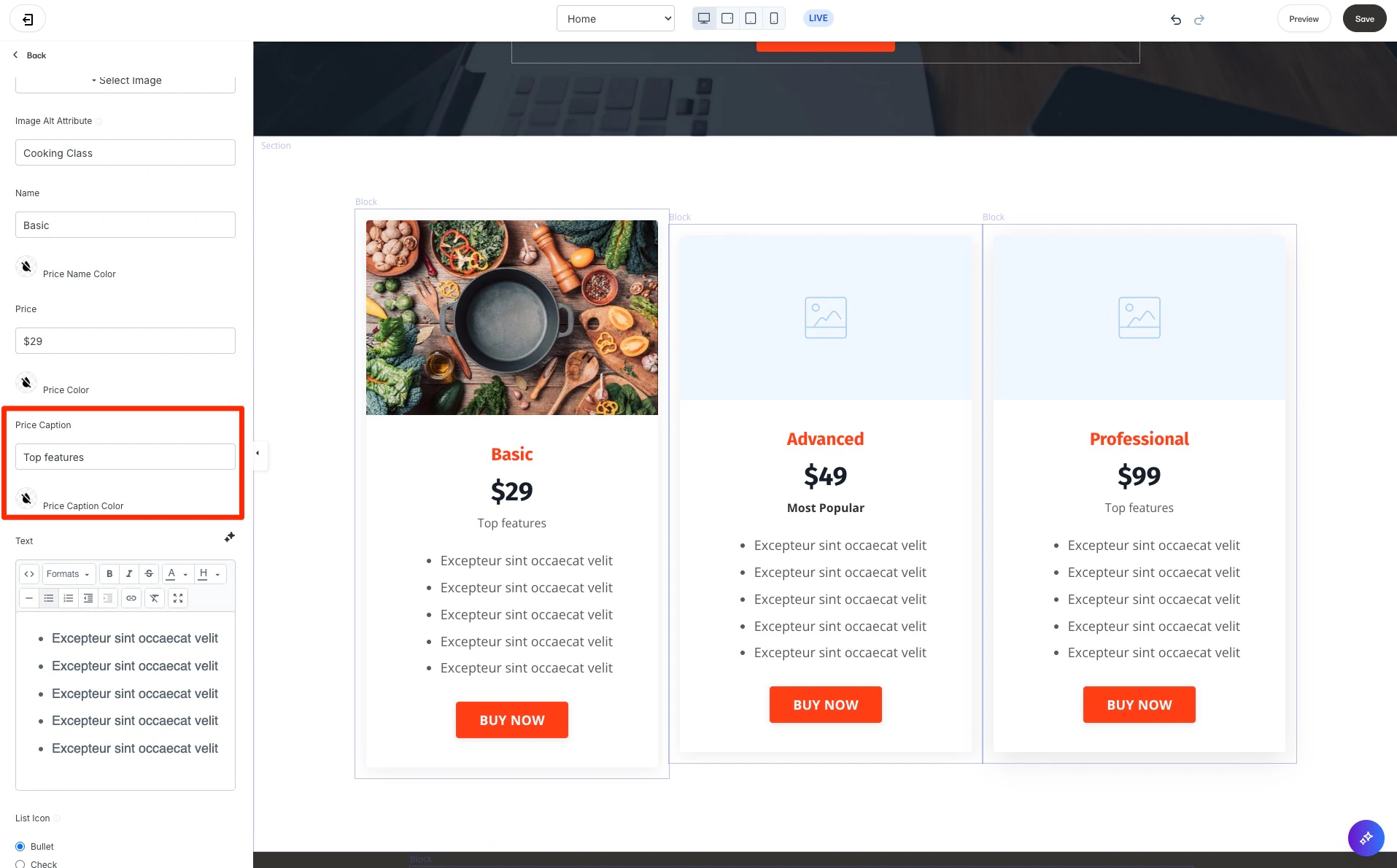
Text
Customize the messaging displaying the Features included with your Offer: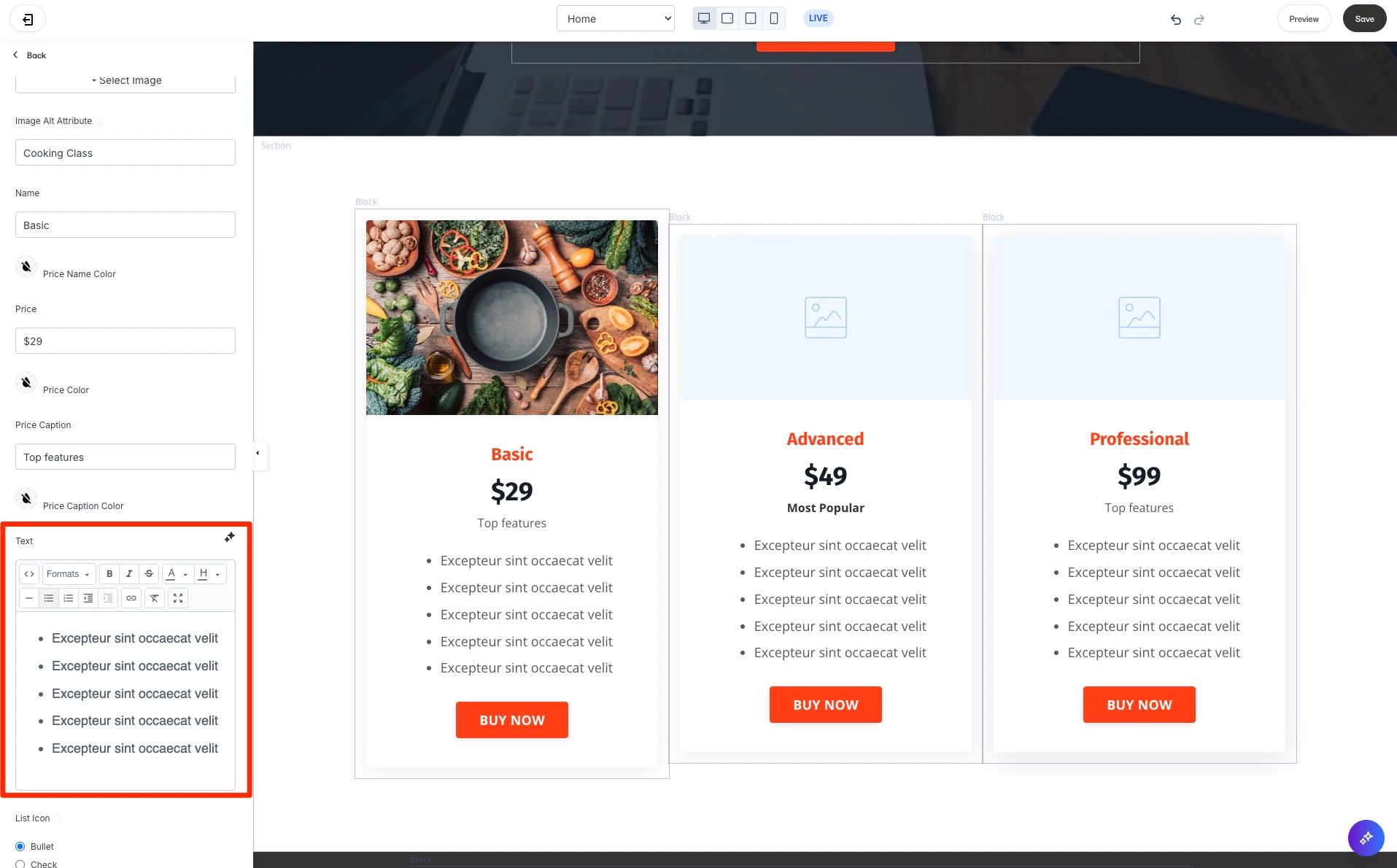
List icon and icon color
Customize the appearance of the List describing the Features by changing the icon to:- Bullet
- Check
- Plus
- Star
- The vertical bar allows you to select the hue.
- The square box allows you to adjust the saturation and brightness of your color.
- The horizontal bar allows you to select the transparency of your color.
Block settings
To adjust the look and feel of the Block, configure your Block Settings by customizing the:- Call to Action
- Background
- Desktop and Mobile Layout
- Animations
- Time Reveal
Call to action
Add and customize the action and appearance of a Call to Action button. The Call to Action (CTA) button can be used to:- Lead a visitor to a custom Landing Page
- Lead to a sale by going to a Checkout Page
- Encourage your audience to download a file
- Lead to any website page with a URL link
- Open a Two-Step Optin Popup
- Act as an anchor link to lead to a section of the page