

Note: Changing the link of your Header Logo requires the Code Editor only available with the Pro Plan or Access. Check out kajabi.com/pricing for details on the Pro Plan.
What is the header logo?
The Header Logo is located at the top of your page to display your brand and identify your site. In addition to branding your page, the Header Logo behaves as a clickable link to lead your page visitors back to the homepage of your site:
Changing the link with the website builder
First, copy the link you want your Header Logo to lead to. Then, use the Code Editor to change your logo link:- Open the Code Editor for your desired website page.
- Open the Snippets folder.
- Click open the
shared_block_logo.liquidfile. - Locate
<a class="logo" href="/">near or on line 14.
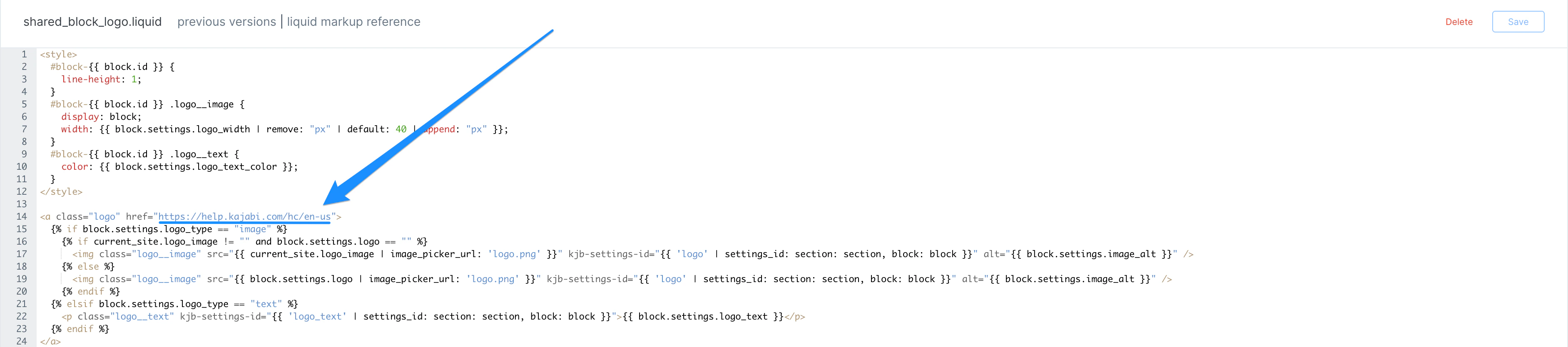
- Click Save to keep your changes.
- Click Preview to test your new Header Logo link.
Changing the link with Kajabi Pages
Note: Changing the Header Logo link will also change the link in the Page Footer for your pages.
- Open the Code Editor for your desired page.
- Open the Snippets folder.
- Click open the
shared_block_logo.liquidfile. - Locate
<a class="logo" href="/">near or on line 14.
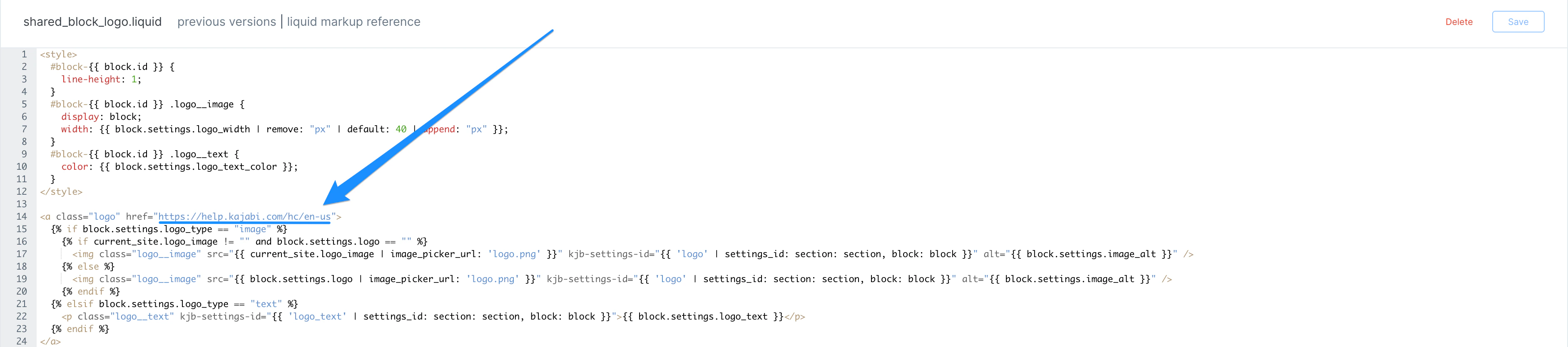
- Click Save to keep your changes.
- Click Preview to test your new Header Logo link.
Changing the link with Premier
First, copy the link you want your Header Logo to lead to. Then, use the Code Editor to change your logo link for a page built with Premier:- Open the Code Editor for your desired landing page built with Premier.
- Open the Sections folder.
- Click open the
header.liquidfile. - Locate
<a href="/" kjb-settings-id="#########{{ kjb-H-LogoText }}">near or on line 9. - Similarly, locate
<a href="/" class="logo logo--image">near or on line 14.
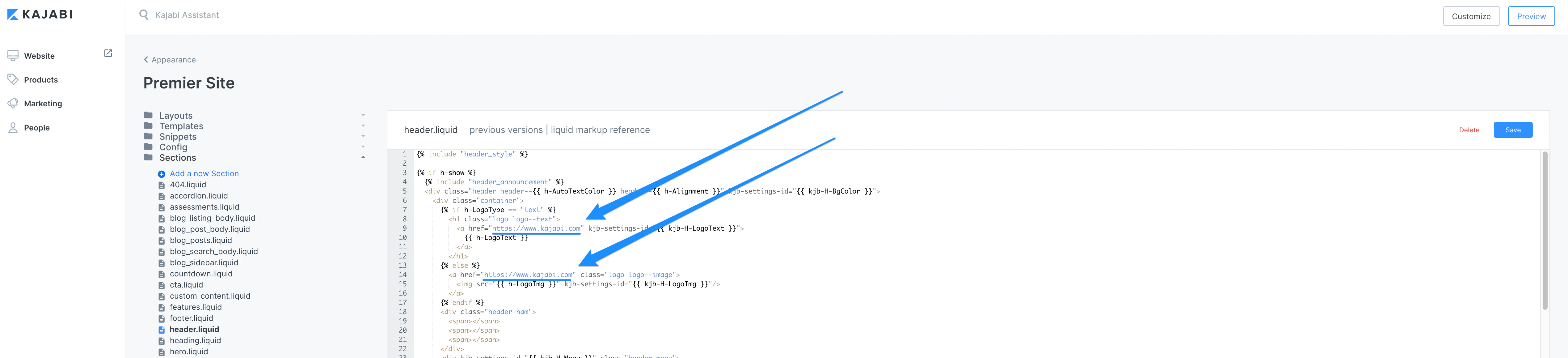
- Click Save to keep your changes.
- Click Preview to test your new Header Logo link.