

Update the Team ID
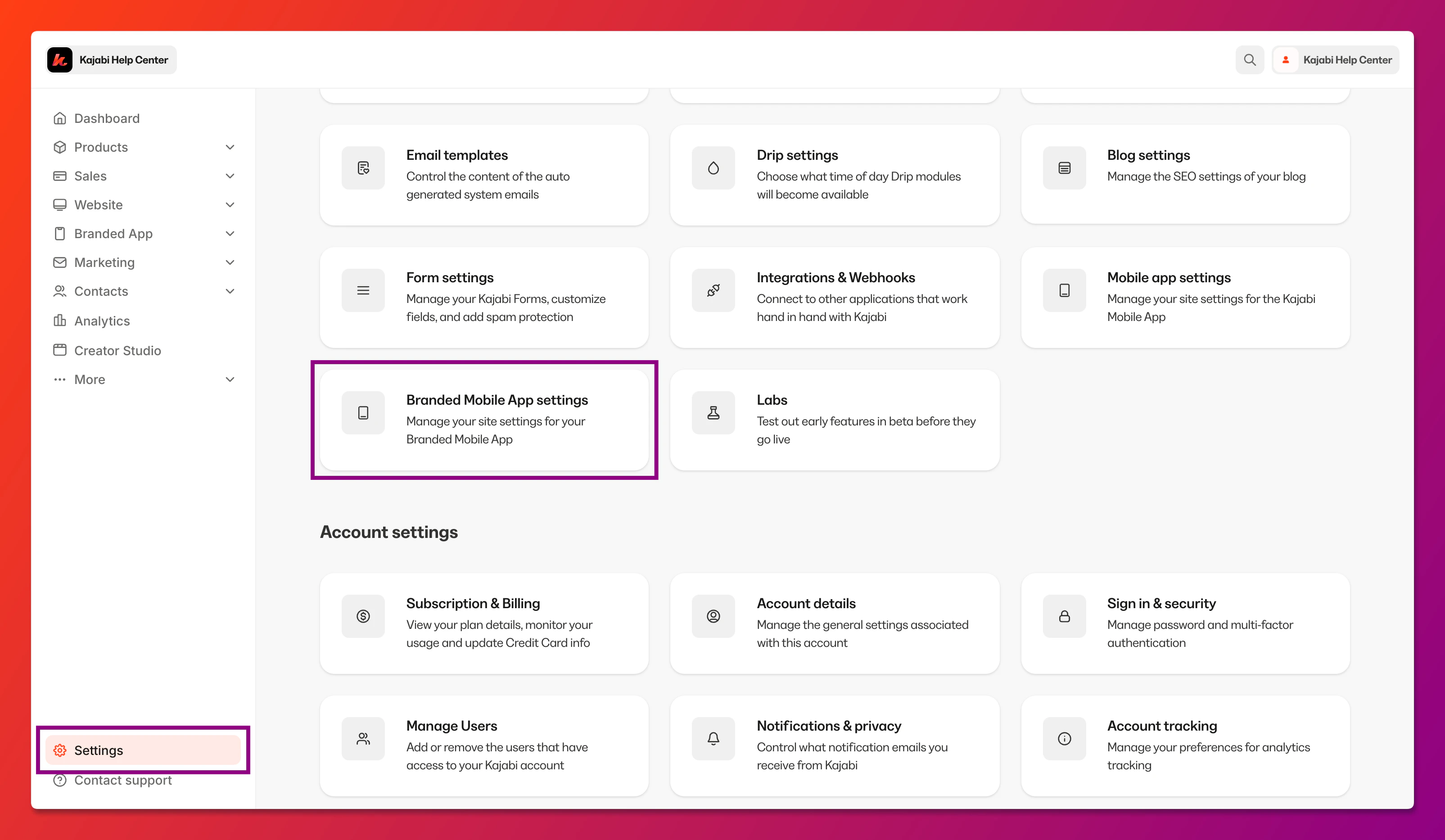
First, update the Team ID in the Branded App iOS settings. To open the Branded App iOS settings:- Log into the Kajabi account
- Select Settings at the lower left corner of the Kajabi dashboard
- Then, select Branded Mobile App Settings:
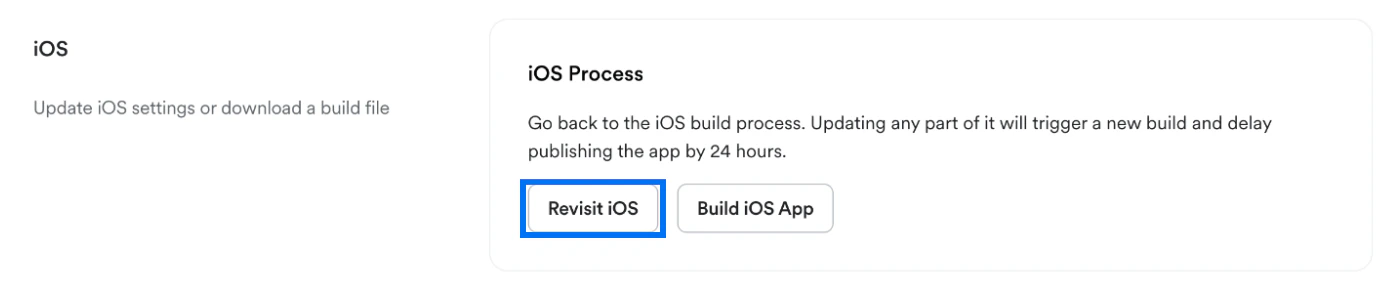
- Navigate to iOS and click Revisit iOS:
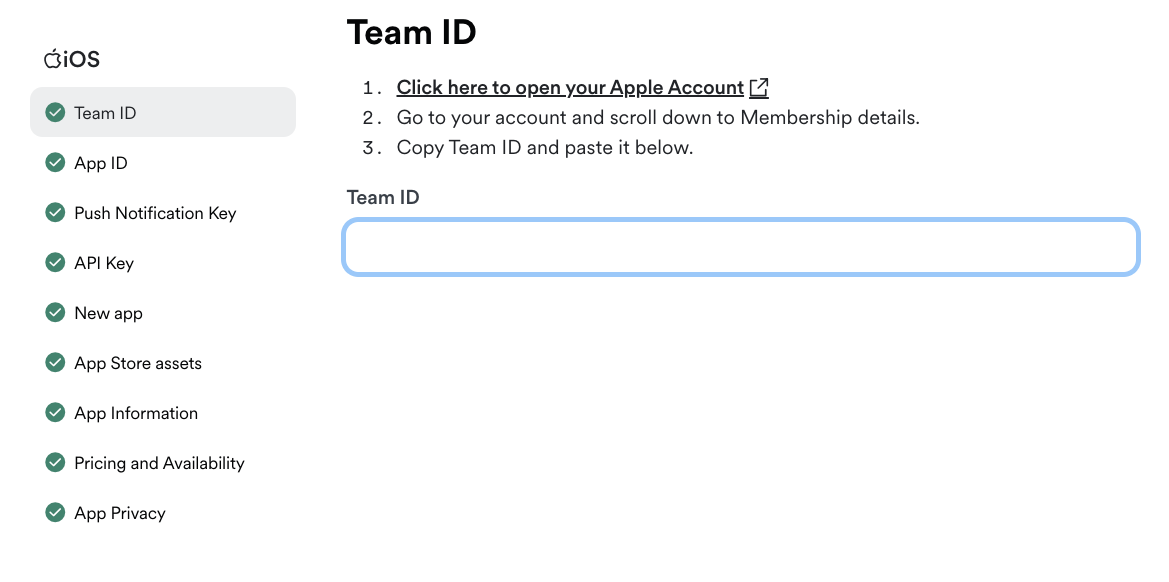
- Select Team ID from the left navigation menu
- Then, log into The Apple Developer Site in a different browser tab (keep this tab open)
- Scroll down the page to “Membership details”
- Copy the Team ID and paste it into the Team ID field in Kajabi:
Update the App ID
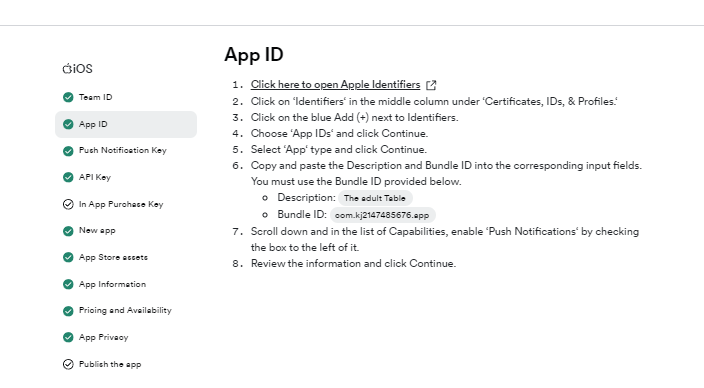
Next, add an identifier and add the bundle ID:- Select App ID from the left navigation menu
- Then, log into Apple Identifier using a different browser tab (keep this tab open)
- Click on Identifiers in the middle column under Certificates, IDs, & Profiles
- Follow the steps on the screen to create the identifier
Note:
Description: The App name. Bundle ID: you should have the unique ID on the screen.
Update the Push Notification Key
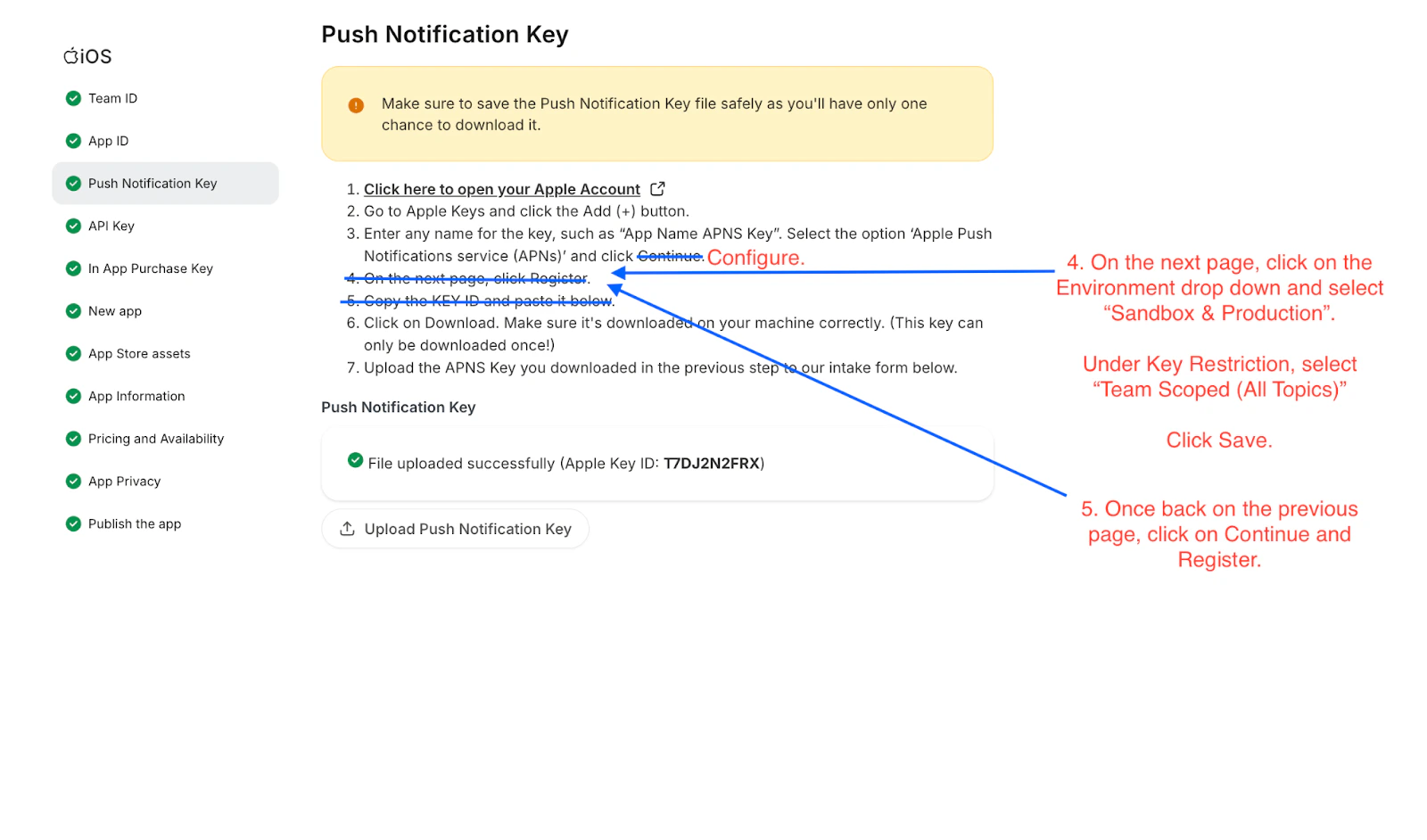
Next, add a Push Notification Key and upload the Push Notification Key file:- Select Push Notification Key from the left navigation menu in Kajabi
- Follow the steps on the screen to create and download the key file in App Store Connect
- Then, click Upload Push Notification Key and select the APNS Key file:
Update the API Key
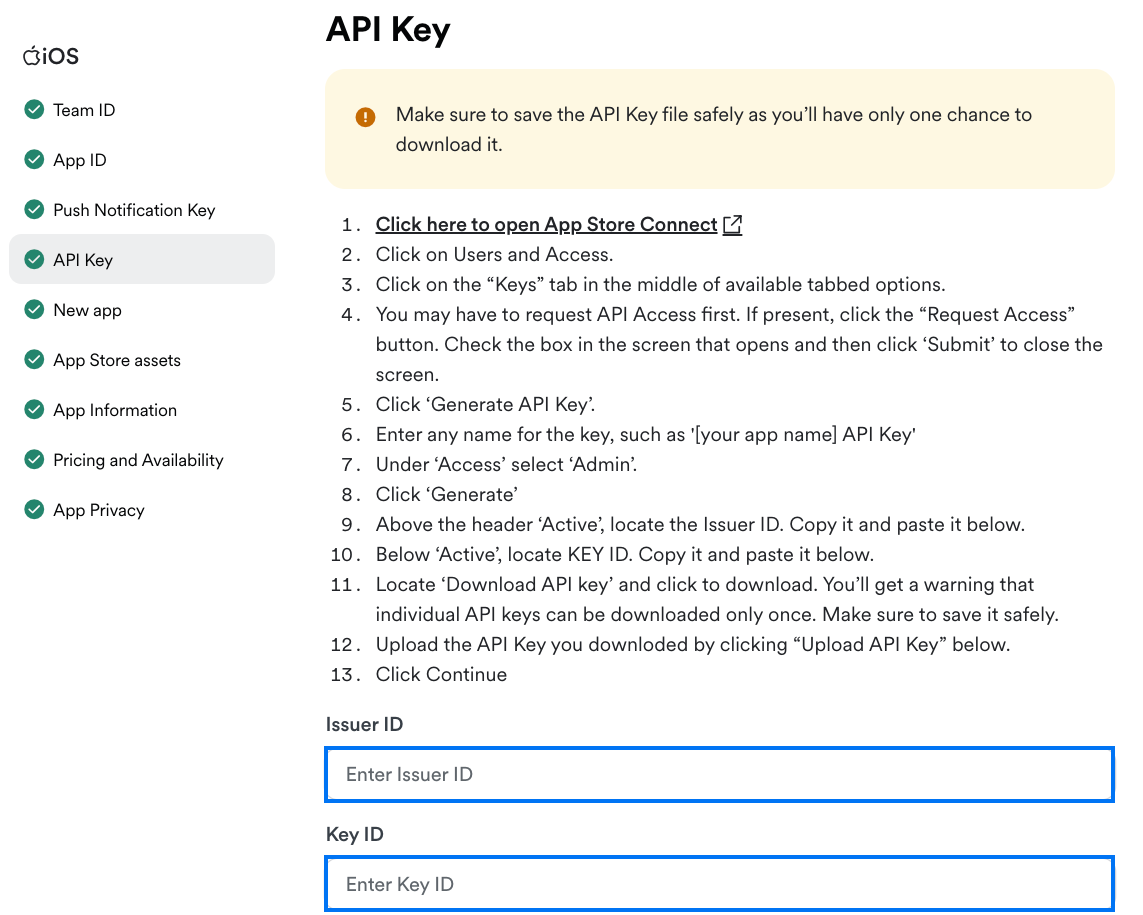
Update the API Key ID and Issuer ID, and upload the API Key:- Select API Key from the left navigation menu in Kajabi
- Follow the steps on the screen to create and download the key in App Store Connect
- Copy the Issuer ID and paste it into the Issuer ID field in Kajabi
- Then, copy the Key ID and paste it into the Key ID field in Kajabi
- Finally, click Upload API Key and select the API Key file:
Add the In-App Purchase API Key
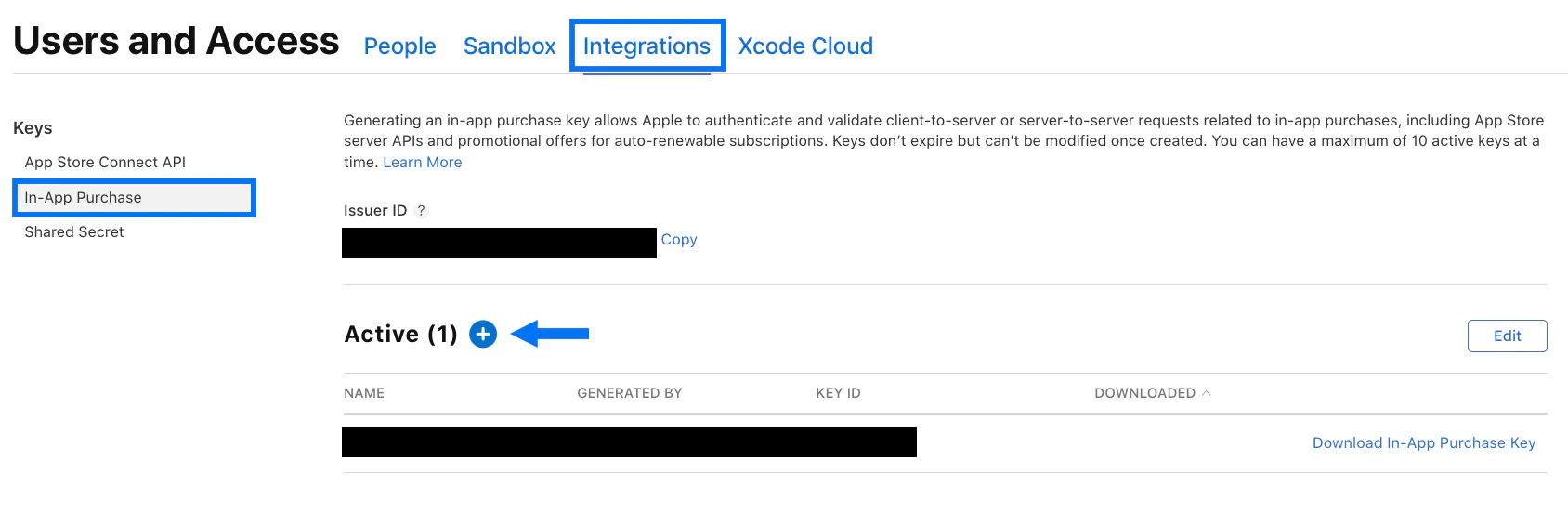
Finally, you’ll also need to upload an In-App Purchase API Key for the app. To create the In-App Purchase API Key:- Log into the App Store Connect dashboard in a separate browser tab
- Select Users and Access
- Select Integrations
- Select In-App Purchase
- Click the blue ”+” sign to create an API Key:
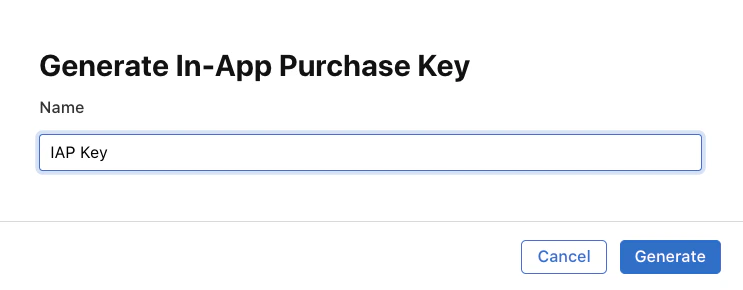
- Enter any Name for the key, then click Generate:
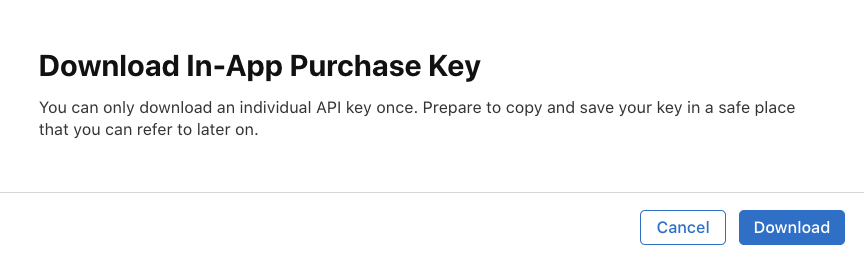
- Next, click Download In-App Purchase Key to download the key:

- Click Download again to confirm. You can only download the key once, so make sure to store it in a secure location:
- Navigate back to the Kajabi Branded App settings
- Select In App Purchase Key from the left navigation menu
- Copy the Issuer ID and paste it into the Issuer ID field
- Copy the Key ID and paste it into the Key ID field
- Click Upload In-App Purchase Key and select the key file