

Watch for the email
Google will email you with an email that indicates, “Verify your developer account by ”. You can also log into the developer account directly and you will see the following verification request: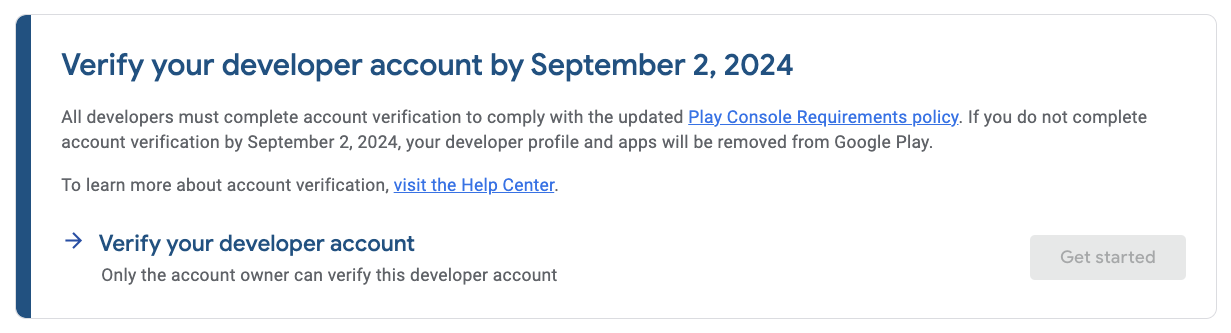
Note:
You may need to select an app before this will appear or it may appear on the account-level page.
Start the process
- Log into the developer account where you can see the verification request
- Click Get Started
- You will be taken to a screen that indicates the process involved:
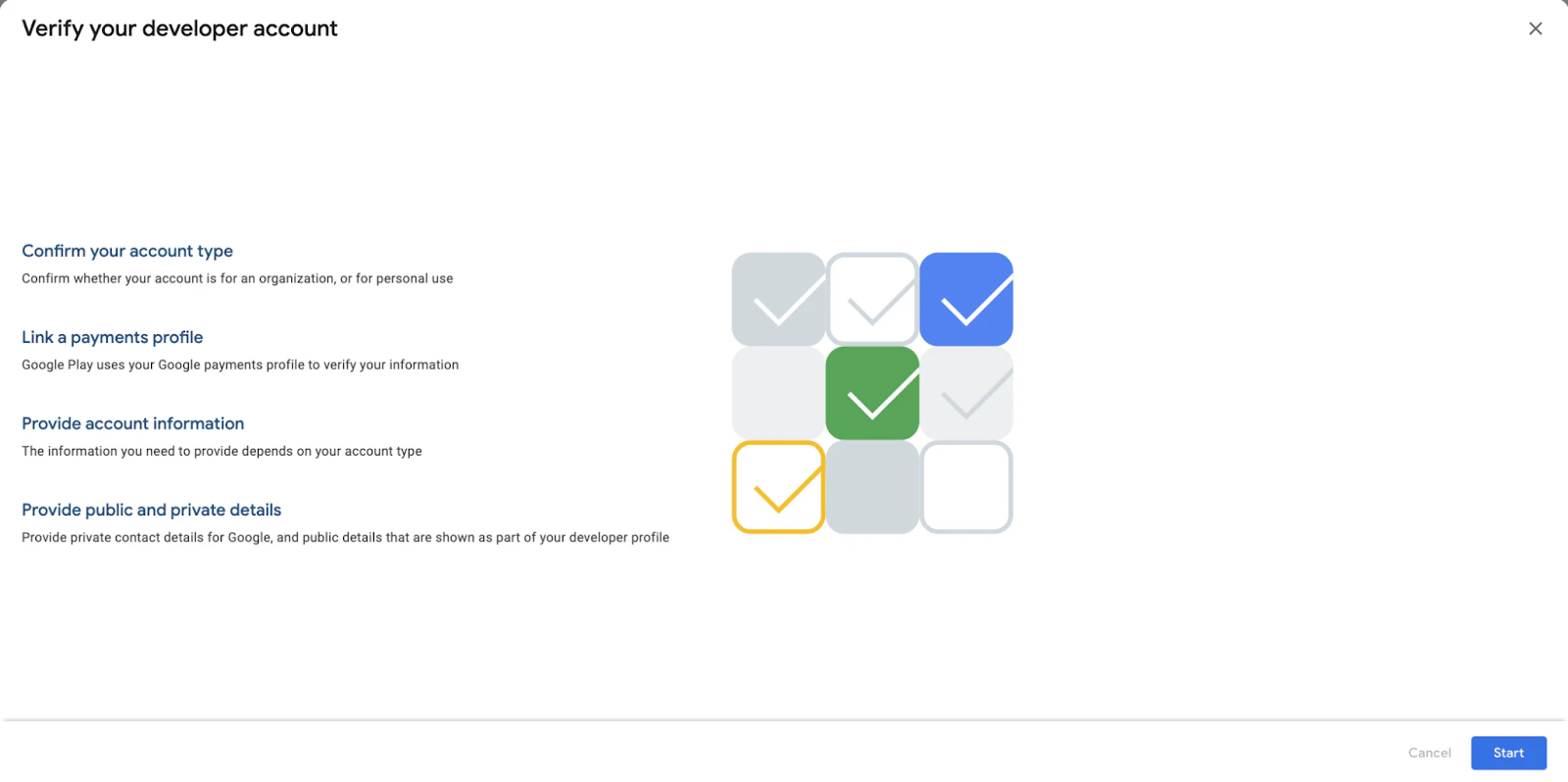
- Check whether you want to verify this as an organization account or as a personal account:
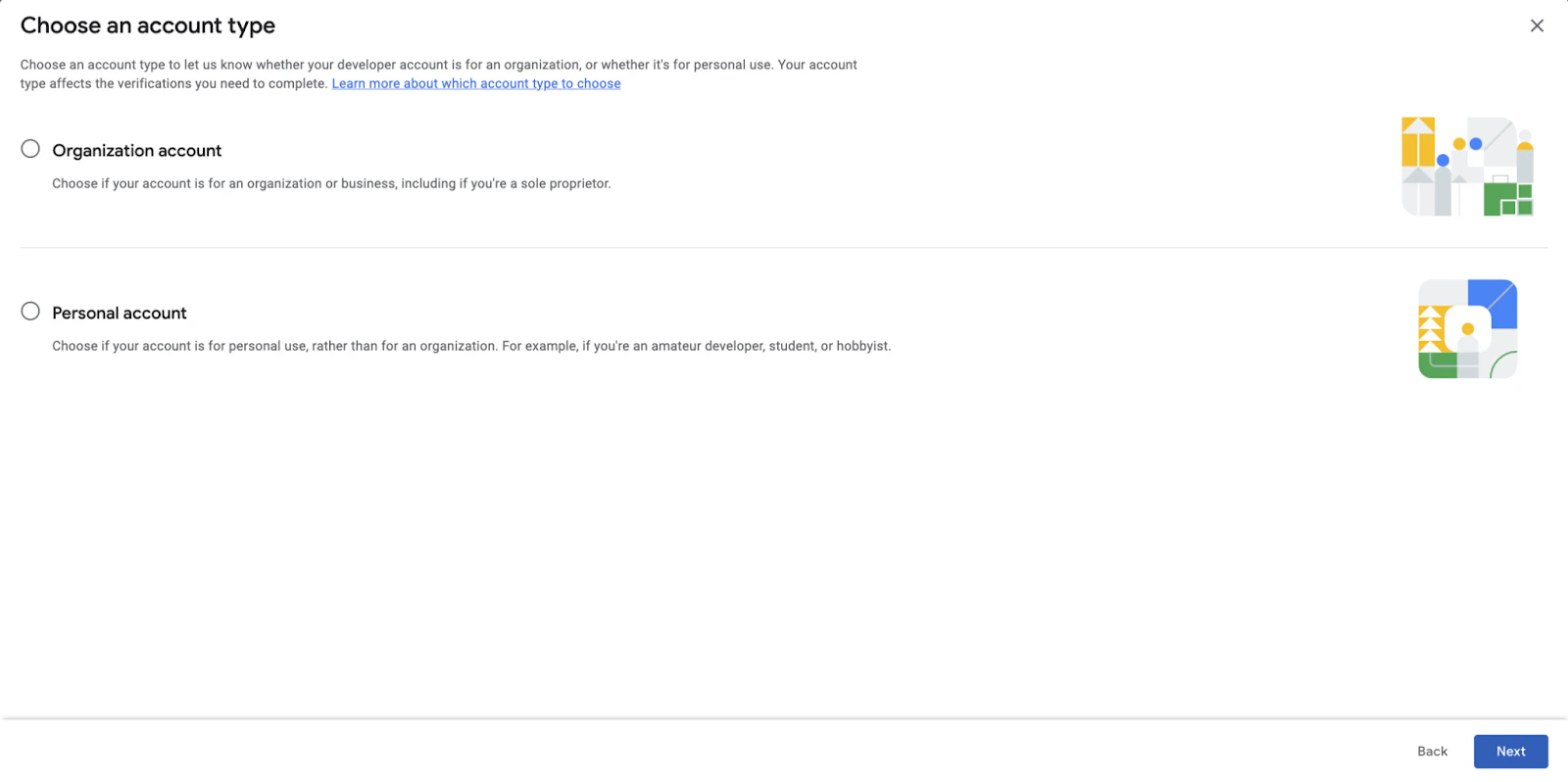
Note:
If you select an organization account, you are required to provide the DUNS number during the verification process. Learn to set up a D-U-N-S number.
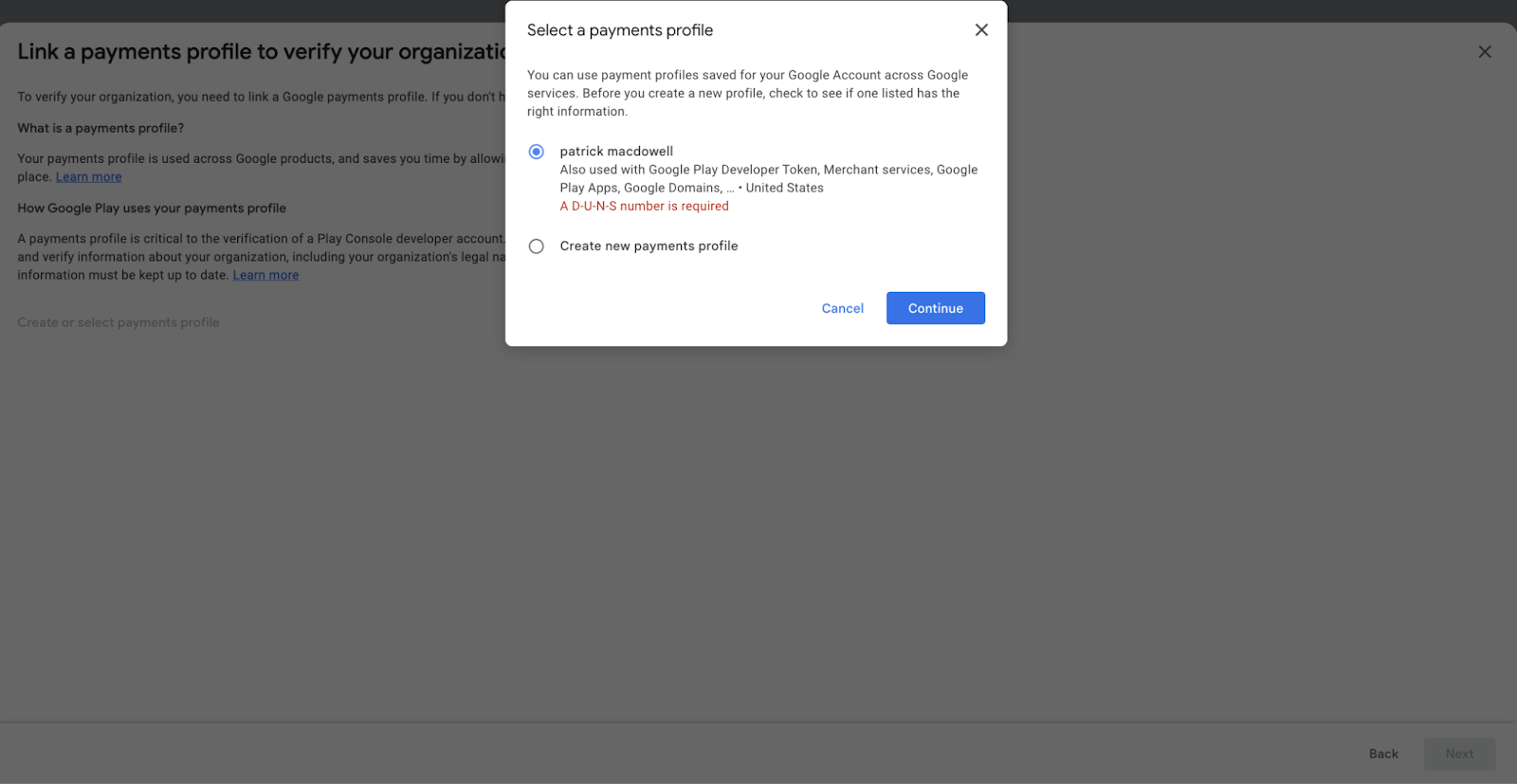
Create or link a Payments Profile
- If you have not already done so, you will be requested to set up or link a Payments Profile before you can continue:
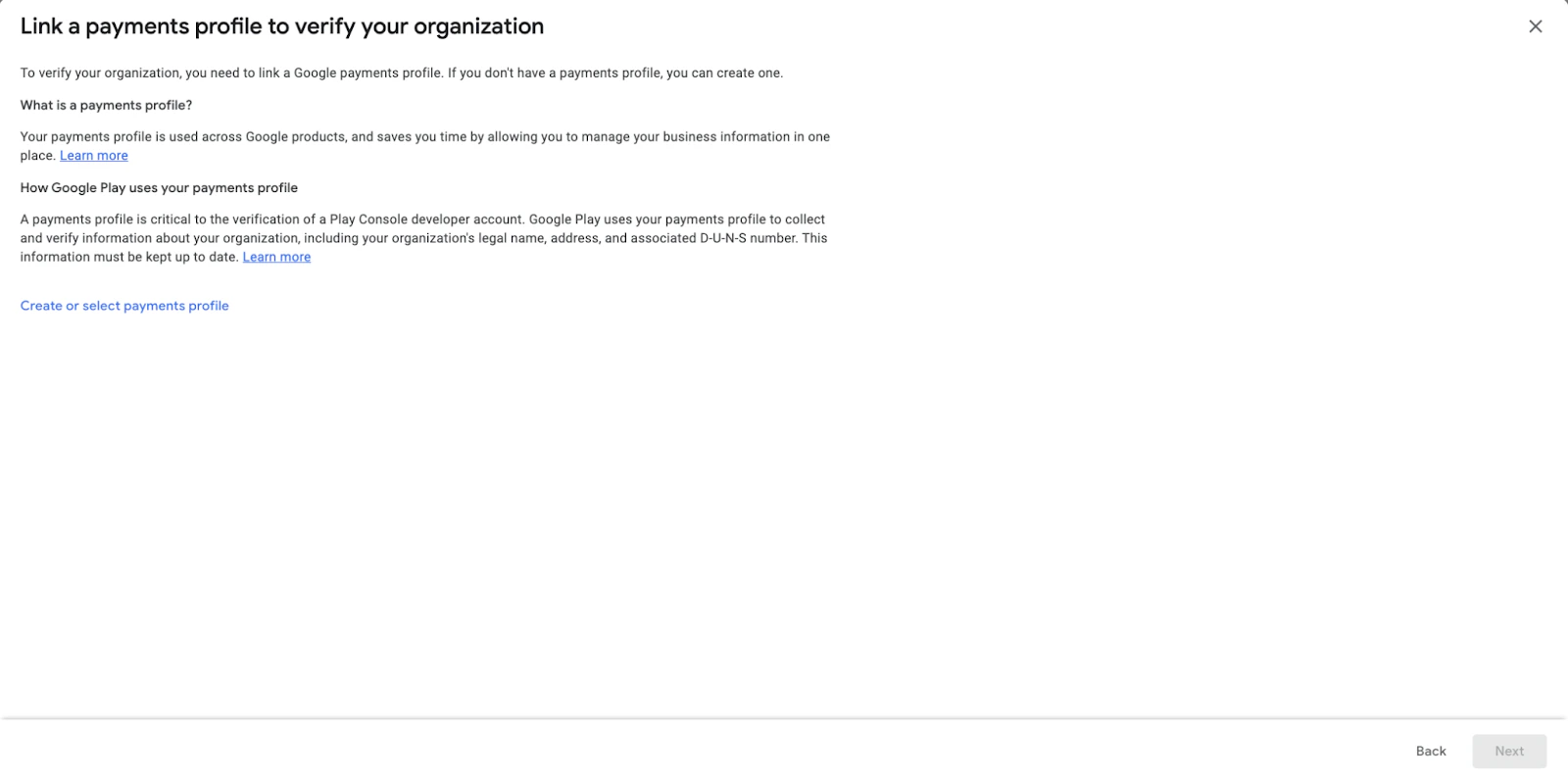
- Select Create or Select Payments Profile on the page
Enter the DUNS number
Next, you will be redirected to a page where you enter in the DUNS number. You should see the following: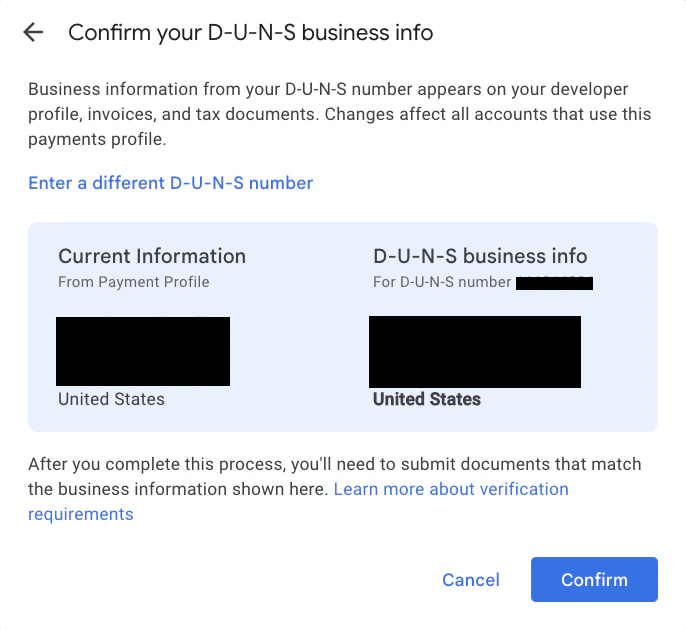
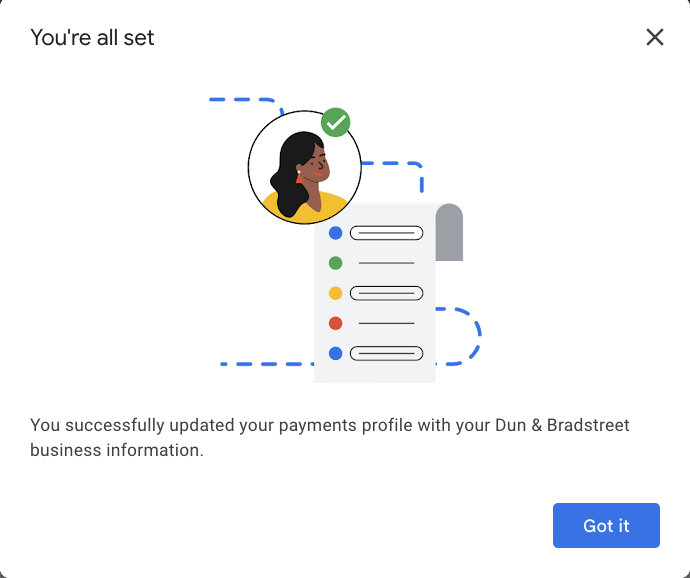
- Click Confirm and you will see this completion page:
Enter organization or personal information
- Enter in the information that pertains to the organization or personal account:
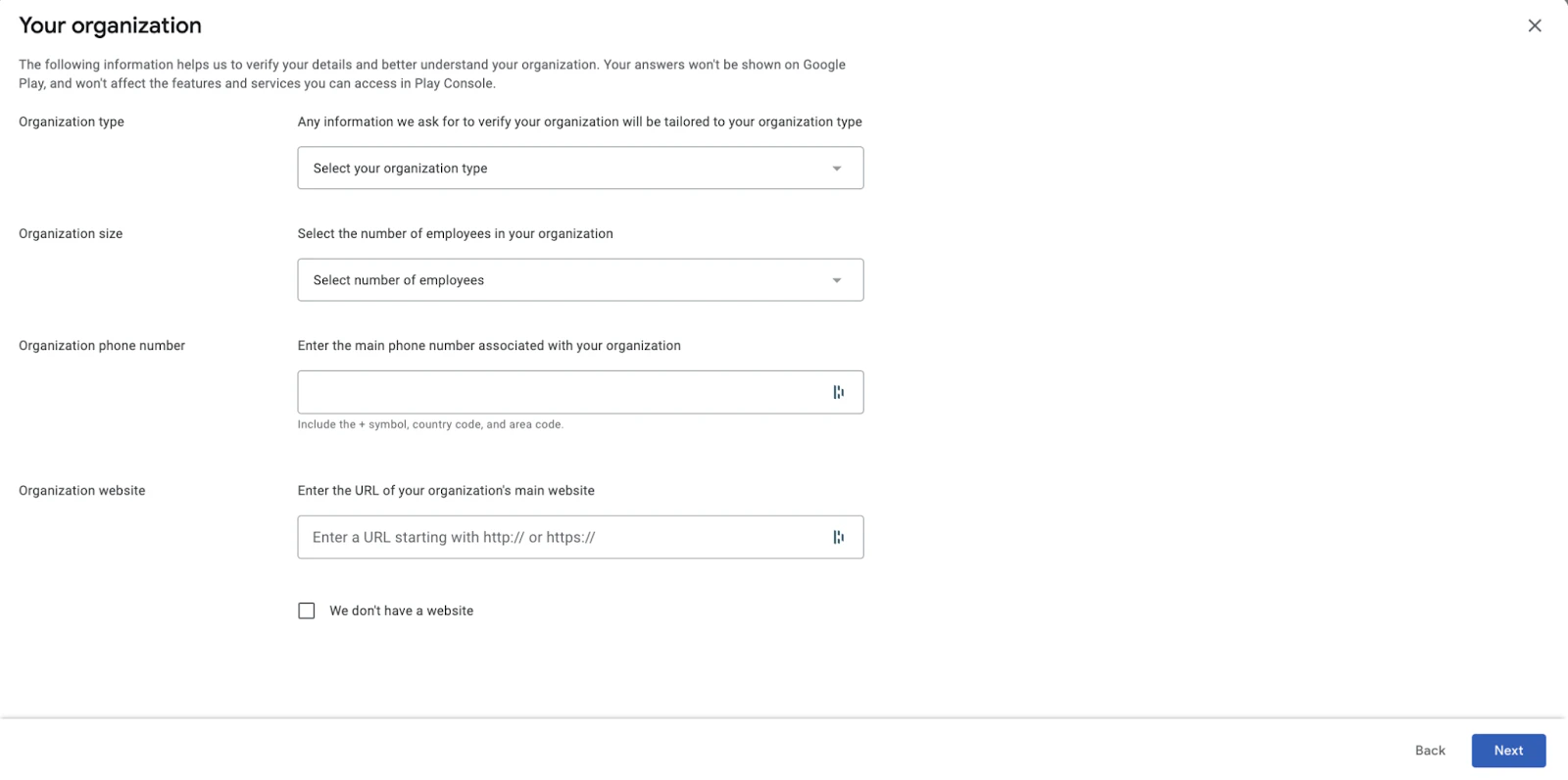
- After this, you will be asked to enter information that requires you to verify what is entered:
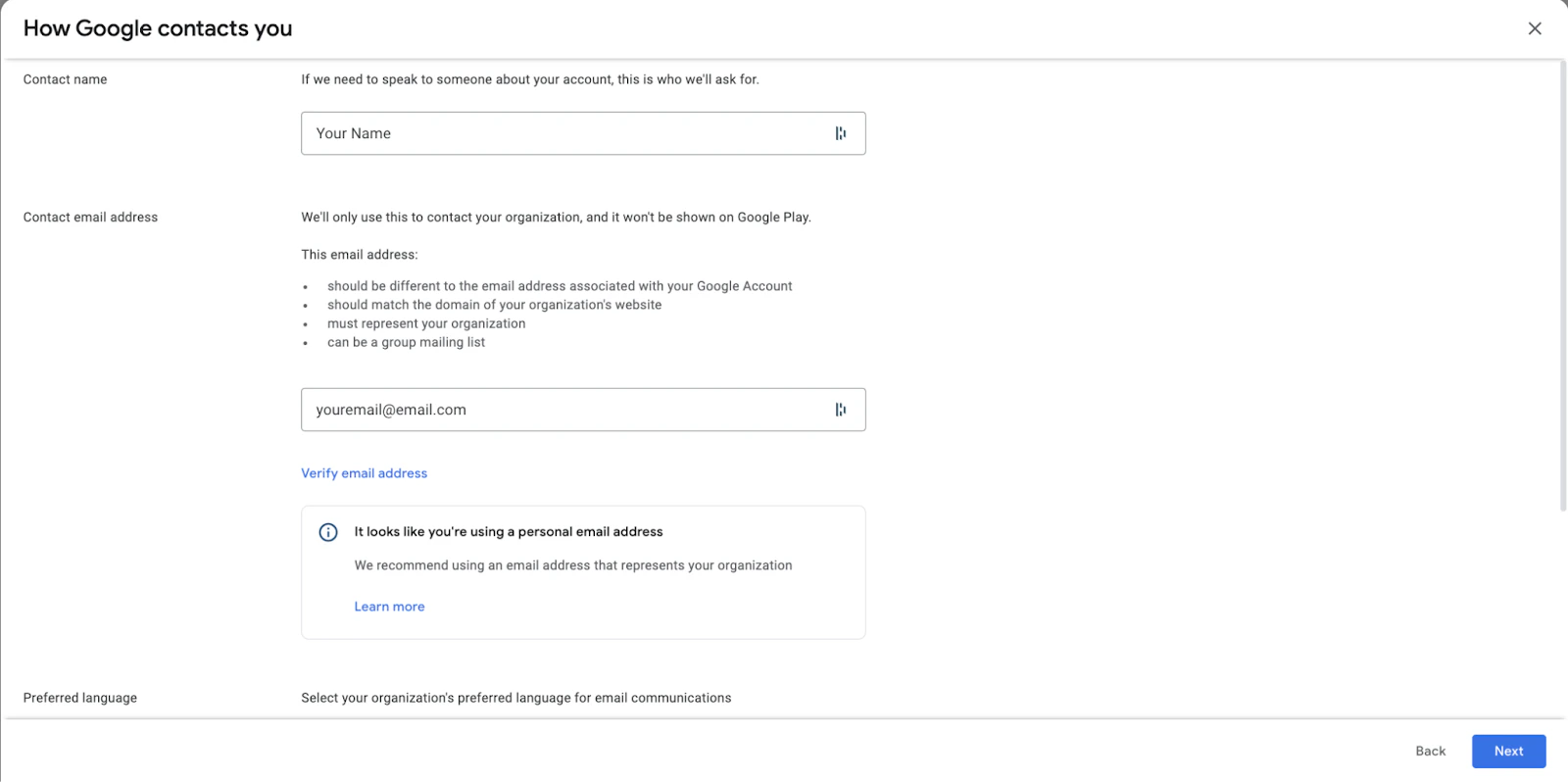
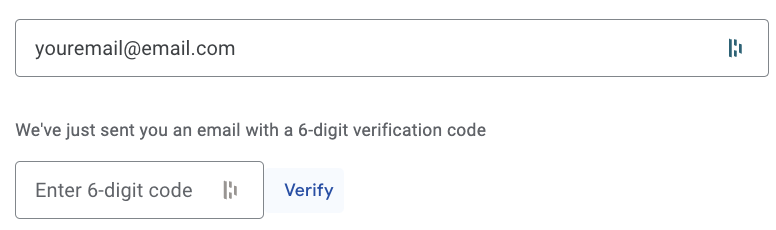
- You will see a Verify email address text on the screen. When you enter in the email, you will be required to verify it by reading a code from the email and entering it:
Note:
You will have to do the same for a phone number in this process as well.
Update Payments Profile
It is very likely at this point that you will see the following error: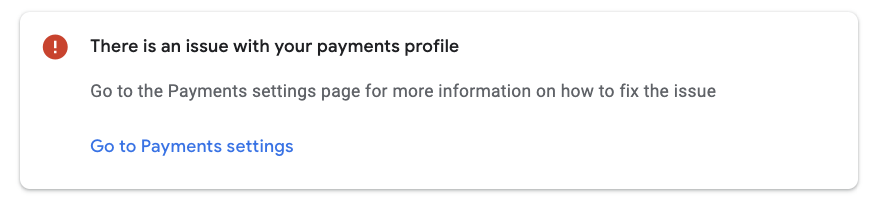
- If you see it, complete this section. If not, move on to the next section
- You will be asked to verify the identity within the payments profile:
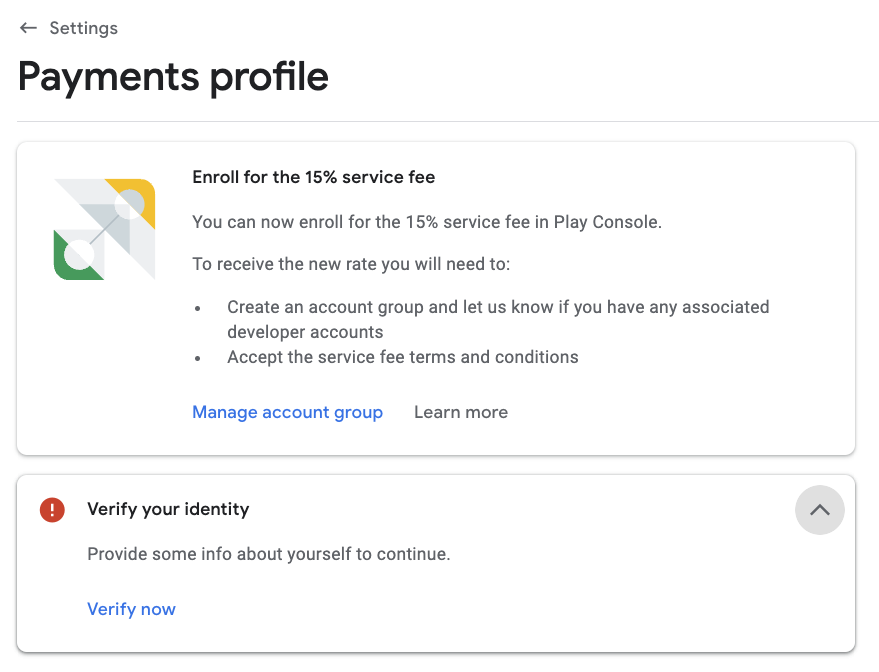
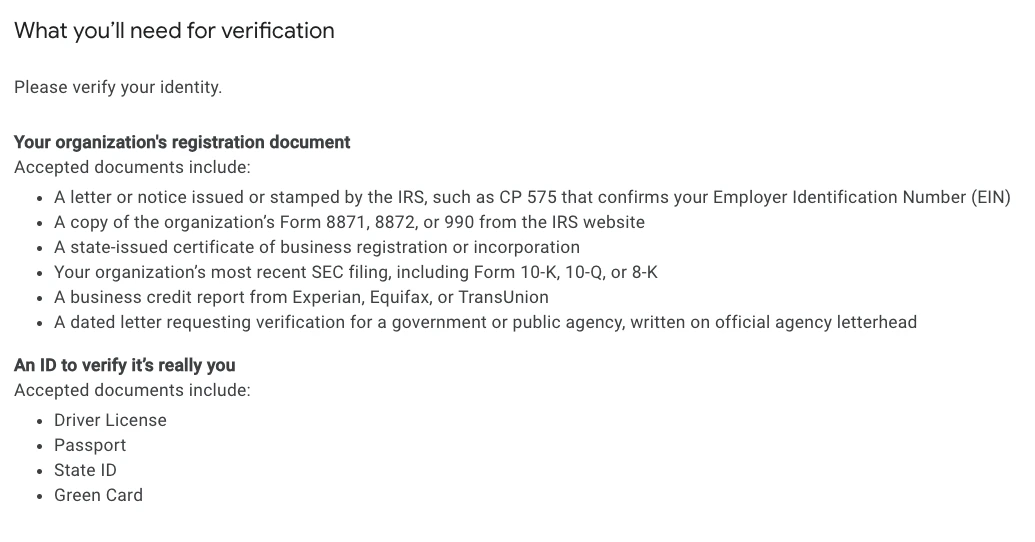
- You will then be asked to upload at least 2 documents that verify the identity
- After you have verified the information requested, you will see this notification:
