Create an Apple Developer account
First, create an Apple Developer account. To create the account:- Navigate to: https://developer.apple.com
- Select Account from the top navigation menu:

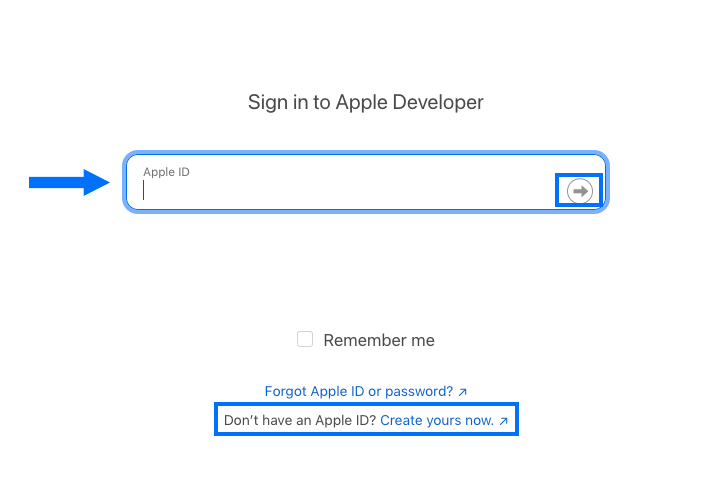
- Enter your Apple ID and click the arrow to submit: (Or, if you don’t yet have an Apple ID, click Create yours now and complete the form to create an ID. After creating your ID you’ll automatically be directed to the Apple Developer Agreement.)
- Submit your two-factor authentication code if/when prompted.
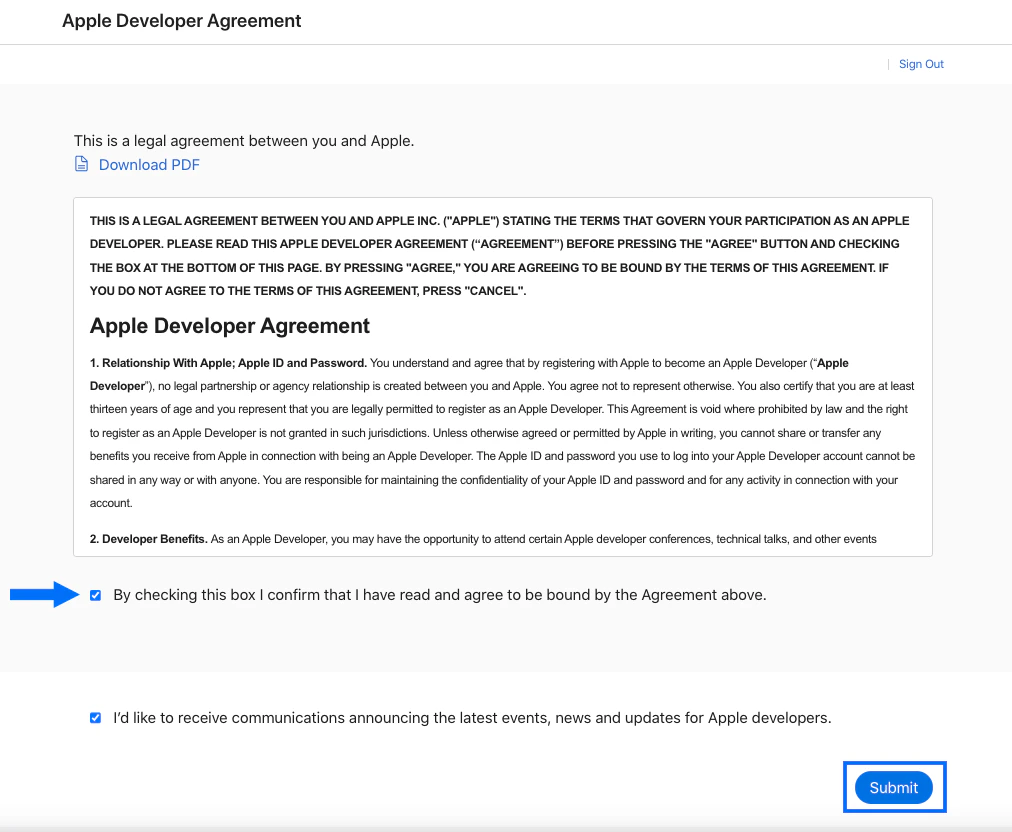
- Review the Apple Developer Agreement.
- Check the checkbox confirming that you agree to the terms and conditions.
- Click Submit:
Join the Apple Developer Program
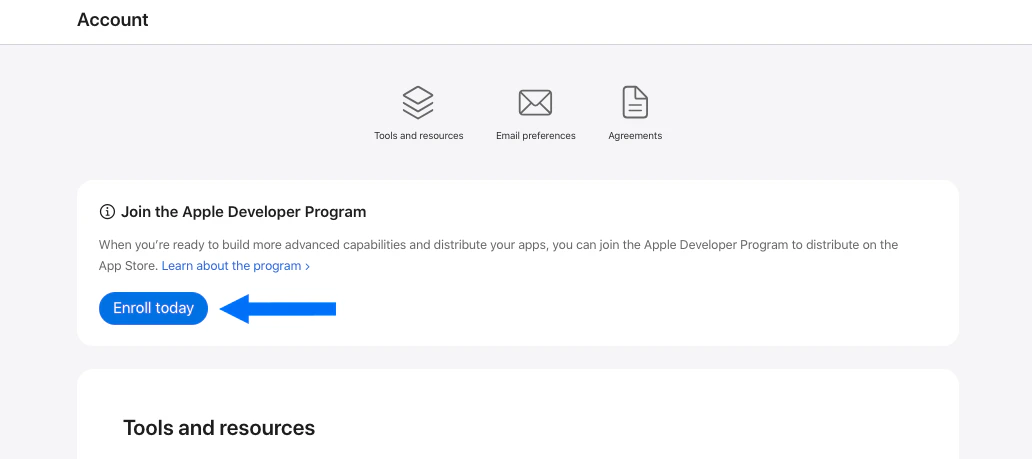
Next, sign up for the Apple Developer Program to access the resources you’ll need to create the iOS app. The Program has a membership fee of $99/year, so have your credit card details handy. To sign up:- Locate Join the Apple Developer Program on your Apple Developer Account page and click the Enroll today button (if you just created the Developer Account, you should already be on this page):
- Click Continue enrollment on the web (Or, if you prefer, you can download the Apple Developer app and enroll via the app instead. In this guide, we’ll walk you through enrolling via the web.):
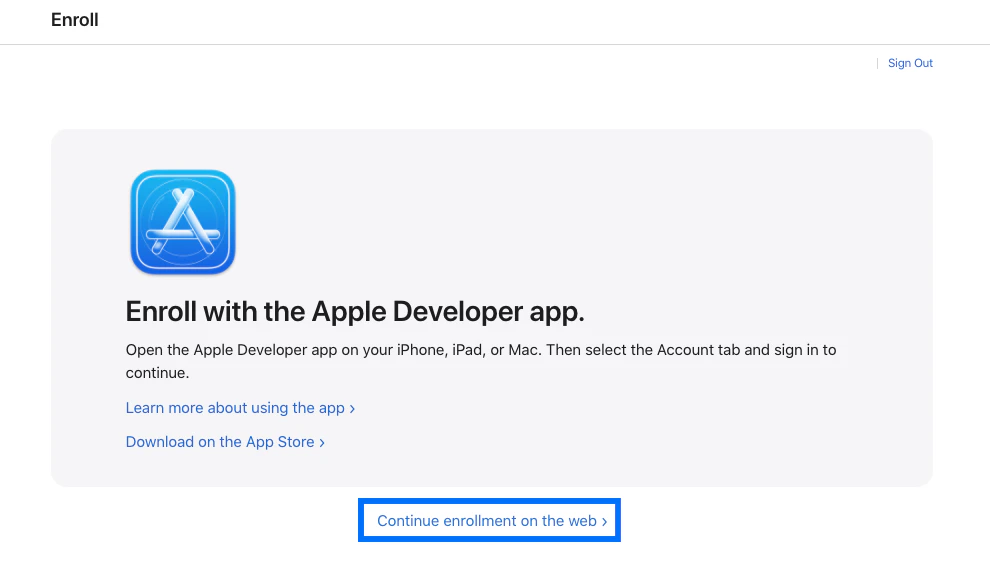
- Complete the personal information form by inputting your first and last name, phone number, and address as instructed.
- Click Continue:
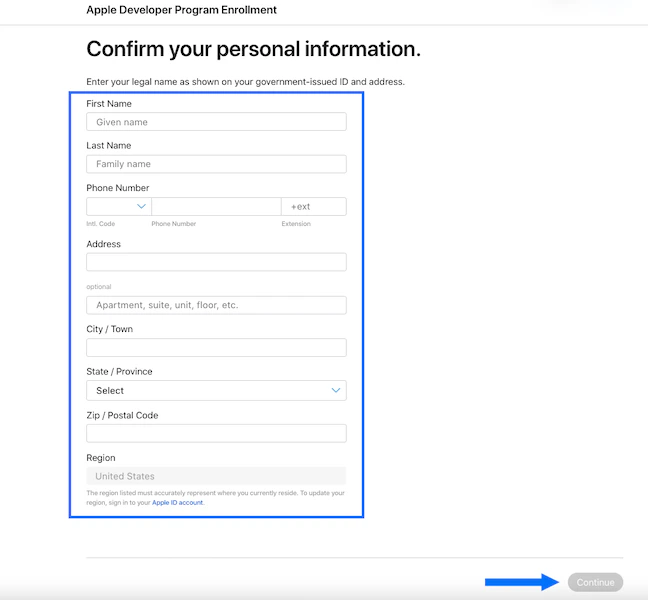
- Click into the dropdown menu and select your entity type. For Kajabi to assist with the app build, we require you to create an account for an organization (You’ll need to have or apply for a DUNS number.)
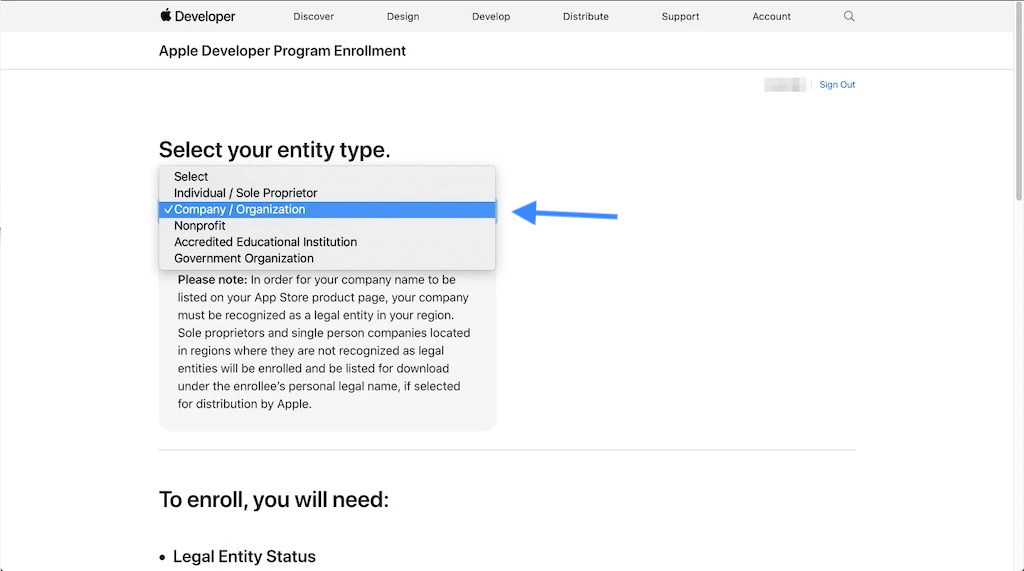
Note:
You may be asked to submit a different type of documentation, especially if you registered as an entity type other than “Individual / Sole Proprietor”. Please follow the instructions sent to you by Apple and submit the documents they require in your case.
- Take a picture of your government issued photo ID (or whichever document(s) Apple requested in your case) and save it to your device.
- Open the ID confirmation email you received.
- Click Upload ID:
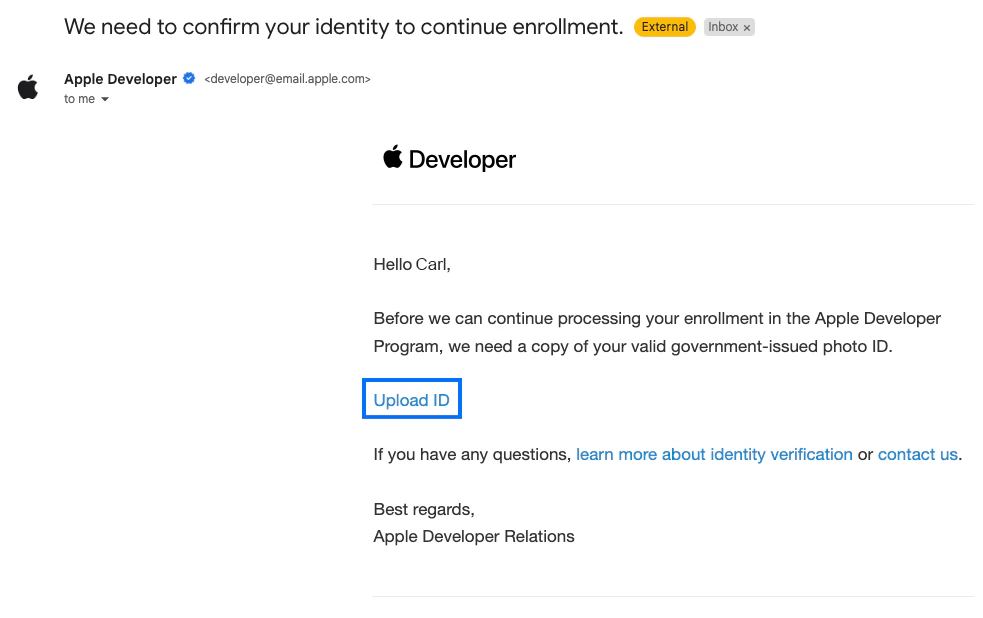
- The Apple Developer sign-in page will open. Sign into your account. You’ll be directed to a document upload form.
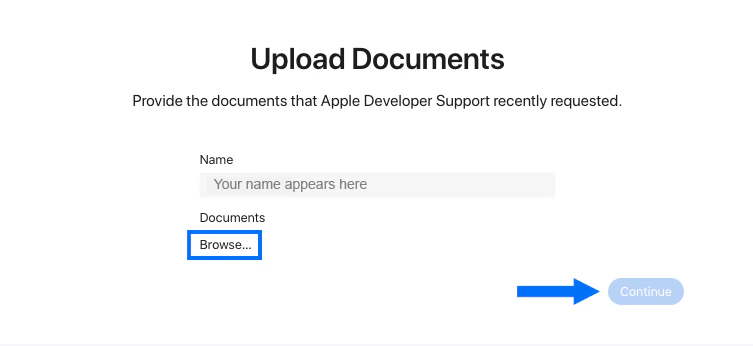
- Click Browse and upload your document(s).
- Click Continue:
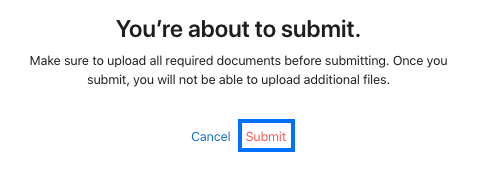
- Click Submit on the popup modal to confirm the ID submission:
Add Kajabi as an account admin
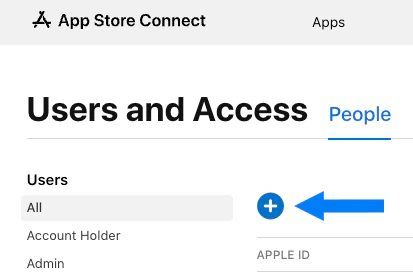
Once the Branded App is built, you’ll receive an email notification from Kajabi letting you know it’s time to submit the app for review and publication. First, grant the Kajabi team admin access to the App Store Connect account so we can help ensure that the app submission goes as smoothly as possible. To give the Kajabi team access to the account:- Click this link to open the Users and Access page in App Store Connect: https://appstoreconnect.apple.com/access/users (If you’re not logged into the account, you’ll be prompted to log in).
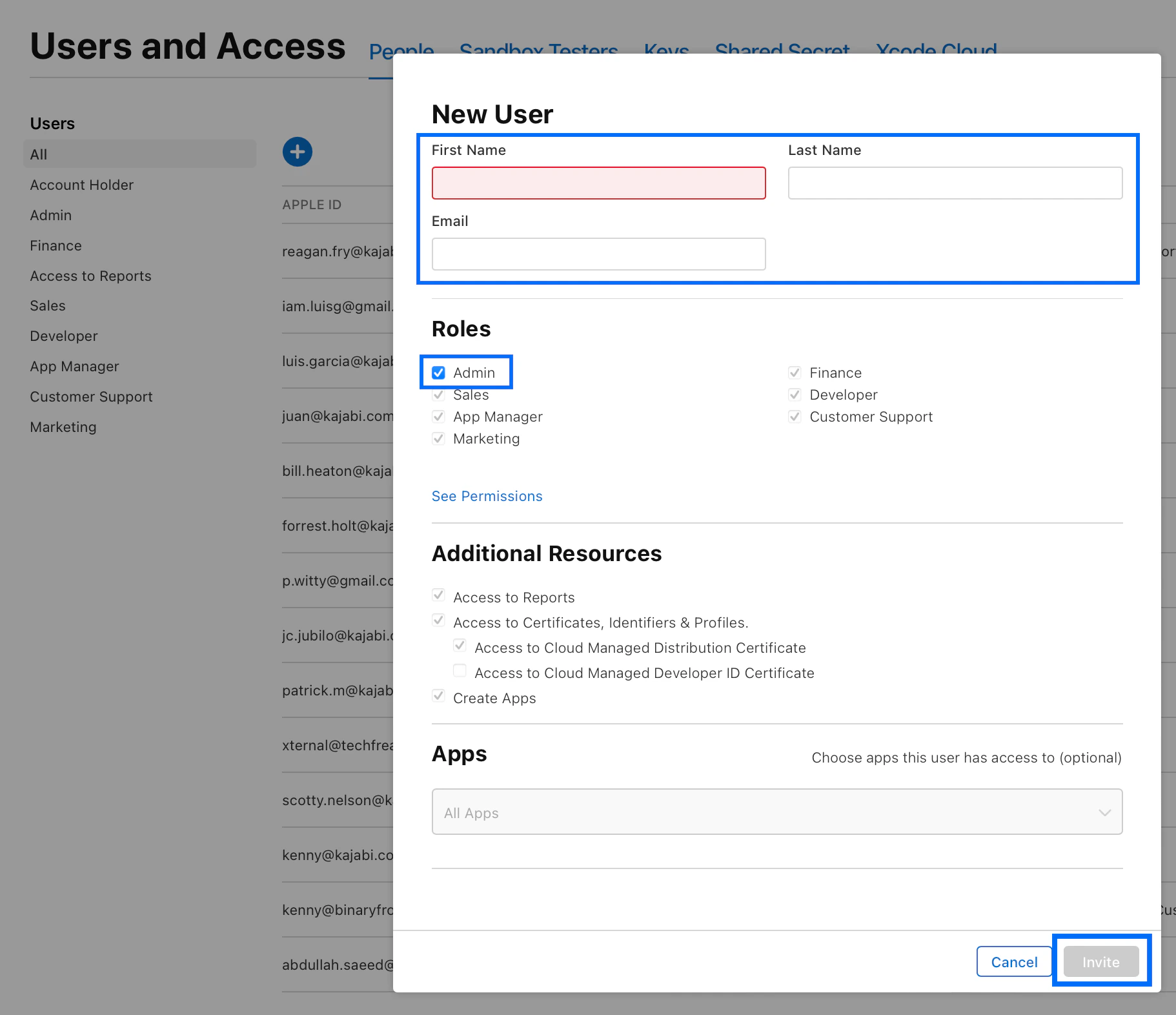
- Then, click the blue + sign to add a user:
- In the First Name field, input: Vinay
- In the Last Name field, input: Mysoor
- In the Email field, input: bma@kajabi.com
- Under Roles, select the checkbox next to Admin
- Click the Invite button: