

- Log into the Google Play Store publisher console.
- Click on Settings near the bottom left:
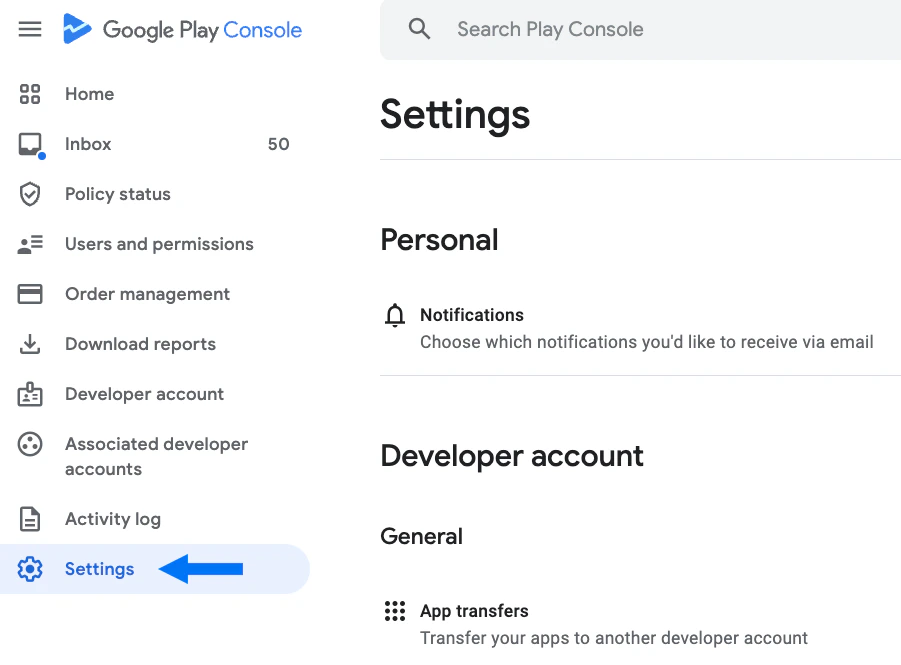
- Scroll down to the bottom of the page and select Payments profile:

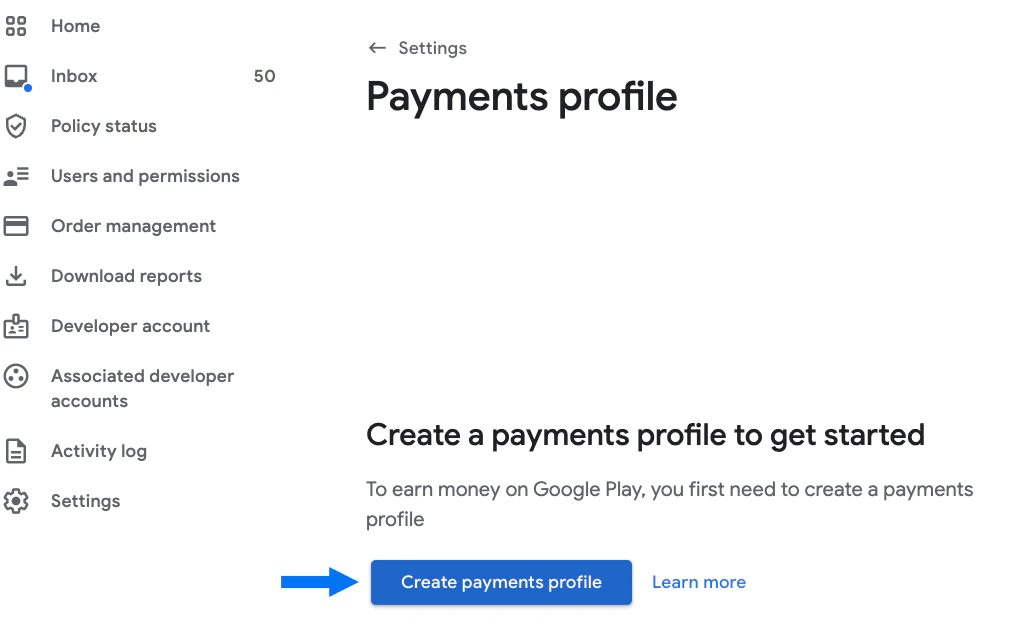
- Click Create payments profile:
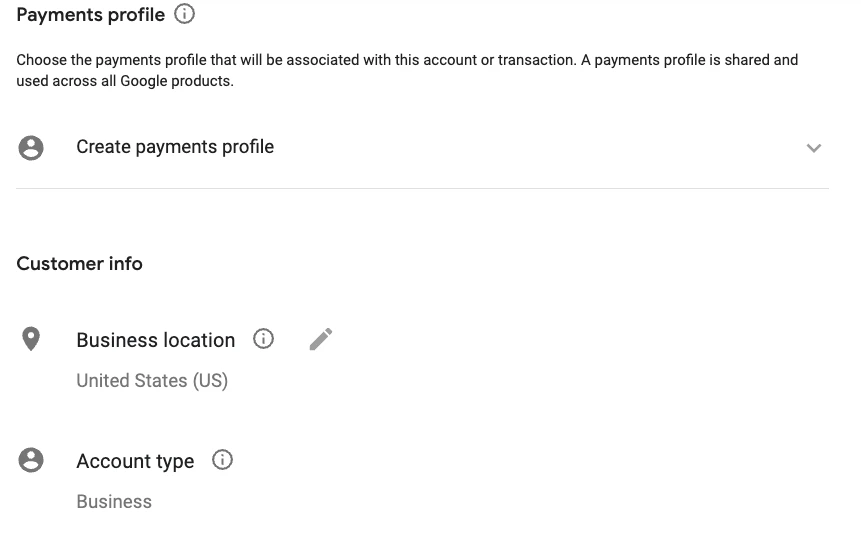
- If you see a profile you’ve already created, you can select the existing profile. Otherwise, create a payments profile.
- Complete all required fields on the profile form (Business location, Account type, Name and address, Primary contact info, Public business info, etc.):
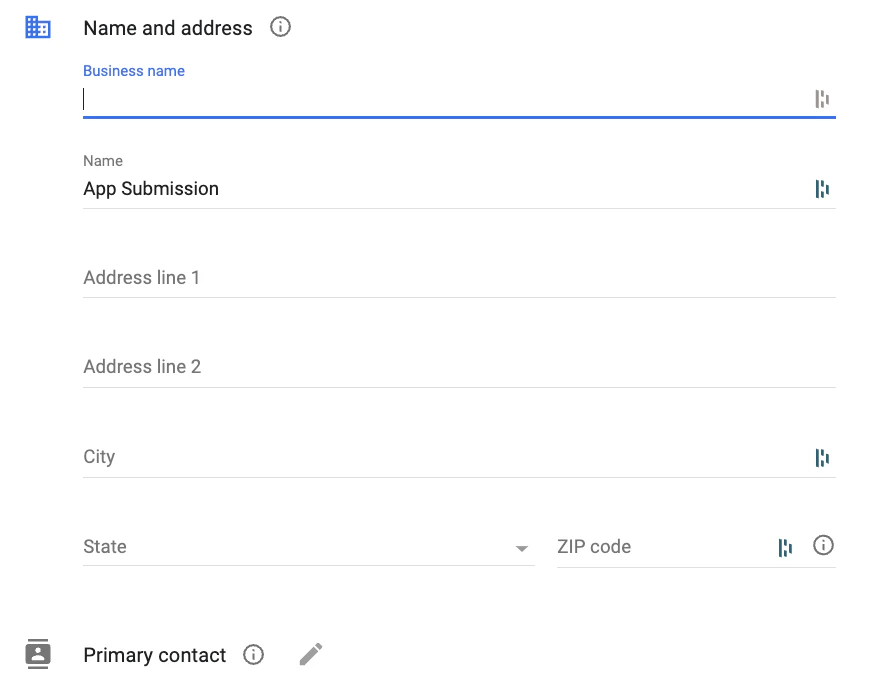
- When you’ve completed the form, click Submit: