Google Play Console account
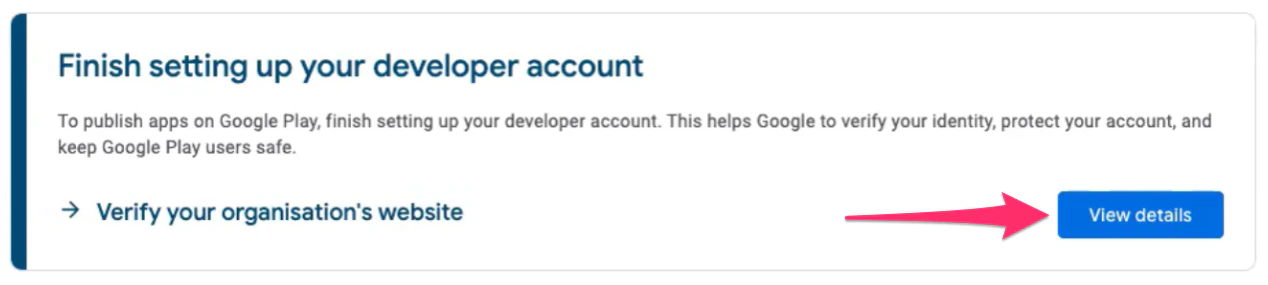
If website verification is required for the Developer account, a notification will appear.- Click the View Details button to proceed:
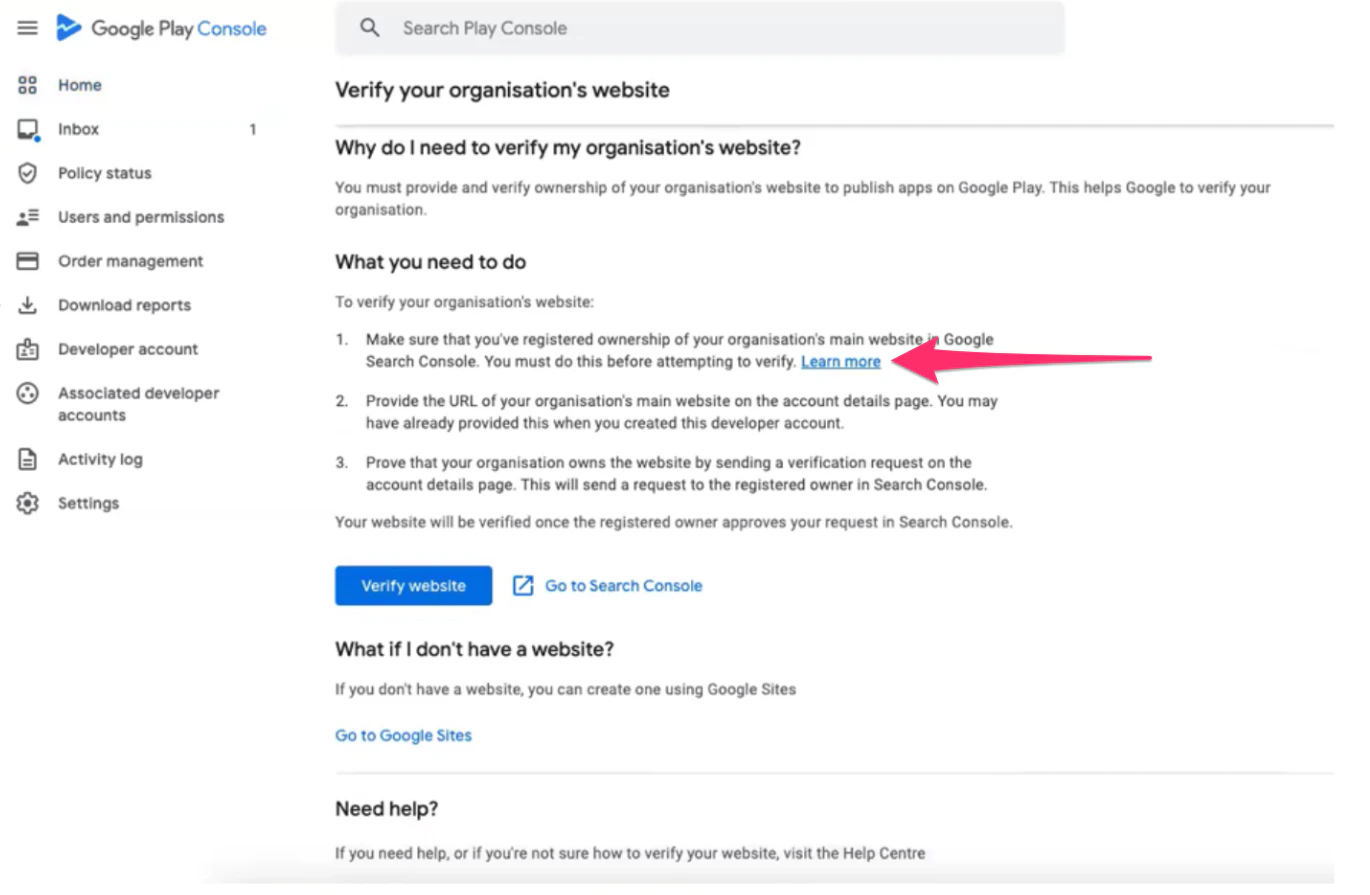
- Click the blue link labeled Learn More to access further guidance:
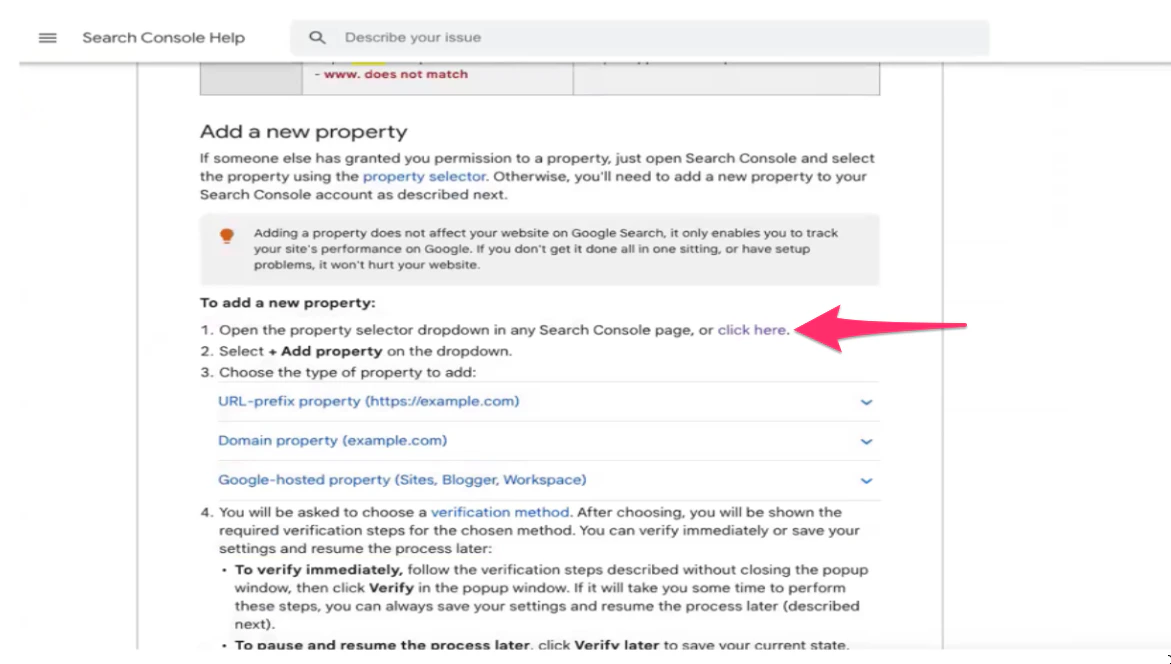
- Scroll down to find the option Add a new Property
- Then, under the first step, click the blue text link labeled Click Here to proceed
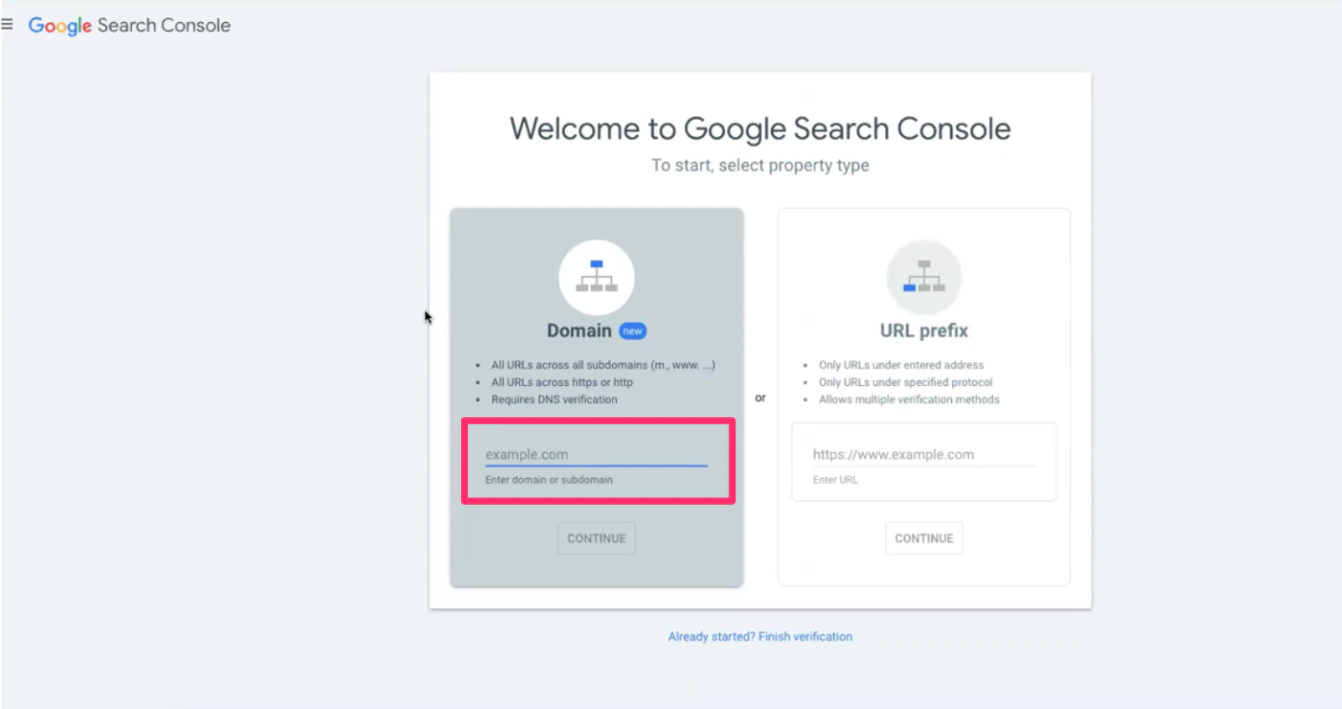
- You will be redirected to Google Search Console where you will be prompted to select a property type
- Locate the designated field where you need to enter the custom domain
Kajabi account
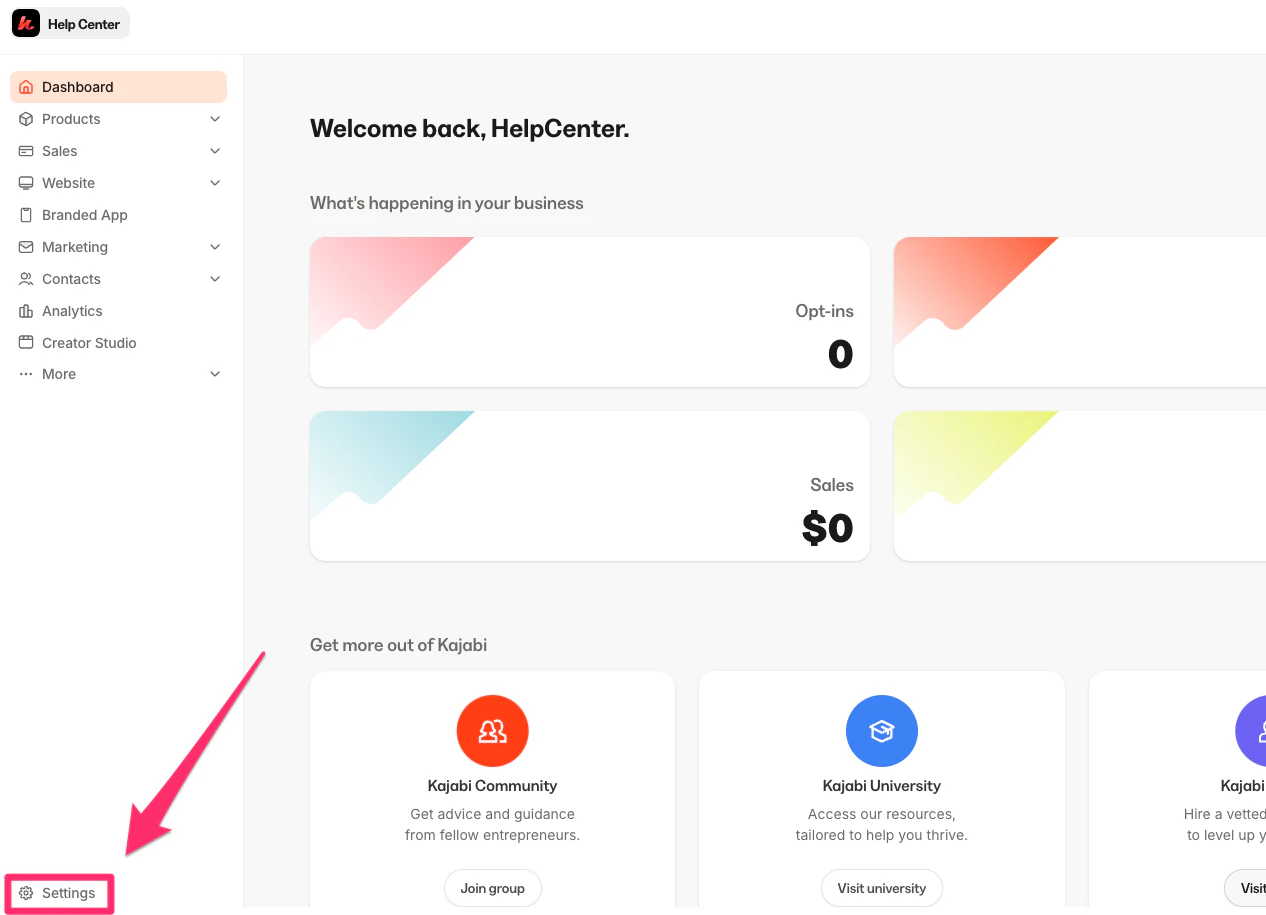
To enter the custom domain, you will need to open a web browser window or tab and log into the Kajabi account. Then, navigate to the Domain settings:- Navigate to Settings from the Kajabi Dashboard:
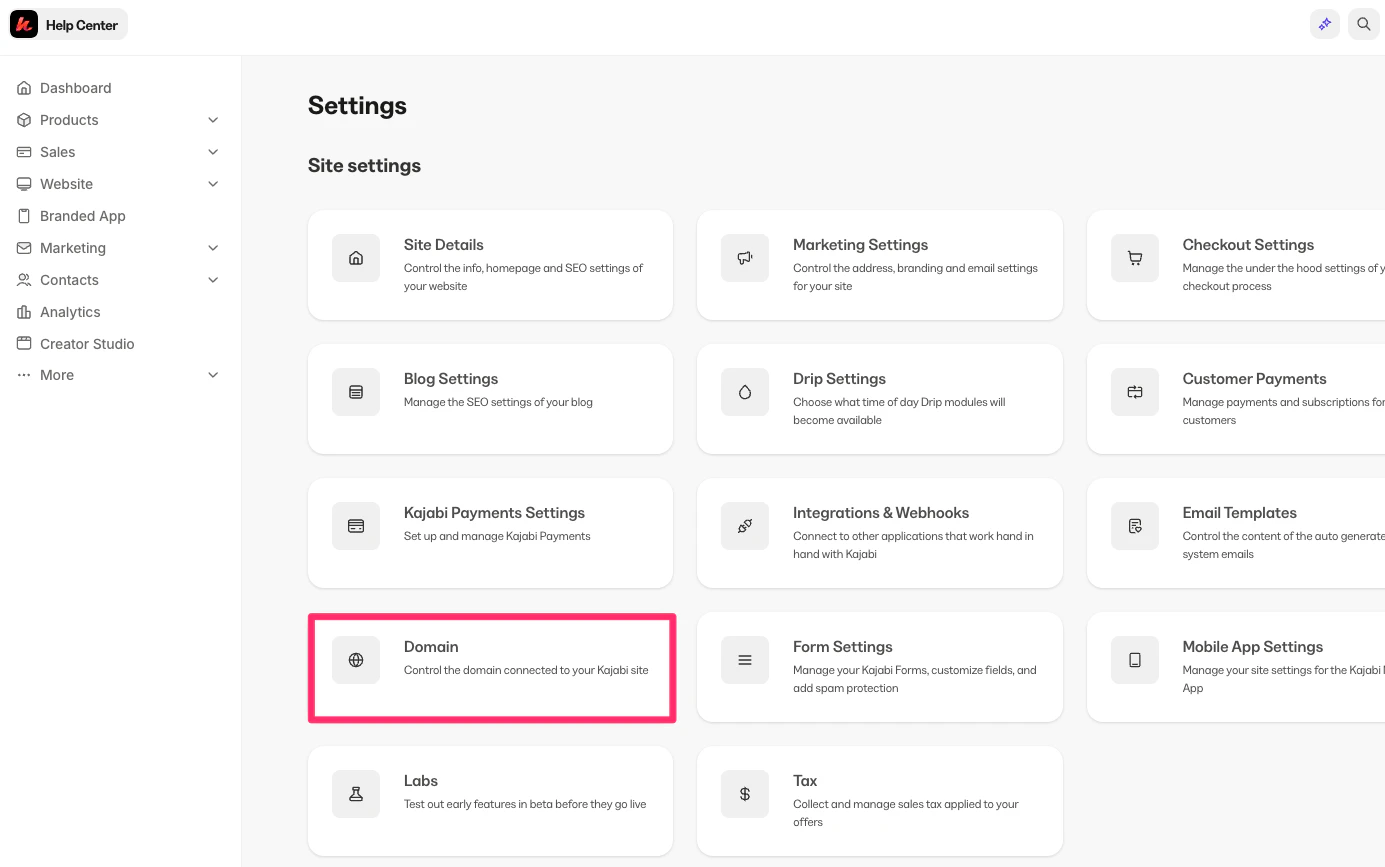
- Within the Settings menu and select Domain:
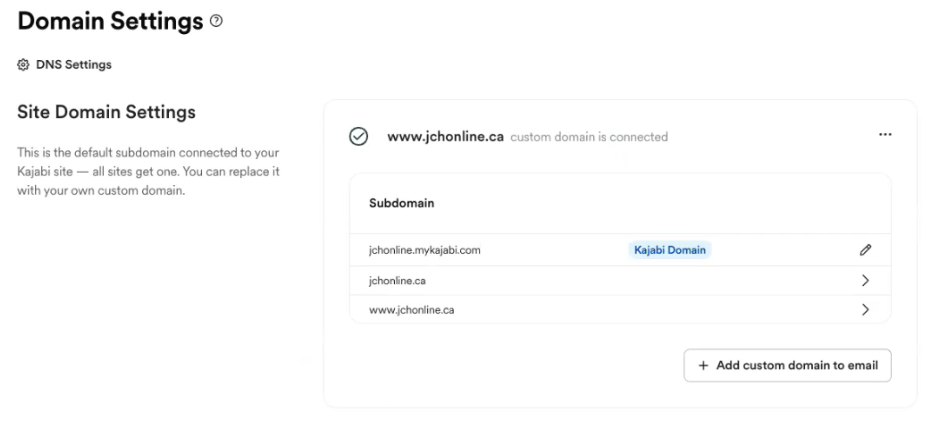
- Identify the custom domain in the Domain settings
- Be sure to include “www” when copying the custom domain:
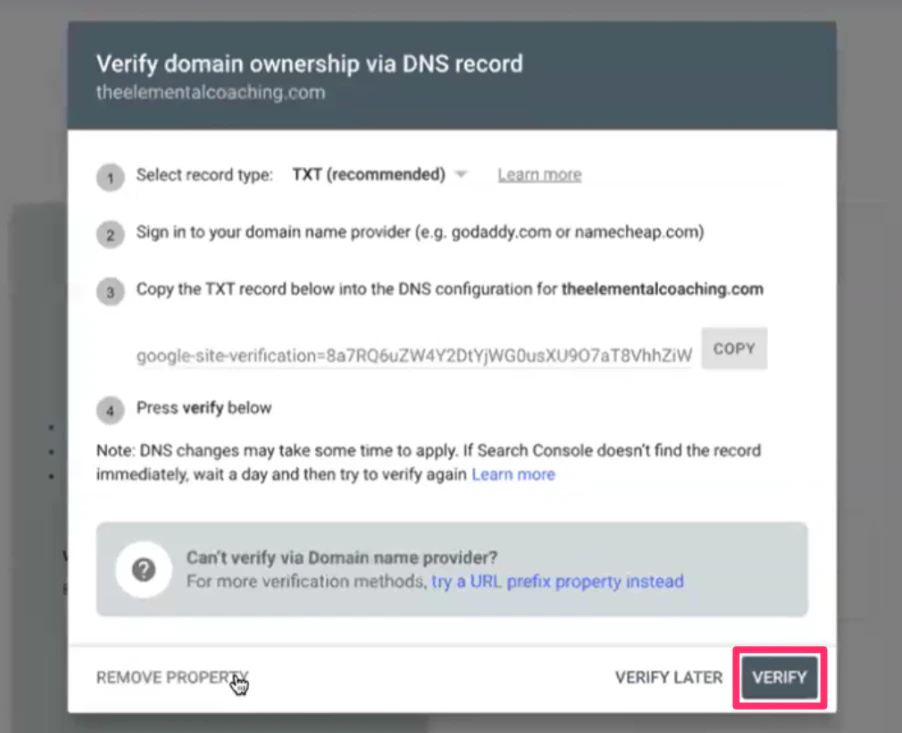
Verify domain ownership via DNS record
- Paste the custom domain into the custom domain field:
- Click Continue to initiate the domain verification process
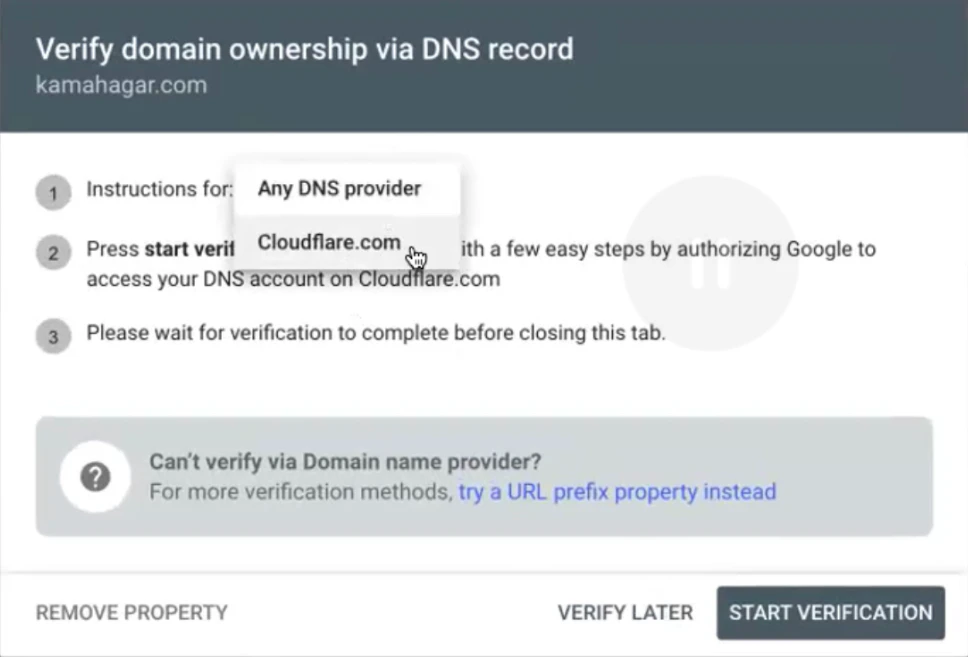
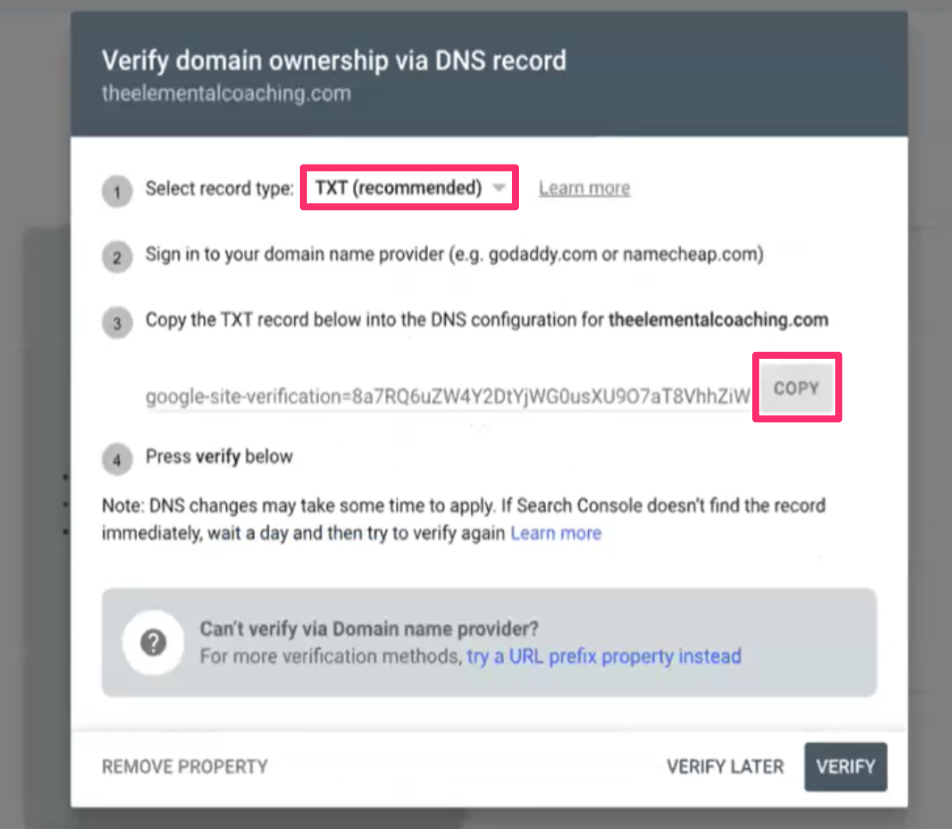
- In the first step of the pop-up, select TXT from the dropdown menu
- Then, copy the TXT record provided in the third step for later use:
If you manage domain settings in Kajabi
You will need to access the DNS Settings in Kajabi:- Return to the Kajabi account
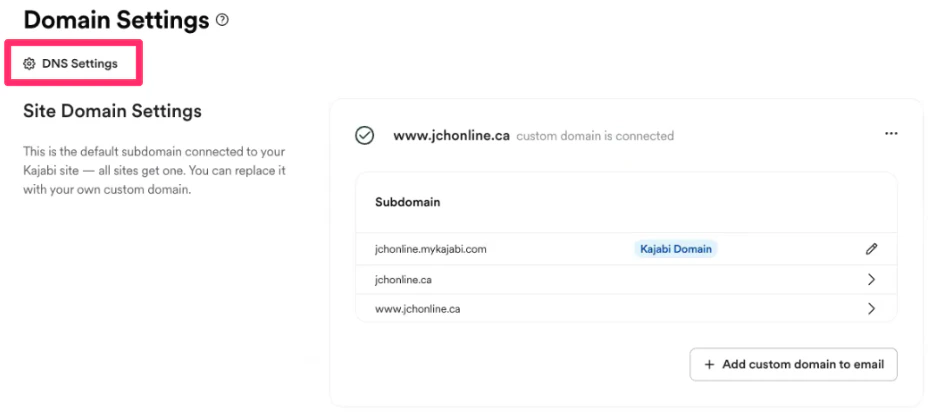
- Navigate to the Domain Settings
- Then, select DNS Settings:
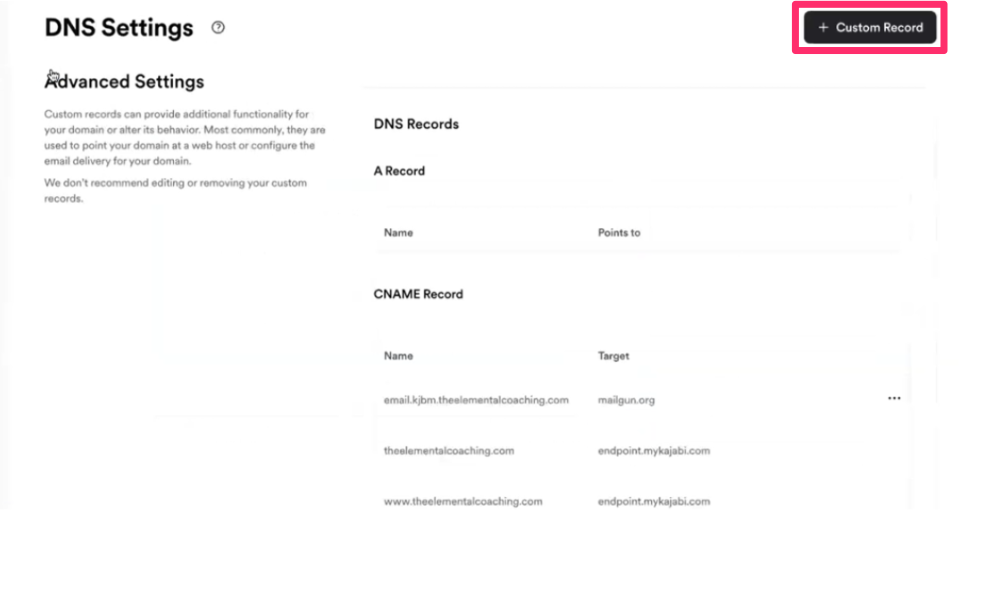
- Click + Custom Record
- Select TXT Record:
- Name: ”@”
- TXT Record Value: Paste the TXT record you copied from Google Search Console:
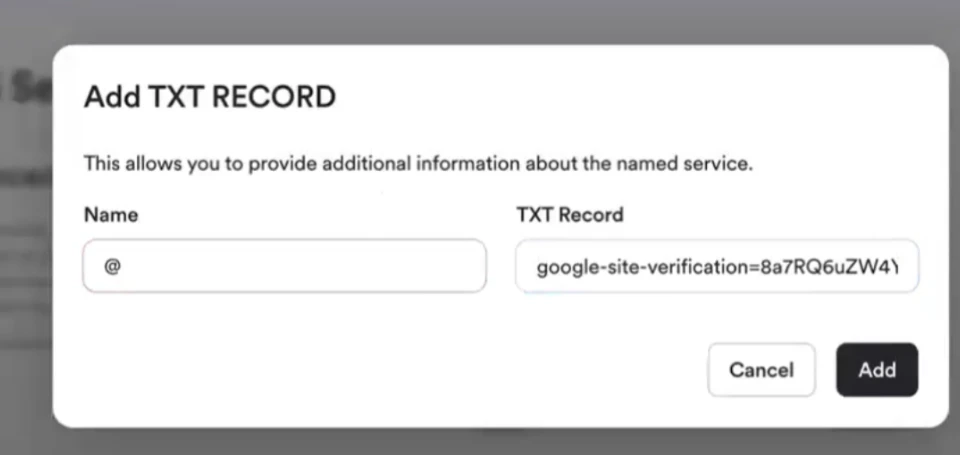
- Click Add after entering the above details
- Navigate back to Google Search Console to the Verify domain ownership pop-up
Verify website in Google Play Console
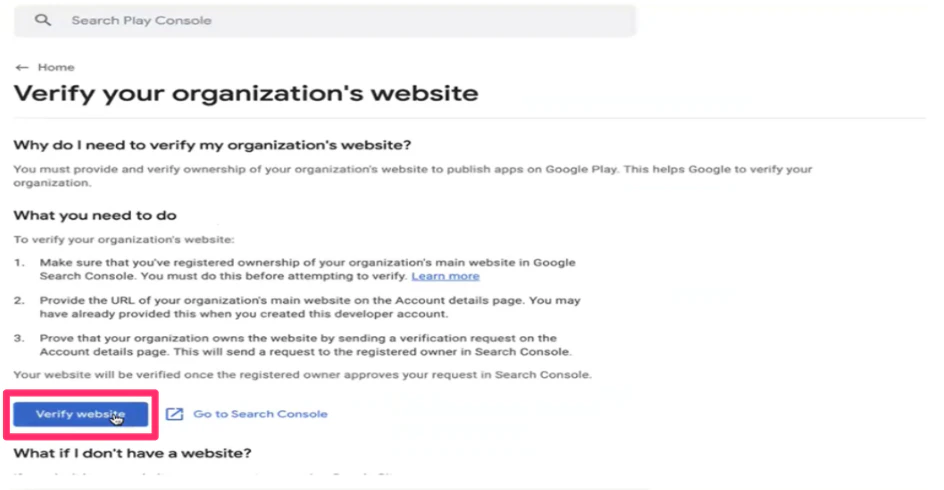
You will then need to return to the Google Play Console tab.- Click Verify Website to proceed:
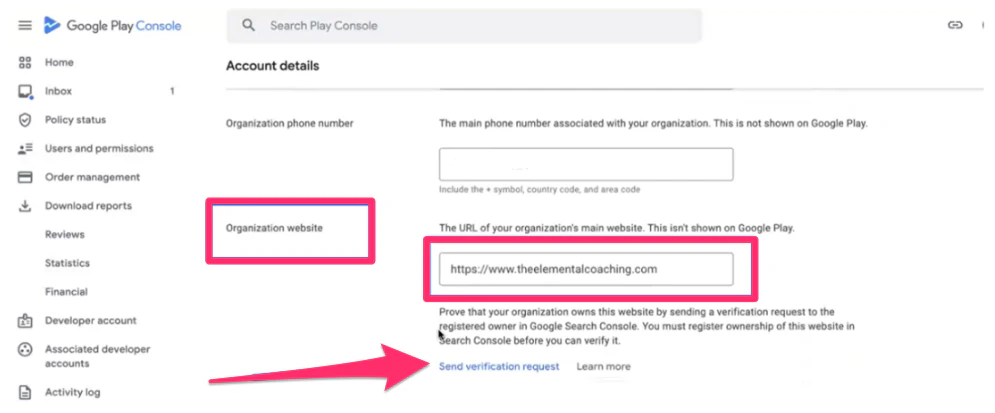
- Scroll down to the Organization Website section and confirm that the custom domain is listed
- Then, click Send Verification Request to finalize the process:
Note:
While the verification process may often complete instantly, there are instances when an email will be sent to the Developer account email address requesting you to verify the domain from there. In such cases, you will need to return to Google Search Console and repeat the domain verification steps. This scenario is particularly common for custom domains that utilize Path B in Kajabi. Below is a sample email you may receive regarding this verification: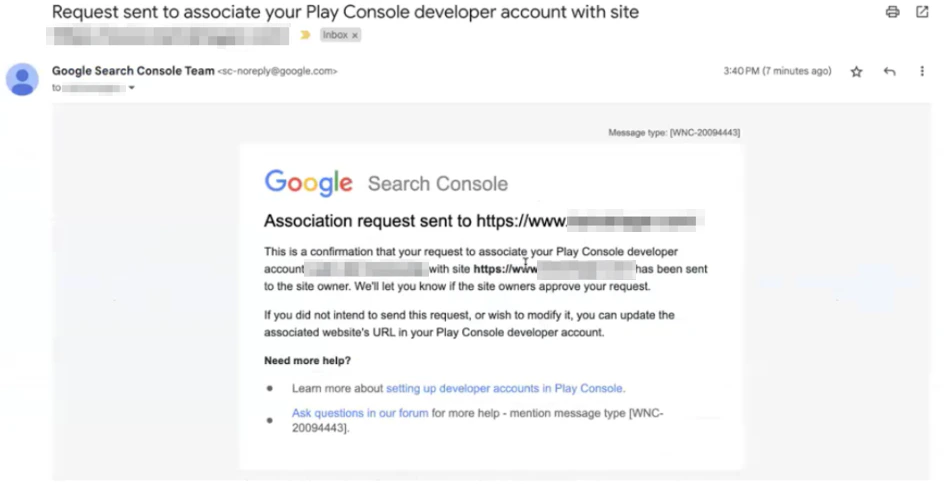
Confirmation of website verification
Once the website is verified, a confirmation message will appear on the Account details page under the Organization Website section: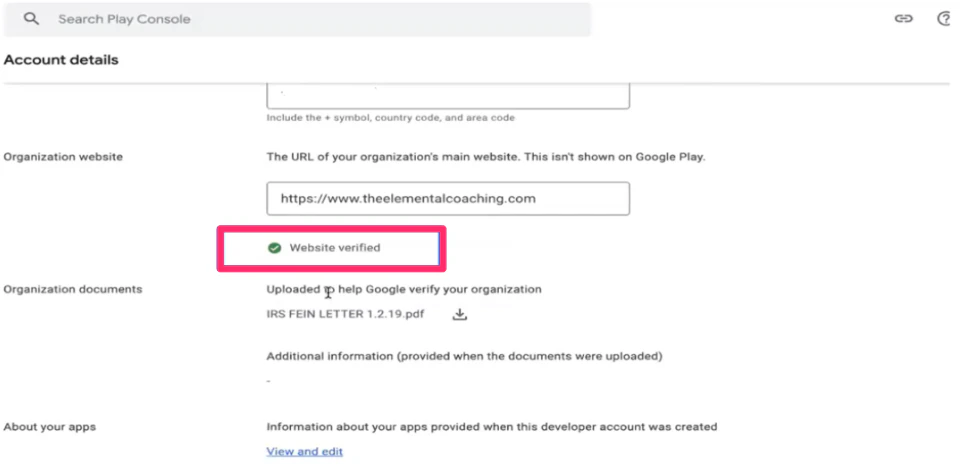
If domain settings are managed through a domain provider
After obtaining the TXT record, you will need to add the TXT record to the domain provider’s DNS Records.Note:
Refer to the domain provider’s help resources for adding TXT records.
- Navigate back to the Verify domain ownership via DNS record tab
- Click Verify: