

Enhance screenshot designs
During the Branded App intake process, Kajabi provides you with a set of screenshots from the app. You’ll receive screenshots of the login page, library page, a course page, and a lesson page, in various sizes to meet the app store requirements.iOS specifications
Screenshots for the 6.5” and 5.5” iPhone models have the following dimensions:- 1284 x 2778 px
- 1242 x 2208 px
- 2048 x 2732 px
Android specifications
Screenshots for Android phones meet the following criteria:- 320 px minimum & 3840 px maximum
- 16:9 ratio
Design options
While the basic screenshots provided by Kajabi are sufficient to meet app store requirements, you can choose to enhance them by adding additional eye-catching design elements such as a colored background, digital phone skin, and/or marketing copy.Note:
Apple takes a firm stance on the fact that screenshots need to match what is in the app; screenshots need to better reflect that if you plan to use custom images. We recommend updating custom screenshots to include more in-app screenshots so as to increase the chances for approval. You should avoid using screenshots of the community as that tends to lead to a rejection.
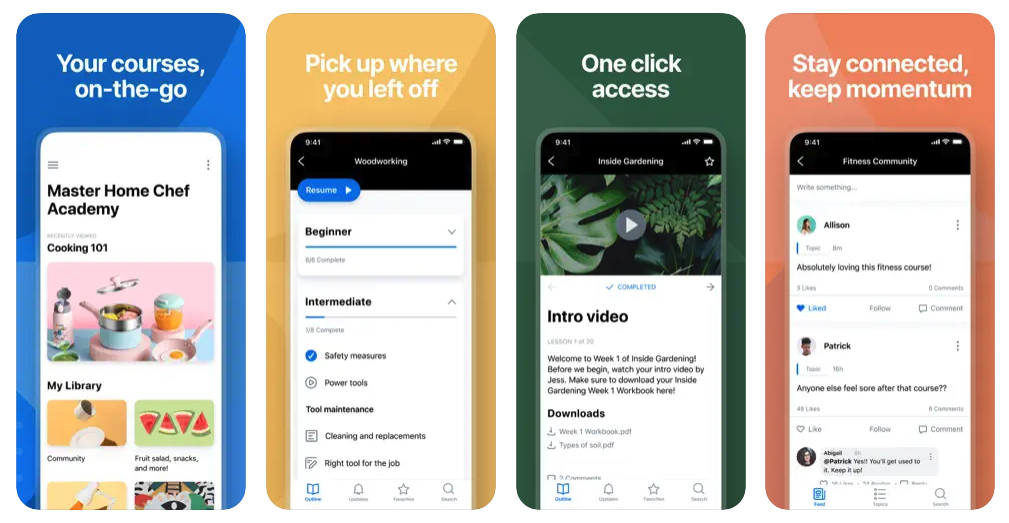
Design resources
Many software tools can help you enhance screenshot designs. For example, a graphic design software like Canva can be used to add design elements to screenshots. There are also design tools specifically made for enhancing app screenshots. Here are a few examples:Update iOS screenshots
Create a version of the app
- Go into the App Store Connect account.
- Click the blue + button to create a version of the app:
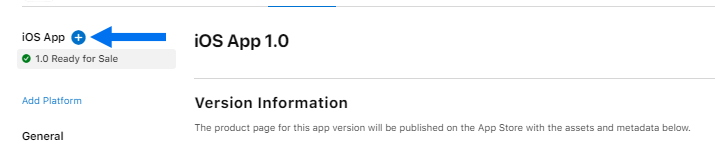
- Enter a version number for the app in the Store Version Number textbox. If the prior version number was 1.0, choose 1.1 as the version number (if you’re already past version 1.1, continue on in sequence: 1.2, 1.3, 1.4, etc.):
Update the app in the app store(s)
Follow the steps in this article to submit an app update to Apple and/or Google.Update Android screenshots
- Go into the Google Play Console.
- Choose the app you want to edit.
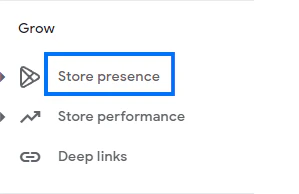
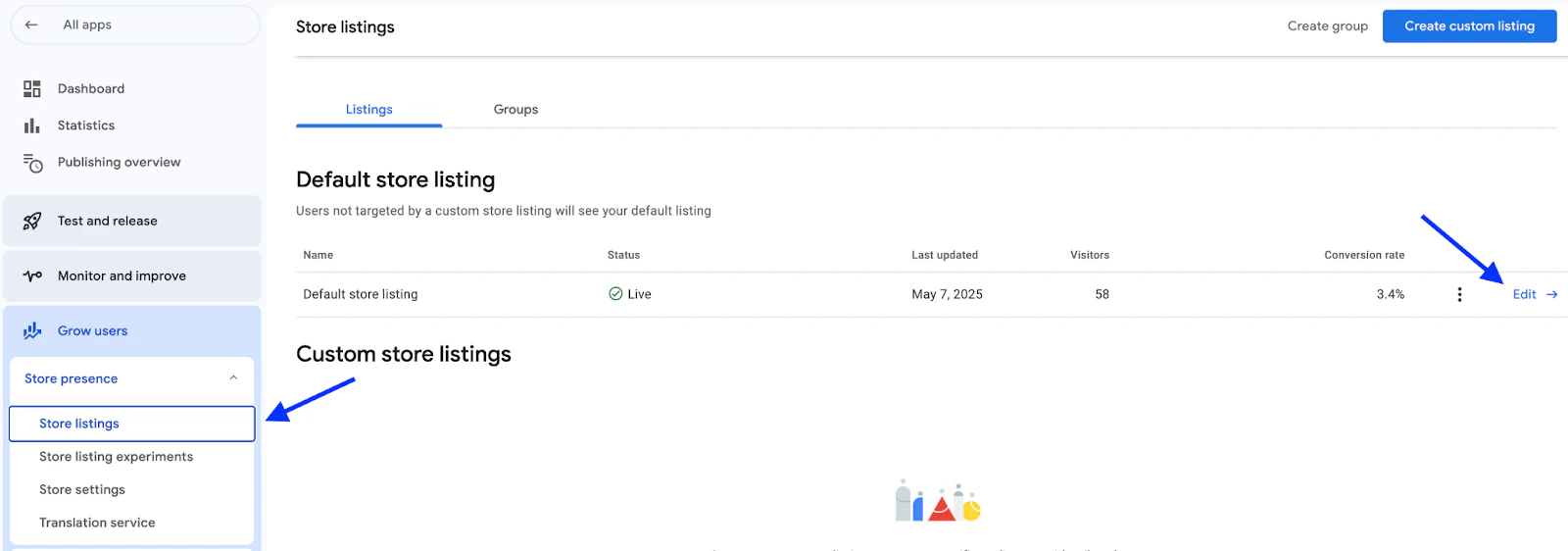
- On the side panel menu, navigate to the Grow Users section.
- Click Store presence > Store Listings:
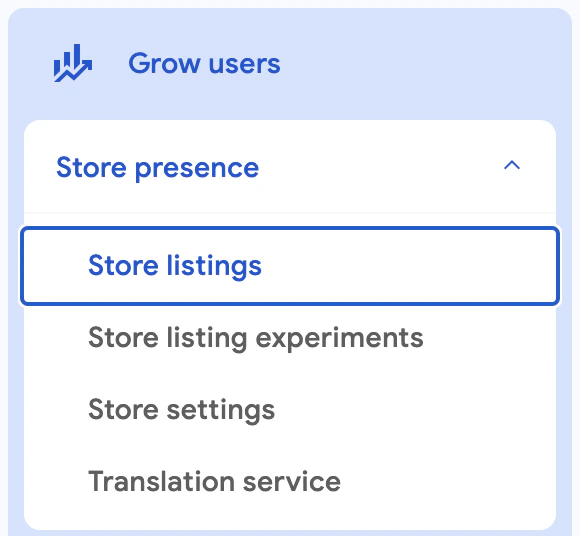
- Edit Default Store Listing:
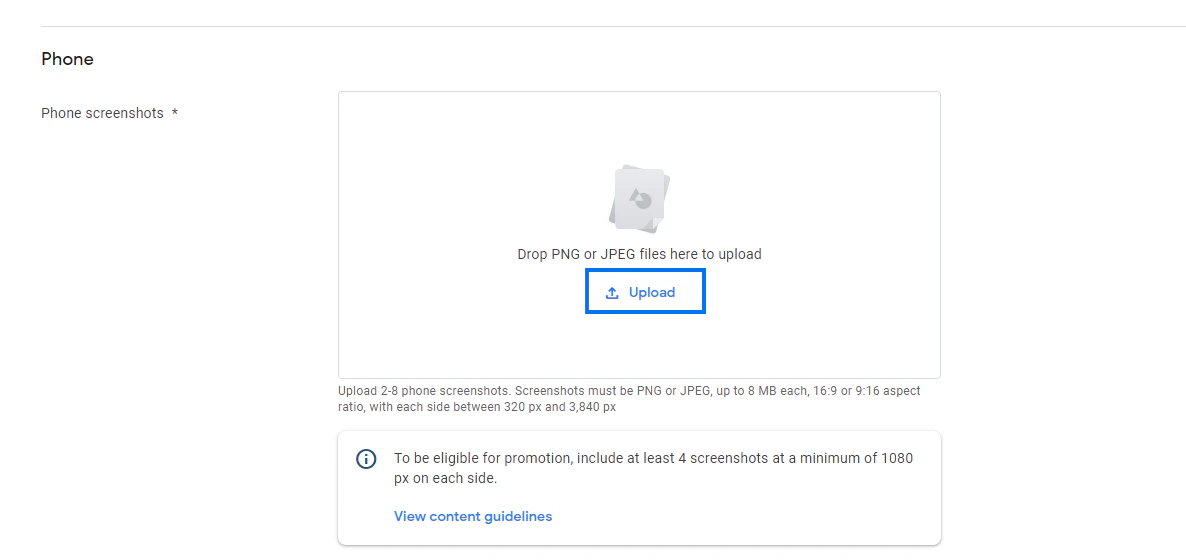
- Scroll down to the Phone section.
- In the box next to Phone screenshots, click Upload:
- Select and upload the screenshot.
- Once the screenshot is updated, click Save.
- You’ll see a pop-up modal asking you if you want to publish the changes. Confirm the changes.