

Note:
This feature is currently only available to US-based Heroes.
Getting started
Before linking offers throughout a Branded Mobile App, make sure you have the following completed:- Have the URL of the offer page you want to promote
- Select Branded Mobile App from your Kajabi dashboard
- If you’ve fully completed your app setup, you should see your app Design settings
- Click on the Design tab
Link a button widget
From the Design tab under Branded Mobile App, click Customize: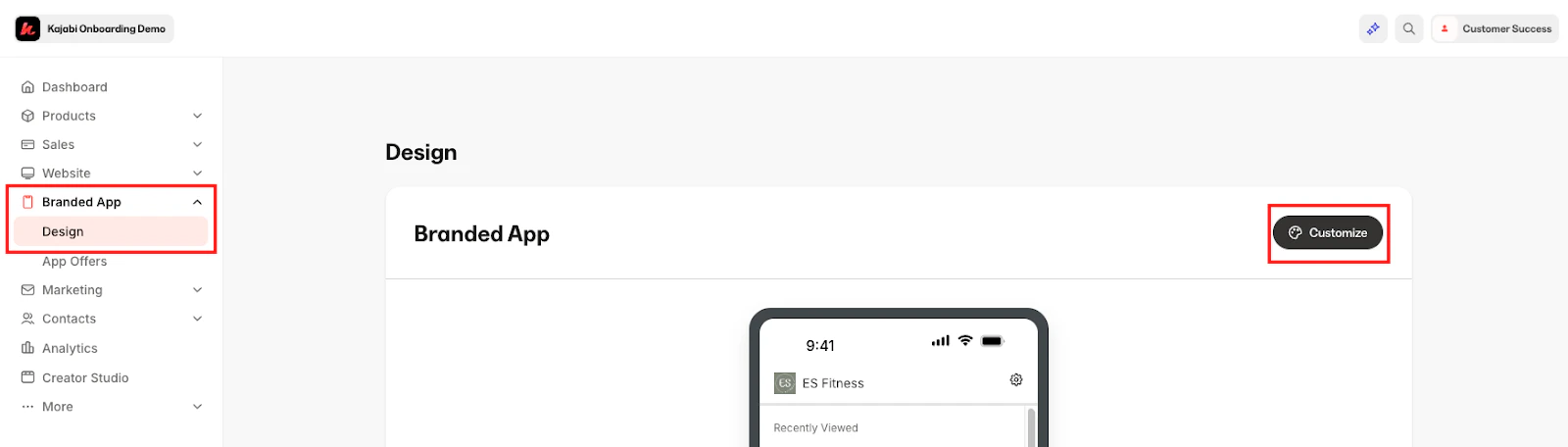
- Click Screens to select an existing screen or create a new one:
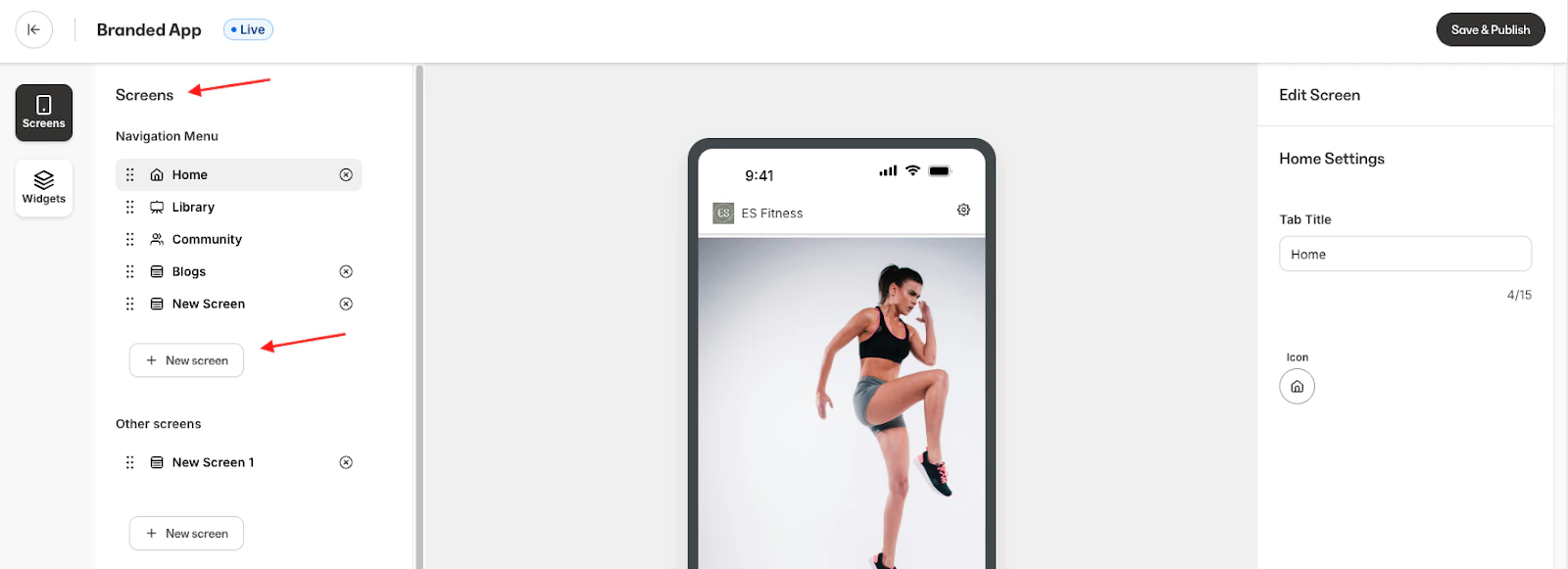
- Once you are on the screen you’d like to edit, navigate to the Widgets editor and drag a Button widget onto the screen:
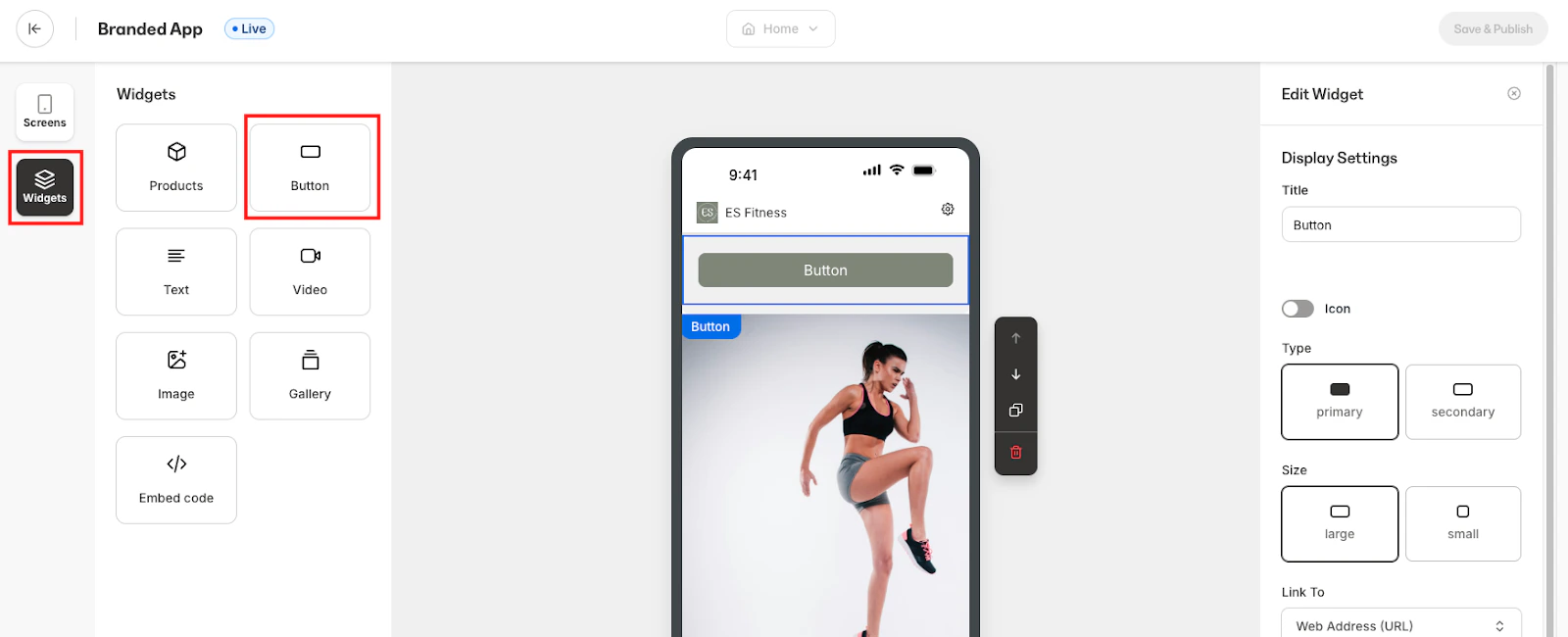
- In the right-hand settings panel, paste the offer URL into the Link field
- Set Open link to In-App Browser for a seamless experience
- Click Save
Link an image gallery item
- In the Widgets editor, drag a Gallery widget onto the screen:
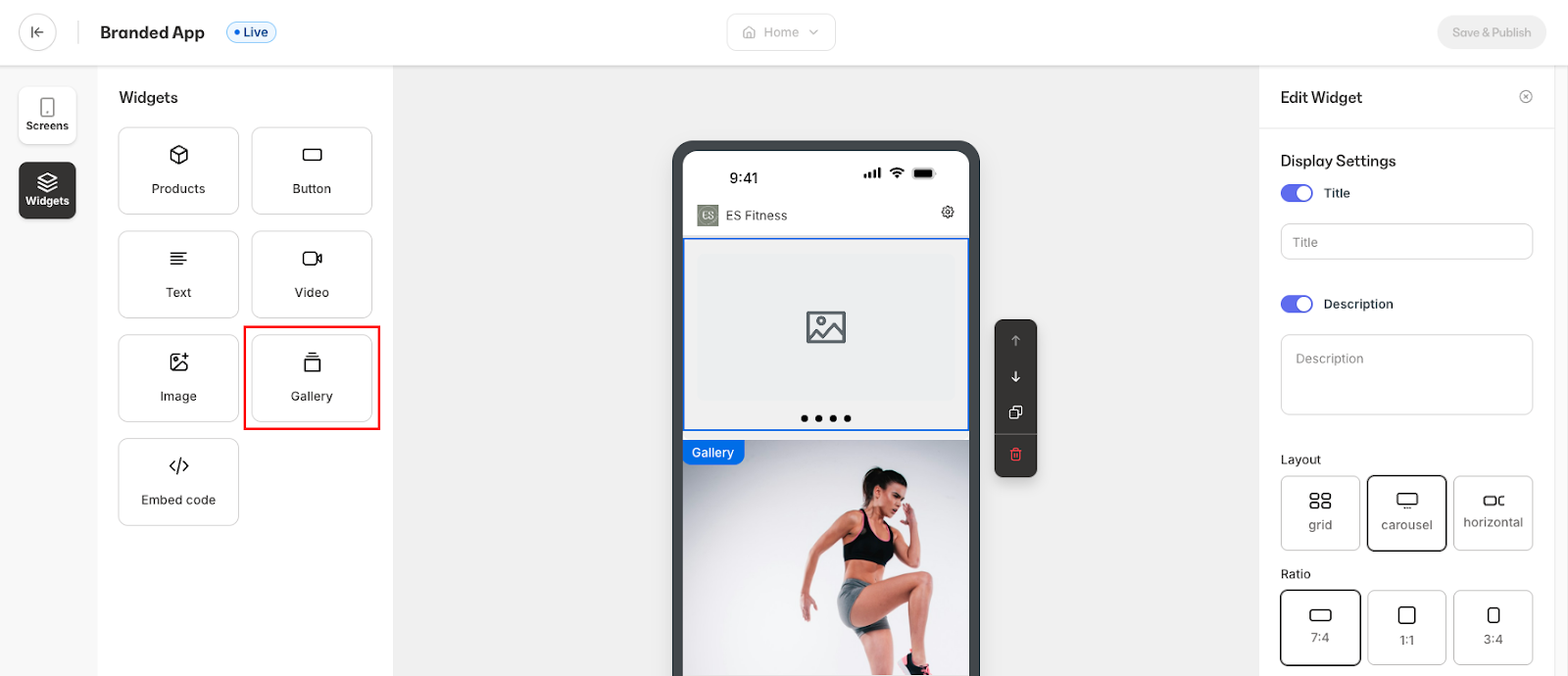
- Upload your images
- Select an image, choose Action → Web address, and paste the offer URL
- Repeat for any other images that should link out
- Click Save and Publish to push the change live
Link a single image widget
- In the Widgets editor, drag an Image widget onto the screen:
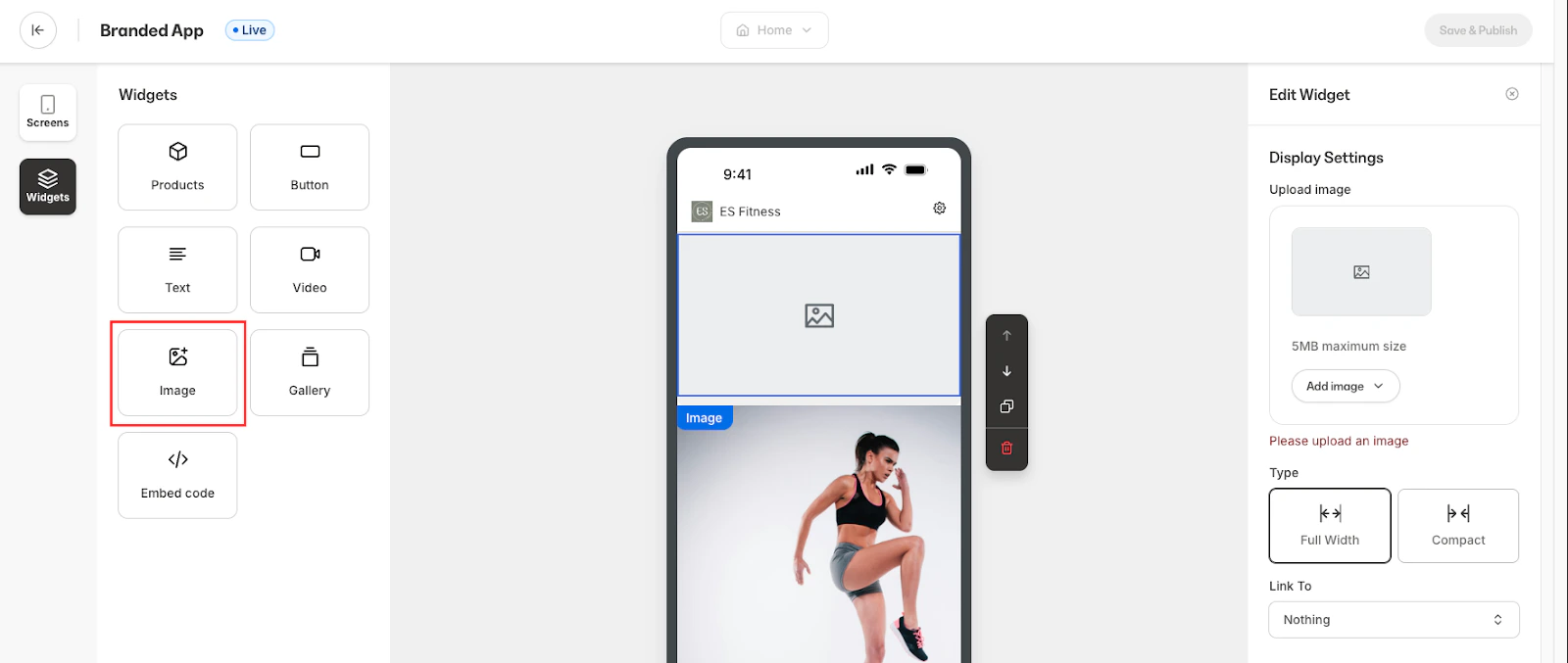
- Upload a graphic, product shot, or banner for the offer
- In Action → Web address, paste the offer URL
- Click Save and Publish to push the change live
Add a custom link in the menu
- In the Screens editor, scroll down until you see Custom Links
- Click + New link:
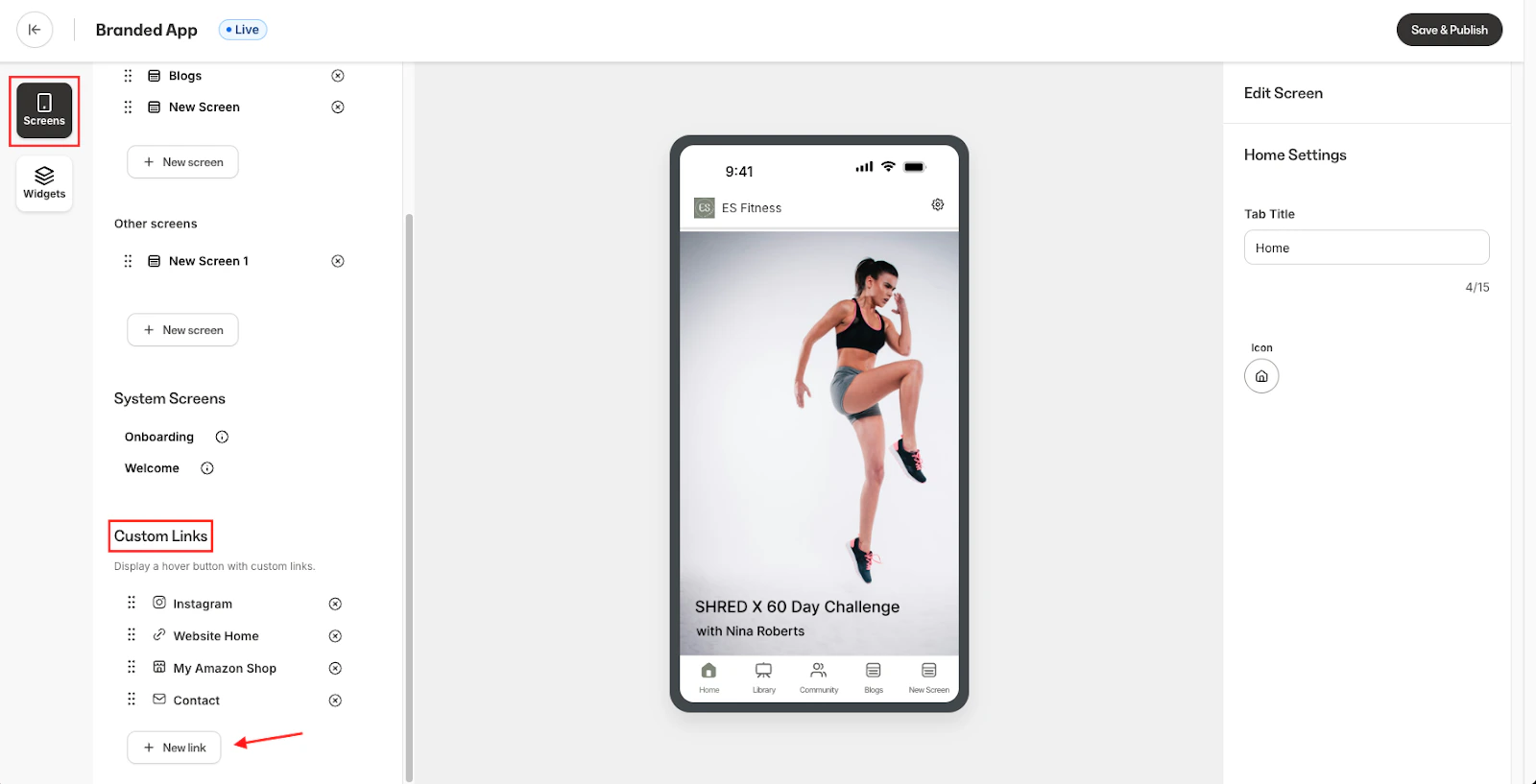
- Enter a Title members will recognize (e.g., Course Offer)
- Paste the offer URL
- Click Save and Publish to push the change live
Promote the link with a push notification
- From your Kajabi dashboard, select Marketing
- Then, select Push notifications
- Click + New notification at the top right of the page:
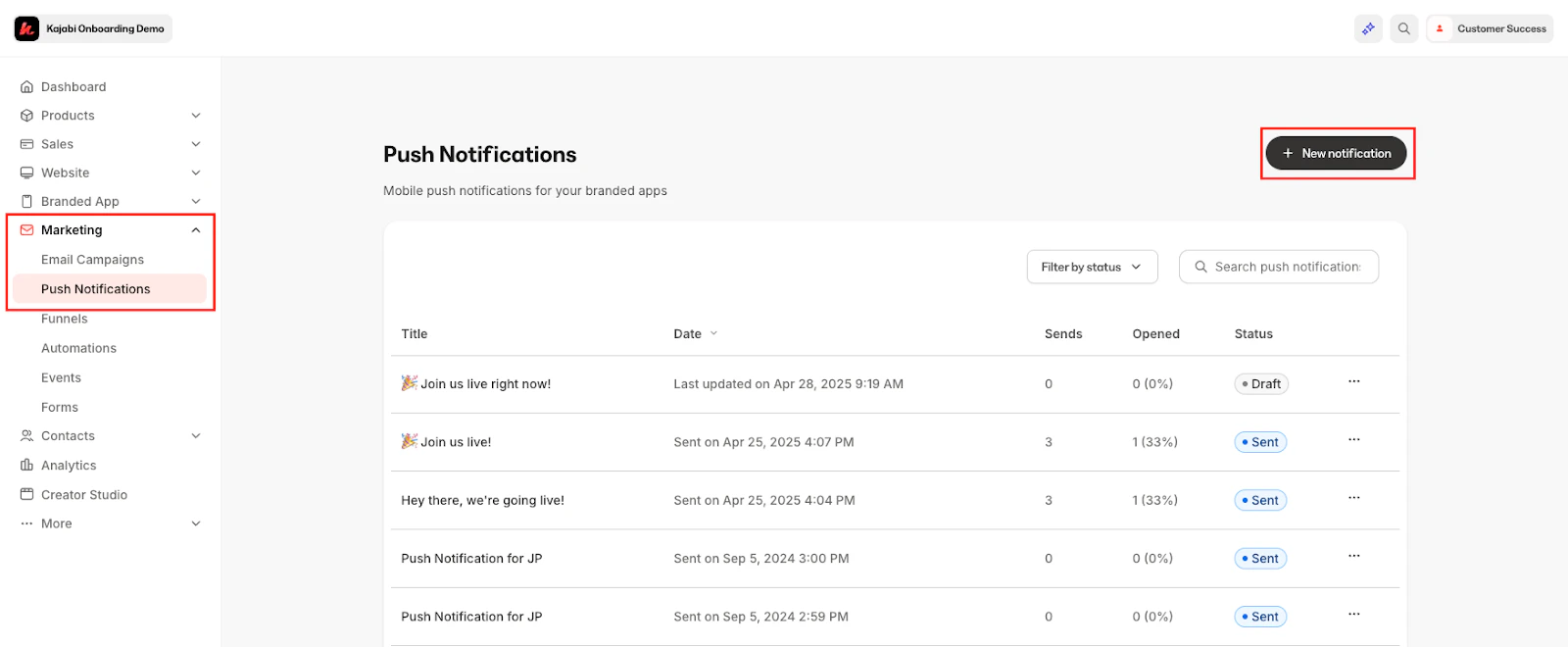
- Choose to send the notification to Everyone who allows notifications or to a Custom segment
- Enter a Title and write a concise Message (e.g., “Limited-time bundle—tap to unlock”)
- Choose Web address under Link to and paste the offer URL
- Schedule or send immediately
Best practices
- Keep buyers inside the app. Use the in-app browser unless your checkout requires a full browser
- Use clear calls to action. “Buy Now,” “Unlock Discount,” or “Start My Trial” convert better than generic text
- Track performance. Add UTM parameters to each URL to see which placement drives the most sales