

What types of deep links are supported?
Community links
Posts & Discussions- Direct links to individual community posts
- Links to posts within a specific channel
- Links to channel/circle pages
- Community home page
- Meetups and events
- Individual meetup pages
- Resources
- Live events
- Leaderboards
- Challenges
- Community mention notifications
- Reply notifications
- Direct message notifications
Course & product links
Universal links are supported for:- Direct links to specific courses or products in the user’s library
- Direct links to individual lessons within a course
Where universal links work
Universal links work across the following surfaces:- Email clients (Gmail, Apple Mail, Outlook, etc.)
- SMS/text messages
- Other apps that render clickable URLs
- Safari and Chrome mobile browsers
- Push notifications (when the link is included in the payload)
Enable universal links for an iOS Branded App
Open Apple Developer identifiers
- Log in to the Apple Developer account
- Visit: https://developer.apple.com/account/resources/identifiers/list
- You’ll see a list of all app identifiers
Select the app
- Click the Identifiers tab
- Select the app from the list to open its capability settings
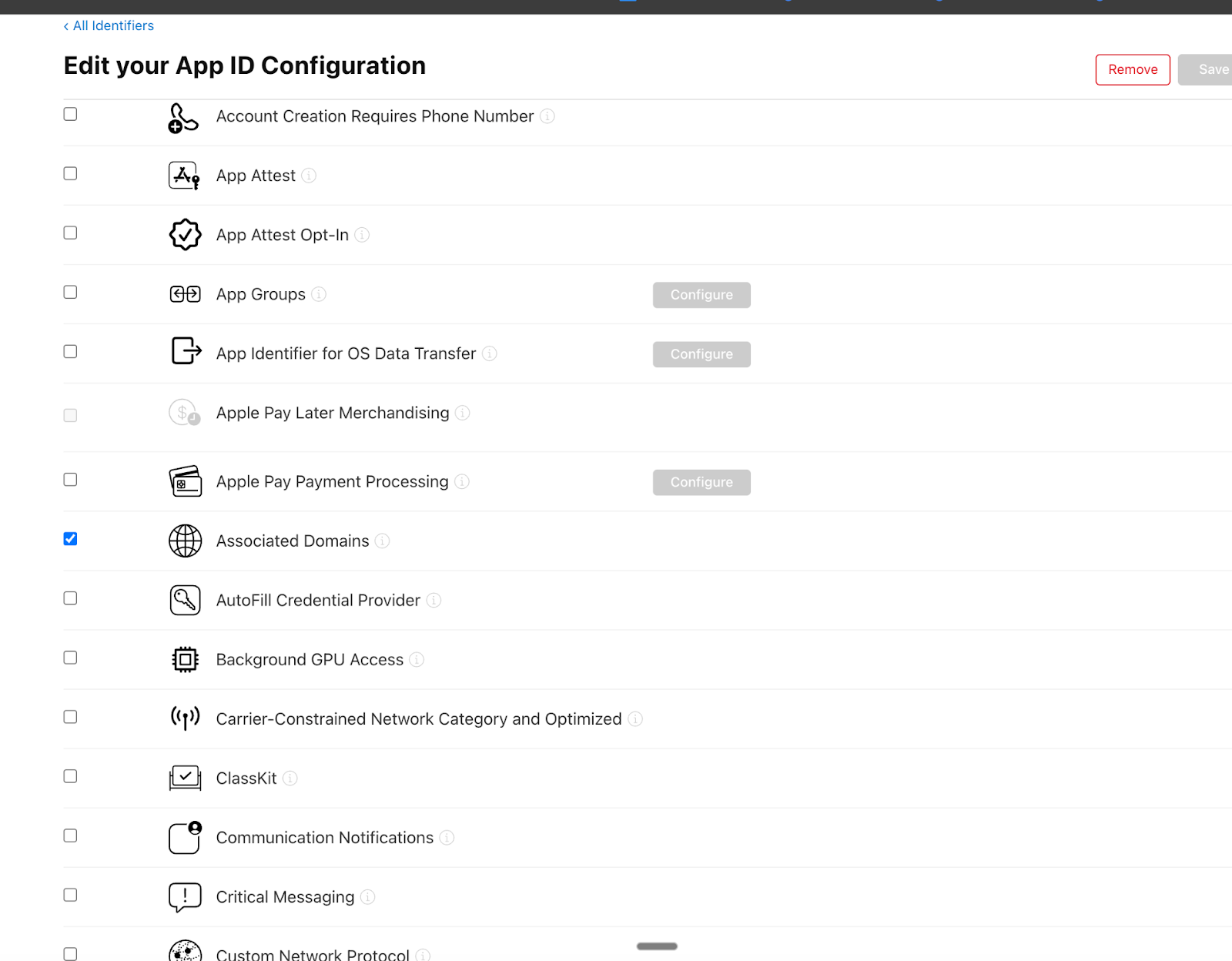
Enable Associated Domains
- Scroll through the list of capabilities
- Locate Associated Domains
- Toggle it on
- Click Save to apply the changes
Update Kajabi Branded App settings
- Return to the Kajabi dashboard
- Go to Settings > Branded App Settings
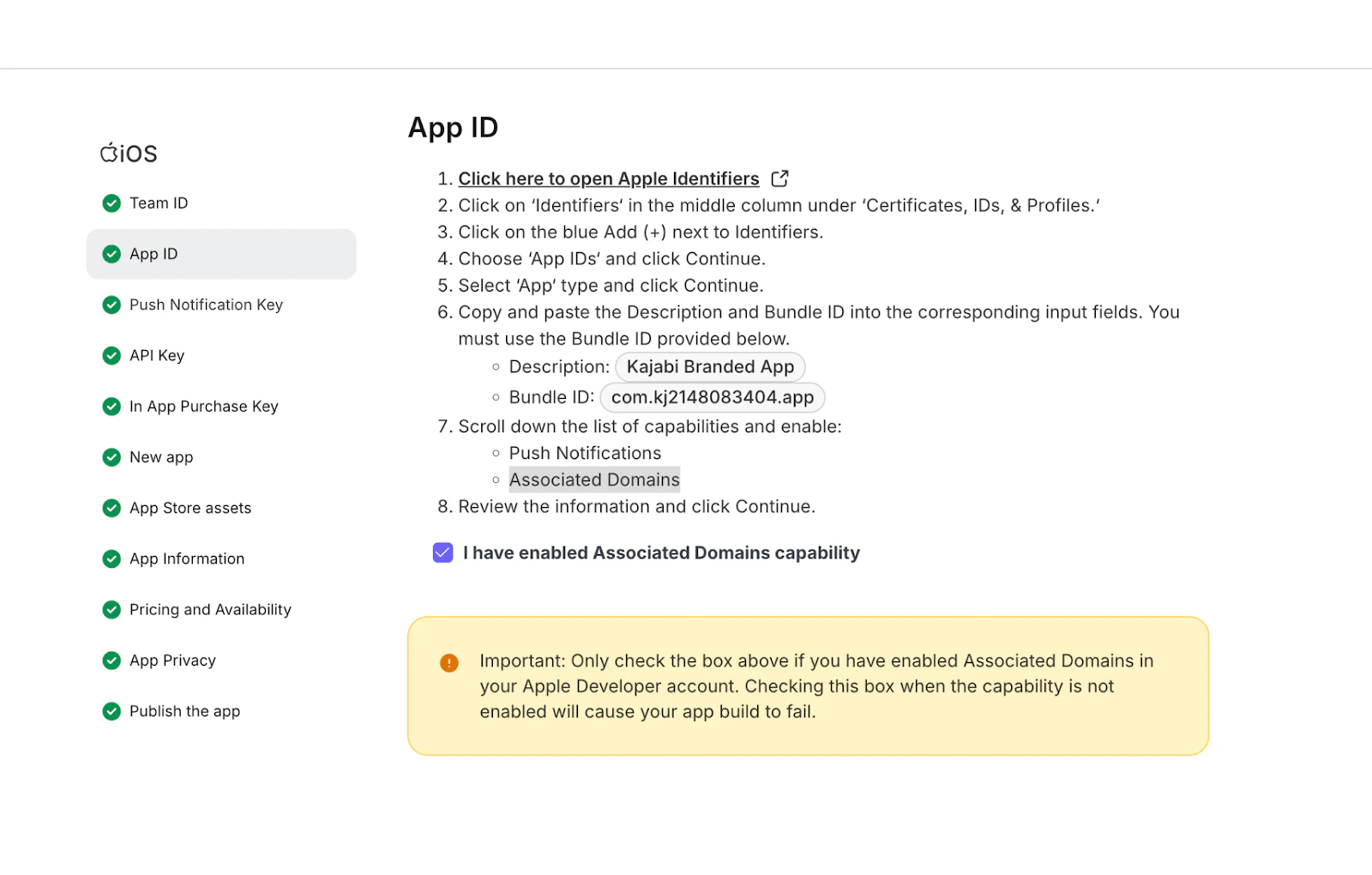
- Click Revisit Apple, then navigate to the App ID section
Confirm the capability is enabled
- Check the box confirming you have enabled the Associated Domains capability in Apple
- Click Continue and save the changes throughout the flow