Triggering an app build in Kajabi
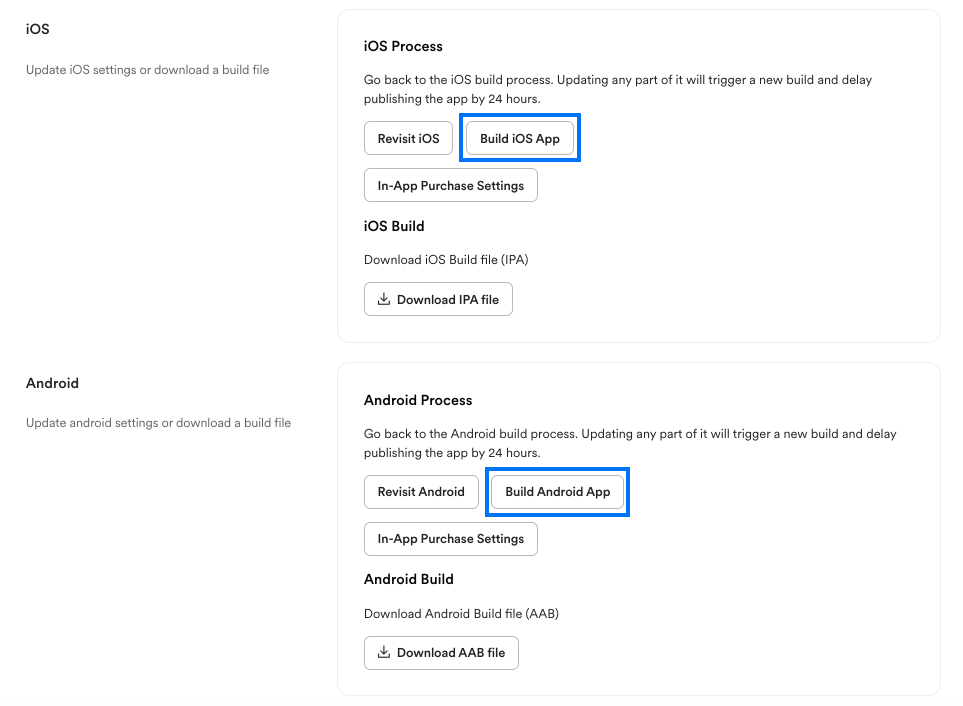
To update the app, first trigger an app build for each app store in the Kajabi Branded Mobile App Settings. To trigger an app build:- Click Settings at the lower left of the Kajabi dashboard.
- Select Branded Mobile App Settings.
- Click both the Build iOS App and Build Android App buttons. This will trigger an app build that includes all the latest features:
Update the iOS app
After triggering an app build and waiting for the build to show up, you can update the iOS app.- Log into App Store Connect.
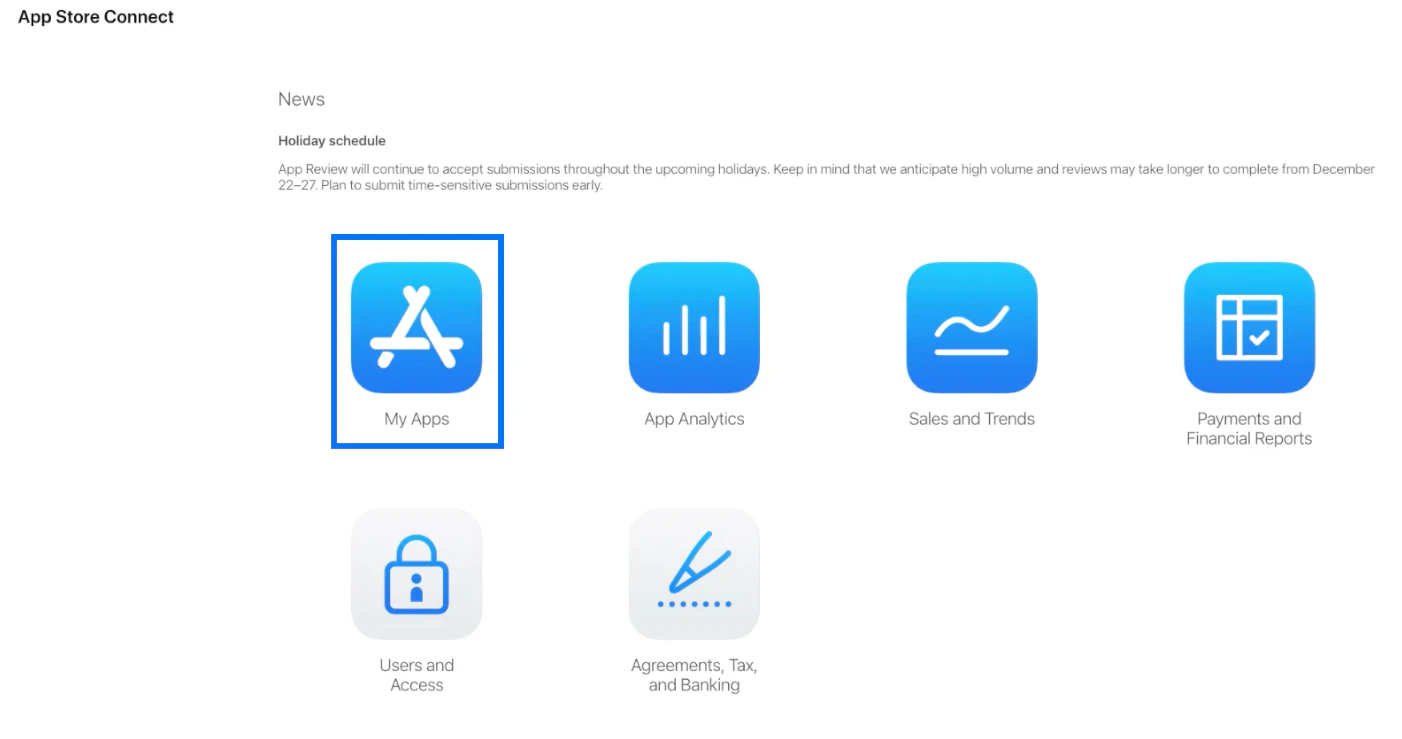
- Click on My Apps:
- Click on the title of the Branded App to open it for editing.
- Inside the app, navigate to the top of the left sidebar menu.
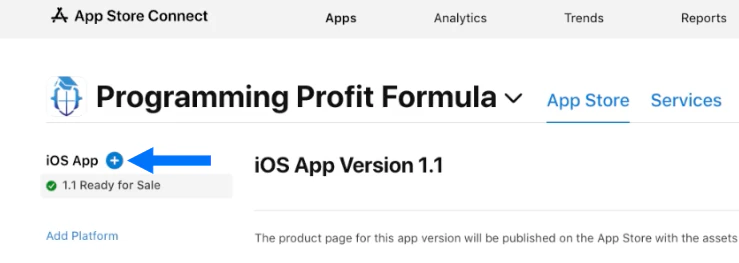
- Click the blue + icon next to “iOS App”:
- Enter a Store Version Number. This can be any number, but it should be larger than the previous version number (for example, if the prior app version was 1.1, you could input 1.2).
- Click Create:
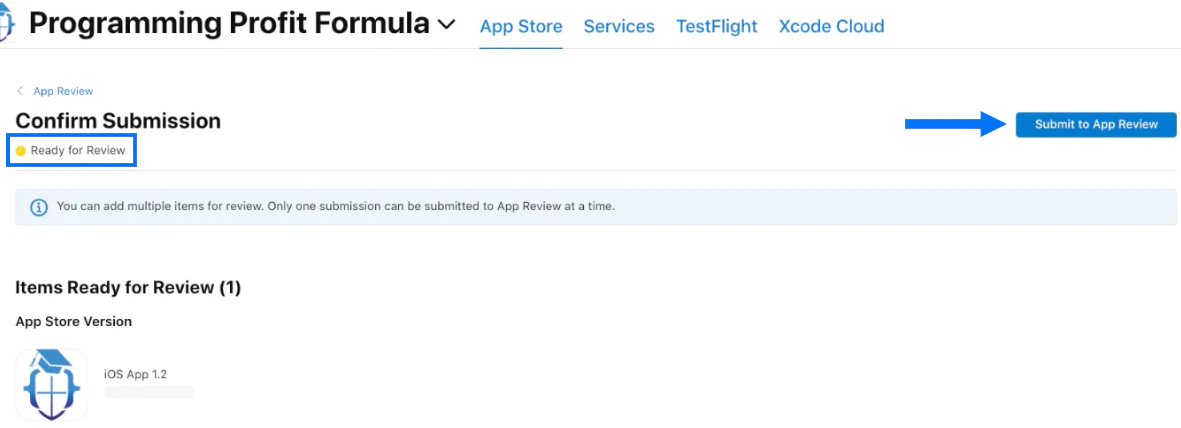
- On the next page, confirm that you see the text “Ready for Review” at the top left just below “Confirm Submission”.
- Click Submit to App Review at the top right of the page:

Update the Android app
After triggering an app build and waiting for the build to show up, you can update the Android app.- Log into Google Play Console. (We recommend logging in via an incognito browser window. If you’re logged into more than one Gmail account in the same browser window, you’ll encounter trouble completing the update procedure).
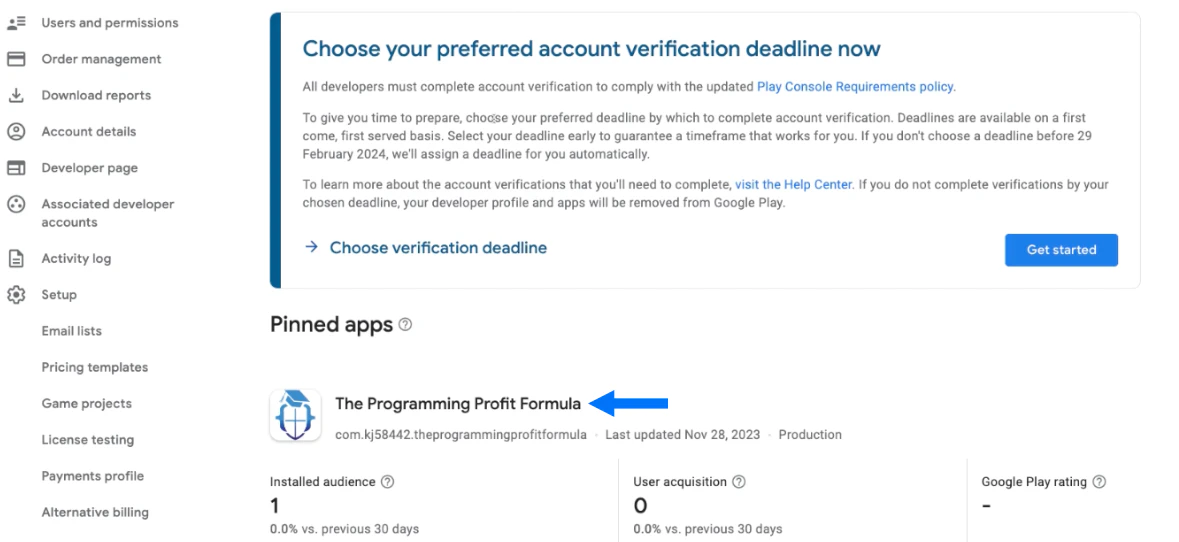
- Click the title of the Branded App to open it for editing:
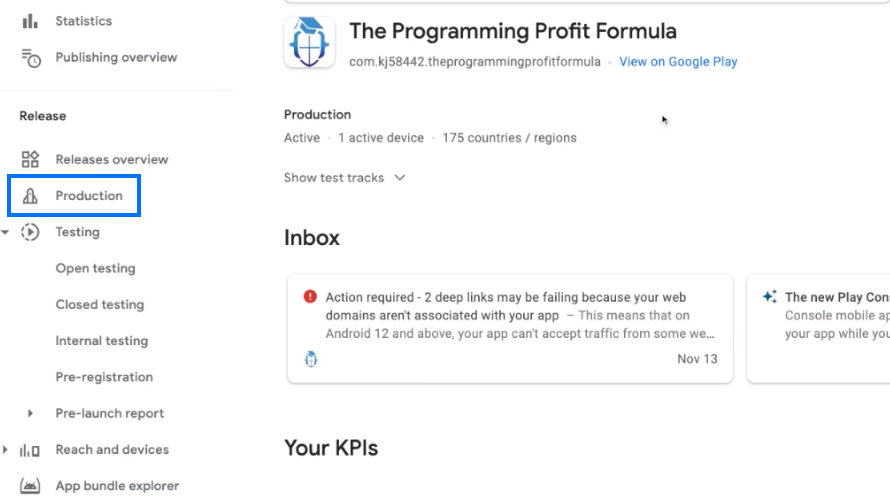
- Inside the app, navigate to the Release section of the left navigation menu.
- Click Production:
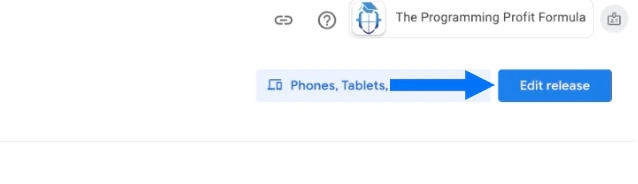
- Click Edit release at the top right of the page (or, click Create release if you see that text on the blue button instead):
Note:
If you don’t see an app bundle listed, download the AAB file from the Branded App Settings of the Kajabi account, then click the Upload link under App bundles and upload the AAB file. Learn more about how to download the AAB file from Kajabi.
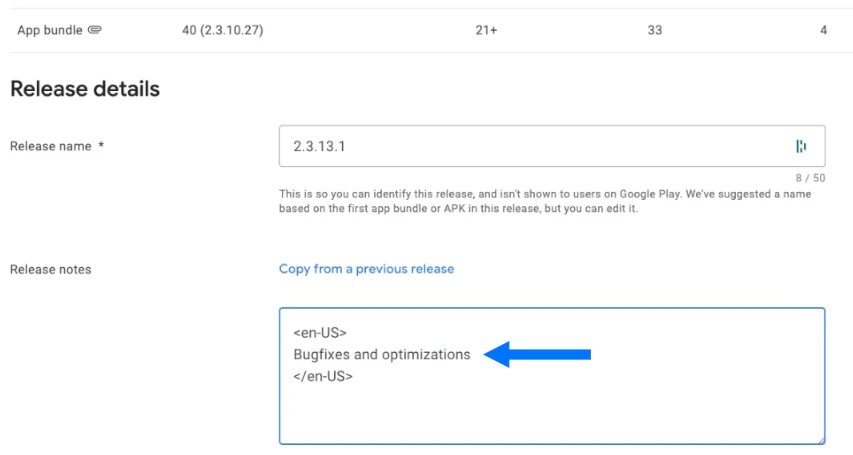
- Scroll down to the Release details.
- A release name will be generated automatically. We recommend that you keep the suggested release name.
- Enter a note in between the language tags in the Release notes field:
- Click Next at the lower right corner of the page.
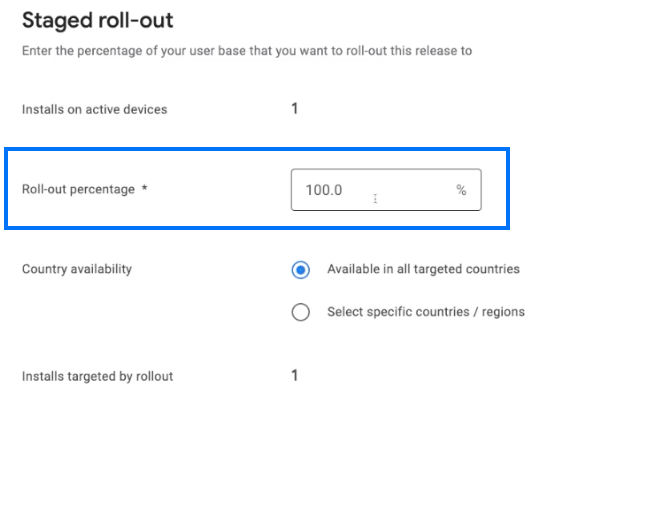
- Scroll down to the Staged roll-out section at the bottom of the page and confirm that the Roll-out percentage is set to 100%:
- Click Save at the lower right corner of the page.
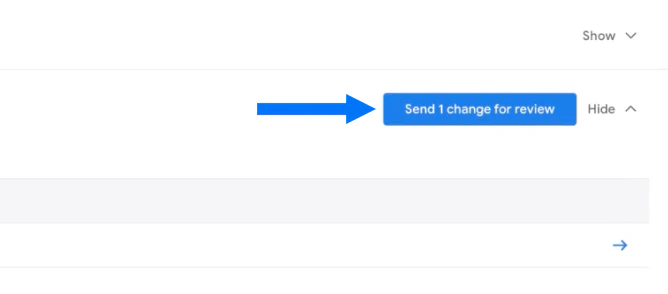
- Click Send 1 change for review at the right side of the Publishing overview page:
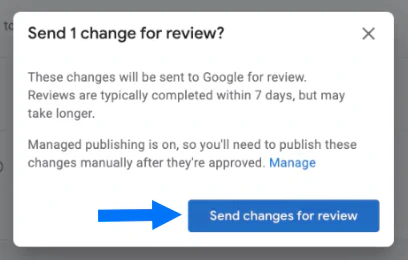
- When prompted, click Send changes for review to confirm the submission:
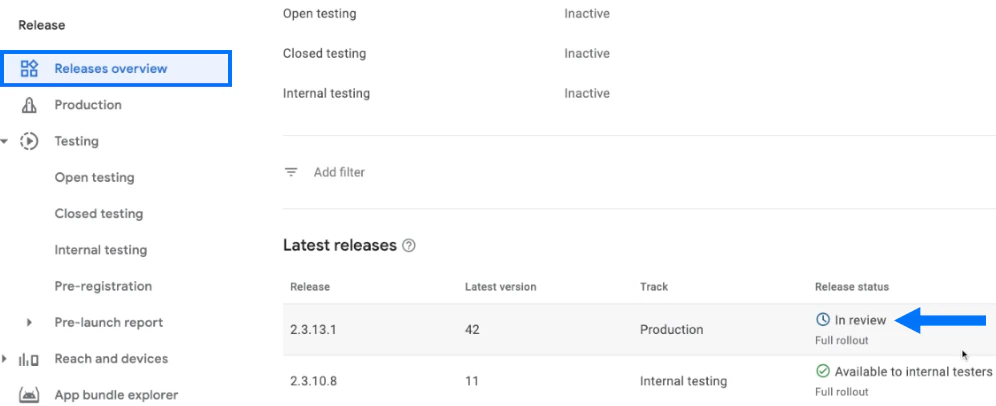
- To verify that the app is in review, click Releases overview in the left navigation menu.
- Confirm that the latest release has a release status of In review: