

Set up banking and tax info
Before creating in-app purchase offers in a Branded App, you will need to provide Banking and Tax information with Apple and Google. Learn to set up banking and tax info with Apple and how to set up a merchant account for Google in-app purchases.Create the first paid in-app offer
After setting up banking and tax information, you can begin to create the first paid in-app offer. Learn to create a paid in-app offer.Add courses on the Branded App home screen
Customize the Branded App home screen to display the courses available with the in-app offer. Wait 10-15 minutes for Kajabi to automatically finish up the app build before moving on to the next step.Submit the first paid Apple App Offer for approval
- Log into your App Store Connect account.
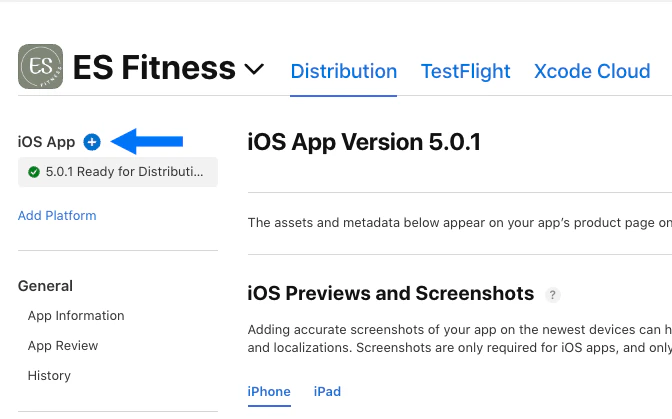
- Click the blue + button at the top left to create a version of the app:
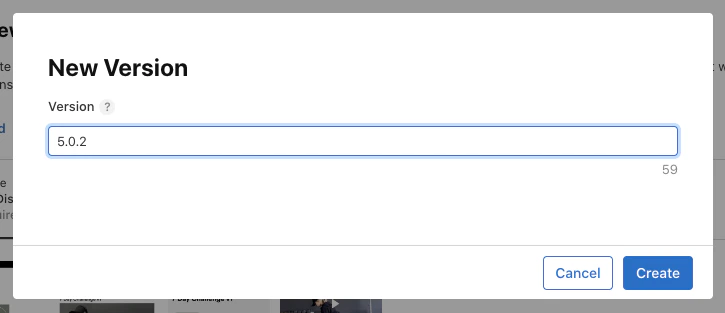
- Enter the next number in the app version sequence. This can be any number, though we recommend numbering each version one increment higher than the last (example: 5.0.2).
- Click Create:
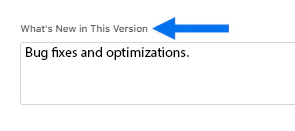
- Next, scroll down to the What’s new in this version field.
- Enter a short description of what’s new (example: bug fixes and optimizations):
- Scroll down the page to the Build section and click Add Build:
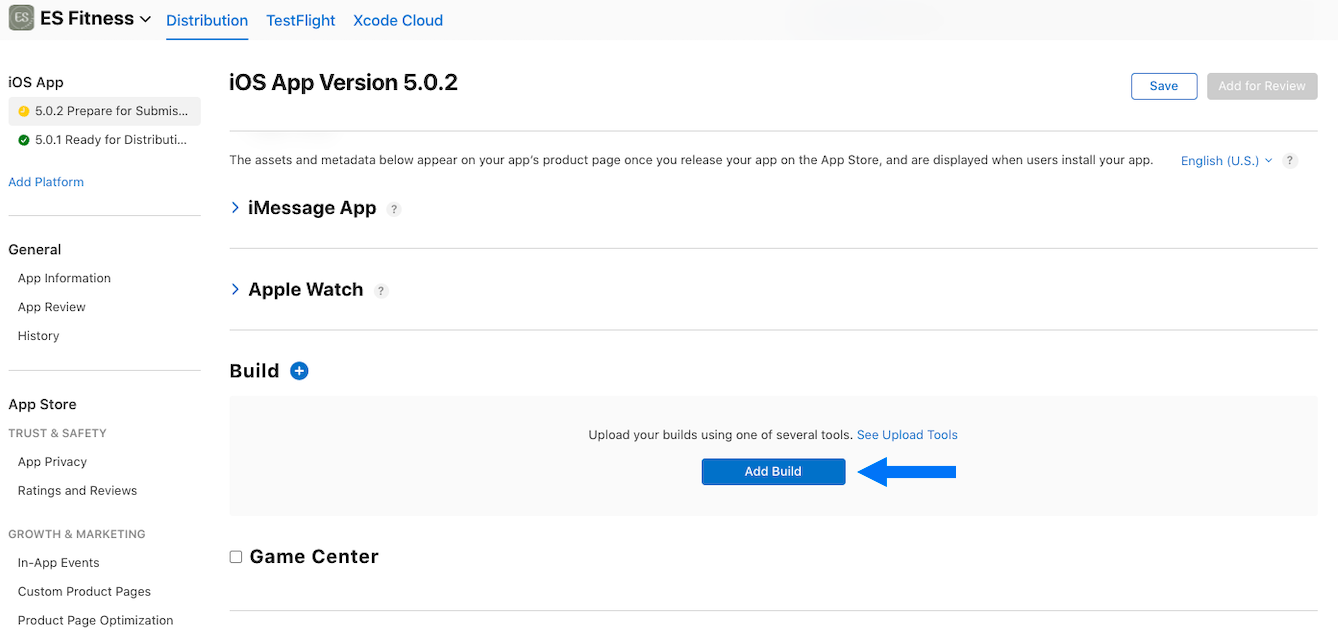
- Select the latest build version from the popup modal (the latest build version will have the highest version number).
- Click Done.
- Scroll up and click Save at the top right of the page.
- Click Add for Review.
- Then, click Submit to App Review to submit the app for review.