

Formatting and technical specifications
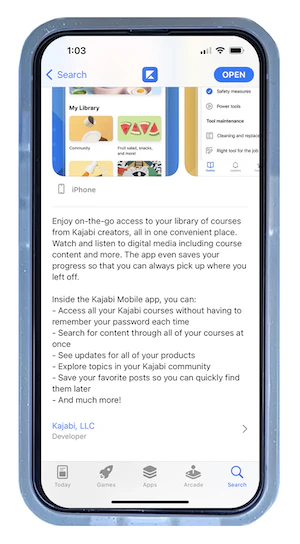
Readers will only be able to view approximately the first 1-2 sentences of the app description on the preview screen before having to tap a link to read the rest. It’s essential to use the opening sentence to hook the reader’s attention. State the main value proposition or unique differentiator first: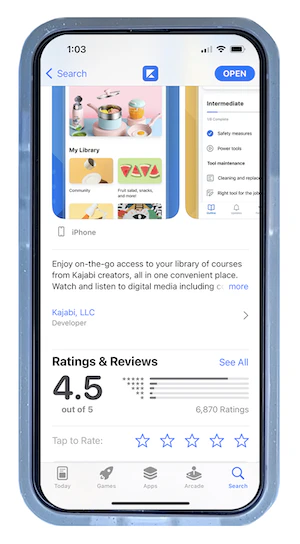
Brand voice and writing style
Use the brand voice and tone when writing the app description. If you have a playful brand, feel free to use emojis. Every word is important. Be engaging but concise. When editing the description, consider whether there are any sentences where you could say the same thing using less words. Make sure you write at the reading level of the target audience. Simple language is usually most effective, unless you’re writing for a sophisticated reader about a specialized topic. If you have an international customer base, avoid using idioms or other nuanced language that may be difficult for people from other cultural backgrounds to understand.What to include in a description
Showcase the most valuable features of the app. Highlight what’s unique about the app and how using it will help the reader solve a problem or improve their life in a desirable way. Consider including an accolade like an award or a rave review at the end of the description. You can also include social media links or a contact email if desired. Adding search keywords to app descriptions isn’t likely to affect ranking in the App Store, though it could provide some boost in Google Play. Use natural language and include keywords only when they make sense to a human reader. Avoid including any prices in the description. Also, make sure not to add any notes about the app being in a testing or beta state, as such language is likely to be rejected by reviewers.Update a description
Update an iOS description
- Create a version of the app by logging in to the App Store Connect account
- Click the blue + button to create an app version:
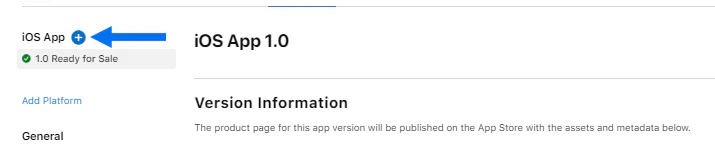
- A pop-up modal will appear
- Enter a version number for the app in the Store Version Number textbox. If the prior version number was 1.0, choose 1.1 as the version number (if you’re already past version 1.1, continue on in sequence: 1.2, 1.3, 1.4, etc.):
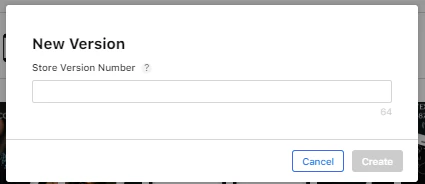
- Click Create
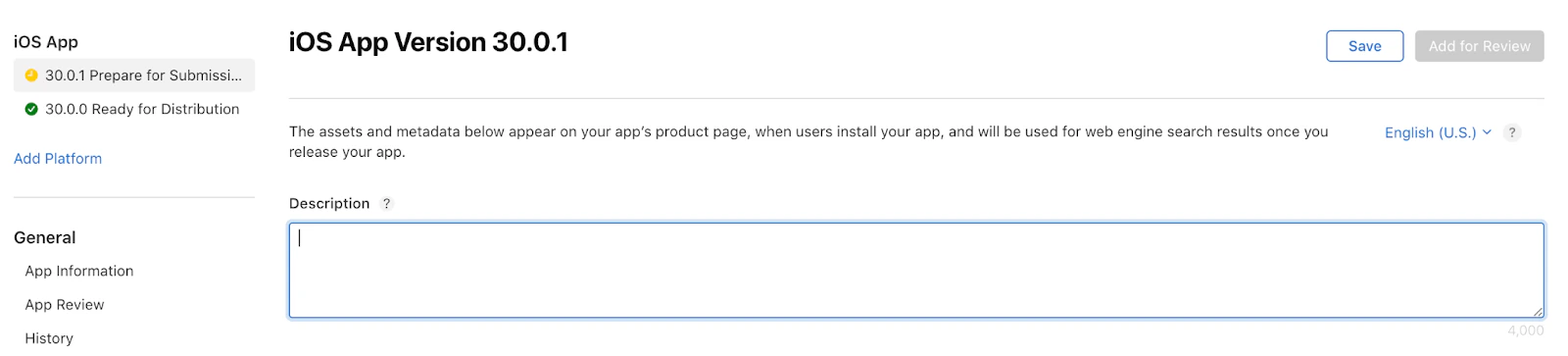
- Update the text in the description box, click Save, then Add for Review:
Update an Android description
- Login to the Google Play Console account
- Click on the app you want to edit
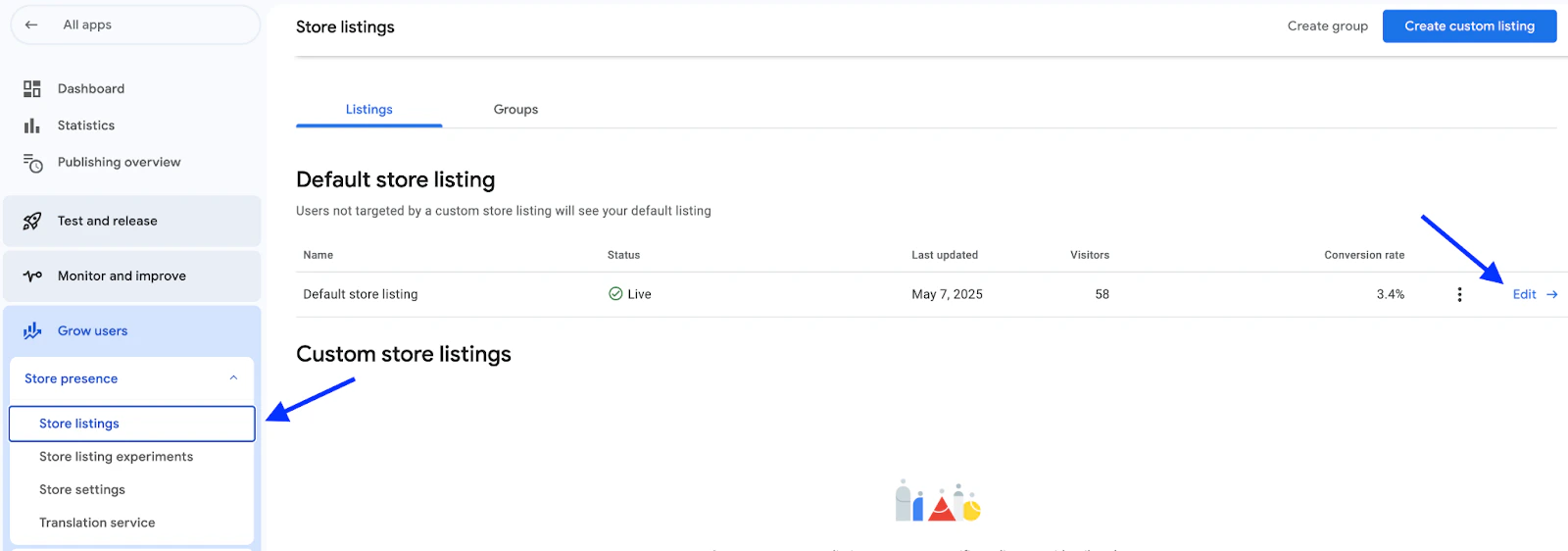
- On the left side panel menu, navigate to the Grow Users section
- Click Store presence > Store Listings > Edit Default Store Listing
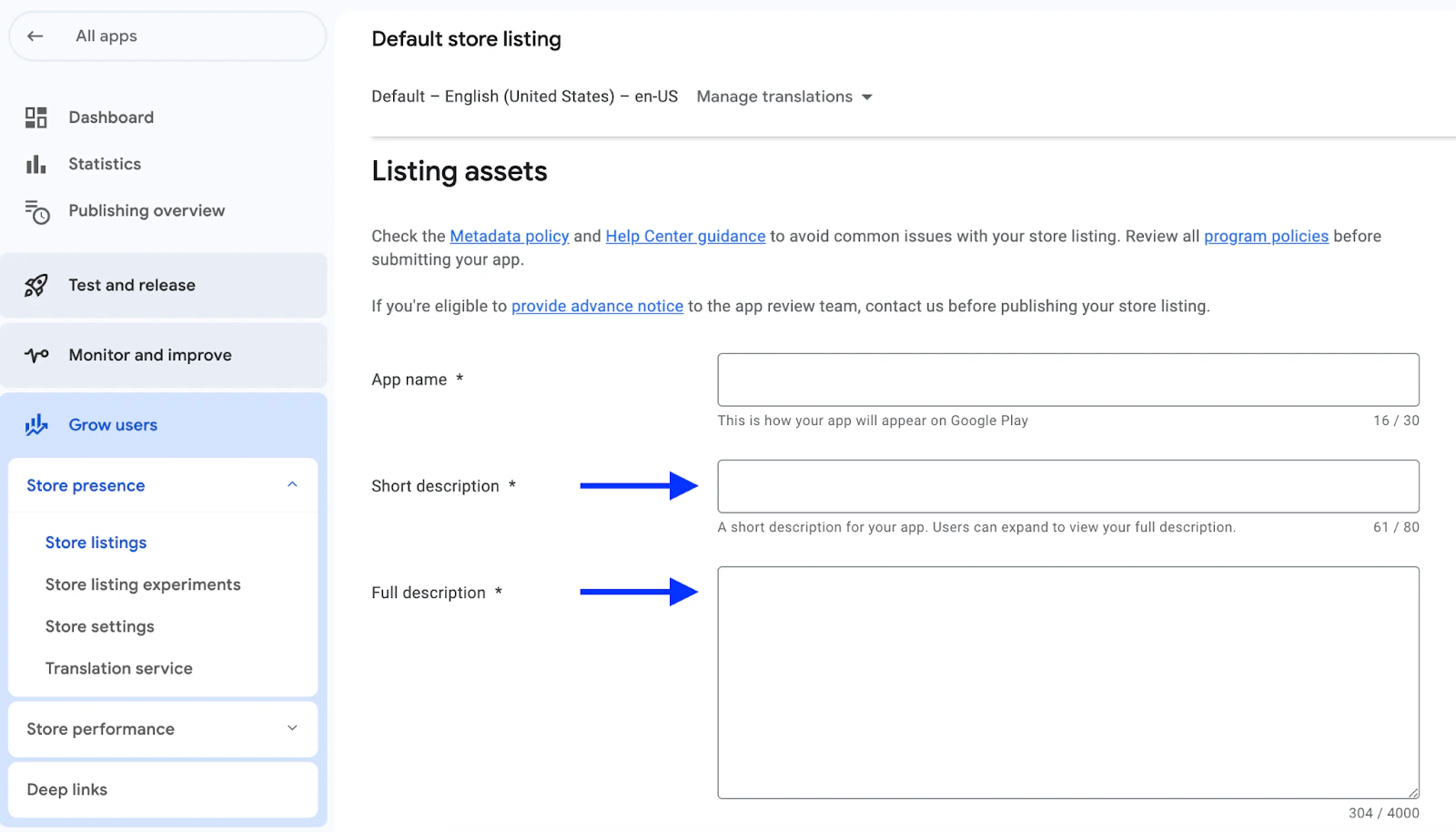
- Edit the short and full descriptions
- Click Save