

Add Kajabi as a Google Play Account Admin
Complete the steps discussed in our guide to add Kajabi as an Admin on the Google Play Console. Learn to add Kajabi as an Admin.Locate the Developers Account ID
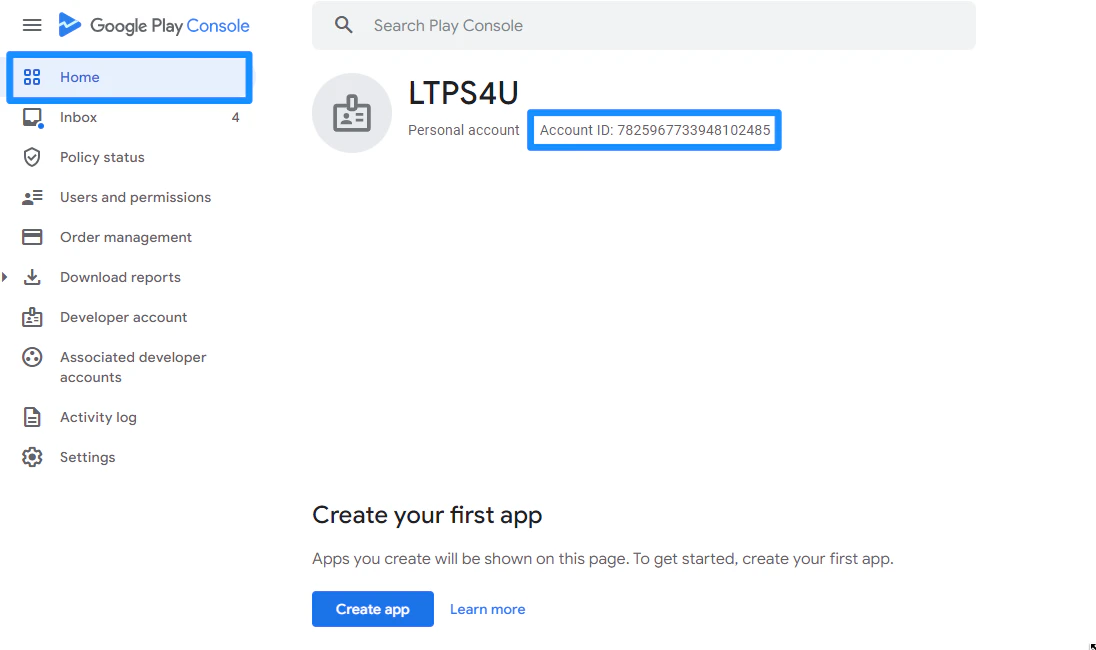
After adding Kajabi as a Google Play Account Admin, you will need to locate the Developers Account ID.- Navigate to the Google Play Console homepage
- Located at the top of the Google Play Console homepage will be the Personal Account ID, this is the Developers Account ID:
Locate the Payment Transaction ID
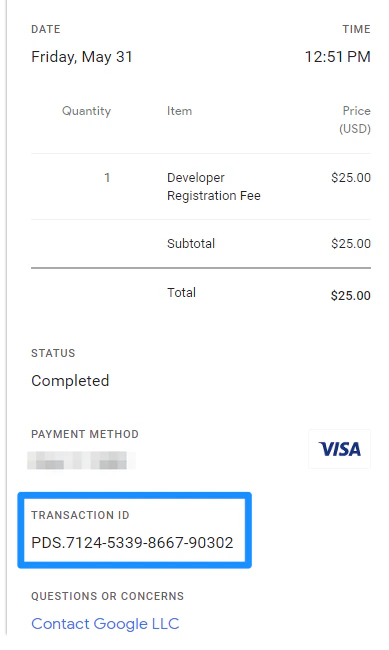
After you have located the Developers Account ID, you will also need to provide the Payment Transaction ID. You will need the Registration Transaction ID for the account and the target account.- To find the Transaction ID, search the target account owner’s email inbox for developer registration fee
- With the target account owner’s email address, sign in to Google Payments
- Select Activity from the menu:
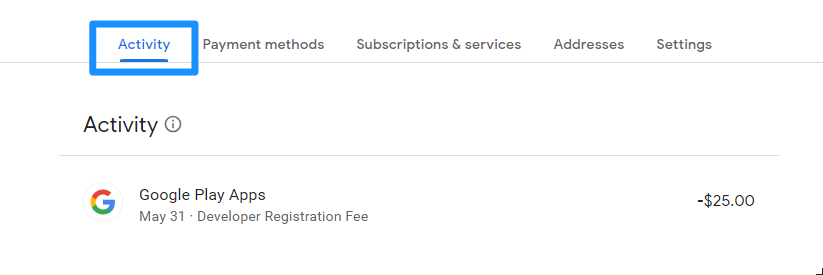
- Locate the transaction for the developer account registration in the Activity tab
Note:
Copy the Transaction Number starting from “PDS.” Registration Transaction IDs are typically in one of the following formats: PDS.1234-5678-9012-3456.