Note:
Only the account owner can verify this information.
Verify the Google Play Console
Verify the Google Developers Account on an Android device
To verify that you have access to a mobile device you will need to open the Google Play Console app on an Android mobile device. If you don’t have the Google Play Console app, go to Download Google Play Console on an Android device.Note:
If you do not have an Android Device, go to Android device not available.
Sign in to the Google Console App and verify the account
Sign into the Google Account with the Google Console email address used to sign into the Play Console. To sign into the Google Developer Account:- Click the hamburger icon located in the top-left corner of the mobile device:
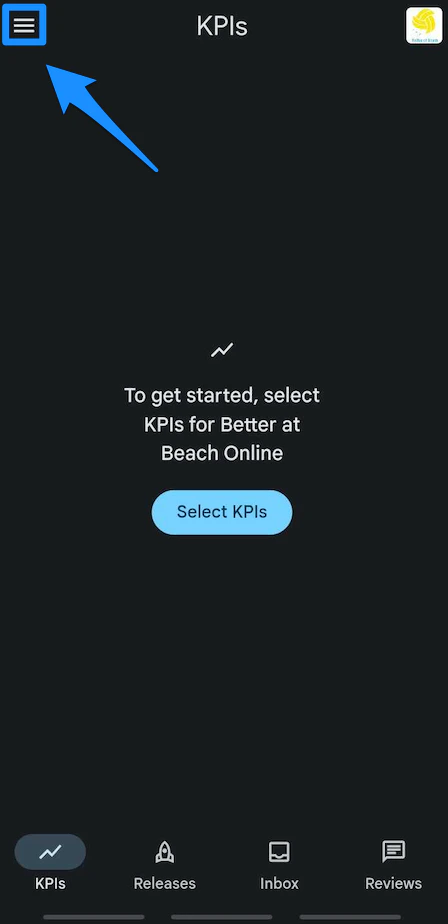
- Click the email address that is currently logged in if it’s not the email address you are using on the developer account:
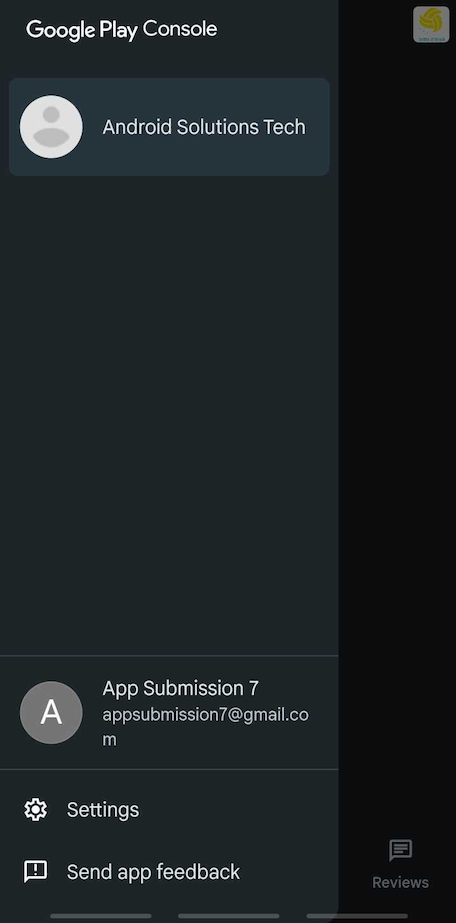
- Click Add another account then add the email address and password:
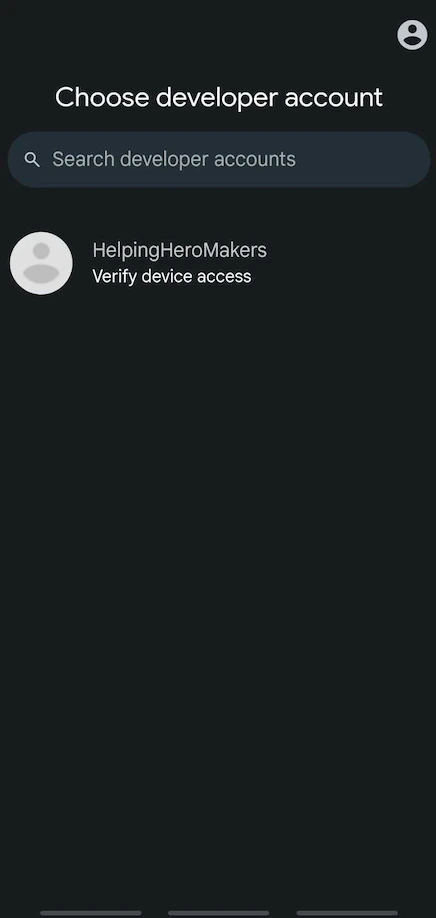
- Choose the developer account (the developer name) and click Verify:
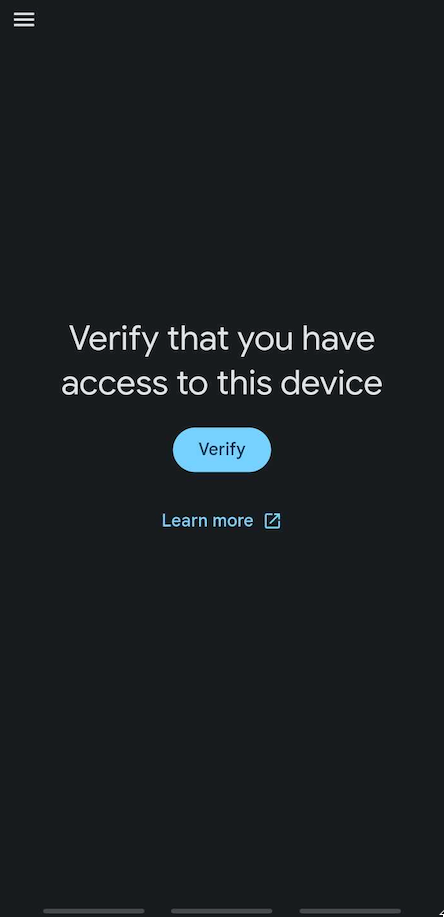
- Once verified, you can close the app.
Download Google Play Console on an Android device
Option 1. Download from Google Play
If you don’t already have the app, download it from Google Play:
Option 2. Scan the QR Code
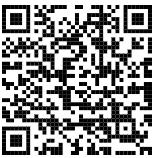
Scan this QR code on the chosen Android Device to download the app: